- Who can: any member of your company
- Where: Tasks › the task
- Time: ≈ 2 minutes
Before you start
The example moves the subtask “Demo: Confirm the loading window” from Create a task through its work: a dispatcher takes it, then it waits for the consignee. Its sibling “Demo: Collect December lanes” is already done.
On the page of a task, the status, priority, assignee and deadline are in the panel on the right; Take, Run Digital Worker and Delete are under the description.
| Status | Means |
|---|---|
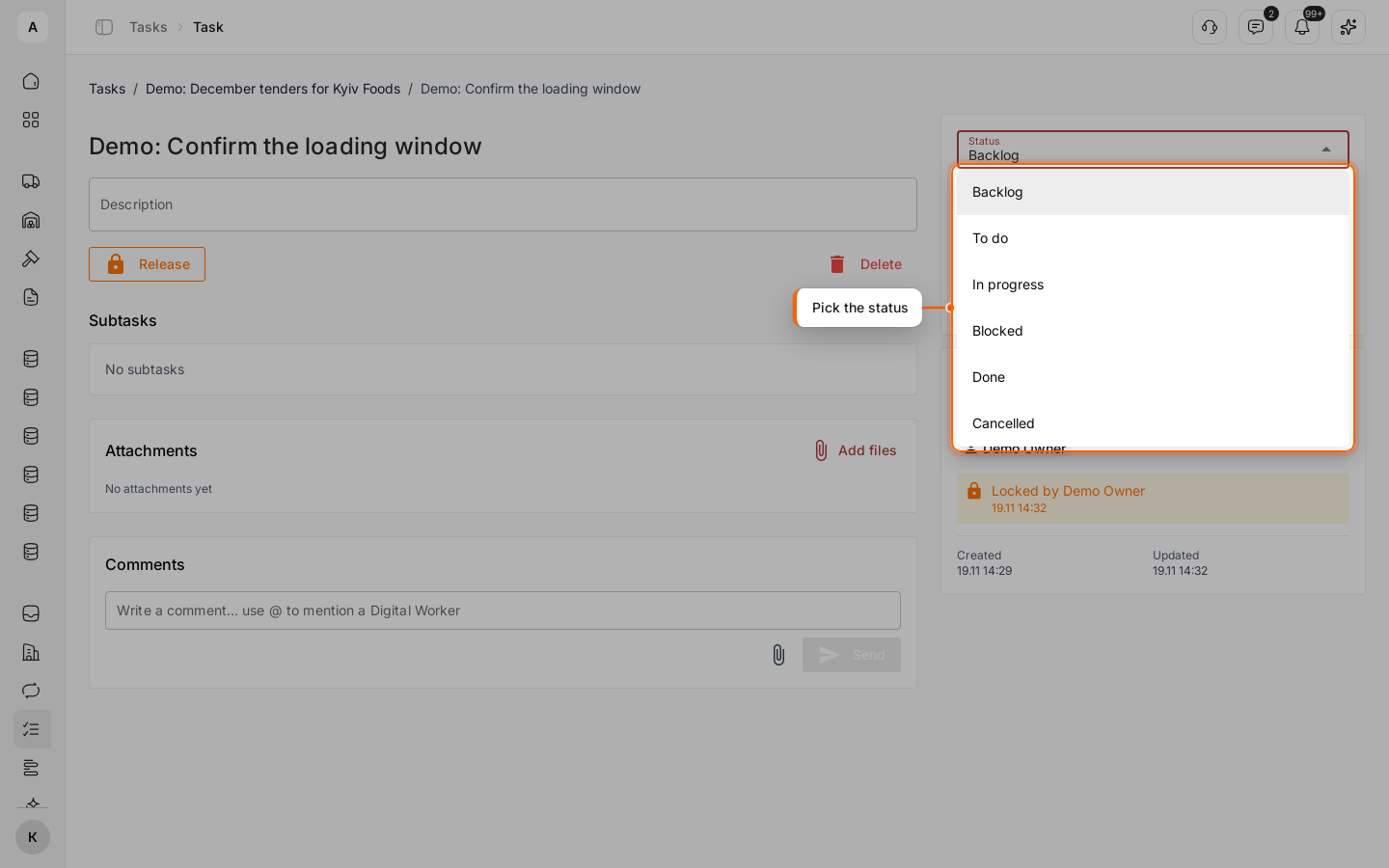
| “Backlog” | Planned, not started. A new task gets this status |
| “To do” | Ready to start |
| “In progress” | Someone is working on it |
| “Blocked” | Waiting for something; the reason is in the comments |
| “Done” | Finished |
| “Cancelled” | Stopped and kept for the record |
A task can move from any status to any other. To return a “Done” or “Cancelled” task to work, pick “To do” or “In progress”.
Steps
Open the task
Click the task title in the list, or a subtask in the “Subtasks” block of its parent.
Take the task
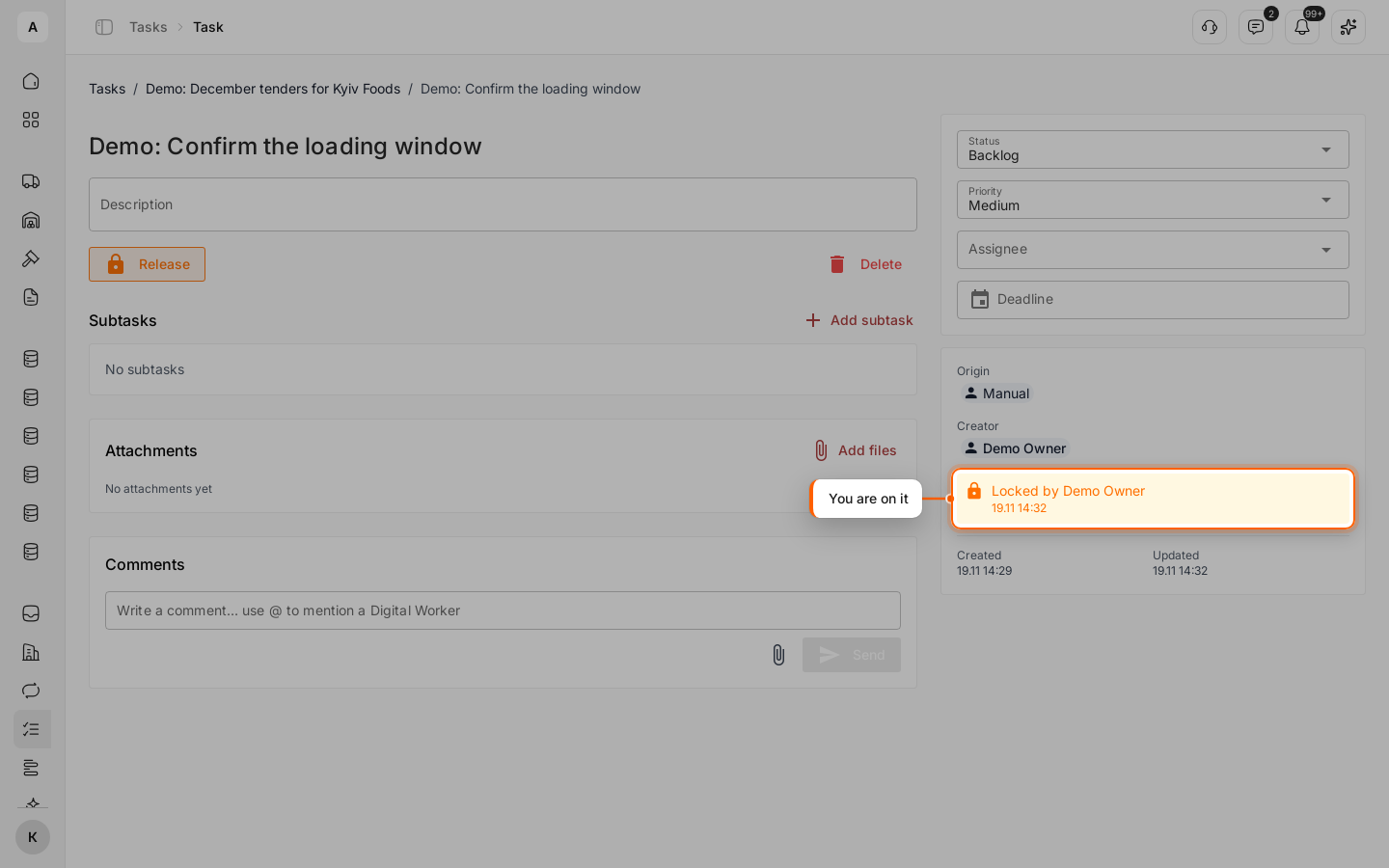
Click Take. The panel on the right shows “Locked by” with your name and the time: your team sees who is working on the task right now.
Change the status
In the list “Status” in the panel on the right, pick “In progress”. The message “Saved” appears.
Block the task with a reason
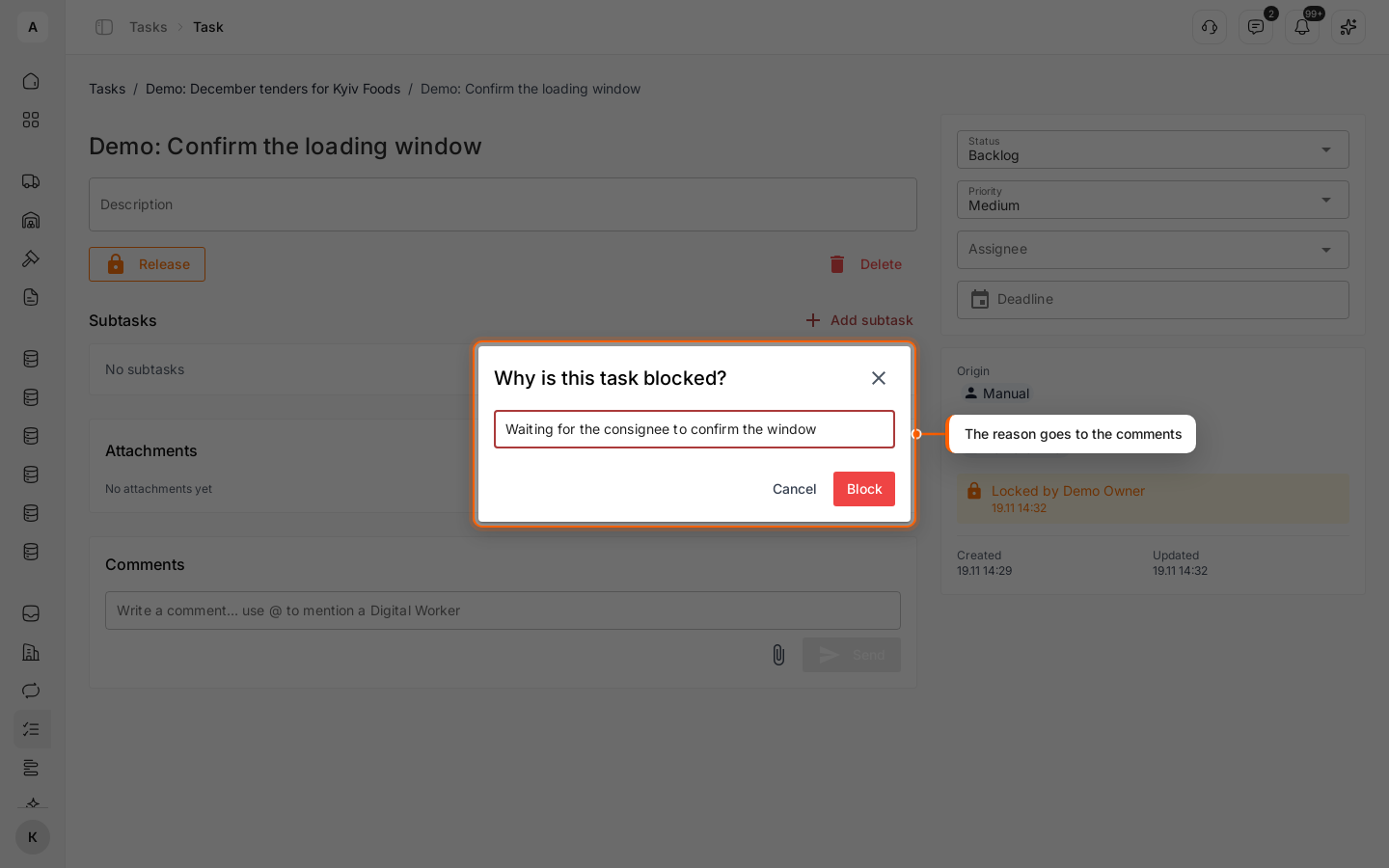
When the work has to wait, pick “Blocked”. The dialog “Why is this task blocked?” asks for the reason: write “Waiting for the consignee to confirm the window” and click Block. The reason appears as your comment on the task.
Finish the task
When the consignee confirms, pick “Done”, then click Release so the task no longer shows you as working on it. The parent task now shows “2/3 done”.
Take a task
The assignee says who the task is for; Take says who is working on it right now. While you hold a task, nobody else can take it: click Release when you stop, so a colleague can take it. A task held by a Digital Worker can be released by anyone in your company.
Cancel or delete
- To stop a task but keep it with its comments and files, pick “Cancelled”. For a task from a workflow, this also tells the workflow what to do next — see Tasks from workflows.
- Delete removes the task with its comments: click it and confirm “Delete this task?”. Its subtasks stay in the list as separate tasks. A deleted task cannot be restored.