- Who can: set up models — a user with the “Manage Studio” permission; work with records — any member of your company
- Where: Studio › Data models
What it is
A data model is your own record type: shipment requests, customers, warehouses, contracts. You set the fields — for example route, loading date and weight — and your team and Digital Workers keep records with these fields.
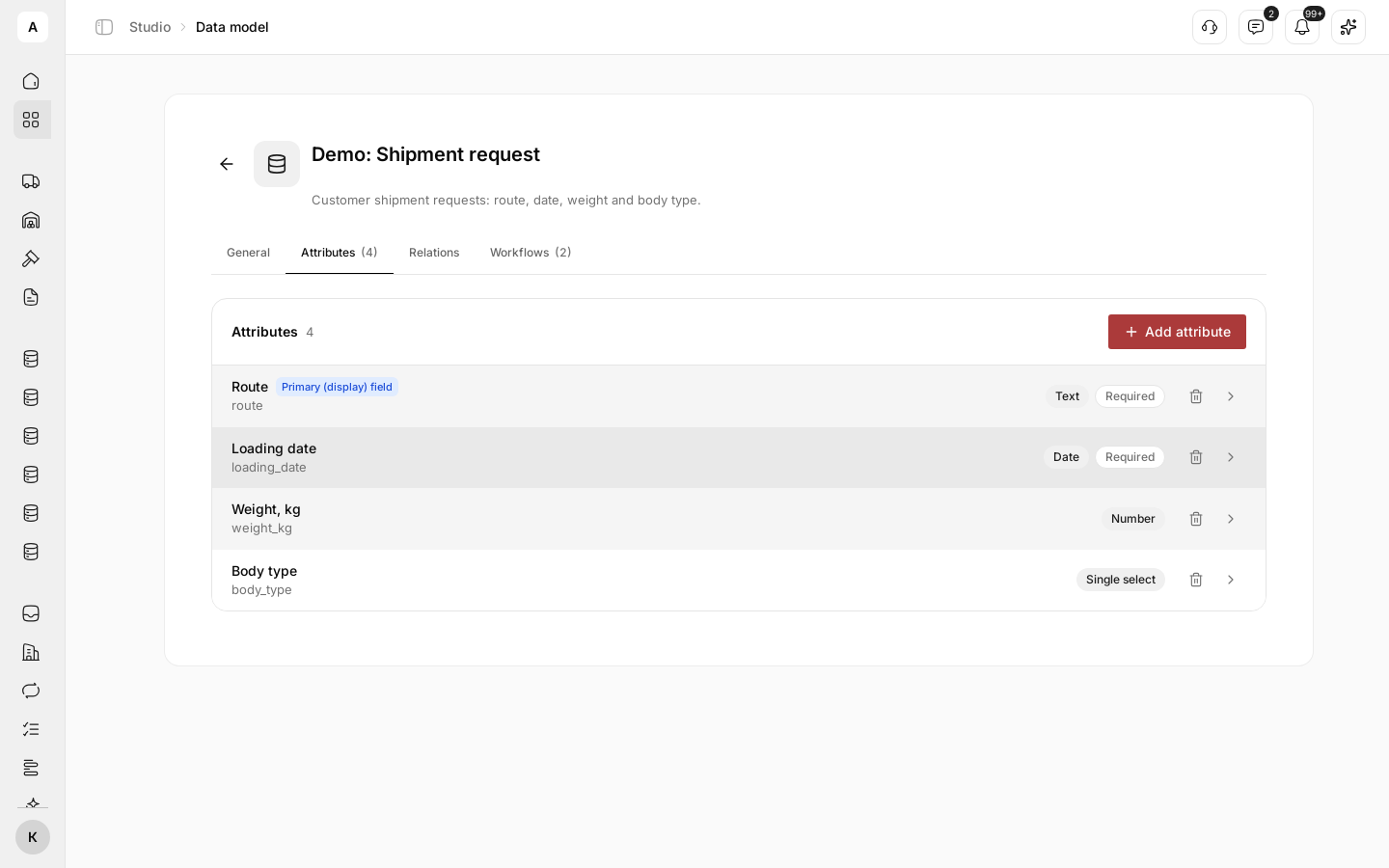
Example: the model “Demo: Shipment request” keeps every request with its route, loading date, weight and body type. The model “Demo: Customer” keeps the companies that send them, and each request is linked to its customer.
The rest of Studio is built on data models: workflows react to new records, interfaces show them as a list, forms fill them in, and products put it all together.
What it can do
- Ten field types. “Text”, “Number”, “Date”, “Yes / No”, “Single select”, “Multi select”, “Member”, “JSON”, “Location”, “File”. Each type has its own settings, such as “Min” and “Max” for a number or “Allowed extensions” for a file. See Field types.
- Required fields. A record cannot be saved while a Required field is empty.
- Record name. The field marked Primary (display) field names the record in lists, links and history.
- Options that depend on another field. A city list shows only the cities of the country picked above. See Show options that depend on another field.
- Relations between models. A request is linked to its customer, a customer to all its requests. For each side you set “One” or “Many”. See Link records of two models.
- Records. Your team creates and edits records, searches them, attaches files and picks addresses from a search. See Work with records.
- Change history. The History tab of a record shows who created it, what changed and which records were linked: a person, a Digital Worker, a workflow or an outside system. See See who changed a record.
- Item in the left menu. The “Show in sidebar” switch adds the model to the left menu, so your team opens records in one click.
- Events for workflows. Creating, updating and deleting a record can start a workflow. The Workflows tab of the model shows which published workflows start on its records, read them or change them.
How the parts fit
| Part | Where | What it holds |
|---|---|---|
| Model | Studio › Data models | The name, description, icon and “Show in sidebar” |
| Fields | the Attributes tab | What every record of the model keeps |
| Relations | the Relations tab | Which models are linked and how many records on each side |
| Records | a click on the model name, or its item in the left menu | The data itself |
Limits
- The “Field key” is set once. It cannot be changed after the field is saved.
- Fields keep the order in which they were added. You cannot move a field.
- Two models are linked by one relation at most.
- Deleting a model also deletes all its records. You cannot undo it.
Next steps
Step by step: a model, its fields and the first record, using a shipment request as the example.
Add, change and remove fields; choose the field that names a record.
Every field type with its settings and rules.
Next: a workflow that creates a task for every new request.