- Who can: anyone in the account
- Where: Studio › Digital Workers › worker card
- Time: ≈ 5 minutes
Before you start
The worker must be in the “Active” status: a paused worker does not run tests. Prepare a prompt that looks like real work. In the example, the dispatcher gets a request without a weight to see whether it notices.
Steps
Write the prompt
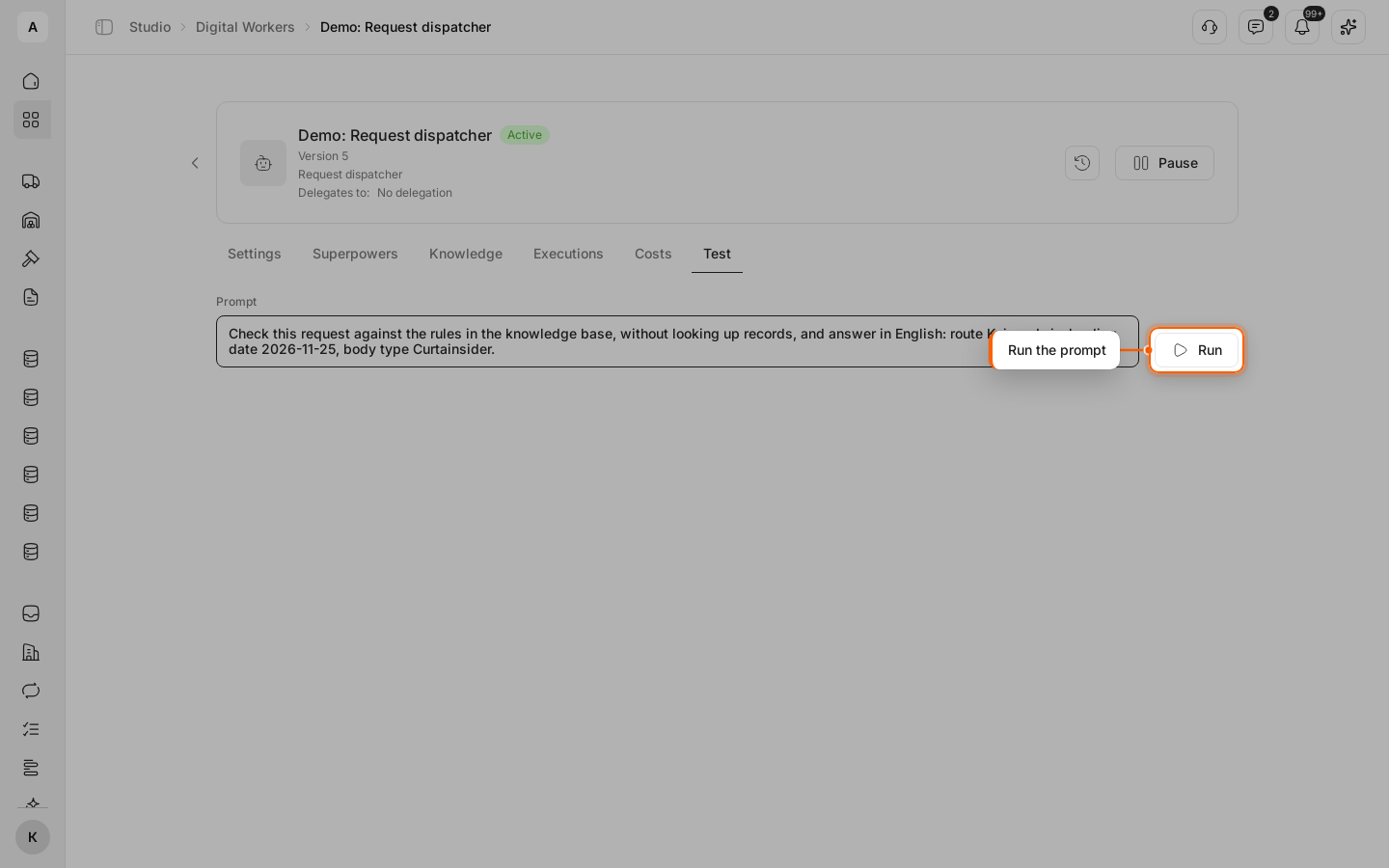
In the worker’s card, open the Test tab. Enter a “Prompt” the way the worker would get it at work: “Check this request against the rules in the knowledge base, without looking up records, and answer in English: route Kyiv → Lviv, loading date 2026-11-25, body type Curtainsider.” Click Run.
Read the answer
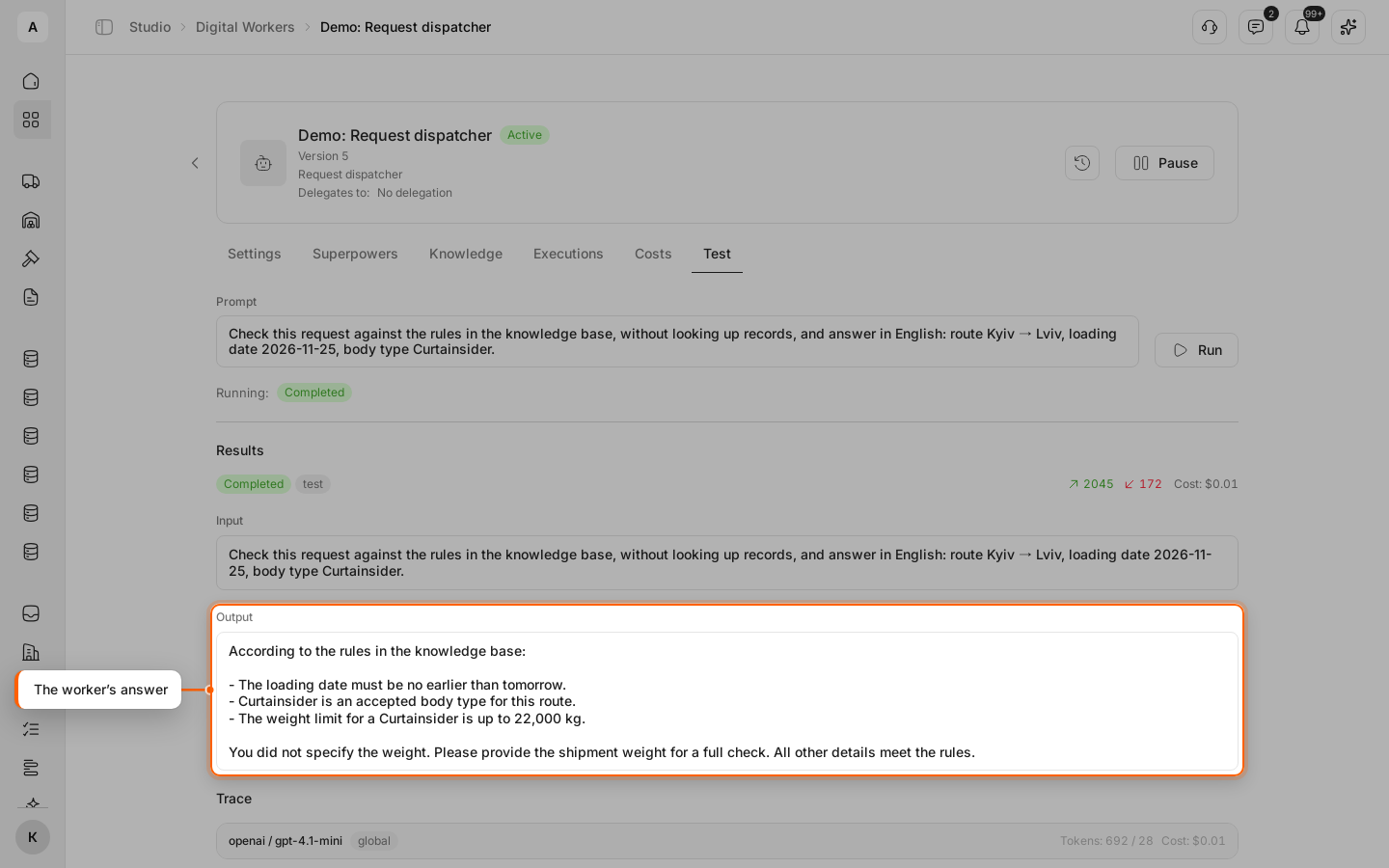
Under the prompt, “Running” shows the run status. When the worker finishes, the “Results” block appears: “Input” is your prompt, “Output” is the worker’s answer, “Trace” shows each of its steps and actions. The top of the block shows the tokens used and what the run cost.
In the example, the dispatcher checked the date and body type against the rules in the knowledge base and asked for the weight.
Approve an action if the worker is waiting
If the worker reaches an action from “Tools requiring approval”, the run stops until you decide. Click Review — see Approve a Digital Worker’s action.
Find the run in the log
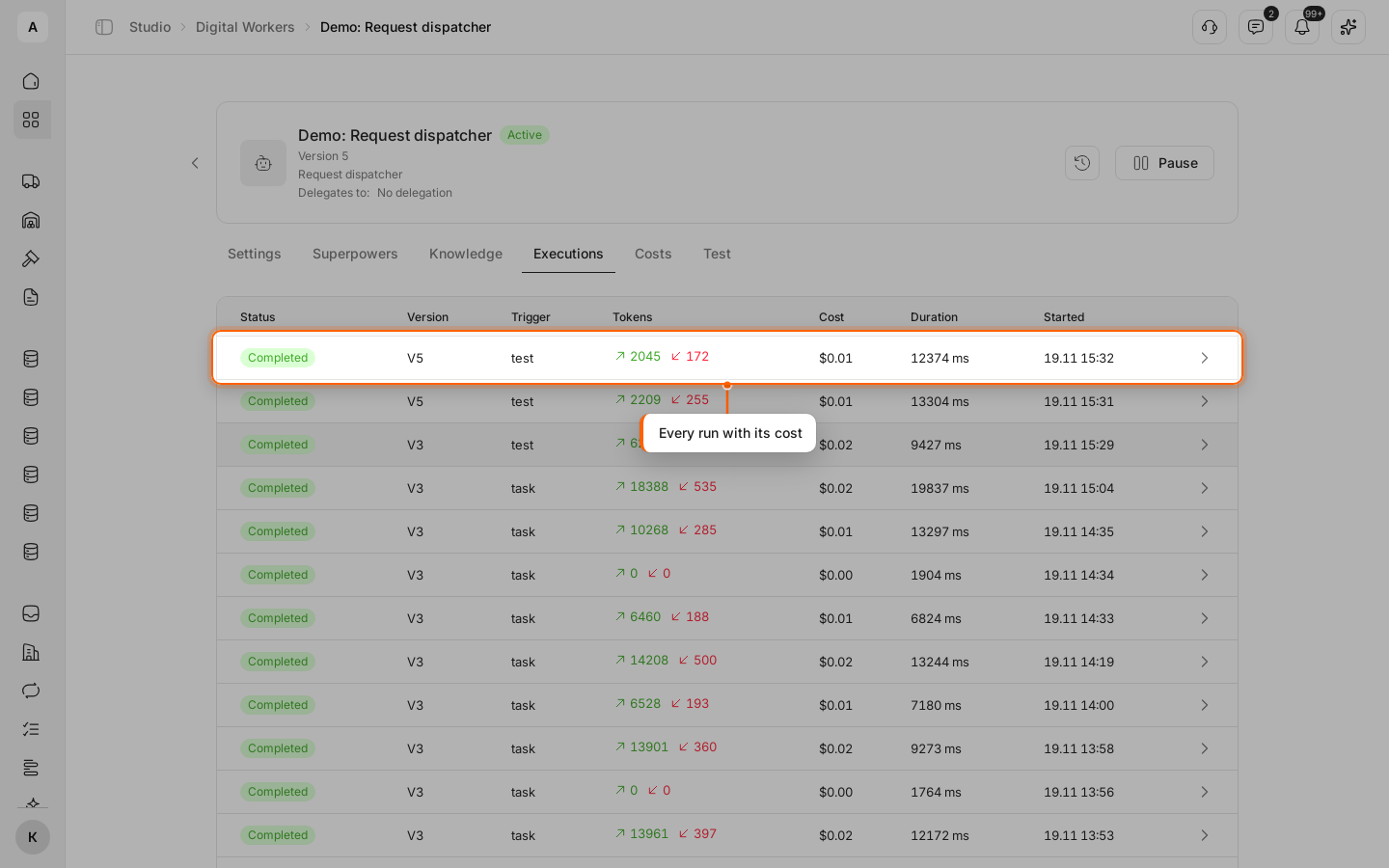
Open the Executions tab. It lists every run of the worker (test, workflow or task) with its version, tokens, cost and duration. Click the run’s row.
Review the run details
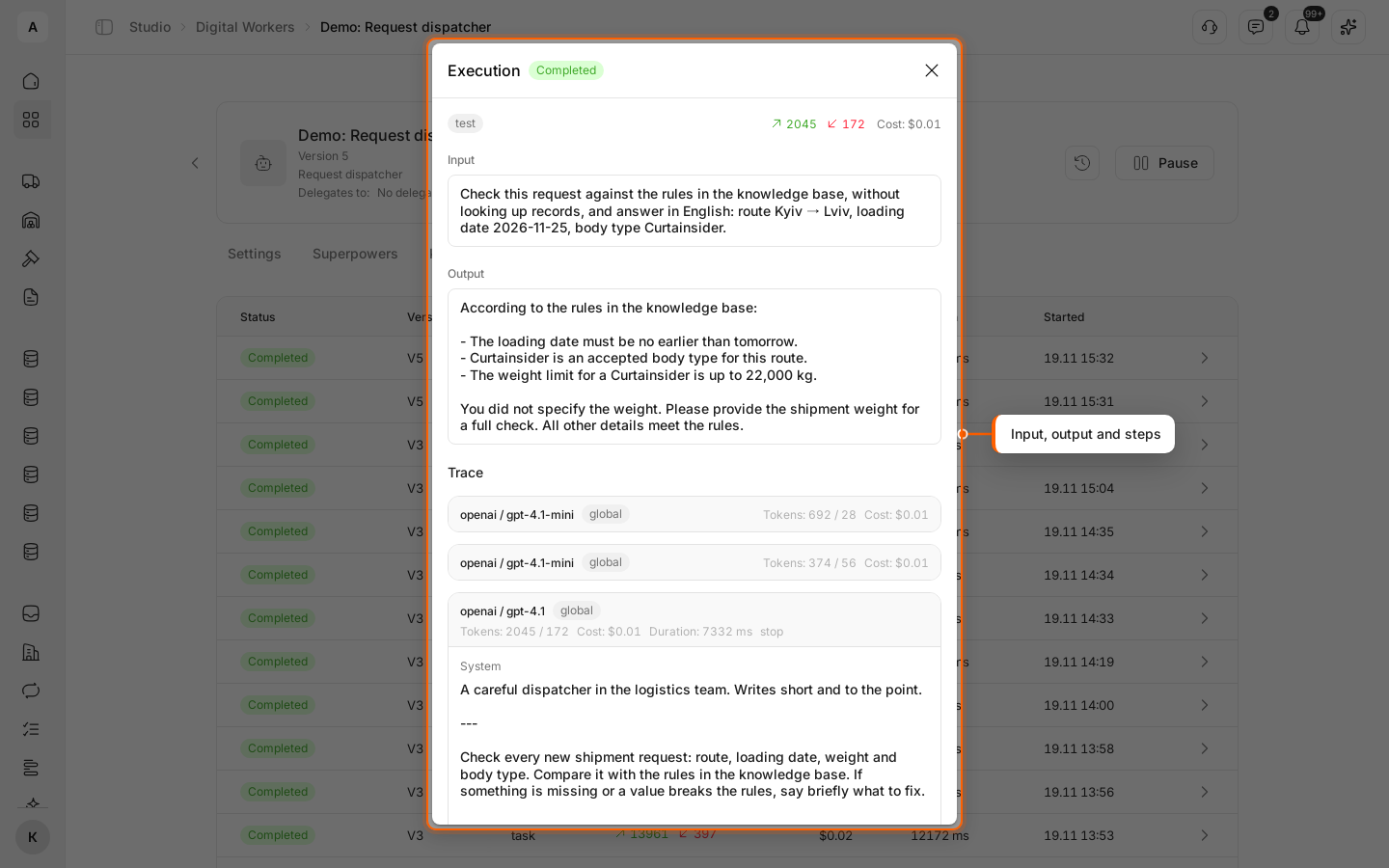
The “Execution” window opens with the same blocks as the test: “Input”, “Output” and “Trace”. This way you can review any run, even one a workflow made overnight.
Check the costs
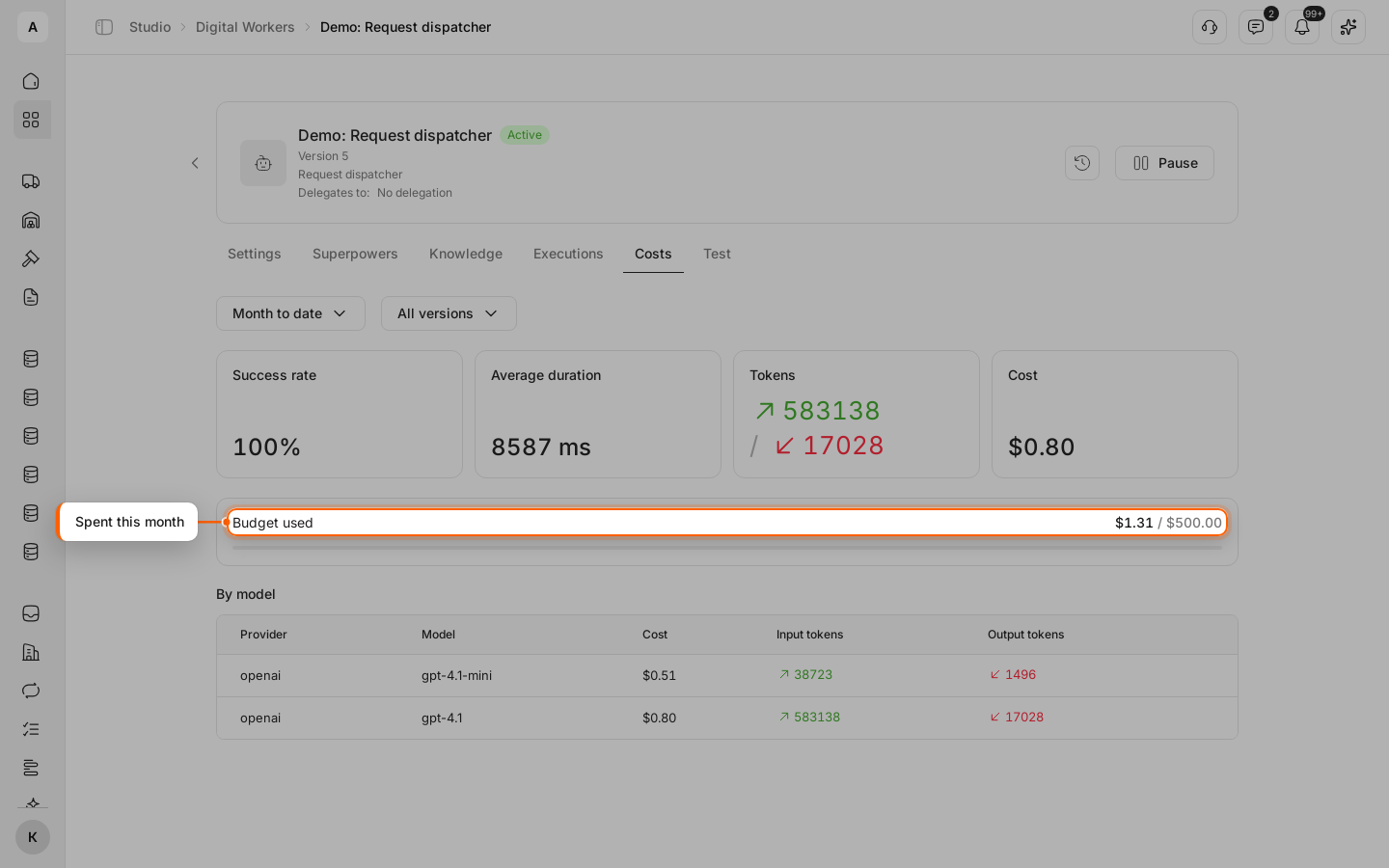
Open the Costs tab to see what the runs cost and how much of the “Monthly budget” is used. Its cards are described in Runs and their statuses.
Tip
Not the answer you need? Refine “System instructions” on the Settings tab, save and run the same prompt again. The version number in the log shows which version of the instructions gave which answer.