- Who can: a user with the “Manage Studio” permission
- Where: Studio › Workflows
- Time: ≈ 15 minutes
Before you start
A workflow can check a step against your own rules — a weight limit, a date not in the past, a route you serve — before the form moves on. If the data breaks a rule, the person sees your message next to the field and fixes it.
You need a published form. In the example, the form “Demo: Request with a check” has one step, “Request details”, and the workflow “Demo: Check request weight” sends back any request over 24 t.
Steps
Start the workflow from the form step
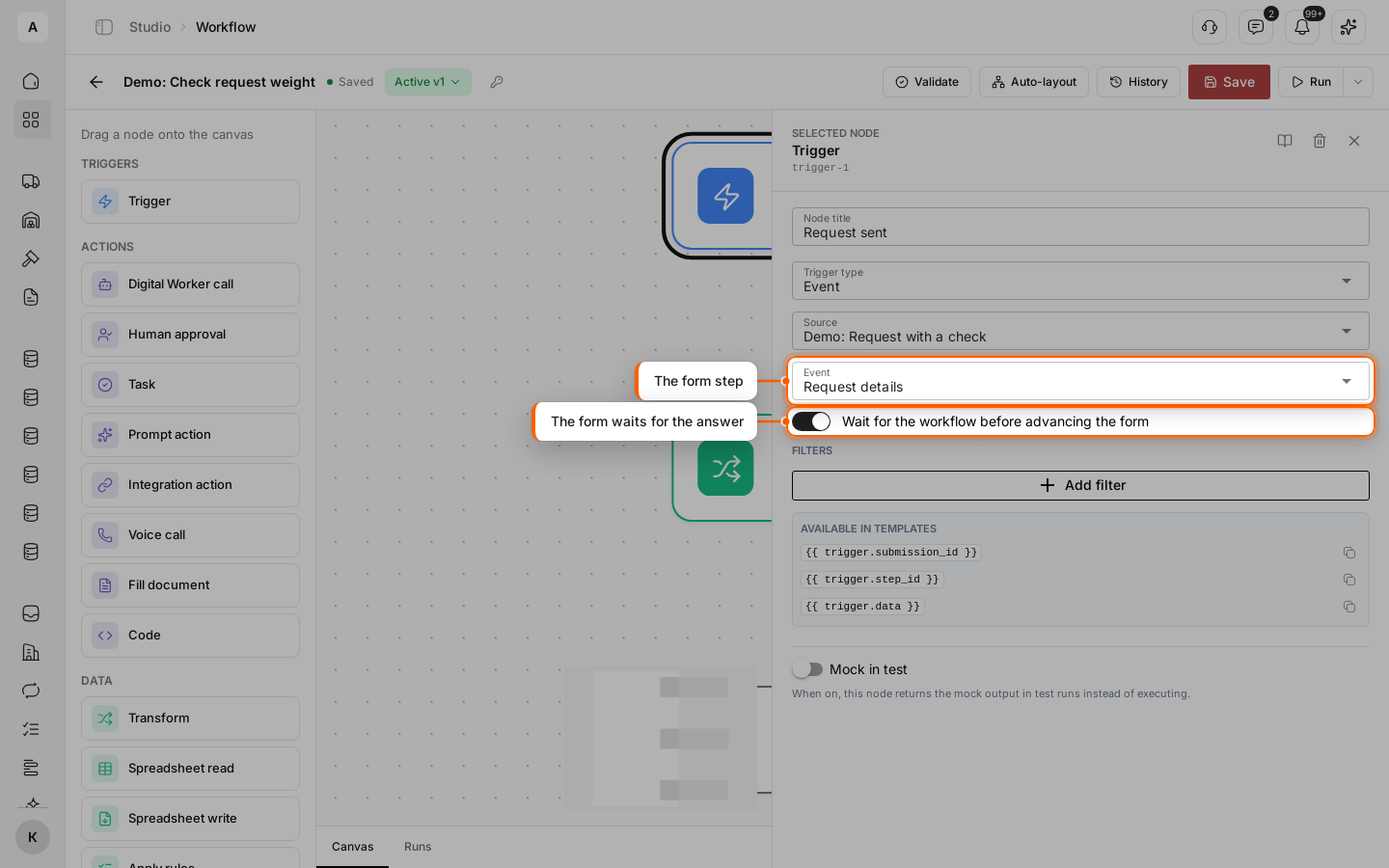
Create a workflow. In the trigger, select the “Event” type, pick your form in “Source” (under “Forms”) and the step in “Event”. Turn on Wait for the workflow before advancing the form: the form now waits for this workflow’s answer. One step can wait for one workflow.
Work out the answer
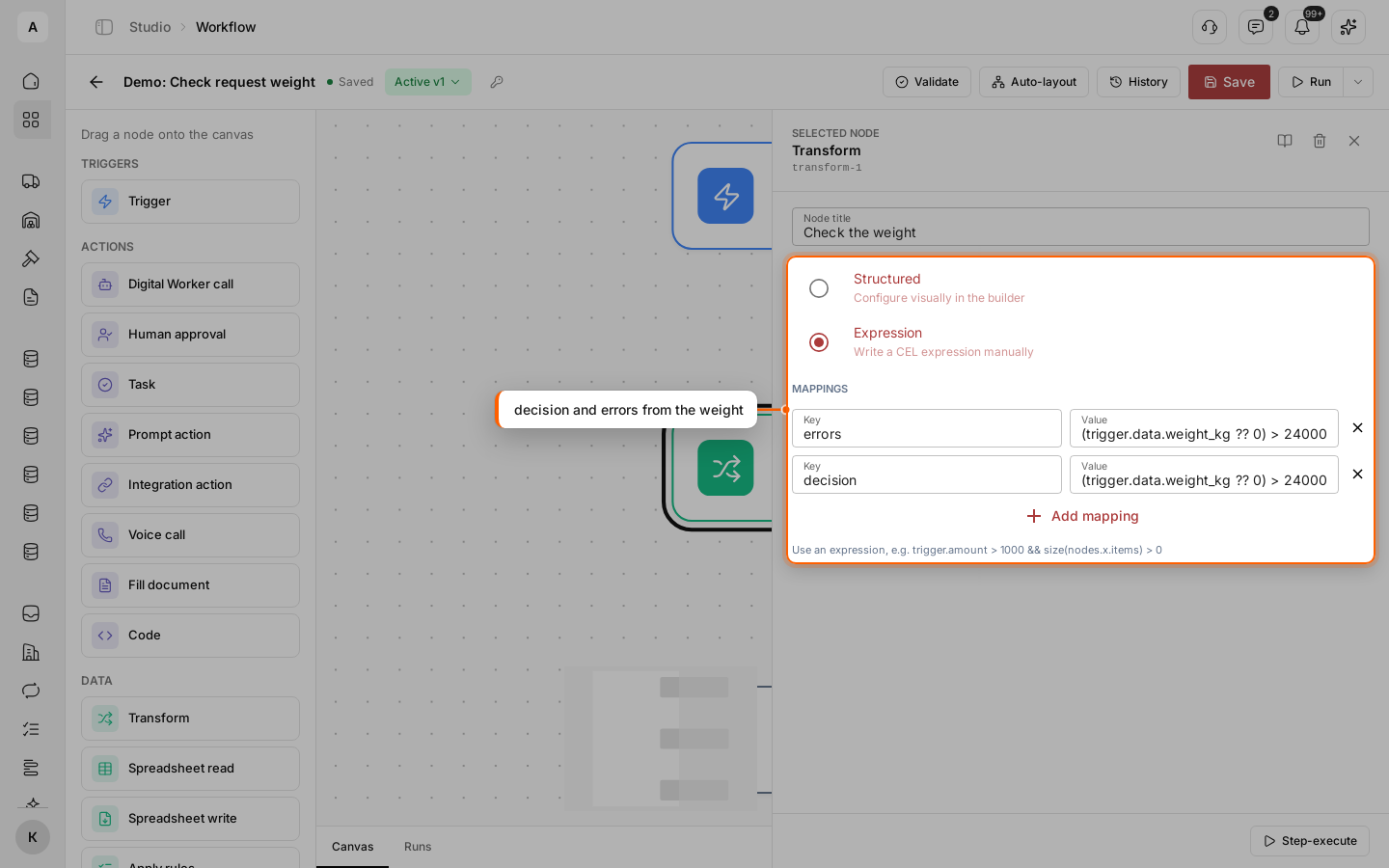
Add a “Transform” node, select Expression and add two mappings. decision is "accept" or "reject"; errors is a list of messages, each with the field key and the text:
decision:  (trigger.data.weight_kg ?? 0) > 24000 ? "reject" : "accept"
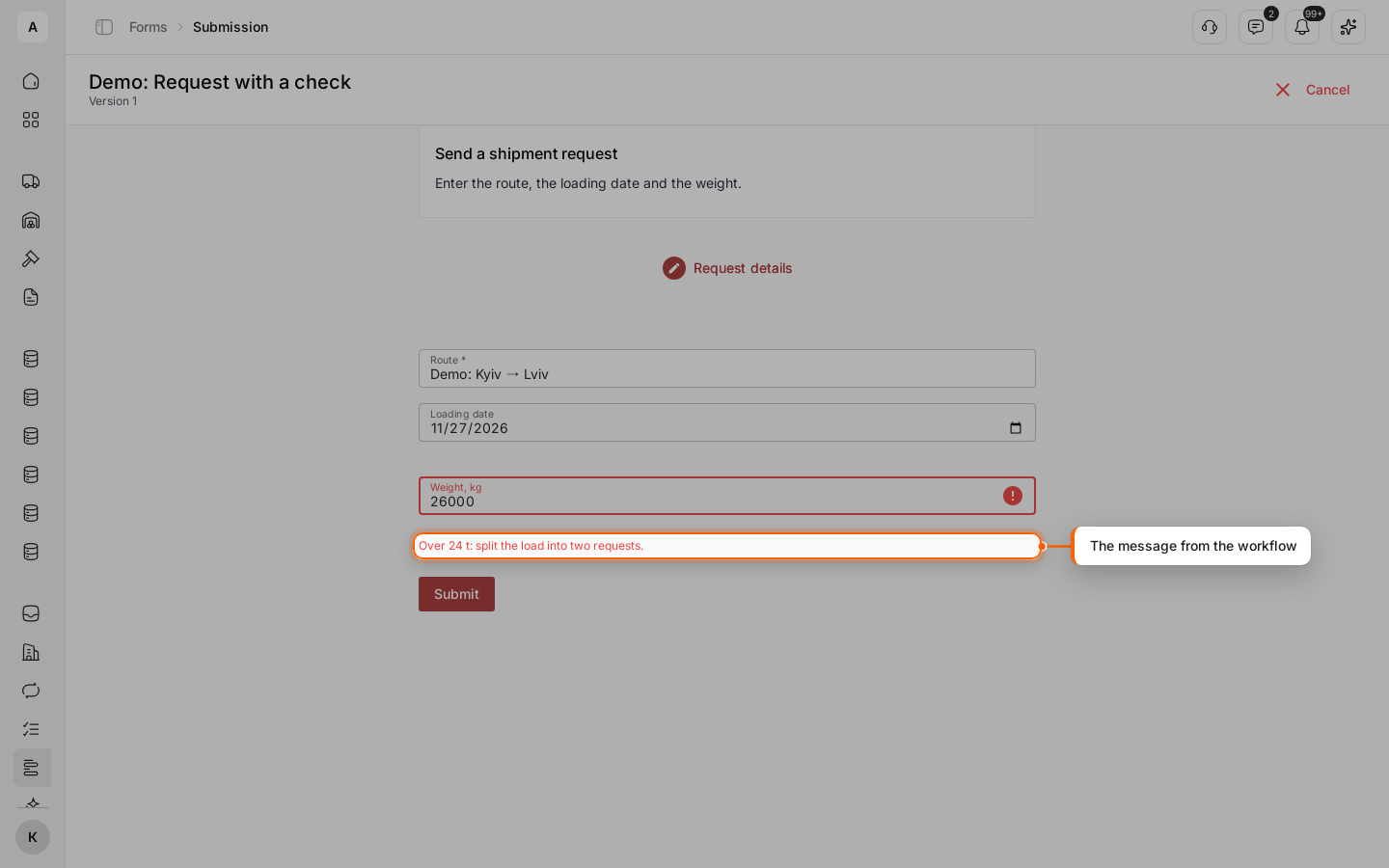
errors:    (trigger.data.weight_kg ?? 0) > 24000 ? [{"field": "weight_kg", "message": "Over 24 t: split the load into two requests."}] : []
The values the person entered are in {{ trigger.data }}, by field key.
Return the answer to the form
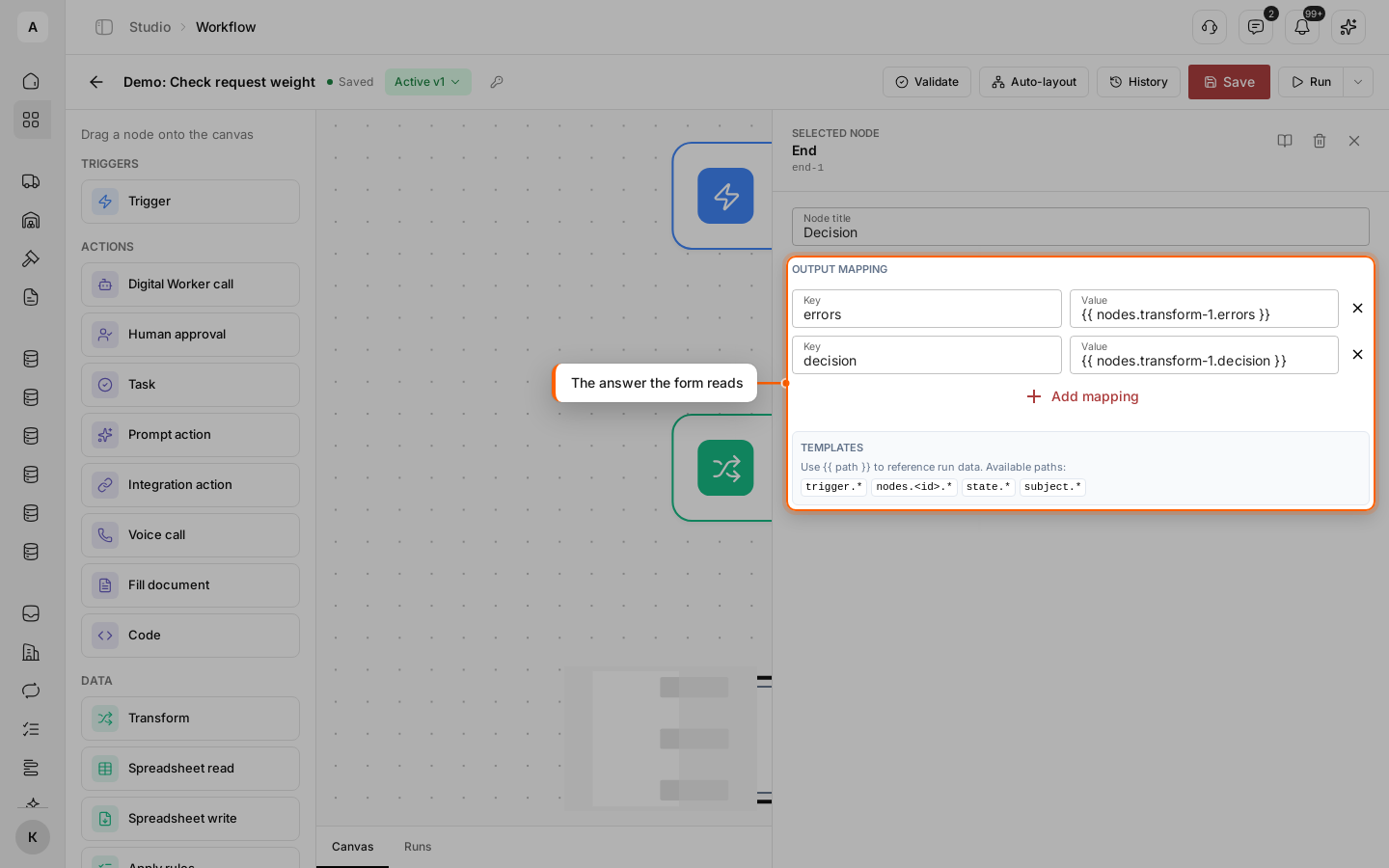
In the “End” node, under “Output mapping”, add decision with the value {{ nodes.transform-1.decision }} and errors with {{ nodes.transform-1.errors }} — use the ID of your Transform node. Save and publish the workflow.
Send the step
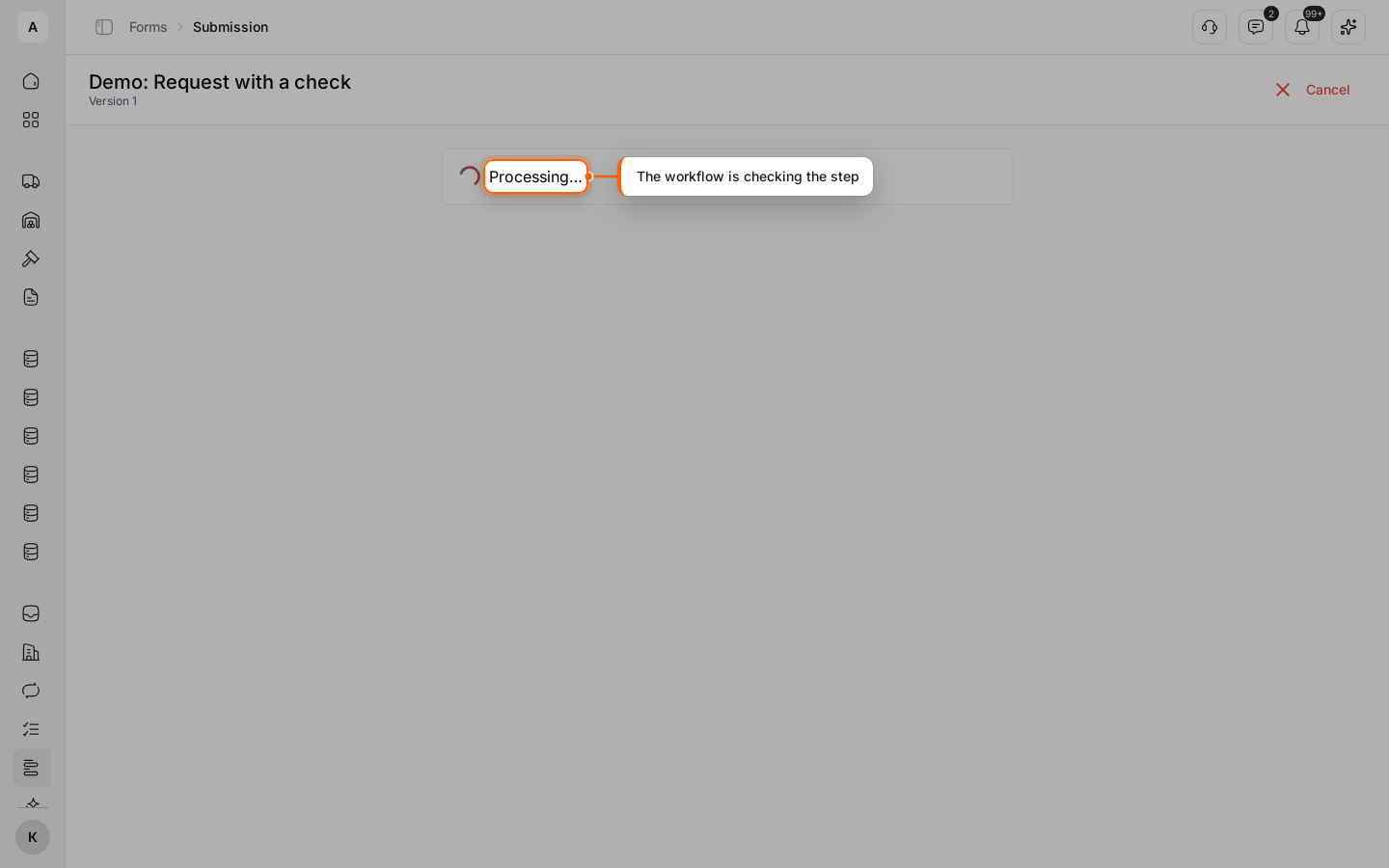
Open the form and fill in the step, with a weight of 26000 in the example, then click Submit. While the workflow checks the step, the form shows “Processing…”.
Fix what the workflow sent back
With “reject”, the step opens again with the entered values, and the message from errors shows under its field. Correct the value — 18000 in the example — and click Submit again.
Check the result
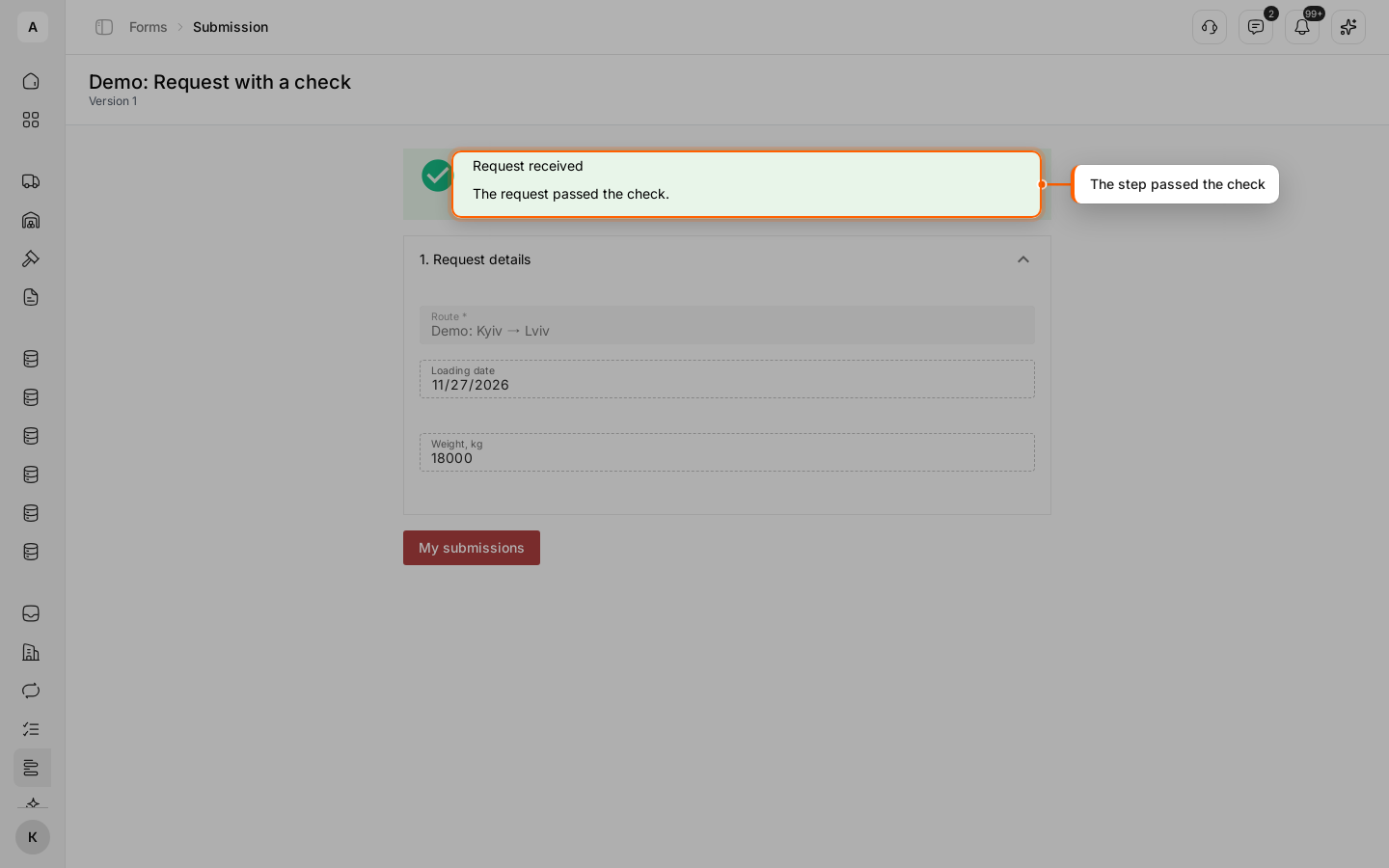
With “accept”, the step is saved and the form moves on: here, to the “Completion” page.