- Who can: a user with the “Manage Studio” permission
- Where: Studio › Workflows › the workflow
- Time: ≈ 10 minutes
Before you start
You need a workflow with a trigger — see Create a workflow and Choose how a workflow starts.
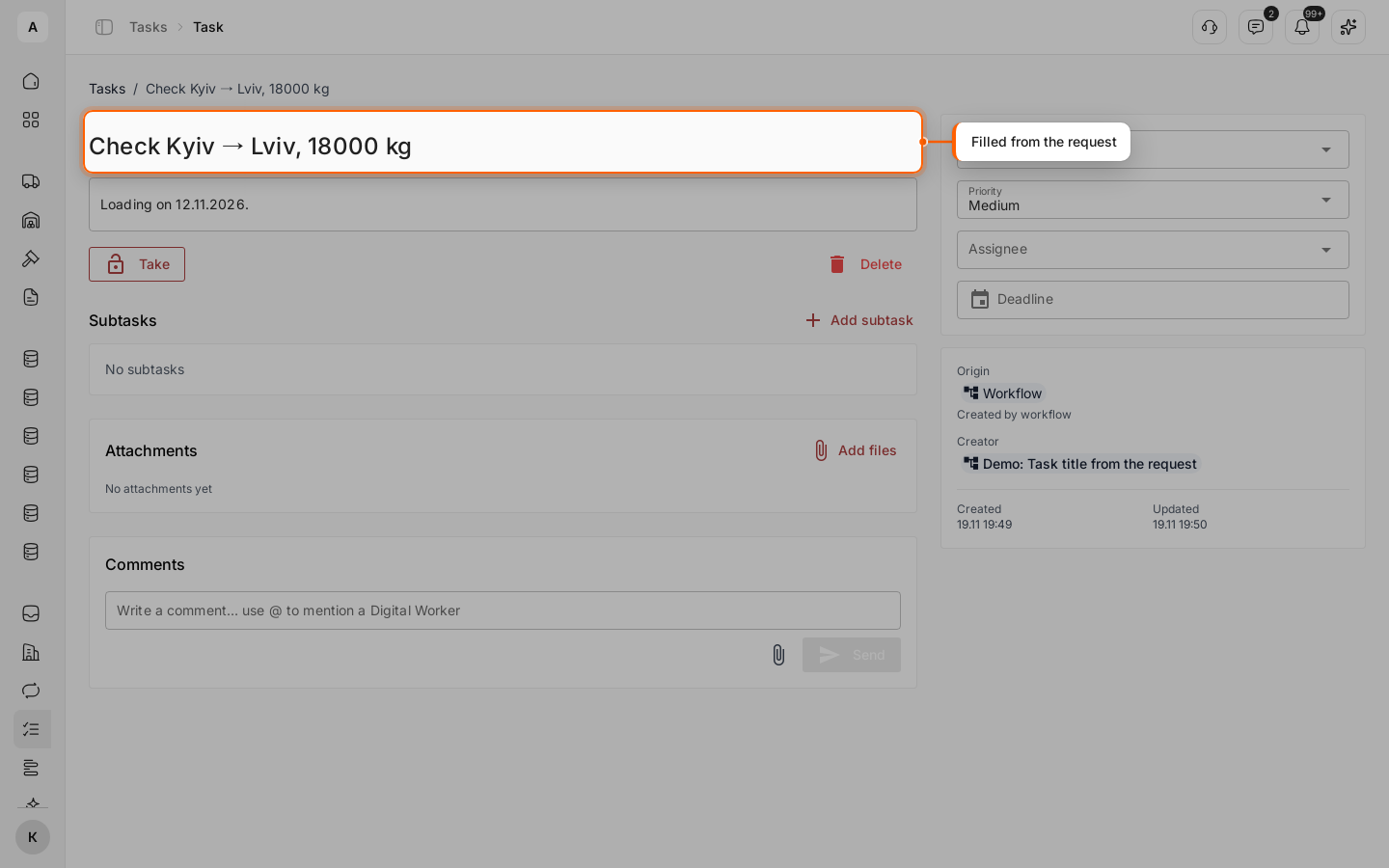
The example is “Demo: Task title from the request”. A new “Demo: Shipment request” starts it. A “Transform” node formats the loading date, a “Condition” lets through requests over 10,000 kg, and a “Task” gets a title from the request: “Check Kyiv → Lviv, 18000 kg”.
Every run collects data as it goes. You reach it by a path:
trigger— what started the workflow: the record, the form answers, the webhook request.nodes.<id>— the output of a node that has already run.
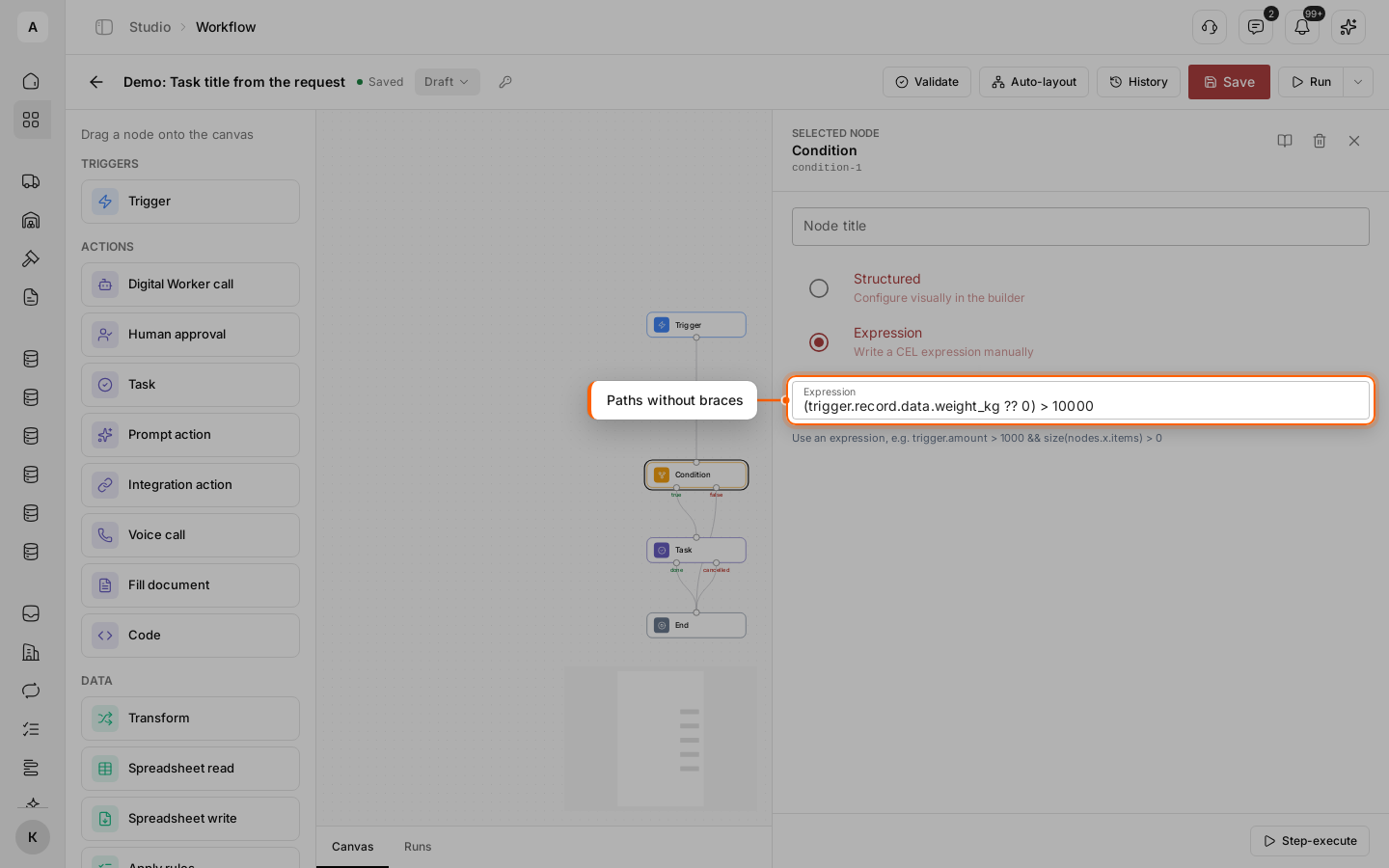
There are two ways to write a path. In a text field, wrap it in double braces: {{ trigger.record.data.route }}. In an expression, write it without braces: trigger.record.data.weight_kg > 10000.
Steps
See what the trigger brings
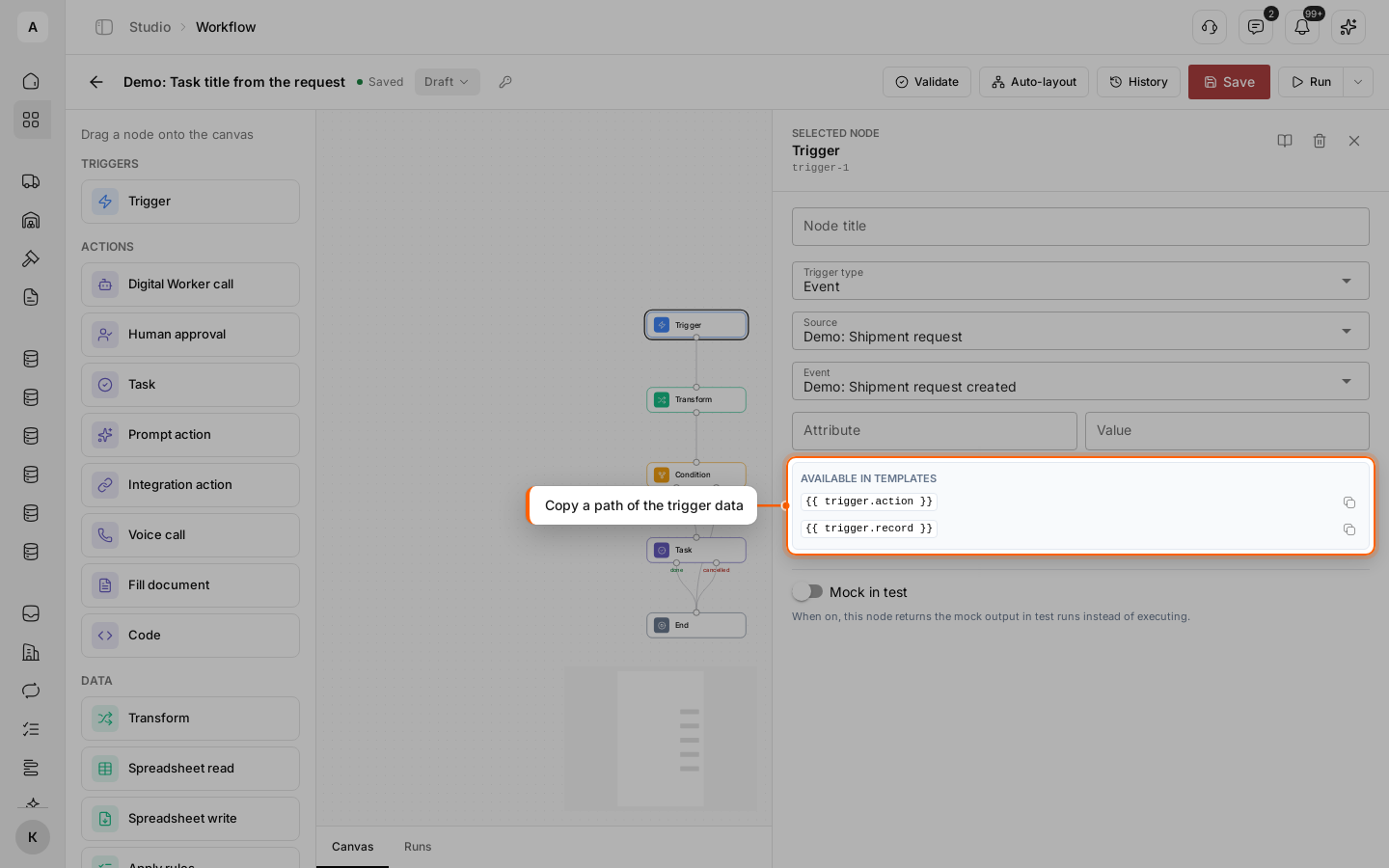
Click the “Trigger” node. The “Available in templates” panel lists the top paths of the event; the copy button next to a path copies it with the braces.
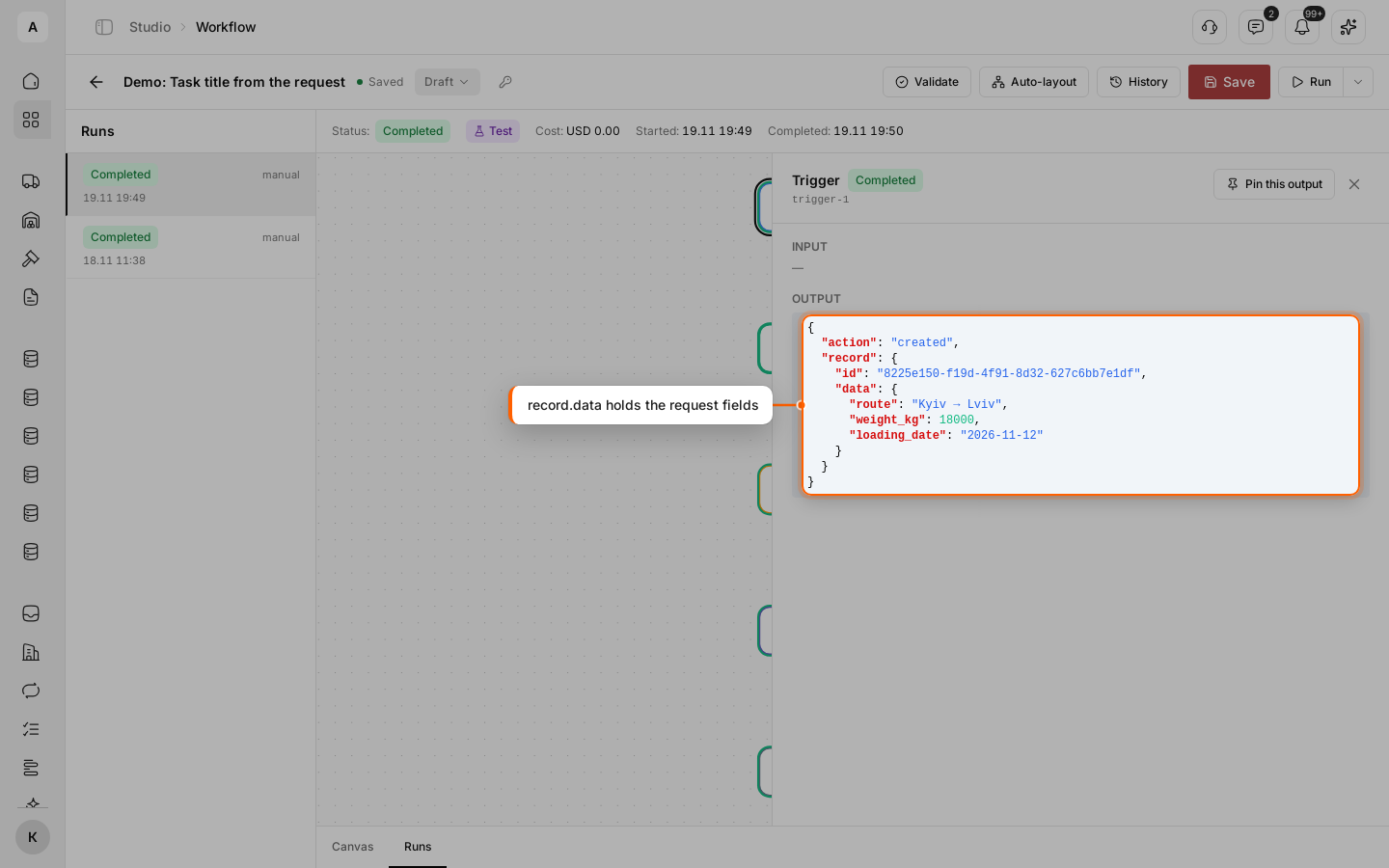
For a record event, the fields of the record are under trigger.record.data.<key>, where <key> is the field key from the data model. For “Demo: Shipment request”: route, loading_date, weight_kg, body_type. The record ID is trigger.record.id. Form answers of a manual run are under trigger.form.<key>, the body of a webhook request under trigger.body.
Find the ID of a node
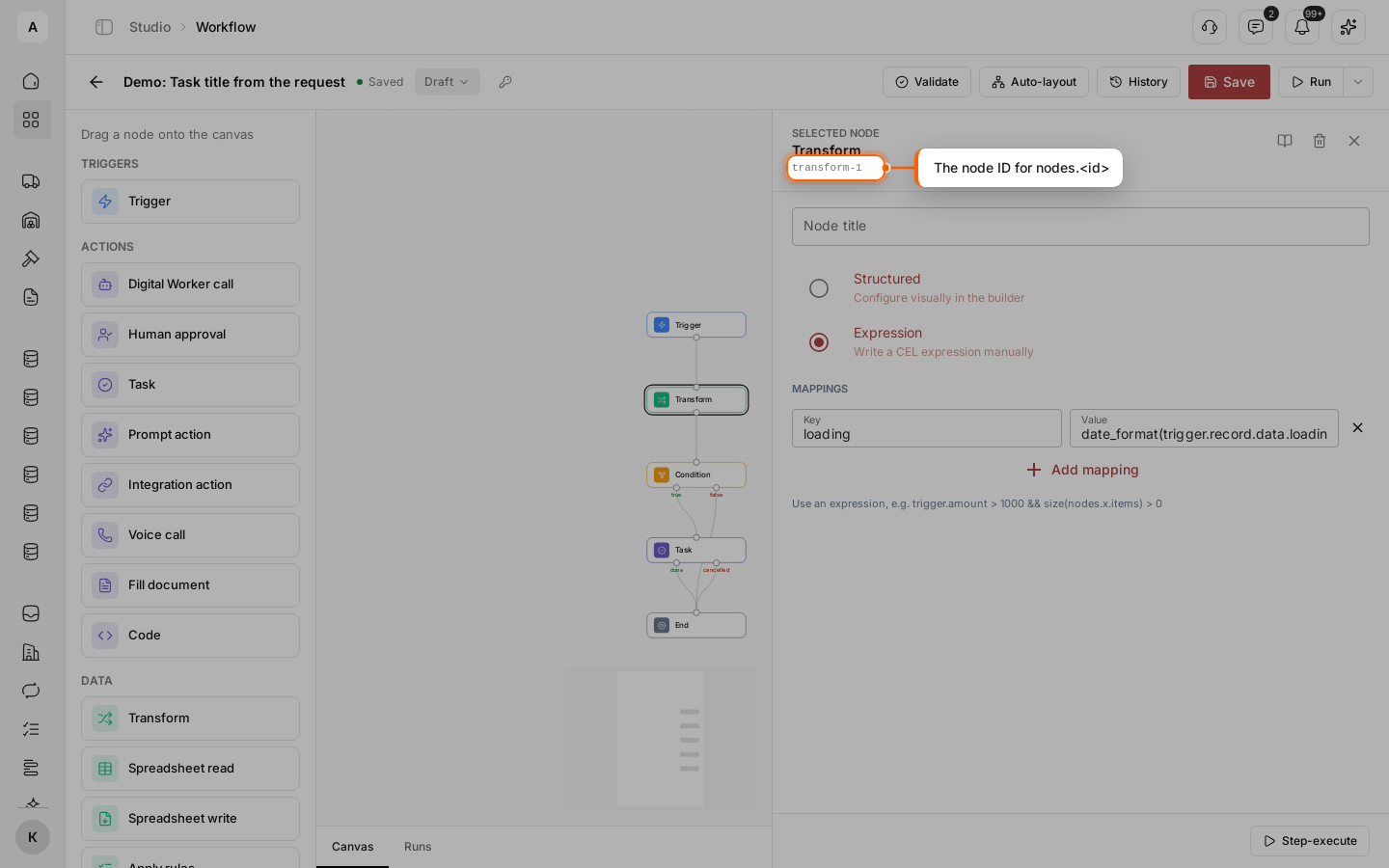
To read the output of a node, you need its ID. Click the node: the ID is under its name at the top of the settings, for example transform-1. The same ID is shown when you open the node in a run.
Insert data into a text field
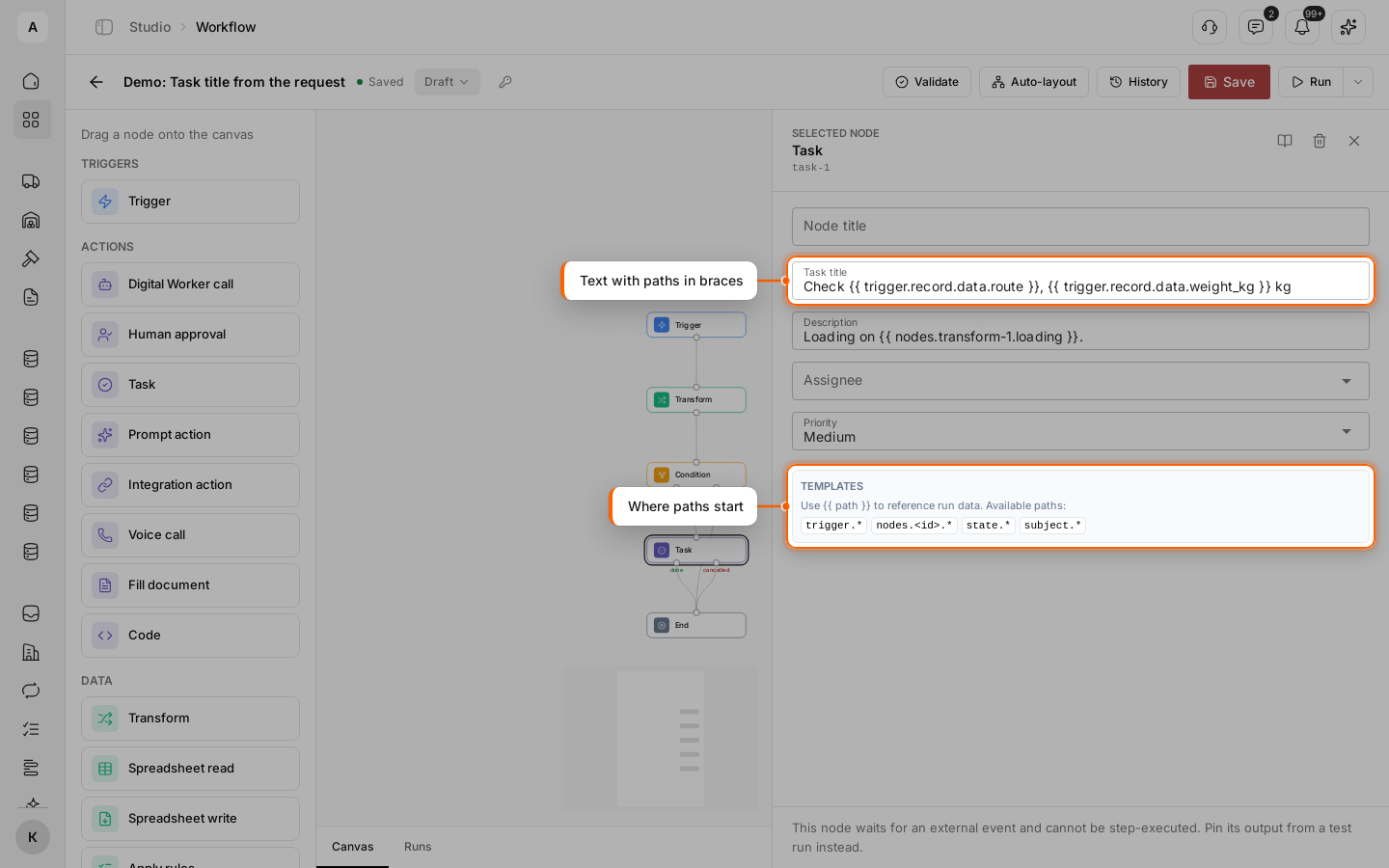
Click the “Task” node and type the paths right into “Task title”:
Check {{ trigger.record.data.route }}, {{ trigger.record.data.weight_kg }} kgThe “Description” takes the date from the “Transform” node:
Loading on {{ nodes.transform-1.loading }}.The “Templates” panel under the fields reminds which paths exist: trigger.*, nodes.<id>.*, state.*. In some fields, such as “Right” of a “Condition”, the Insert variable button adds a path for you.
Change a value with a function
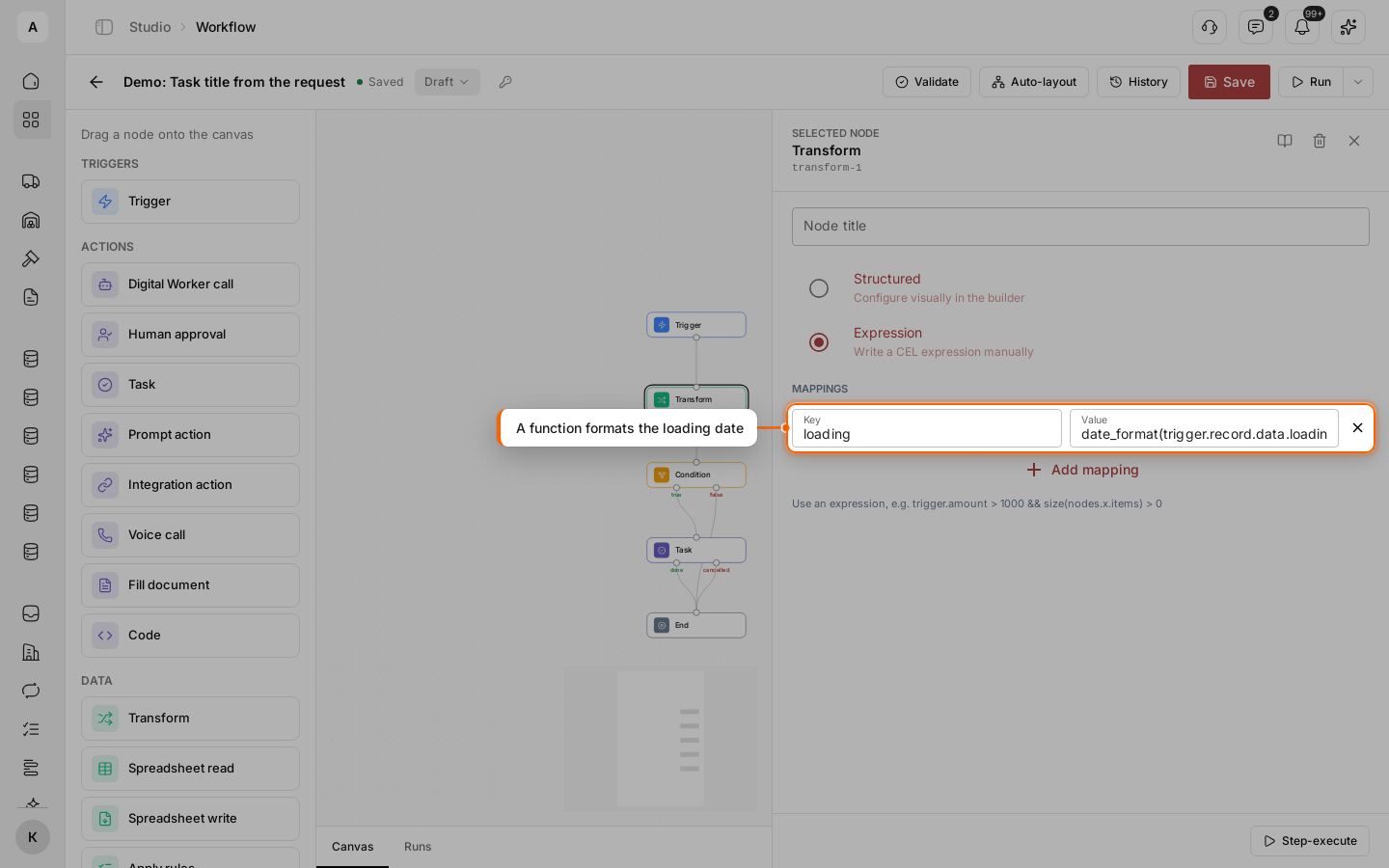
To change a value before you use it, write an expression. In the “Transform” node, select “Expression” and add a mapping: key loading, value
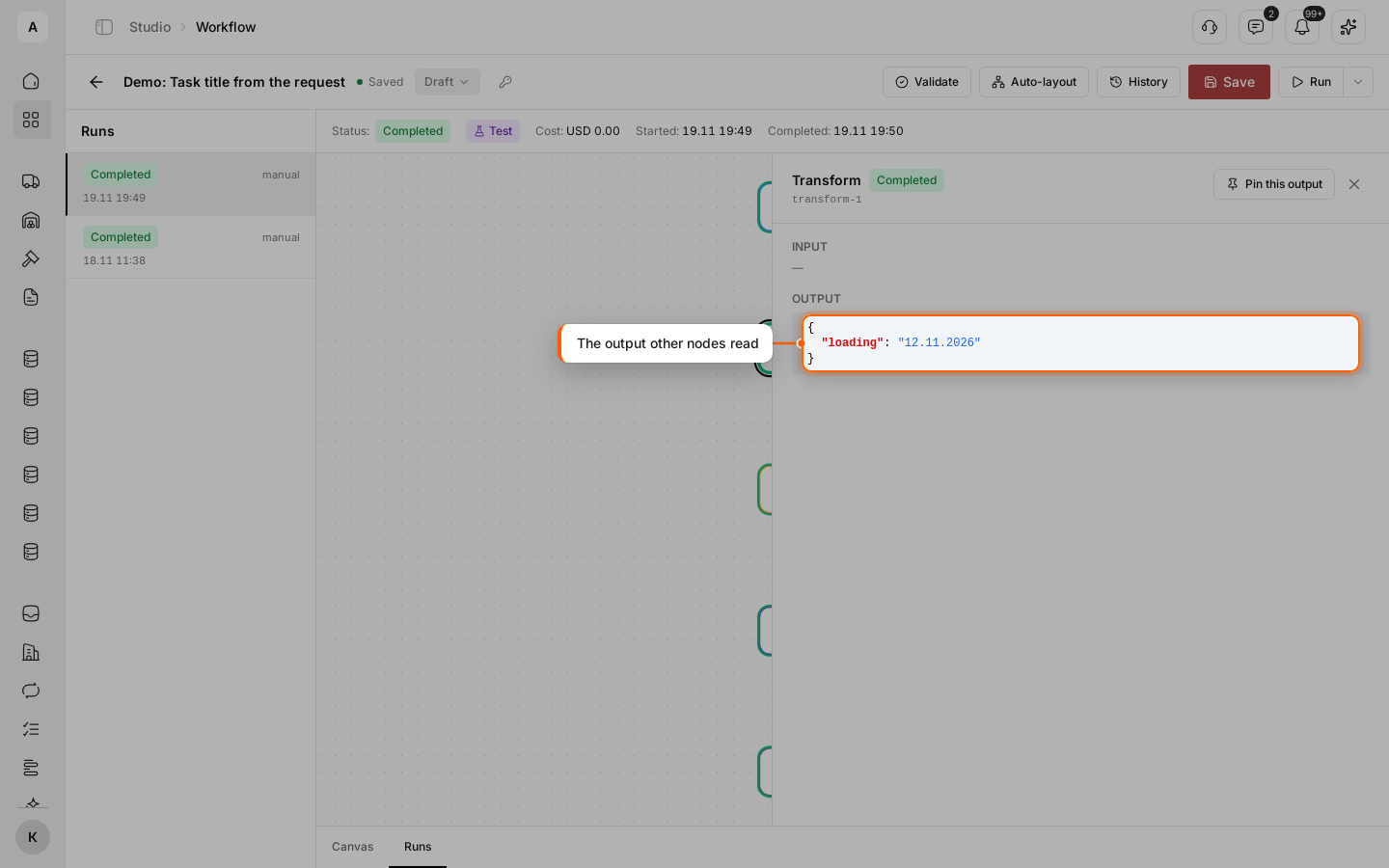
date_format(trigger.record.data.loading_date, "d.m.Y")The node outputs loading = “12.11.2026”, and later nodes read it as nodes.transform-1.loading. All functions: Functions in expressions.
Check a value in a condition
In the “Condition” node, select “Expression” and enter the check without braces:
(trigger.record.data.weight_kg ?? 0) > 10000The “true” branch goes to the task, “false” goes straight to the end.
Run a test and check the data
Run the workflow with Run (test) on the request “Kyiv → Lviv” — see Test a workflow with a test run. In the Runs tab, click a node: “OUTPUT” shows exactly what later nodes get. The trigger holds the record, “Transform” holds loading.
Check the result
Open Tasks. The run created the task “Check Kyiv → Lviv, 18000 kg” with the description “Loading on 12.11.2026.”
Important
Check the path against the trigger output: the record fields are under record.data, so {{ trigger.record.route }} prints nothing. In an expression, give a field that can be empty a default with ??, as in (trigger.record.data.weight_kg ?? 0), and read a node result with a function: prop(nodes, "transform-1.loading").