- Who can: a user with the “Manage Studio” permission; Run live needs the “Run workflows” permission
- Where: Studio › Workflows › the workflow
- Time: ≈ 5 minutes
Before you start
The workflow must be saved and pass Validate with no errors. Test it before publishing — see Test a workflow with a test run.
The workflow status is next to its name above the canvas:
- “Draft” — the workflow has not been published and does not work;
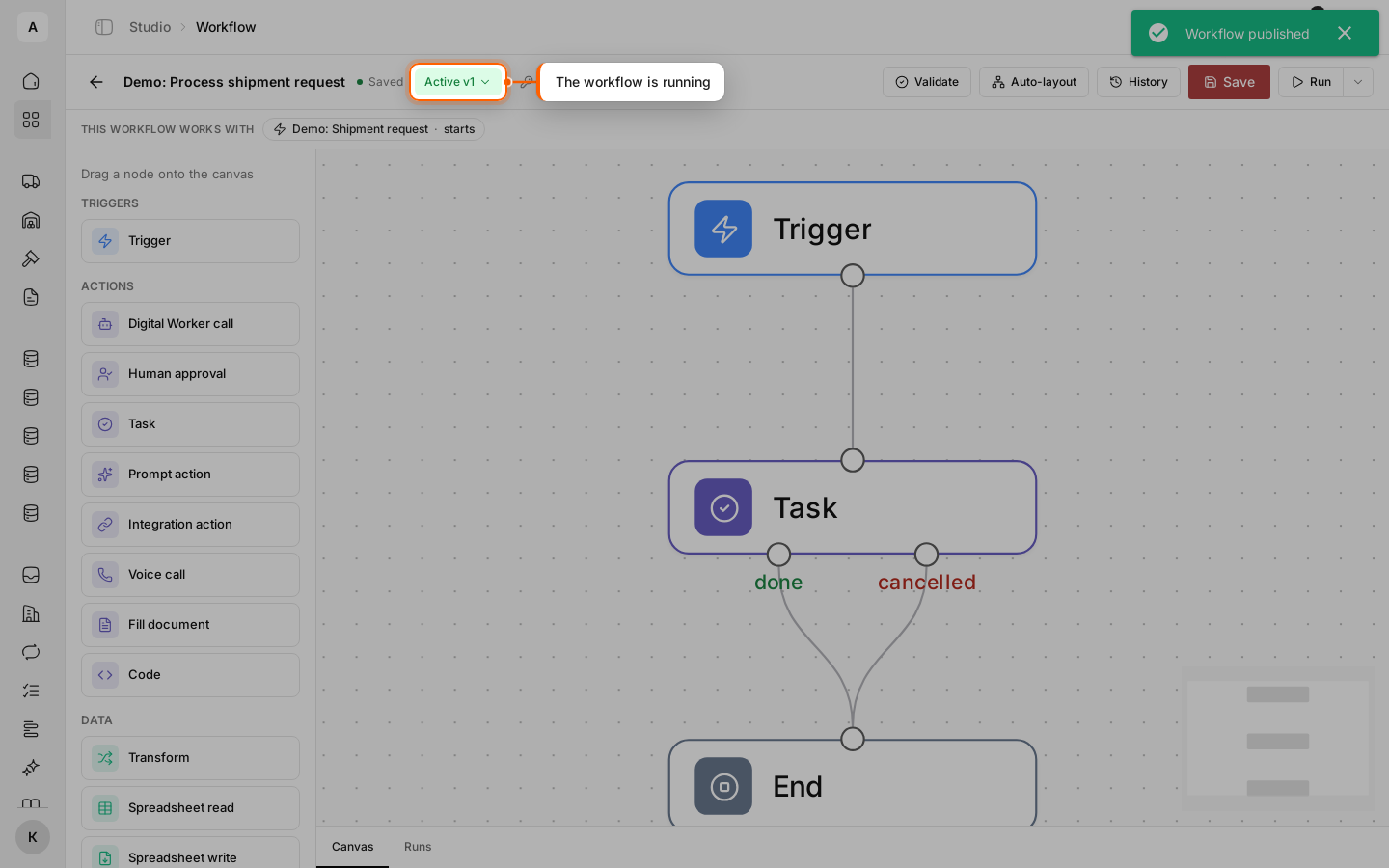
- “Active v1” — version 1 works, and there are no unsaved changes;
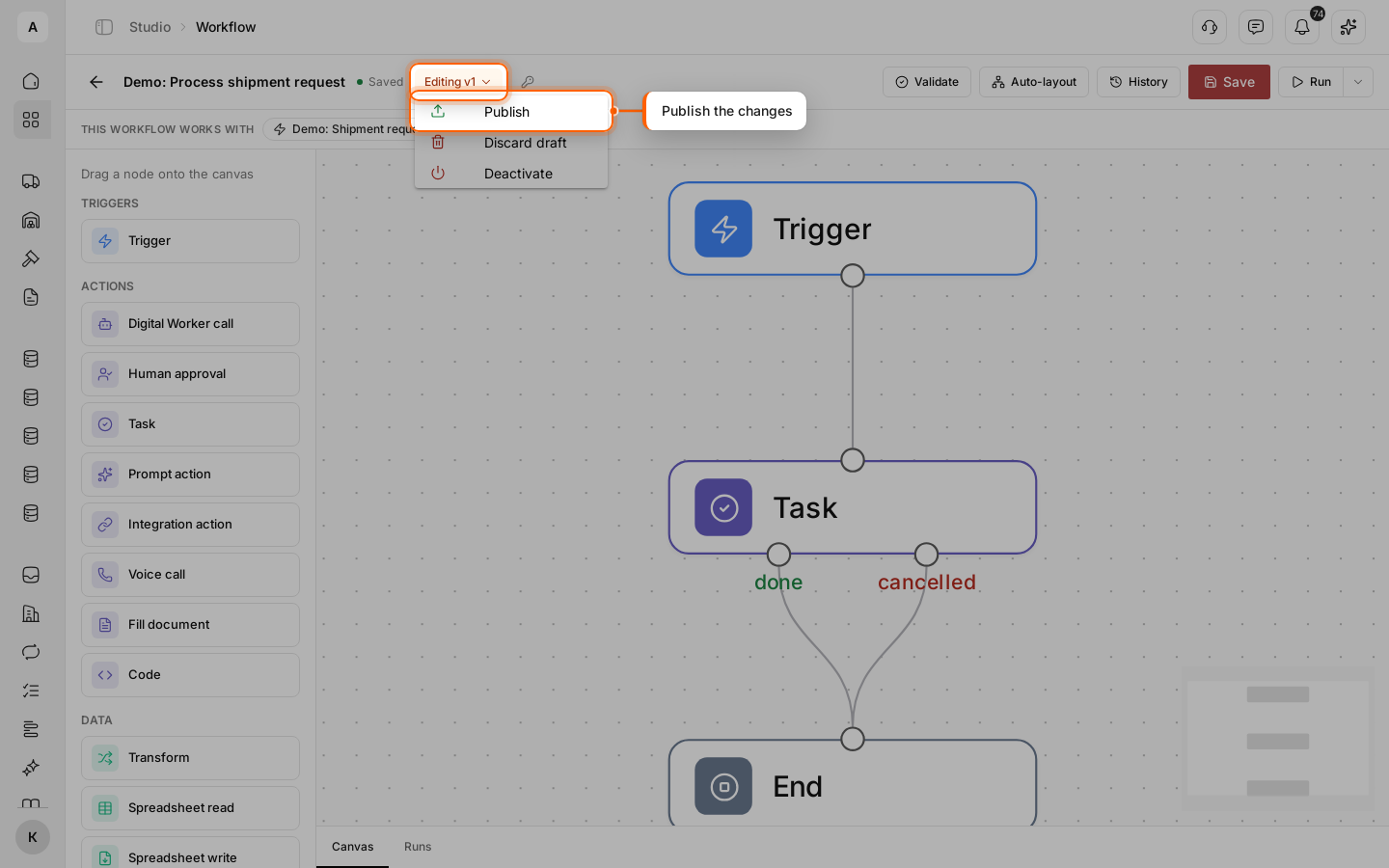
- “Editing v1” — version 1 works, and you are changing the draft of the next one.
Steps
Open the status menu
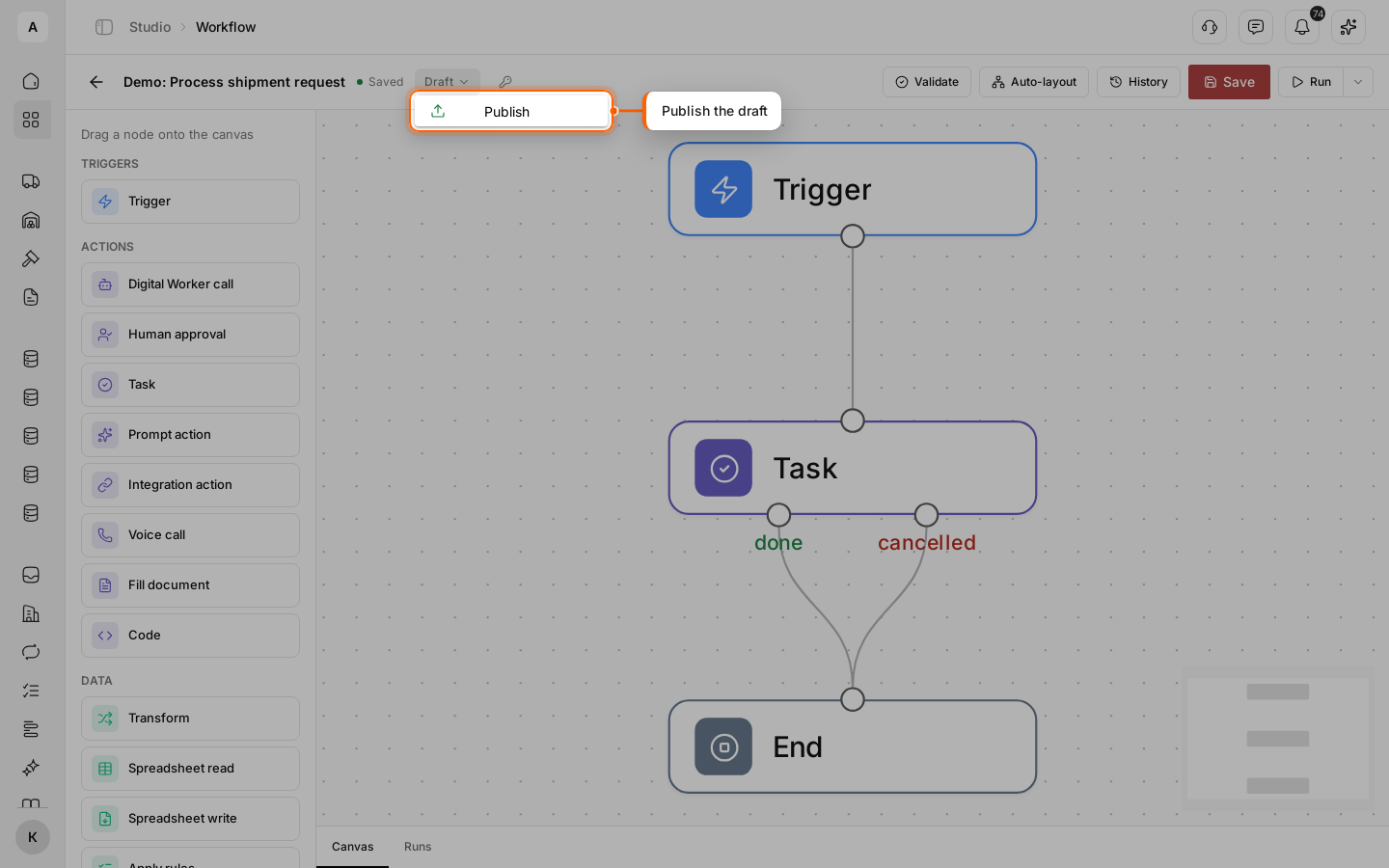
Click the “Draft” status next to the workflow name and select Publish.
Describe the version and publish it
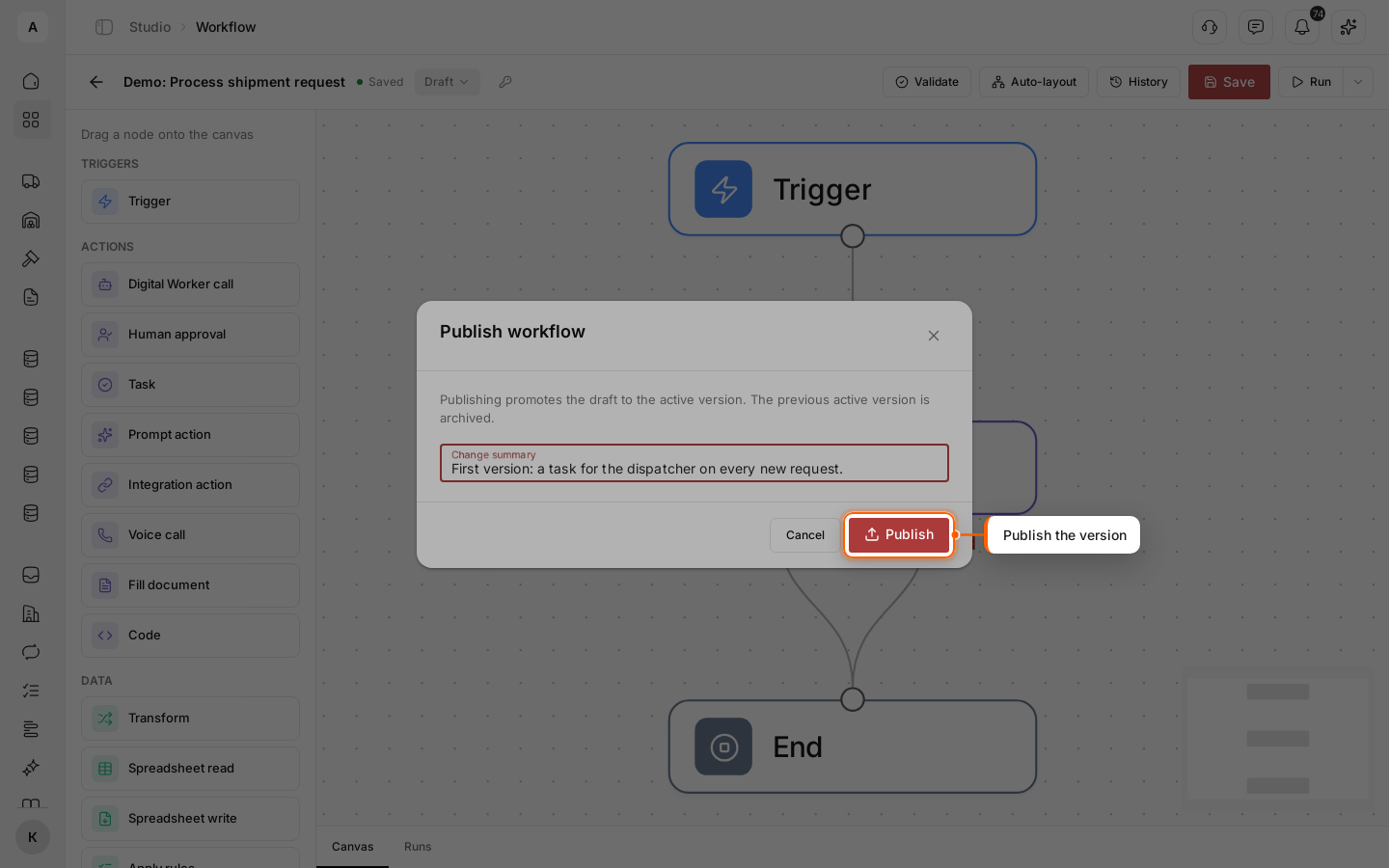
In the “Change summary” field, write briefly what this version does — you will see it in the history. Click Publish.
Make sure the workflow works
The status changes to “Active v1”. A line with the models and other objects the workflow works with appears above the canvas. Now every new request starts the workflow.
Change the workflow without stopping it
Change the workflow on the canvas — for example, the task “Priority” — and click Save. The status becomes “Editing v1”: version 1 keeps working, and the changes stay in the draft.
To turn the changes on, open the status menu and click Publish. To drop them, click Discard draft — unpublished changes are lost.
Bring back an earlier version
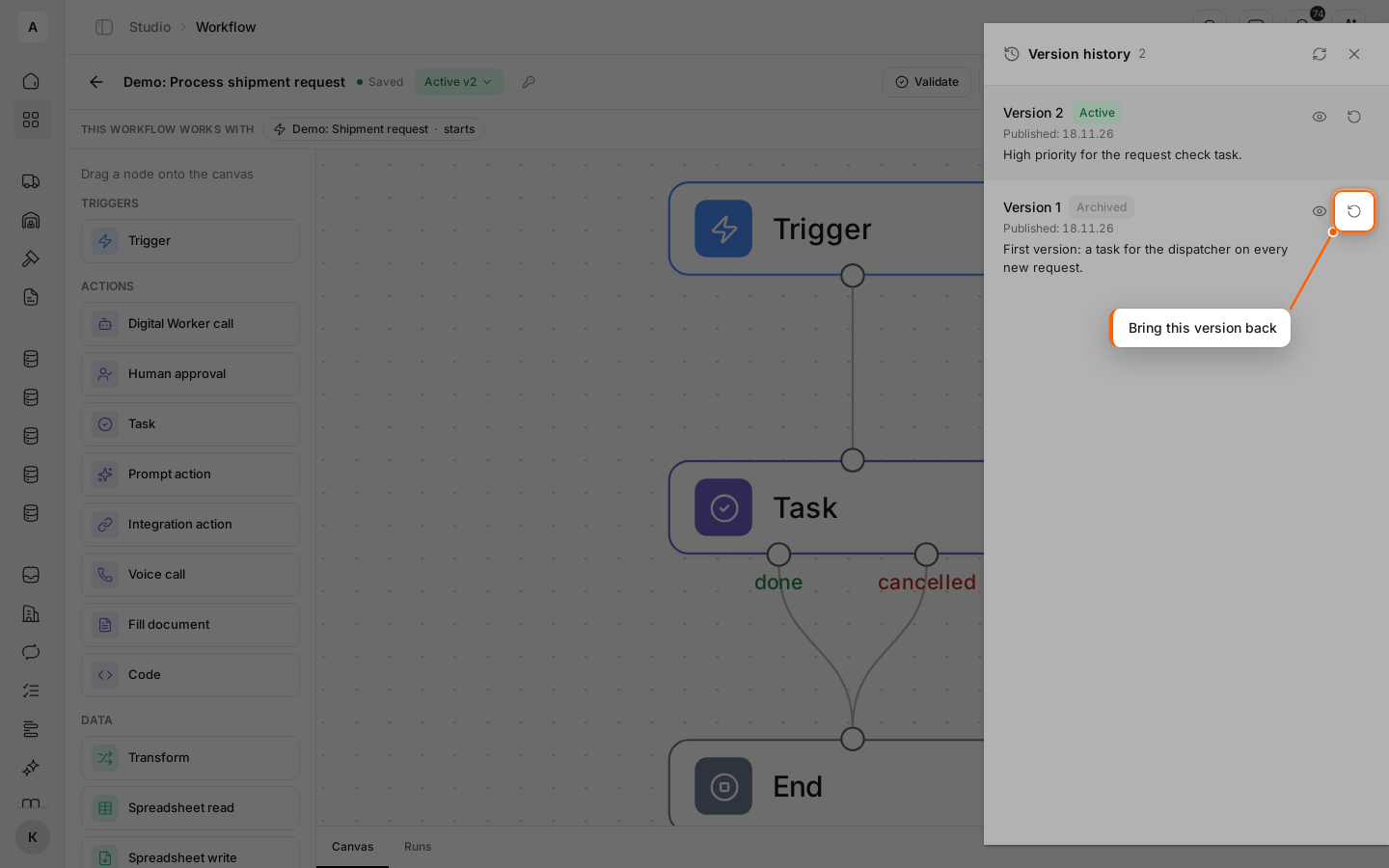
Click History above the canvas. “Version history” lists every version: “Active” or “Archived”, the publish date and the change summary. The eye button opens a Preview of the version.
To go back to an old version, click Rollback in its row and confirm. It becomes a new draft that replaces the current one; publish it from the status menu.
Run the workflow by hand
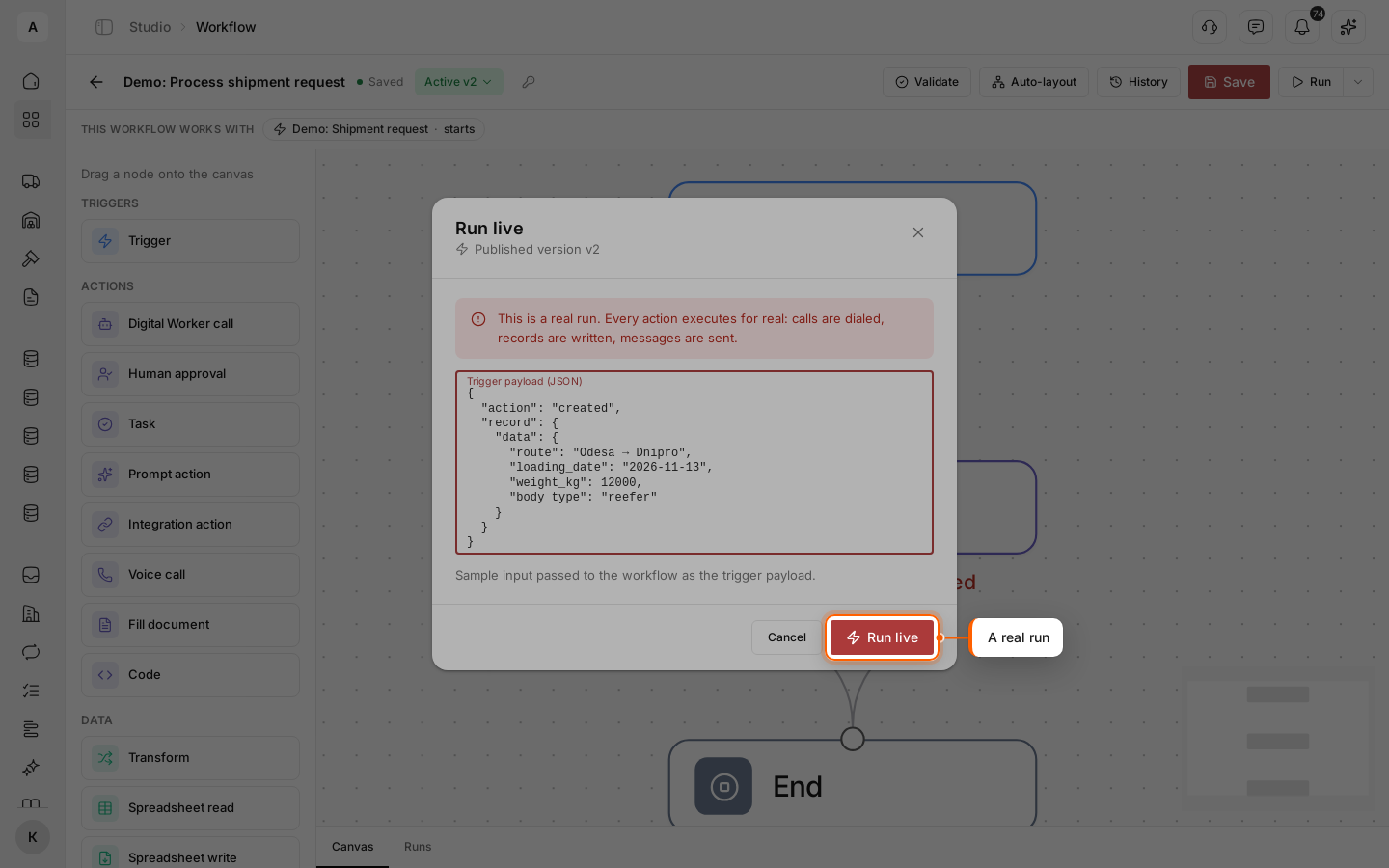
To run the published version right now, click the arrow next to Run and select Run live. Fill in the “Trigger payload (JSON)” as for a test run and click Run live.
Important
Run live does every action for real: tasks are created, calls are dialed, records are written. To check a workflow, use Run (test).
How to turn a workflow off
Open the status menu and click Deactivate. The workflow stops starting, and the active version goes to the archive.
To turn it on again, publish a version:
- change the workflow, click Save, then Publish in the status menu;
- or open History, click Rollback on the version you need and publish the draft.