- Who can: a user with the “Manage Studio” permission
- Where: Studio › Digital Workers
- Time: ≈ 10 minutes
Before you start
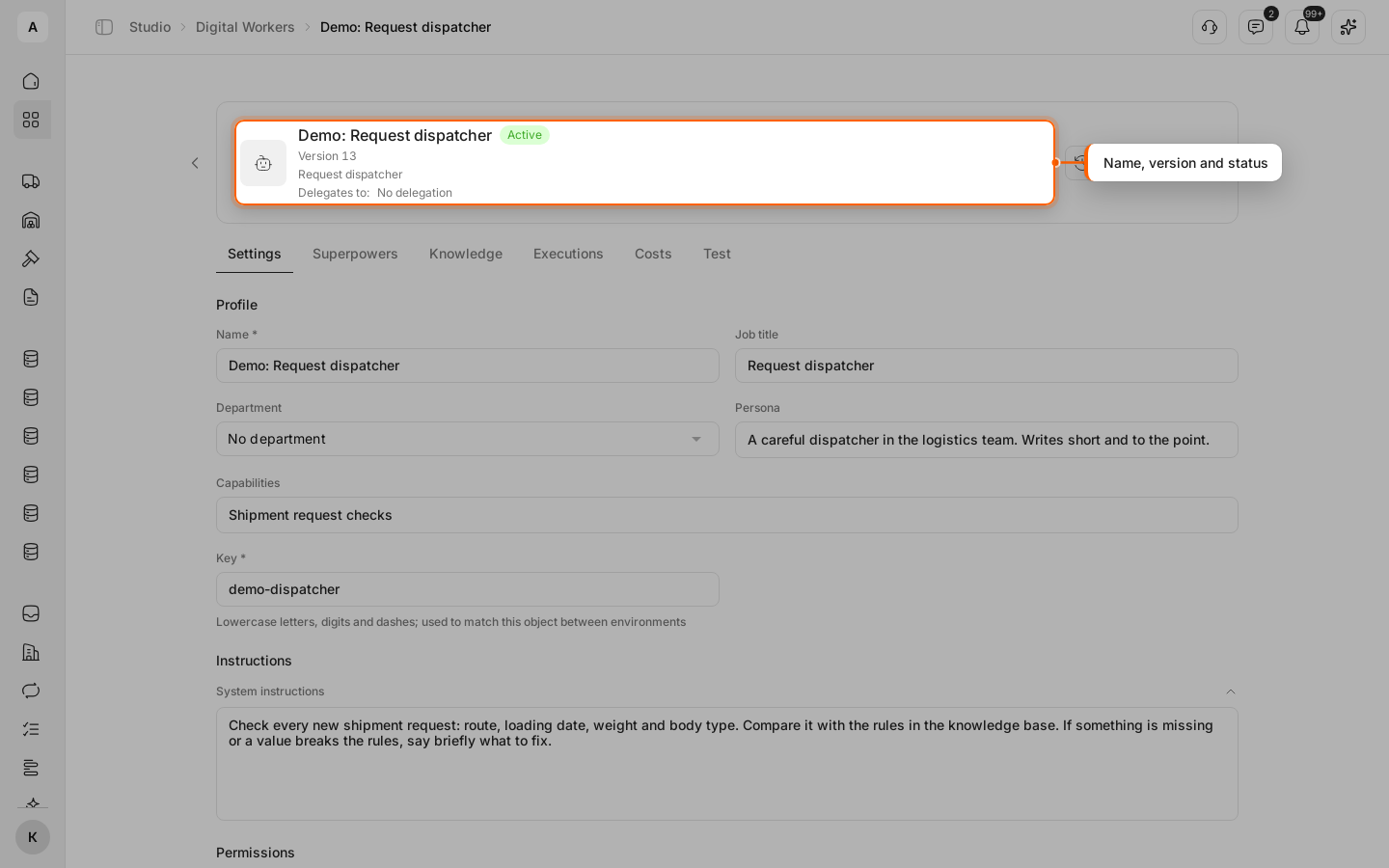
Decide what work the worker will do and by which rules. In the example it is “Demo: Request dispatcher”: it checks the route, loading date, weight and body type in a new request.
Steps
Open Digital Workers
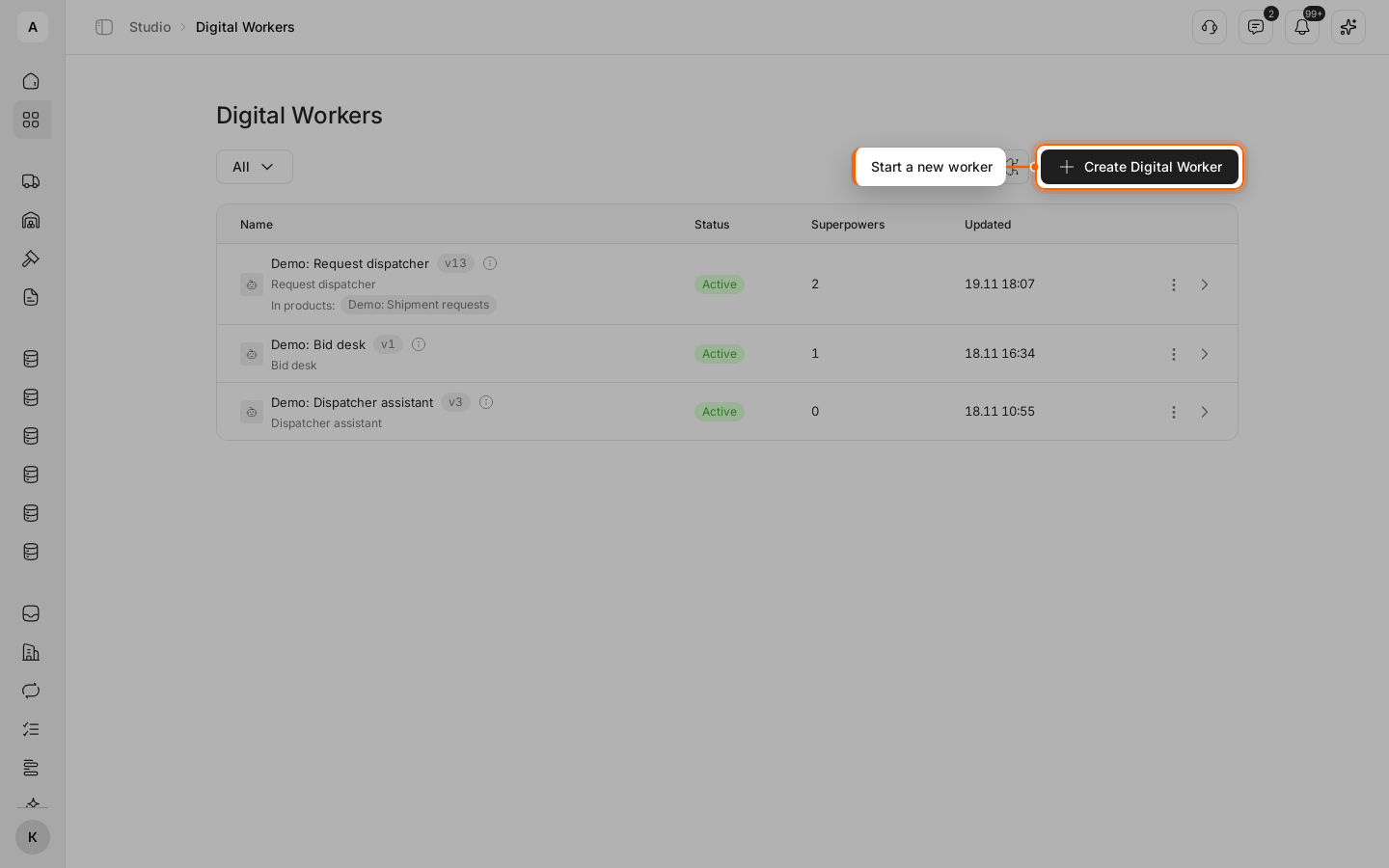
Click Studio in the left menu, then Open on the “Digital Workers” card. Above the list, click Create Digital Worker.
Describe the worker
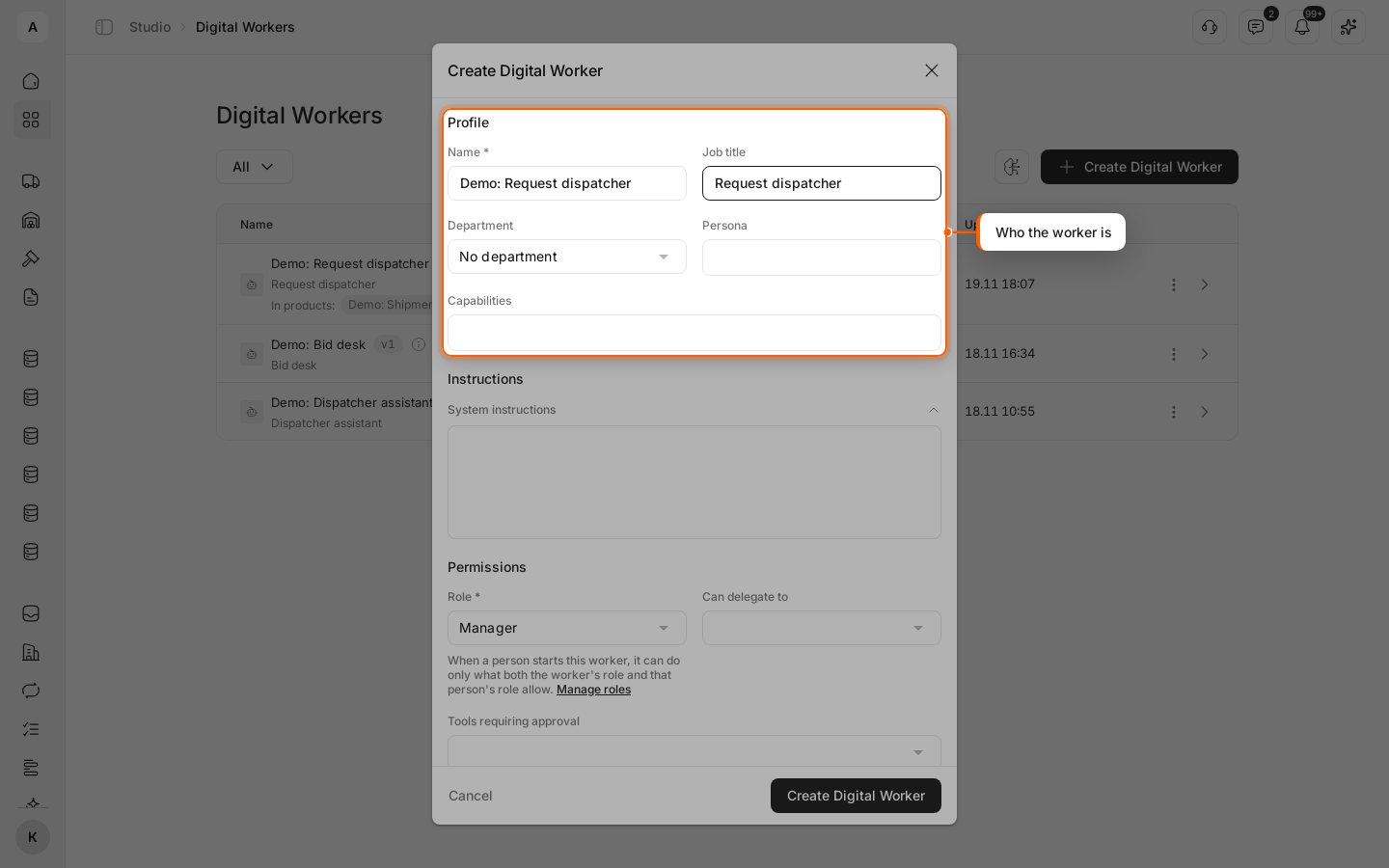
The form has five parts: “Profile”, “Instructions”, “Permissions”, “Model & execution” and “Budget”. Under “Profile”, enter a “Name”: this is how your whole team sees the worker. Optionally fill in “Job title” and “Department”.
Then write how it works:
- “Persona” — character and tone: “A careful dispatcher in the logistics team. Writes short and to the point.”
- “System instructions” — what to do and how: which request fields to check, where to take the rules from, what to write when something is missing. In the example: “Check every new shipment request: route, loading date, weight and body type. Compare it with the rules in the knowledge base. If something is missing or a value breaks the rules, say briefly what to fix.”
- “Capabilities” — a short line for your team on what the worker is good at: “Shipment request checks”.
Select a model
Scroll the form down to “Model & execution”. Select a “Provider” and a “Model”. Leave “Temperature” and “Max steps” empty to use the defaults. Turn on Plan before acting if the worker should write a plan first.
Every field is described in Digital Worker settings.
Set the budget
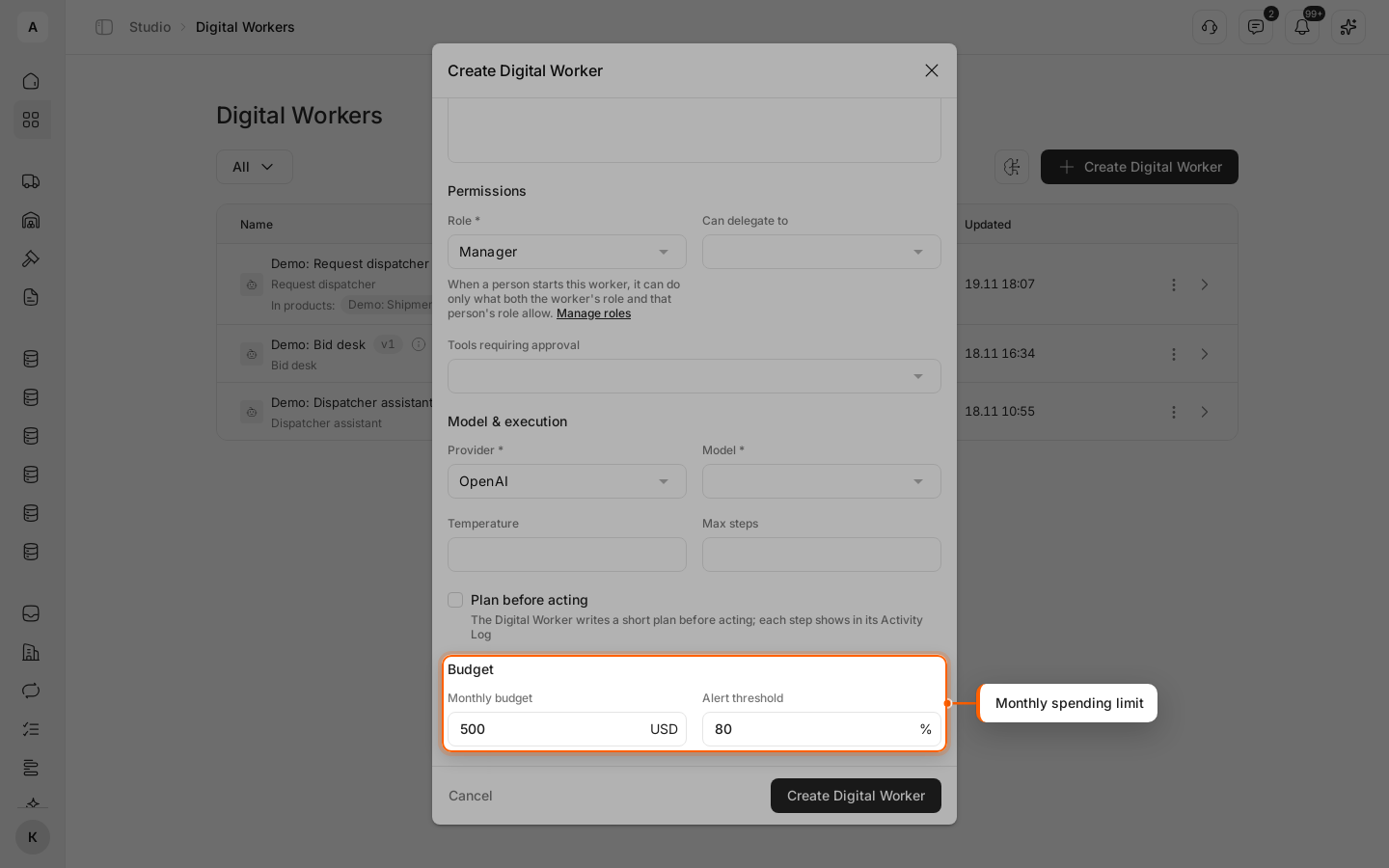
Check “Monthly budget” (500 USD by default) and “Alert threshold” (80 % by default). When the budget runs out, the worker pauses until the start of the next month — see Budget.
Create the worker
Click Create Digital Worker at the bottom of the form. The new worker’s card opens: version v1, status “Active”.
Check the permissions
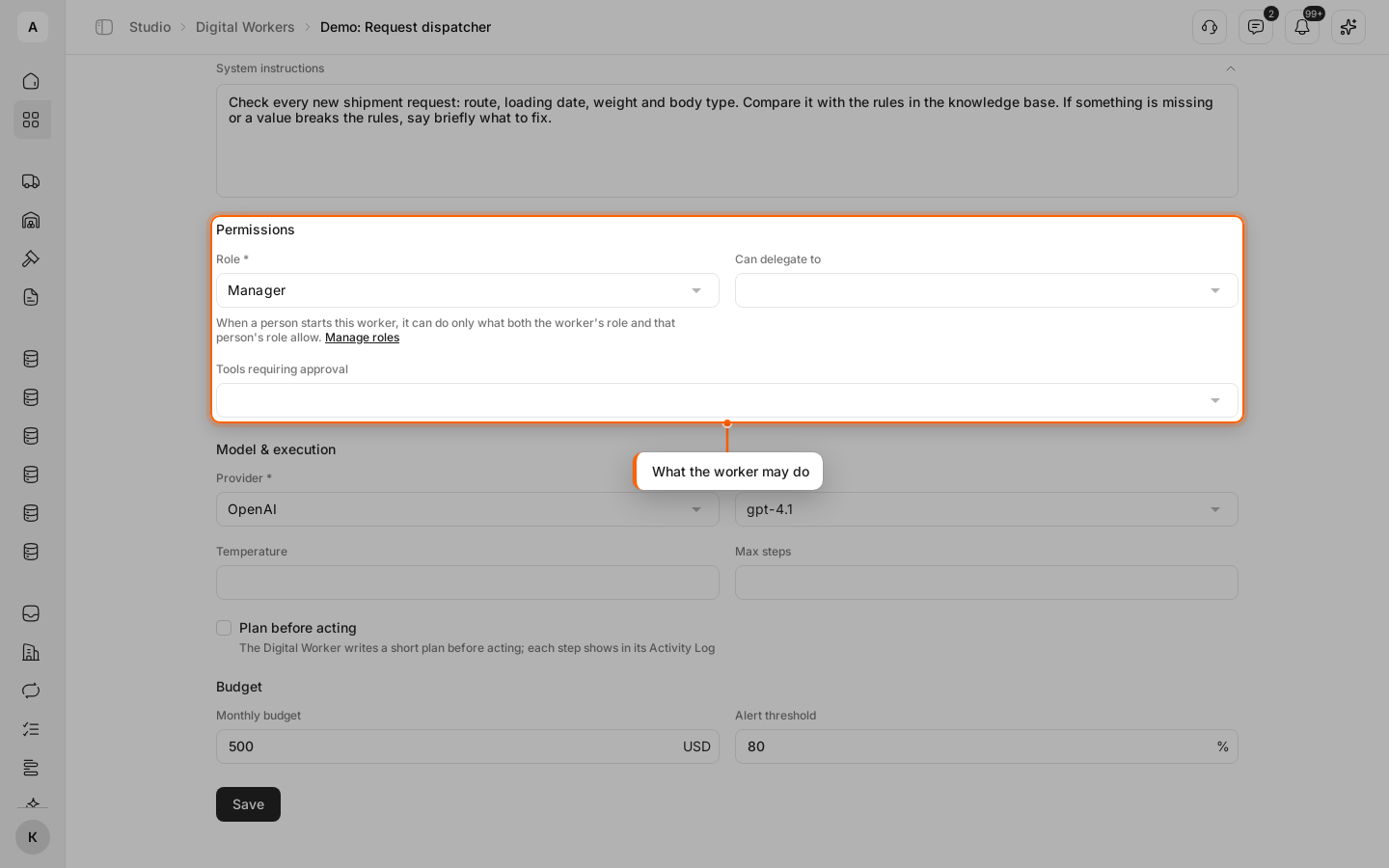
On the Settings tab, under “Permissions”, check “Role”: the worker does only what its role allows. If needed, in “Tools requiring approval” select the actions the worker runs only after a person agrees, and in “Can delegate to” the workers it can hand part of the work to. Click Save at the bottom of the tab.