- Who can: a user with the “Manage Studio” permission
- Where: Studio › Workflows › the workflow › the “Nodes” panel on the left of the canvas
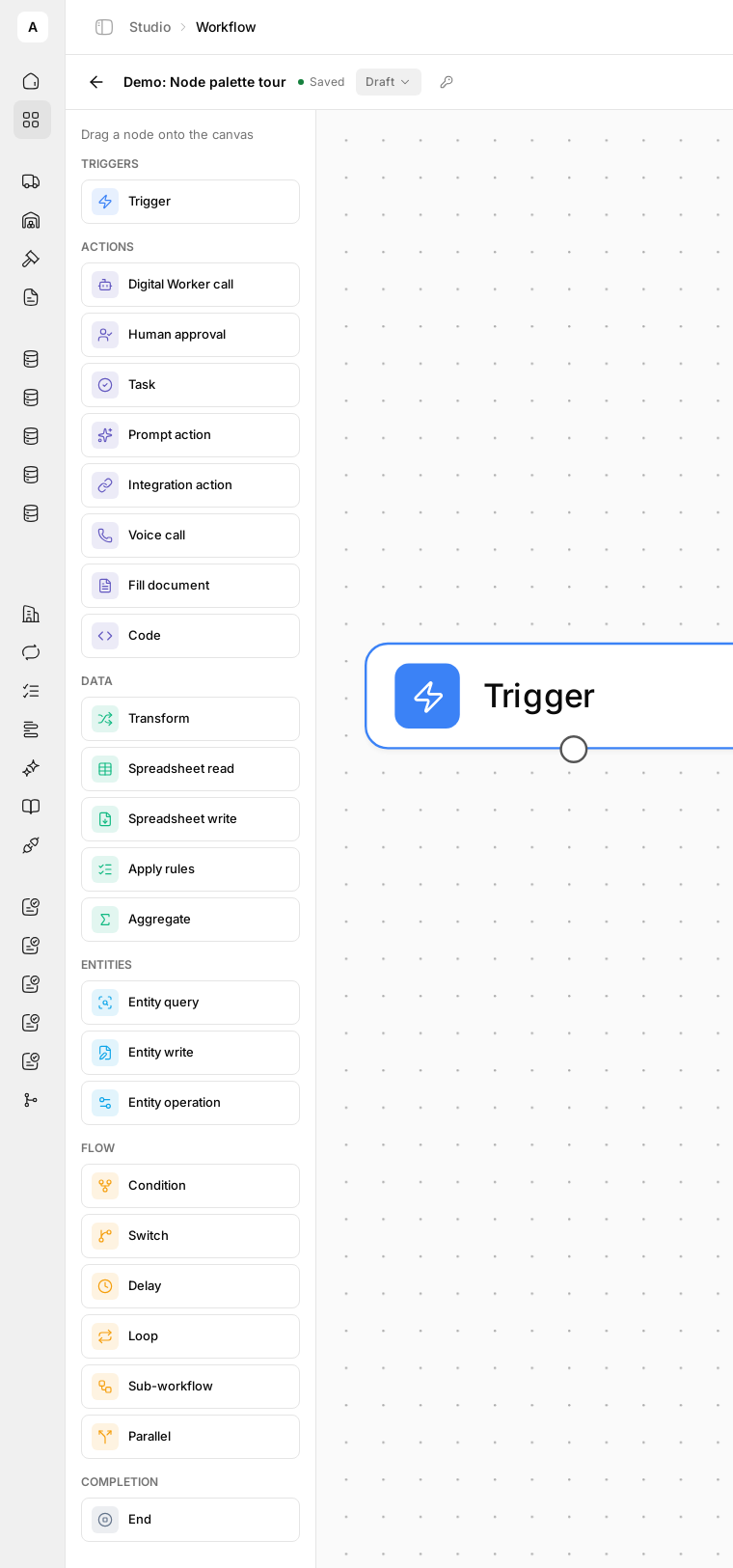
The panel on the left of the canvas holds every node you can add. Drag a node onto the canvas, join it with an arrow and click it to open its settings on the right. This page follows the panel's groups from top to bottom.
How to read a node
The node ID. The settings panel shows the node name and its ID under “Selected node”, for example task-1. A later node reads this node's result by that ID: nodes.<id>.…. In a text field, wrap the path in double curly braces:
{{ nodes.task-1.status }}The “Templates” hint at the bottom of the panel lists the roots you can use: trigger.*, nodes.<id>.*, state.*. Insert variable next to a field adds a path for you. How to pass data between steps: Use data from earlier steps.
Node help. The book button in the panel opens the built-in description of the node.
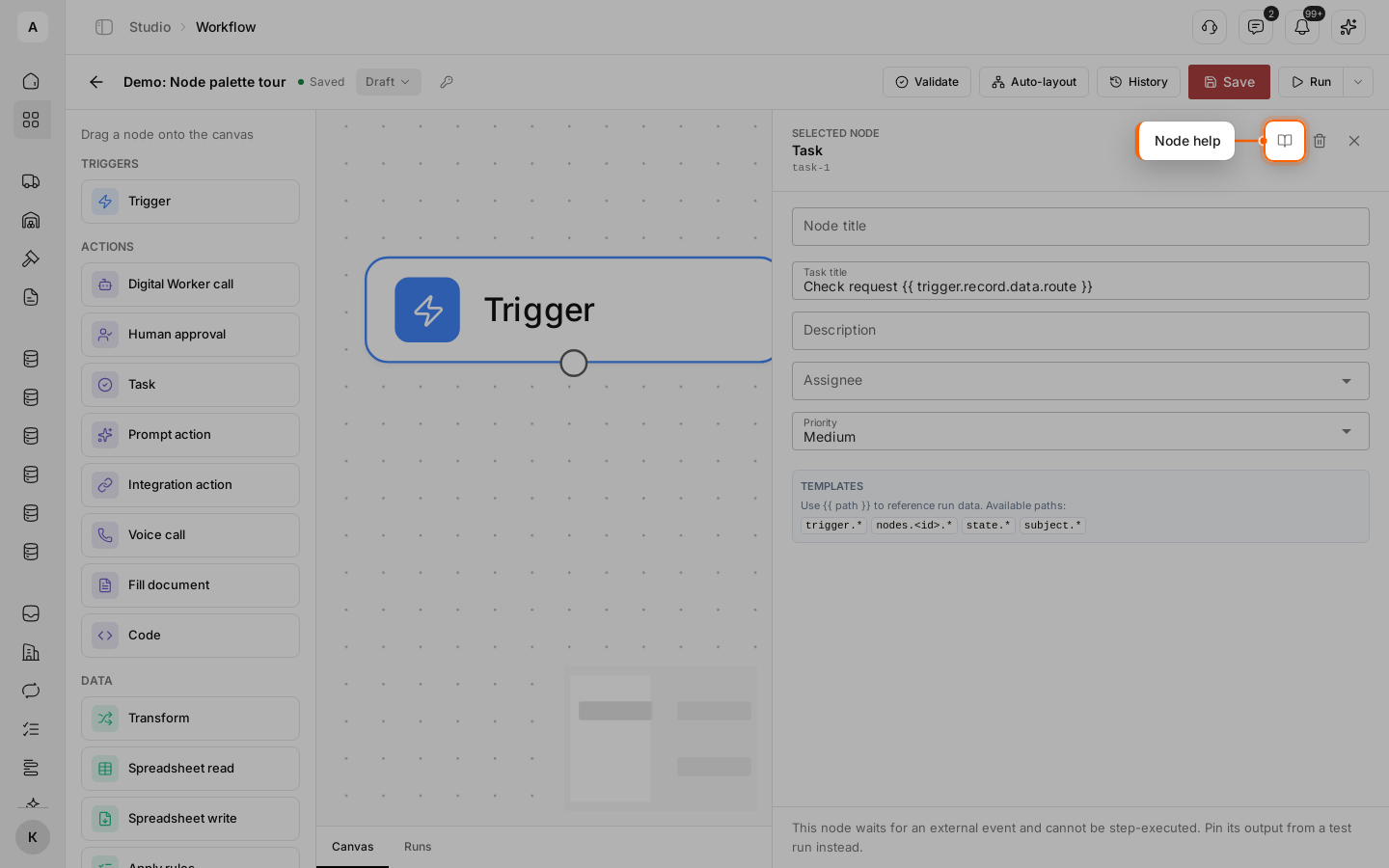
Outputs. Most nodes have one output. Nodes that branch have named outputs on the canvas, such as “done” and “cancelled” on a task. Connect every named output the node requires, or Validate reports an error.
Test runs. Some nodes have “Mock in test”. When it is on, the node returns the “Mock output (JSON)” you set instead of running. See Test a workflow with a test run.
Continue on error. Six nodes have this switch: “Digital Worker call”, “Prompt action”, “Integration action”, “Voice call”, “Entity write” and “Entity operation”. When it is on, a failed node shows “Failed — skipped” in the run, its result holds error with the message, and the run goes on. What to do with a failed step: Find out why a run failed.
Triggers
Trigger
Starts the workflow. Every workflow has at least one. Use it to choose what starts a run: a button, an event, a call from another system or a schedule.
- Settings: “Trigger type”: “Manual”, “Event”, “Webhook” or “Schedule”. For “Event”, the “Source” and the “Event”. For “Schedule”, the “Cron expression” and “Timezone”. Details: Choose how a workflow starts.
- Returns: the event data under
trigger. For a data model record, its fields are undertrigger.record.dataand its ID istrigger.record.id. For the demo request,trigger.record.data.weight_kgis18000. - Outputs: one. The trigger needs an outgoing arrow.
- In a test run: the trigger takes the sample from “Trigger payload (JSON)”. With “Mock in test” on a data model trigger, the test creates a test record from the mock output.
- Checks: one trigger of each kind per canvas: one “Manual” trigger, one per event, one webhook, one per schedule.
Actions
Digital Worker call
Gives a step of the workflow to a Digital Worker. Use it when the step needs the worker's instructions, superpowers and knowledge: check a request, write to a carrier, make a call.
- Settings: “Digital Worker” (only active workers are listed), “Prompt template”: the text the worker gets, with paths such as
trigger.record.data.routein double curly braces. Turn on “Digital Worker places a call” when the worker phones someone in this step. - Returns:
nodes.<id>.text, the worker's final reply, andnodes.<id>.agent_execution_id, the worker's run you can open. - Outputs: one. If the worker waits for an approval, for its call to end or for another worker, the step and the run show “Waiting”, then go on by themselves.
- In a test run: the worker runs for real. Use “Mock in test” to skip it.
- Checks: you cannot publish while the worker's AI provider has no key for your account.
Step by step: Hand a step to a Digital Worker.
Human approval
Stops the run until a person approves or rejects. Use it before a step that needs a decision: a rate above the usual, a carrier outside the list.
- Settings: “Assignee”, “Instructions”: what to decide, with run data. “Payload template (JSON)”: the data the approver sees. “Timeout (hours)”: when the request expires.
- Returns:
nodes.<id>.decision(approve,rejectorexpired),nodes.<id>.note, the approver's comment. - Outputs: “approve” and “reject”, both required. “expired” is used only with a timeout: connect it when you set one.
- In a test run: the request is created for real, and the run waits for the decision.
- Checks: both “approve” and “reject” connected.
Where the request appears and how to decide: Ask a person to approve a step.
Task
Creates a task in Tasks and waits until it is closed. Use it to hand work to a dispatcher or a Digital Worker inside the process.
- Settings: “Task title” and “Description”, with run data. “Assignee”: a person or a Digital Worker. “Priority”: “Low”, “Medium”, “High” or “Urgent”.
- Returns:
nodes.<id>.task_idandnodes.<id>.status. - Outputs: “done” and “cancelled”, both required. The run follows the one that matches how the task was closed.
- In a test run: a real task appears in Tasks. The node has no “Mock in test”.
- Checks: both outputs connected. A task assigned to a Digital Worker needs the worker's AI provider key, as for “Digital Worker call”.
Example: Create a workflow.
Prompt action
One request to an AI model, without a Digital Worker. Use it for a single job on text: pull fields out of an email, sort a request, draft a reply.
- Settings: “System prompt”, “User prompt” (required), “Attachments”: files from a data model record, “Provider” and “Model”, “Tools”, “Output schema (JSON Schema)”.
- Returns:
nodes.<id>.text. With an output schema, the fields are undernodes.<id>.data, for examplenodes.<id>.data.weight_kg. - Outputs: one.
- In a test run: the model is called for real. Use “Mock in test” to skip it.
- Checks: a user prompt; a valid output schema. You cannot publish while the chosen provider has no key in Integrations.
Integration action
Calls one operation of a connected system: send an email, create an order, publish a load. Use it for every action outside the platform.
- Settings: “Mode”: “Operation” or “Generic HTTP”. “Connection”, then “Operation” and its fields. In “Generic HTTP” mode, the “HTTP method” and “Path”.
- Returns:
nodes.<id>.data, the response, andnodes.<id>.status, the response code. - Outputs: one. A response that is not a success fails the node.
- In a test run: nothing is sent. The node returns what it would send, with
dry_run: true. - Checks: a connection that is connected; an operation in “Operation” mode.
Connect the system first: Connect an integration.
Voice call
Places a phone call: a conversation with a voice assistant or a message read out word for word. Use it to confirm a loading time with a carrier or remind a customer.
- Settings: “Mode”: “Conversation (dialogue)” or “Announcement (one-way message)”. The voice assistant connection, the “Outbound number”, the “Destination number”. For a conversation, the “Assistant”, “System prompt” and “First message”. For an announcement, the “Announcement text”. Also “Language”, “Max duration (sec)”, “Silence timeout (sec)”, “If voicemail answers” and “Wait for the call to finish”.
- Returns:
nodes.<id>.outcome:completed(answered),not_connectedorfailed. Alsotranscript,summary,structured_dataandduration_seconds. With “Wait for the call to finish” off, only the call ID and status. - Outputs: one. While the call goes on, the run shows “Waiting”.
- In a test run: no call is placed. The node returns the mock output, or a completed call with an empty transcript.
- Checks: a connection, an outbound number and a destination number; the text for the chosen mode.
Connect the voice assistant and the number first: Connect telephony.
Fill document
Fills a Word (.docx) template with run data and saves a new file. Use it for a claim, an act or a letter on your letterhead.
- Settings: “Template file”: an uploaded .docx with placeholders like
${route}. “Output file name”, “Values”: a value for each placeholder. For a table, “Rows” and “Row fields”, one table row per item; “Filter field” and “Filter value” keep only some items. “Skip the file when there are no rows”. - Returns:
nodes.<id>.file_id,nodes.<id>.row_count, andskipped: truewhen no file was made. - Outputs: one.
- In a test run: the file is made for real.
Code
Runs a Python program. Use it for a calculation or a file conversion no other node does.
- Settings: “Python program” (required), “Timeout (seconds)”: from 1 to 120, 60 when empty. “Brand files”: files the program reads.
- Returns:
nodes.<id>.stdout, the printed text,nodes.<id>.exit_code, andnodes.<id>.artifacts: the files the program wrote. - Outputs: one. A program that fails fails the node.
- In a test run: the program runs for real.
- Limits: the program has no internet access. It reads run data from
/input.jsonand returns files written to/home/user/output/.
Data
Transform
Computes new values from run data. Use it to prepare a value once and read it in several later steps: a formatted date, a total, a flag.
- Settings: the mode. “Structured”: “Mappings”, a key and a value with paths in double curly braces. “Expression”: a key and an expression with functions.
- Returns: one value per key:
nodes.<id>.<key>. A keyloading_daywith the expressiondate_format(trigger.record.data.loading_date, "d.m.Y")gives12.11.2026for the request “Kyiv → Lviv”. - Outputs: one.
- In a test run: works as in a live run.
- Checks: at least one expression in “Expression” mode.
Spreadsheet read
Reads an .xlsx or .csv file into rows. Use it for a price list or a shipment register uploaded to a record.
- Settings: “Source file (file id / template)”, for example a file field of the record. “Format”, “CSV delimiter”, “CSV encoding”, “Header row”, “Sheet (name or index)”, “Inline rows up to” (1000 when empty).
- Returns:
nodes.<id>.rows,nodes.<id>.row_count,nodes.<id>.columnsandnodes.<id>.file_id. Above the “Inline rows up to” limit,rowsis empty: passfile_idto the next node instead. - Outputs: one.
Spreadsheet write
Builds a new .xlsx or .csv file from rows. Use it for a report or an export for a customer.
- Settings: “Source (handle or rows template)”: rows or a
file_idfrom an earlier node. “Format”, “Output file name”, “Columns”, “Conditional styling”, “Extra sheets”, “Column labels”, “Extra column labels”, “Exclude columns”. - Returns:
nodes.<id>.file_id. - Outputs: one.
Apply rules
Checks every row against your rules and marks the rows that match. Use it to find problem lines in a register: a weight over the limit, an empty date.
- Settings: “Input (handle or rows template)”. Edit rules opens the rules: a condition on the row's columns and what to do: set a field, add a flag or look up a value. “Review flag types”, “Inline rows up to”.
- Returns:
nodes.<id>.rows,nodes.<id>.flagged_rows,nodes.<id>.review_rows,nodes.<id>.flags_countandnodes.<id>.file_id. - Outputs: one.
- Checks: every rule is valid.
Aggregate
Groups rows and counts totals: count, sum, average, minimum, maximum. Use it for a weight total per body type or the number of requests per route.
- Settings: “Input (handle or rows template)”, “Group by (fields)” (empty: one total for all rows), “Aggregations”: “Operation”, “Source field”, “Output field”.
- Returns:
nodes.<id>.rows, one row per group with the group fields and the totals, andnodes.<id>.file_id. - Outputs: one.
Entities
“Entities” are the records a workflow can read and change: your data models and other records your account opens to workflows. The list in “Entity” shows only what the node is allowed to do.
Entity query
Finds records. Use it to check whether a request already exists or to collect the requests for tomorrow.
- Settings: “Entity”, “Filters”: “Field”, “Operator” and a value, which can hold run data. “Full-text search”, “Limit” (20 when empty), “Save the selection as a file”.
- Returns:
nodes.<id>.count,nodes.<id>.totalandnodes.<id>.records. Each record hasidanddata:nodes.<id>.records.0.data.routeis the route of the first one found. - Outputs: one. Branch on
countwith a “Condition” for “found” and “not found”. - In a test run: it reads the same records as a live run.
- Checks: an entity picked.
Entity write
Creates, updates or deletes one record. Use it to save a result: set a status, store a rate, add a new request.
- Settings: “Entity”, “Mode”: “Create”, “Update or create” or “Delete”. The lookup field and value find the record, for example “Record ID” and
trigger.record.idin double curly braces. “When not found”: “Create if missing”, “Skip if missing” or “Fail the run”. “Fields”: a value for each field. - Returns:
nodes.<id>.record_id,nodes.<id>.was_created,nodes.<id>.skippedandnodes.<id>.record. - Outputs: one. A lookup that finds more than one record fails the node.
- In a test run: nothing is written. The node checks the data and returns
dry_run: true. - Checks: an entity and a mode; a lookup unless the mode is “Create”; at least one field unless the mode is “Delete”.
Entity operation
Runs an action a record type offers, on one record. Use it for an action with its own rules, such as linking two records.
- Settings: “Entity”, “Operation”, the lookup that finds the record, “Operation input”.
- Returns:
nodes.<id>.record_idandnodes.<id>.record. - Outputs: one. A record that is not found fails the node, and so does an operation the record's state does not allow.
- In a test run: the operation does not run. The node checks the data and returns
dry_run: true. - Checks: an entity, an operation and a lookup.
Flow
Condition
Splits the path in two. Use it for a yes-or-no question: is the weight over 20 000 kg, was the request found.
- Settings: “Structured”: “Left”, “Operator” (
=,≠,>,≥,<,≤, contains, in, is empty, is not empty) and “Right”. “Expression”: one expression that gives true or false, for exampletrigger.record.data.weight_kg > 10000. - Returns:
nodes.<id>.result:trueorfalse. - Outputs: “true” and “false”, both required.
How to build a branch: Branch a workflow.
Switch
Splits the path into several branches. Use it when one value picks one of many ways: a body type, a priority, a country.
- Settings: “Cases”: a “Handle”, the name of the output, and its condition, structured or as an expression. Add case adds one. “Default handle”: the output taken when no case matches,
defaultfor a new node. It cannot be empty. - Returns:
nodes.<id>.handle, the output taken. - Outputs: one per case, plus the default one. Cases are checked from the top; the first match wins. Connect every case and the default one.
Delay
Pauses the run. Use it to wait before a reminder or until a fixed time before loading.
- Settings: “Mode”. “Wait a duration”: “Hours”, “Minutes”, “Seconds”. “Wait until a fixed point”: the “Anchor”, a date and time from run data, plus “Offset, hours” and “Offset, minutes”, which can be negative.
- Returns: nothing to read later.
- Outputs: one. During the pause the run shows “Waiting”.
- In a test run: the run waits for real. Use “Mock in test” to skip the pause.
- Limits: a point already in the past ends the wait at once. An anchor that is empty or not a date fails the node.
Loop
Repeats steps for each item of a list. Use it to handle every row of a register or every record found.
- Settings: “Collection”: an expression without curly braces that gives a list. For the records an “Entity query” found, write
pluck(nodes, "entity_query-1", "records")with that node's ID: see Node results in an expression. “Item variable” (itemwhen empty), “Max iterations” (100 for a new node). - Returns: the current item is in
state.item, or under your “Item variable” name. When the list is done,nodes.<id>.countholds the number of items handled. - Outputs: “iteration” leads to the steps for one item; the last of them needs an arrow back into the loop. “done” continues after the last item. Both are required.
Sub-workflow
Runs another workflow and waits for it to finish. Use it for a part several workflows share, such as checking a carrier.
- Settings: “Target workflow”: only published workflows are listed.
- Returns: the final data of the child run. The child workflow reads the parent's data under
trigger.parent, for exampletrigger.parent.trigger.record.data.route. - Outputs: one. While the child runs, the parent shows “Waiting”.
- Checks: a target workflow picked.
Parallel
Runs several branches at the same time. Use it when steps do not depend on each other: ask a worker and write to the customer at once.
- Settings: none. Every arrow from the node starts a branch; draw at least two.
- Returns: nothing to read later. After the branches meet, every later node reads the results of all branches as
nodes.<id>.…. - Outputs: any number. The branches meet at the first node they all lead to, and it runs once, after the slowest branch.
- Limits: a failed step in any branch fails the run. A step that waits goes before the “Parallel” node or after the point where the branches meet, not inside a branch.
Completion
End
Finishes the path and sets the run's result. Every workflow needs at least one.
- Settings: “Output mapping”: a key and a value for each field of the result, for example
routewithtrigger.record.data.routein double curly braces. - Returns: the result of the run, shown on the Runs tab. Each key is also saved under
state. - Outputs: none.
- Checks: you cannot publish a workflow without an “End” node.
Next steps
What to type in “Expression” mode: syntax and every function with an example.
Paths to the trigger record and to the results of earlier nodes.
Run the workflow on a sample request and read each node's result.
What workflows are for and their limits.