- Who can: a user with the “Manage Studio” permission
- Where: Studio › Workflows › the workflow
- Time: ≈ 15 minutes
Before you start
You need an active Digital Worker — see Create a Digital Worker. The example uses “Demo: Request dispatcher”.
You also need a workflow with a trigger — see Create a workflow. The example is the workflow “Demo: Dispatcher checks the request”: a new “Demo: Shipment request” starts it, the dispatcher checks the request, and when something is missing, a person gets a task with the dispatcher’s answer.
Steps
Add the worker after the trigger
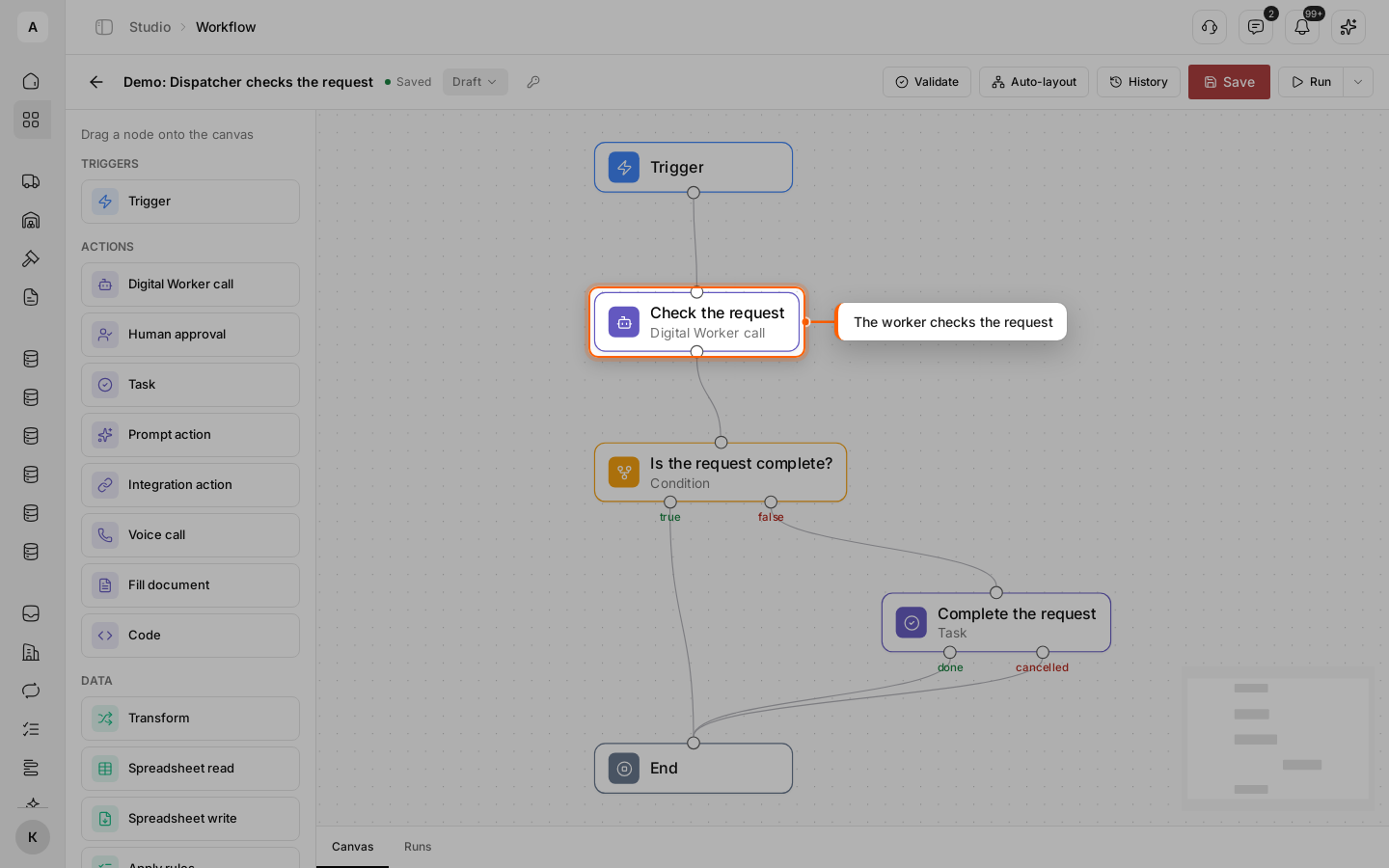
Drag Digital Worker call from “Actions” onto the canvas and draw an arrow from the trigger to it. In “Node title”, name the step by what it does — “Check the request”. The name shows on the canvas and in runs.
Choose the worker and write the instruction
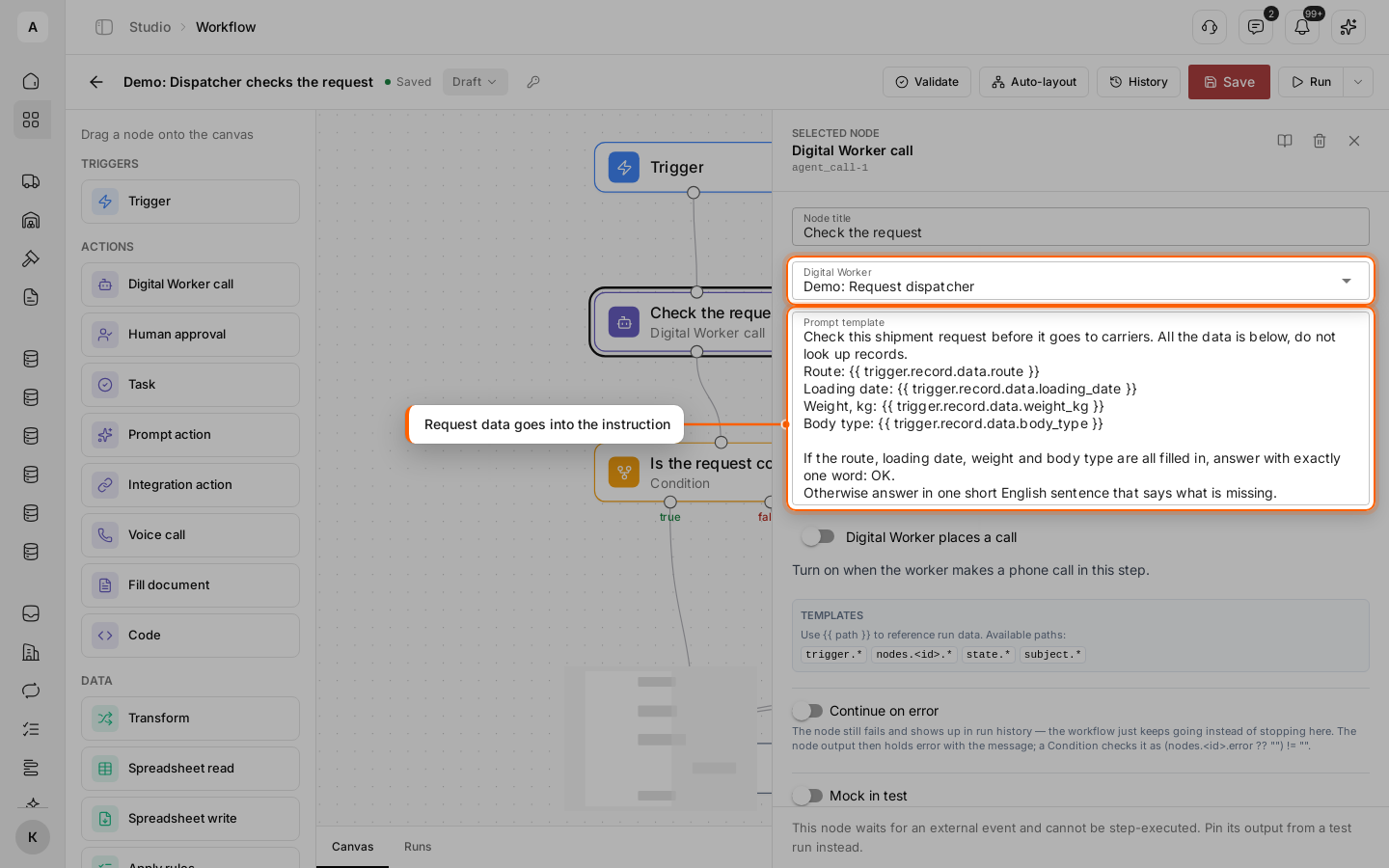
Click the node. In “Digital Worker”, select “Demo: Request dispatcher”. In “Prompt template”, write what the worker must do, and insert the request fields where it needs them:
Check this shipment request before it goes to carriers. All the data is below, do not look up records.
Route: {{ trigger.record.data.route }}
Loading date: {{ trigger.record.data.loading_date }}
Weight, kg: {{ trigger.record.data.weight_kg }}
Body type: {{ trigger.record.data.body_type }}

If the route, loading date, weight and body type are all filled in, answer with exactly one word: OK.
Otherwise answer in one short English sentence that says what is missing.
Before the call, each path in braces turns into the value from the request: {{ trigger.record.data.route }} becomes “Kharkiv → Poltava”. An empty field turns into empty text — the worker sees “Weight, kg:” with nothing after it. Ask for a short, fixed answer when the next step has to compare it.
Leave “Digital Worker places a call” off unless the worker phones someone in this step.
Use the answer in the next step
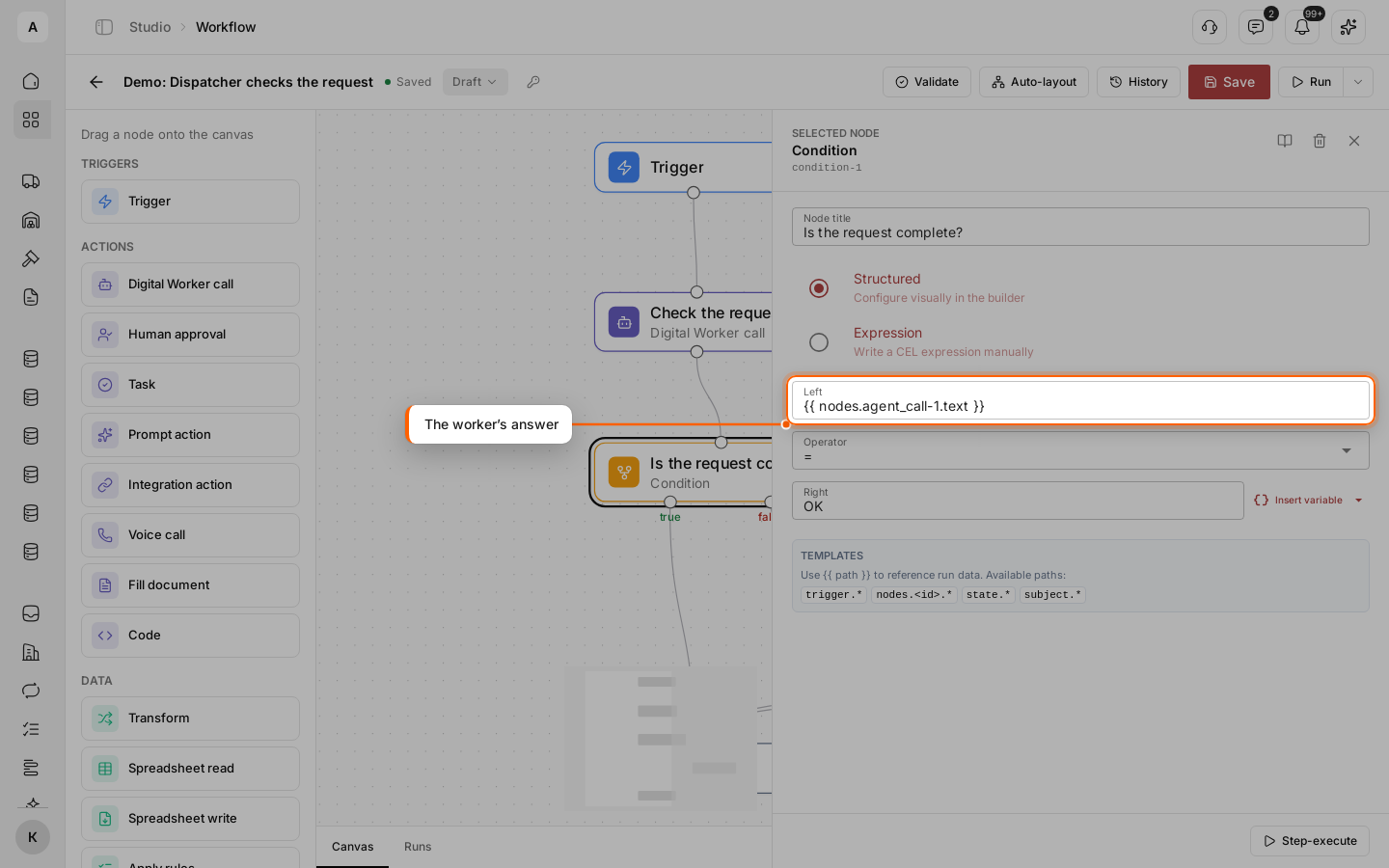
The worker’s answer is in {{ nodes.<node ID>.text }}. The node ID is shown under “Selected node” at the top of the node panel — in the example, agent_call-1.
Add a Condition after the worker. In “Structured” mode, set “Left” to {{ nodes.agent_call-1.text }}, “Operator” to “=”, and “Right” to OK. Connect “true” to End.
Pass the answer to a person
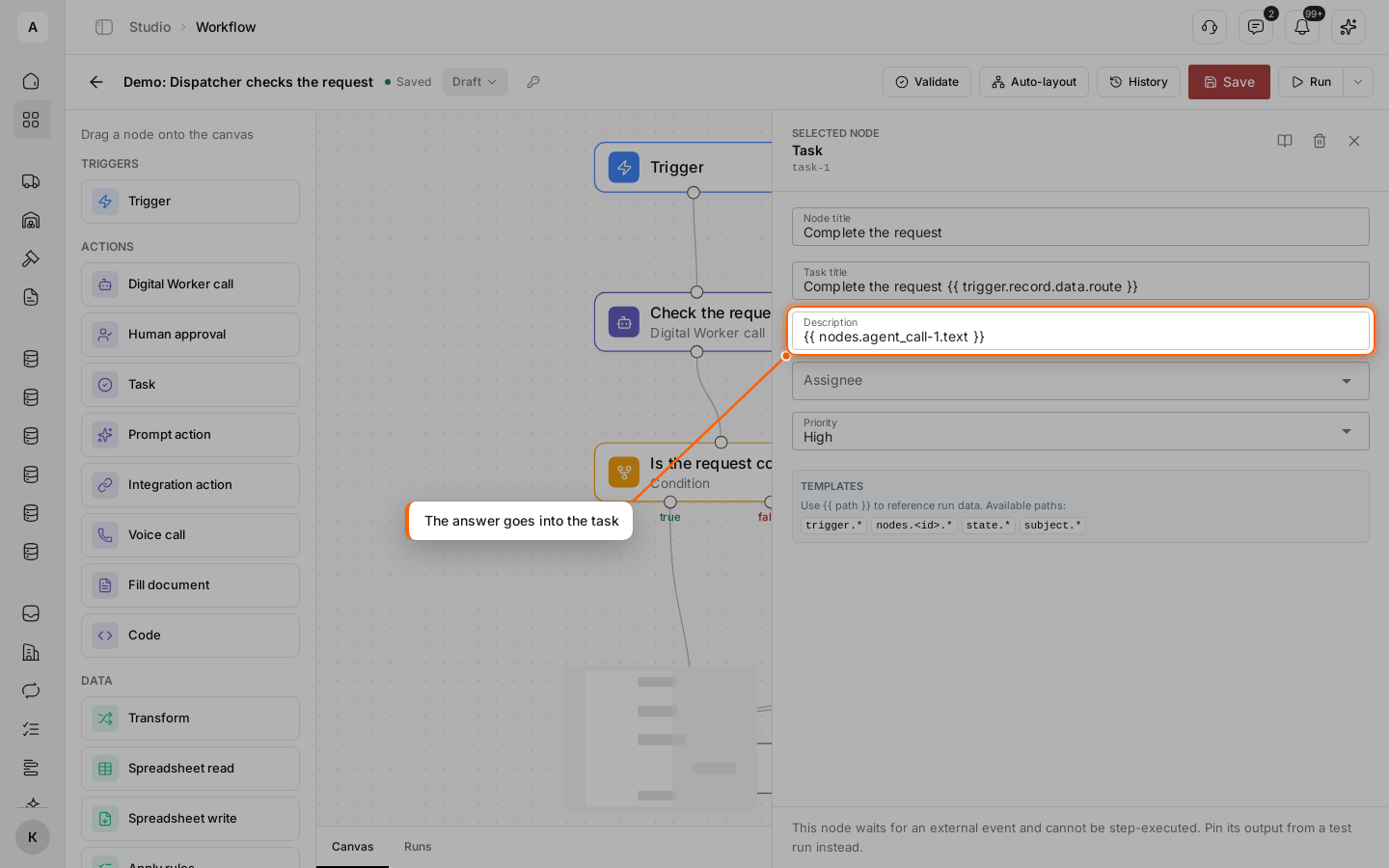
Connect “false” to a Task. Put the same path in “Description”, and the request into “Task title”: Complete the request {{ trigger.record.data.route }}. Connect both task outputs, “done” and “cancelled”, to End, then click Save.
Test on a request with a gap
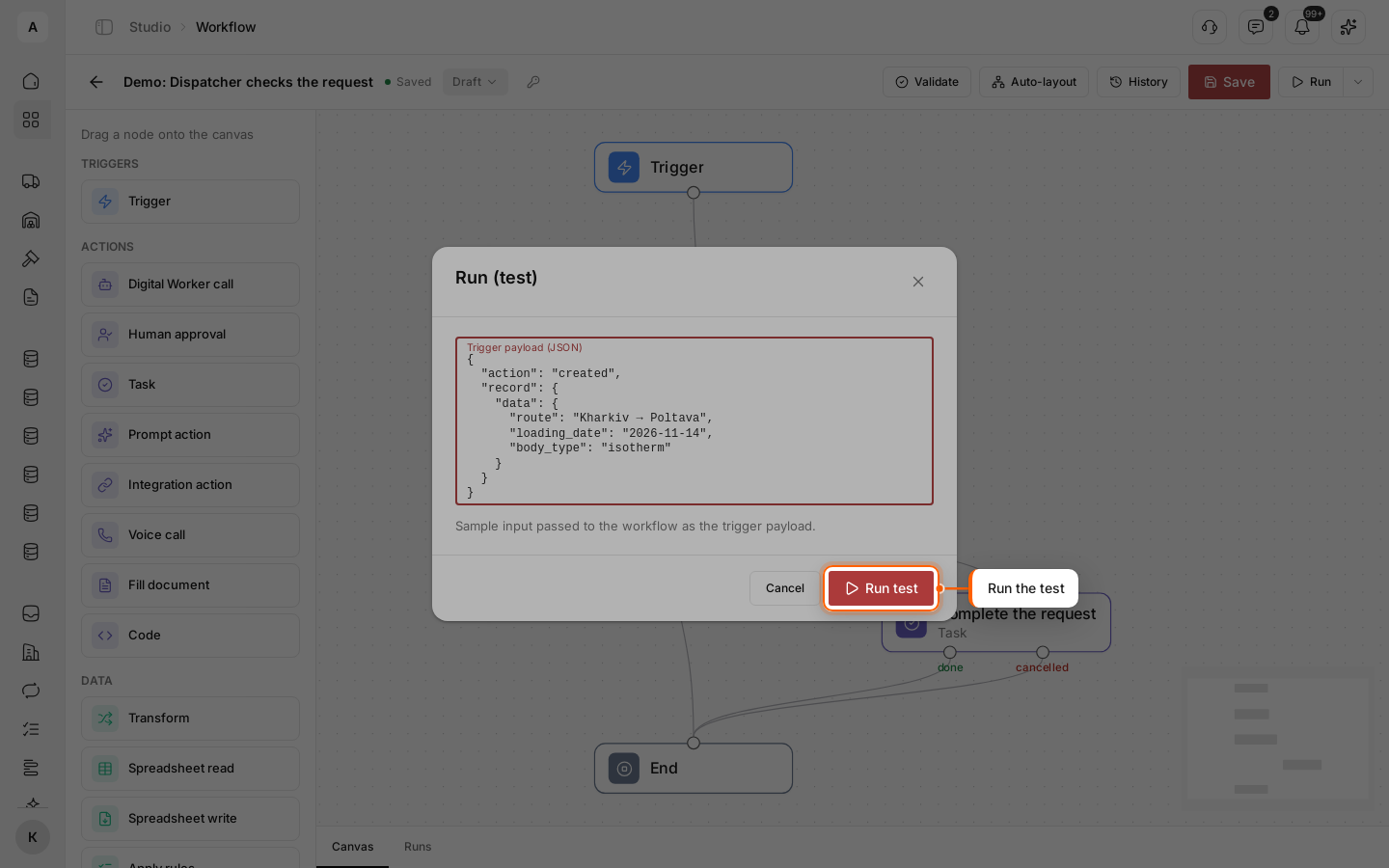
Click Run and enter a request without the weight:
{
  "action": "created",
  "record": {
    "data": {
      "route": "Kharkiv → Poltava",
      "loading_date": "2026-11-14",
      "body_type": "isotherm"
    }
  }
}
Click Run test.
Read the worker’s answer
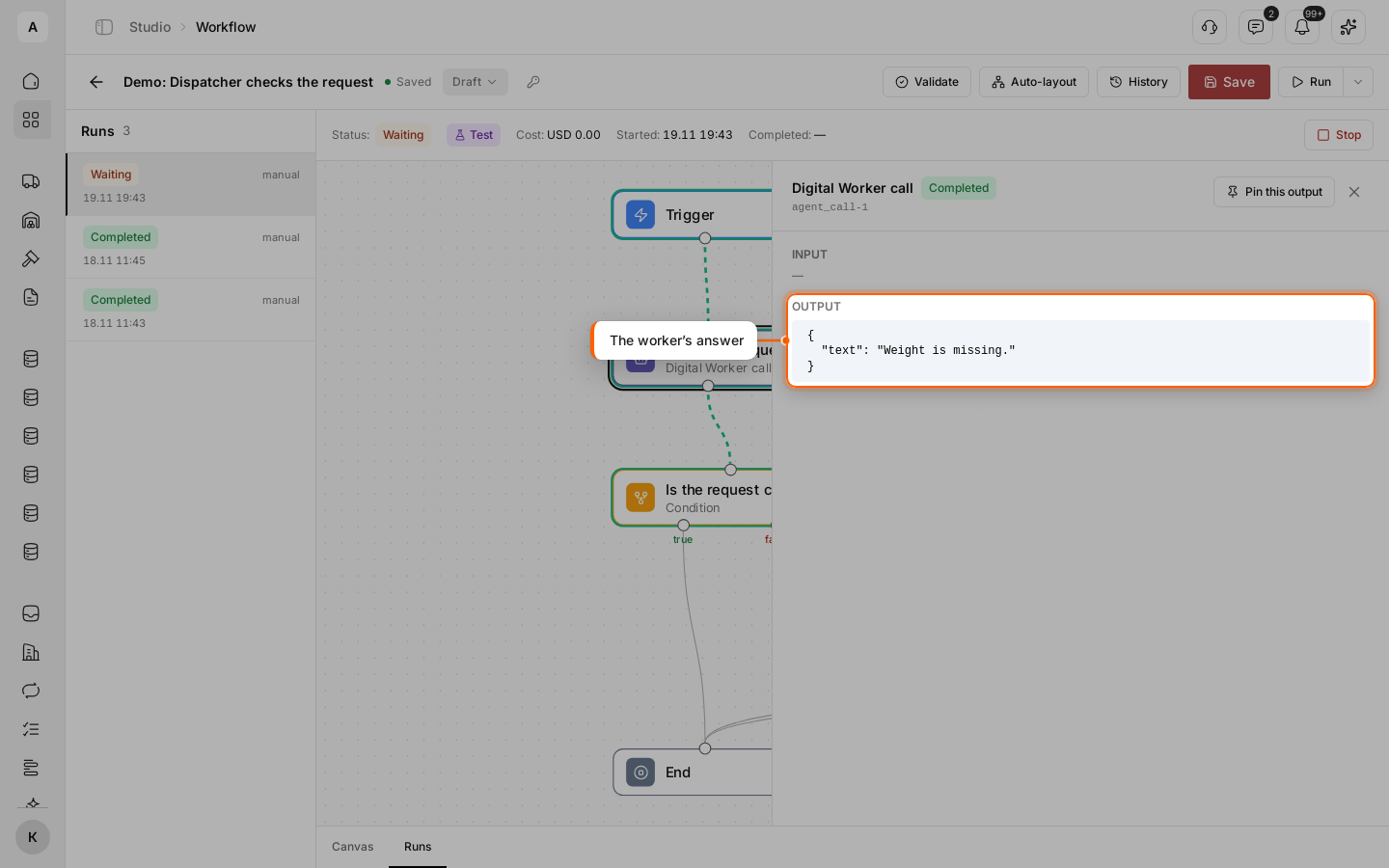
The Runs tab opens. Click the “Check the request” node. “OUTPUT” holds the answer in “text”: “Weight is missing.”
The run has the “Waiting” status: the condition went to “false”, and the task waits for a person.
Check the task
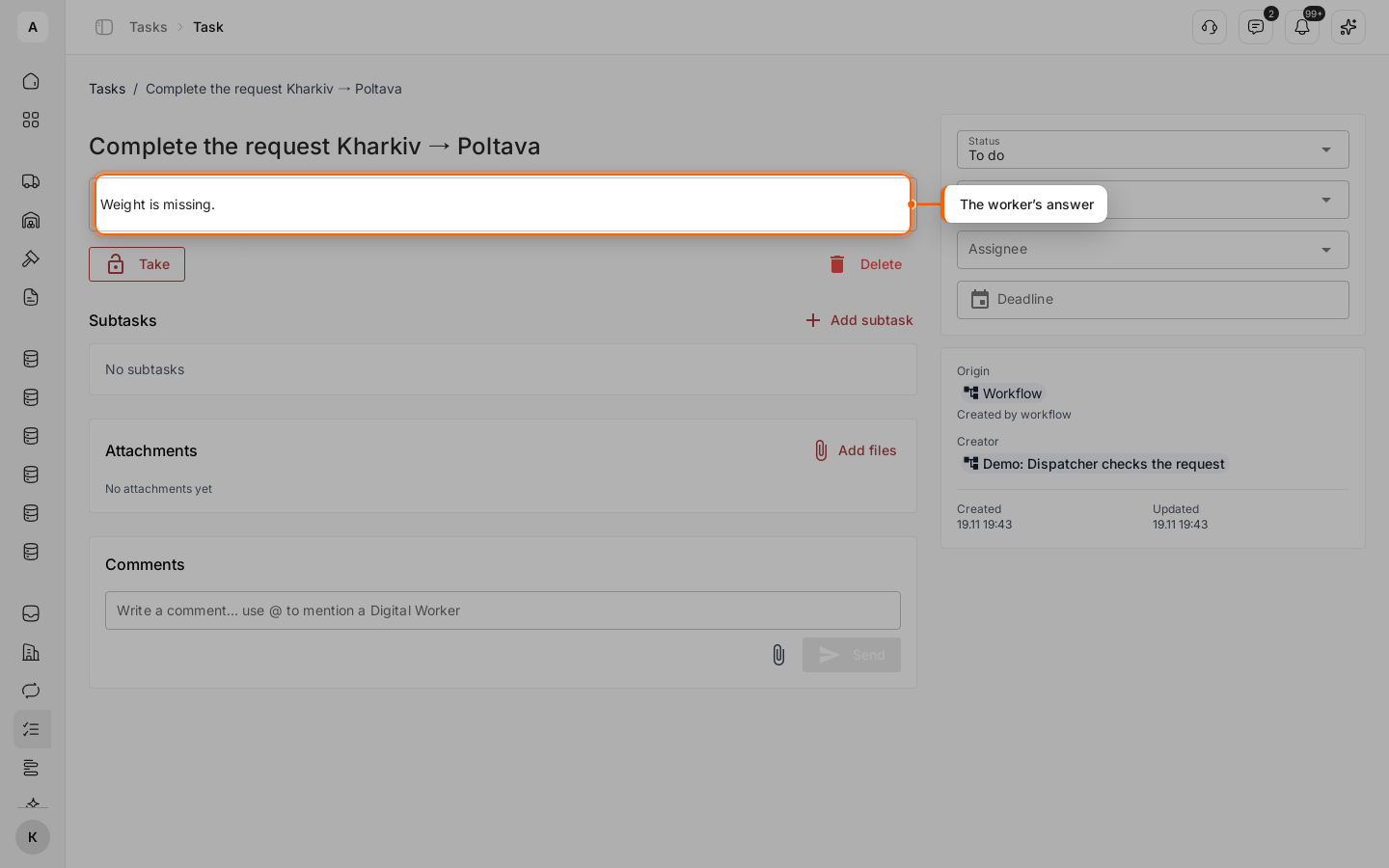
Open Tasks. The task “Complete the request Kharkiv → Poltava” has the worker’s answer as its description. When you set its “Status” to “Done”, the run continues and ends with “Completed”.
Test a full request
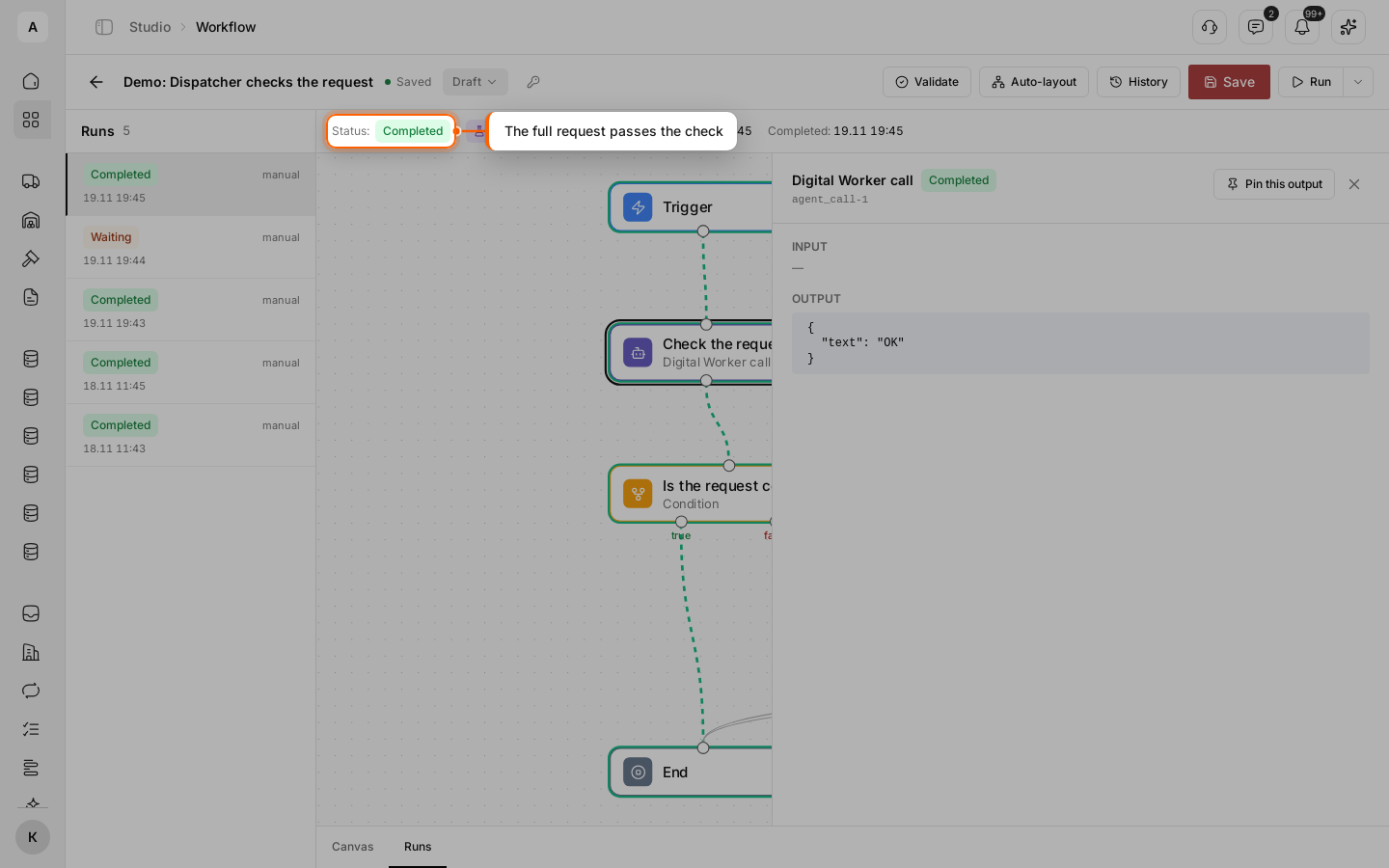
Run the test again with the full request “Kyiv → Lviv”: "loading_date": "2026-11-26", "weight_kg": 18000, "body_type": "Curtainsider". The worker answers “OK”, the condition goes to “true”, and the run ends with “Completed” without a task.
Important
A test run calls the worker for real: it reads the instruction, uses its tools and costs money. To skip the call in tests, turn on “Mock in test” in the node and set the “Mock output (JSON)”, for example {"text": "OK"}. The test then takes this answer, and a published workflow still calls the worker.
What happens while the worker works
- The run waits for the answer. Nothing after the node runs until the worker finishes.
- The worker may pause. When it asks a person to approve an action, places a voice call or hands work to another worker, the step and the run show “Waiting”. When the worker finishes, the run continues on its own.
- A worker error stops the run. The run gets the “Failed” status with the worker’s error. To let the run go on, turn on “Continue on error”: the node shows “Failed — skipped”, and its output holds “error”. See Find out why a run failed.
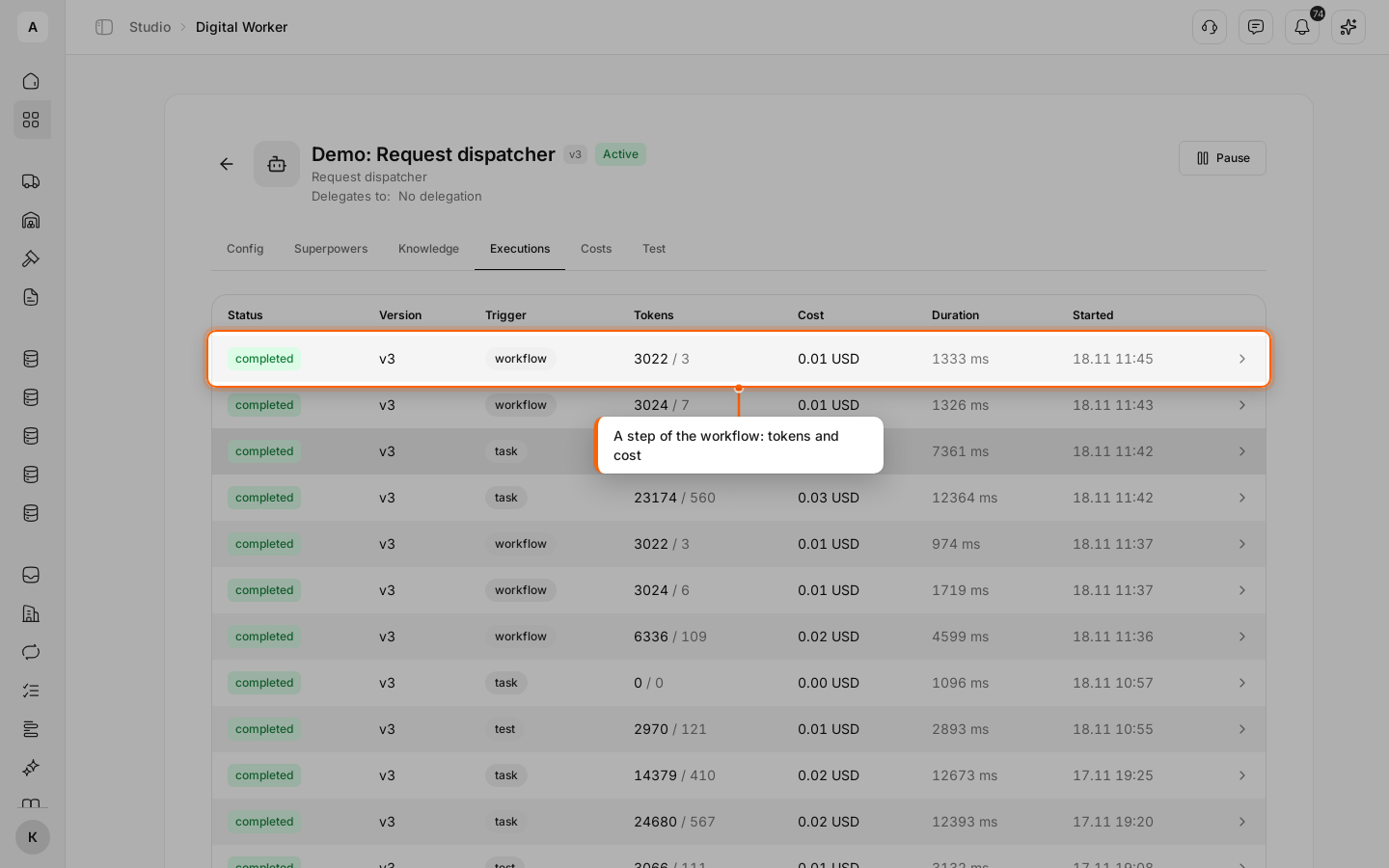
- Costs are with the worker. Open the worker’s card, the Executions tab: every step of a workflow is a row with the “workflow” trigger, its tokens and its cost.
Tip
In “Expression” mode, read the answer with a function: prop(nodes, "agent_call-1.text") == "OK" — see Functions in expressions.
Prompt action: one AI request without a worker
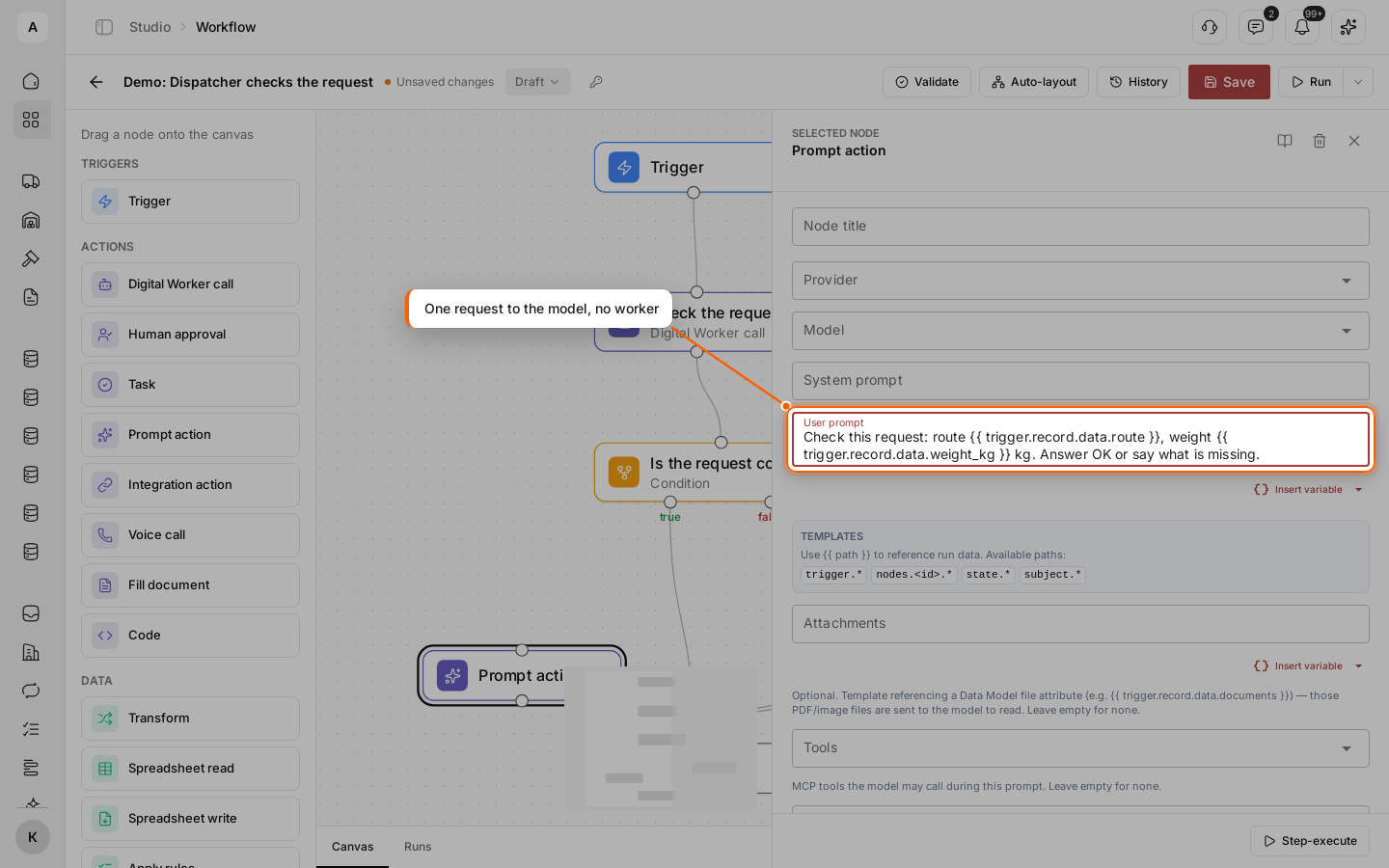
Prompt action sends one request to an AI model right from the workflow. You write the “System prompt” and the “User prompt” in the node, and you can pick the “Provider” and “Model”, add files in “Attachments”, allow “Tools” and set an “Output schema (JSON Schema)” to get fields instead of text. The answer is in {{ nodes.<node ID>.text }}, or in {{ nodes.<node ID>.data }} with a schema.
Which one to use:
- Digital Worker call — when the step needs what the worker already has: its instructions, superpowers, knowledge base and memory, approvals by a person. You change the worker once, and every workflow that calls it gets the change.
- Prompt action — for a short, one-off job inside one workflow: classify an email, pull the weight out of a document, write a summary. It needs no worker and shows its cost right in the run.
Both nodes have “Mock in test” and “Continue on error”.
Important
Validate and Publish check that the AI provider of the worker or of the Prompt action has a key for your account. If it does not, the check shows an error on that node, and the workflow does not publish.
Next steps
More about “Condition” and “Switch” on the worker’s answer.
What to do when the worker step ends in “Failed”.
Give the worker the actions and rules it needs for the check.
All fields and outputs of “Digital Worker call” and “Prompt action”.