- Who can: a user with the “Manage Studio” permission
- Where: Studio › Forms
- Time: ≈ 10 minutes
Before you start
You need a data model the form writes records into. The example uses “Demo: Shipment request” with the fields “Route”, “Loading date”, “Weight, kg” and “Body type”. If you do not have a model yet, create a data model first.
Steps
Open Forms
Click Studio in the left menu, then Open on the “Forms” card.
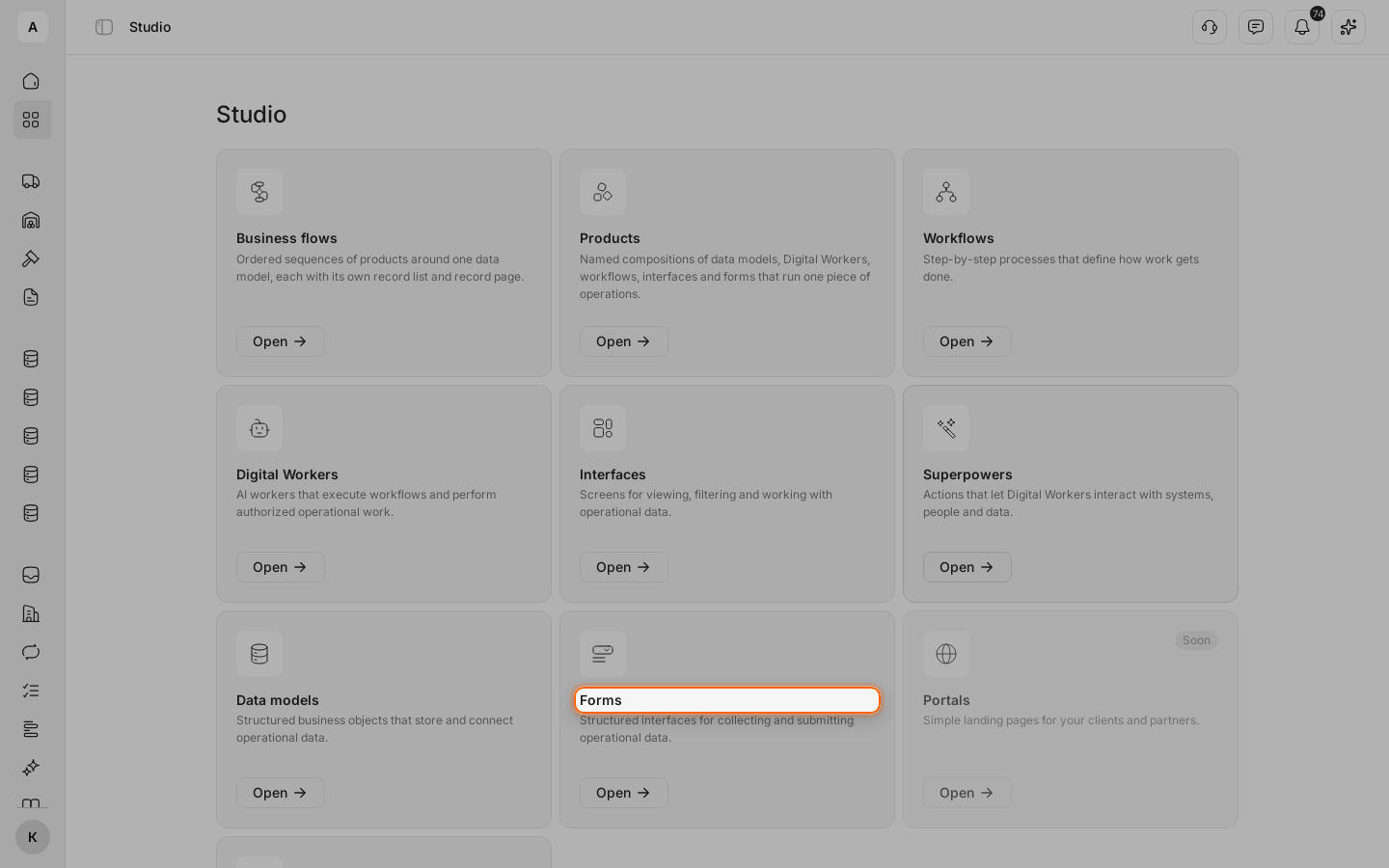
Start a new form
Click Create form above the list.
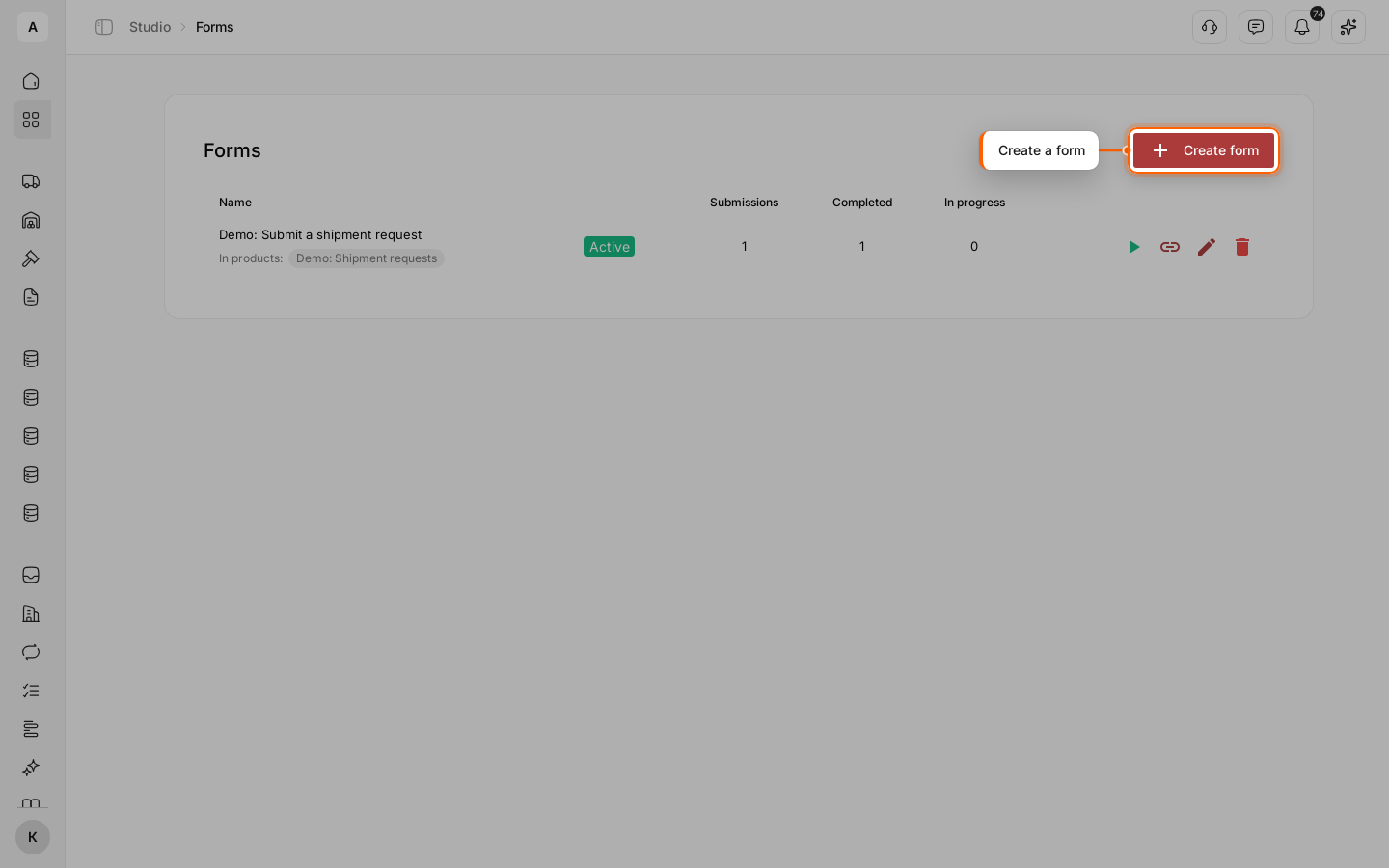
Name the form
Enter a “Name”: everyone who opens the link sees it. Click OK: the form builder opens.
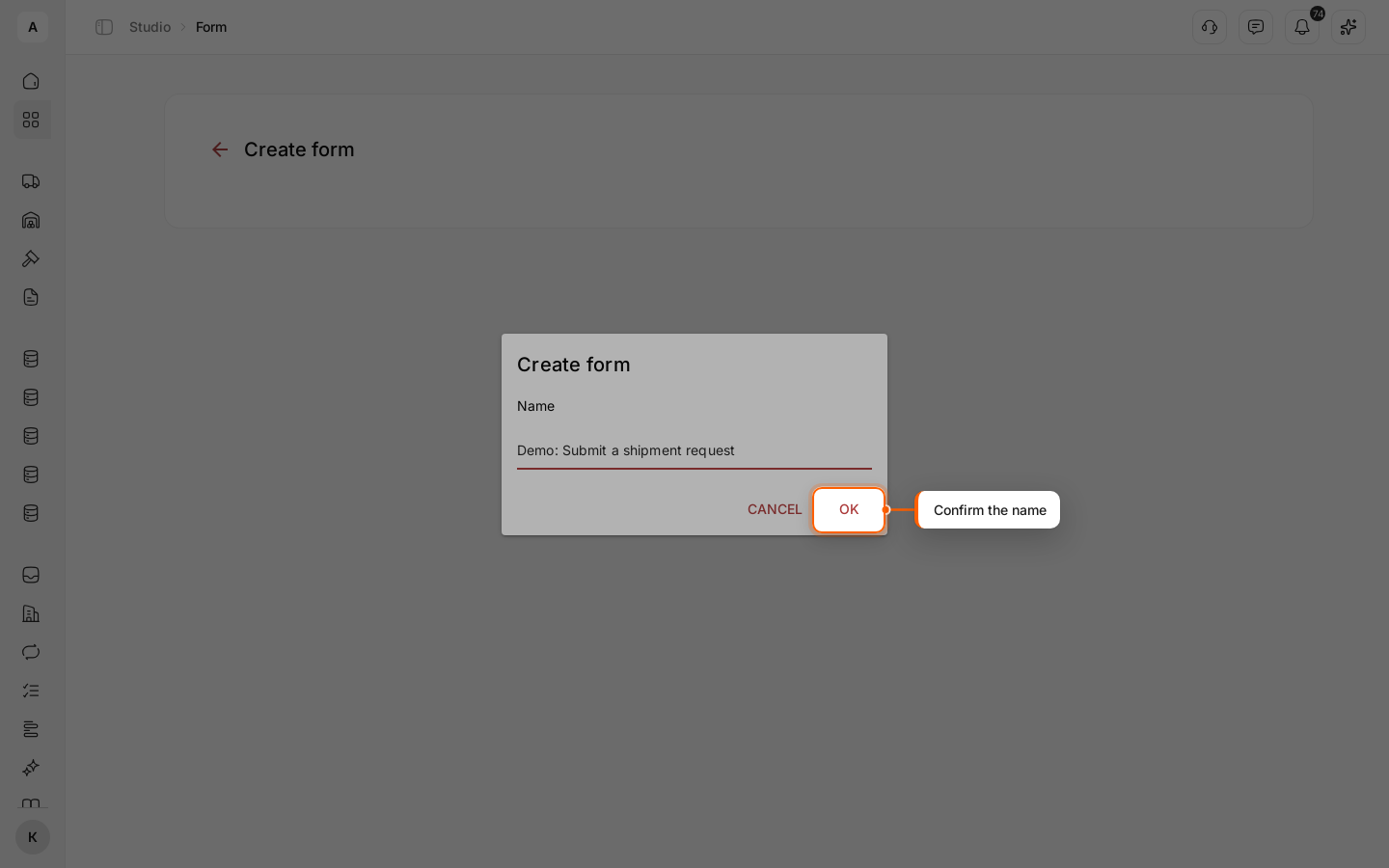
Add a step
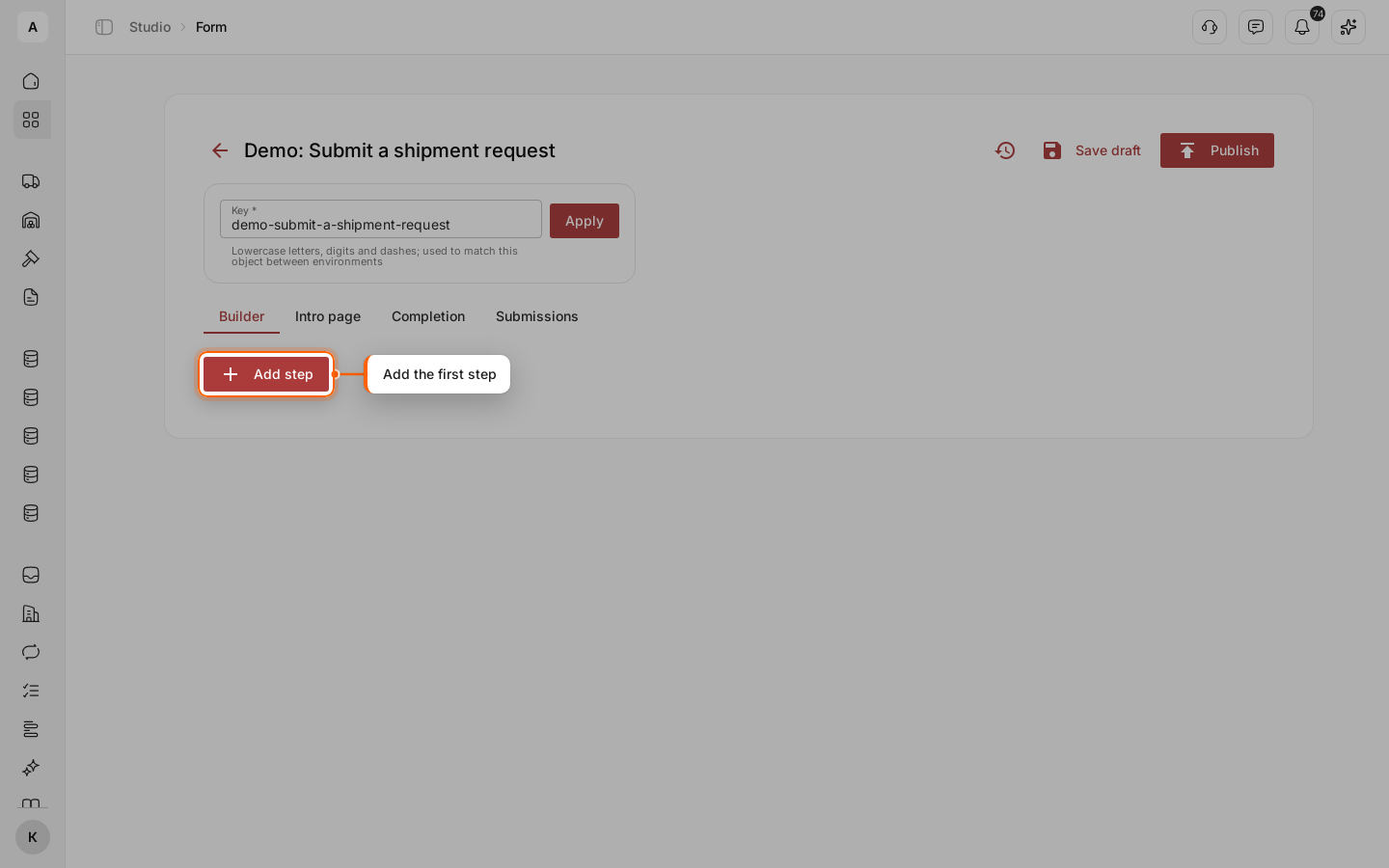
On the Builder tab, click Add step.
The “Key” above the tabs fills in from the name; you do not need to change it.
Set up the step
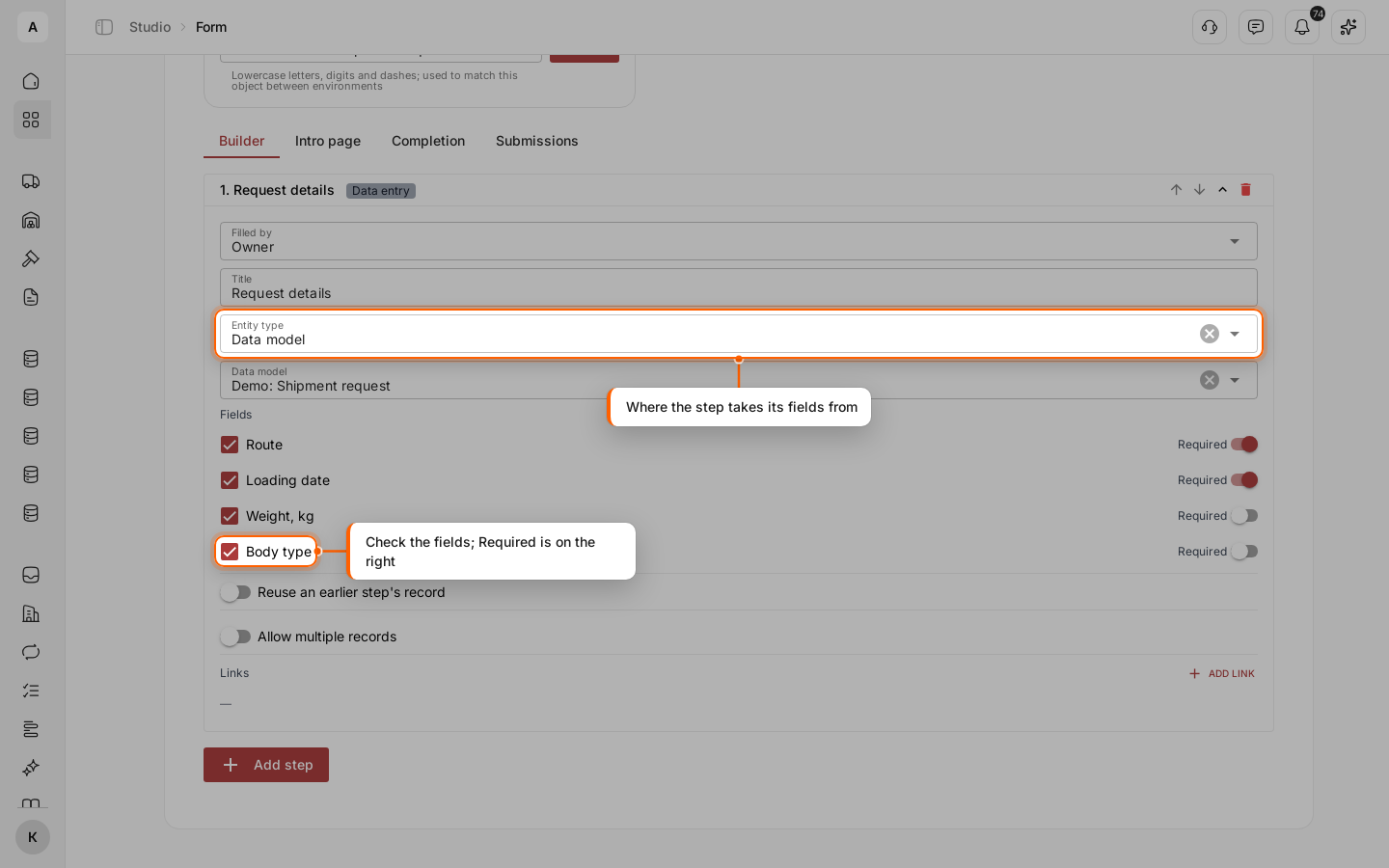
In “Filled by”, pick who fills the step: “Owner” for someone in your account, “Counterparty” for a customer or partner from another company. In the example, your dispatchers enter requests themselves, so the step stays “Owner”. For a form your customer starts, see Collect a request from a customer and finish it in your team. Enter a “Title”, “Request details” in the example. In “Entity type”, select “Data model”, then select your model in “Data model”.
Under “Fields”, check the fields the person fills in at this step. A field is required in the form when it is marked Required in the data model. The example checks all four fields.
To add another step, click Add step again. Reorder steps with the arrows in the step header.
Write the intro page
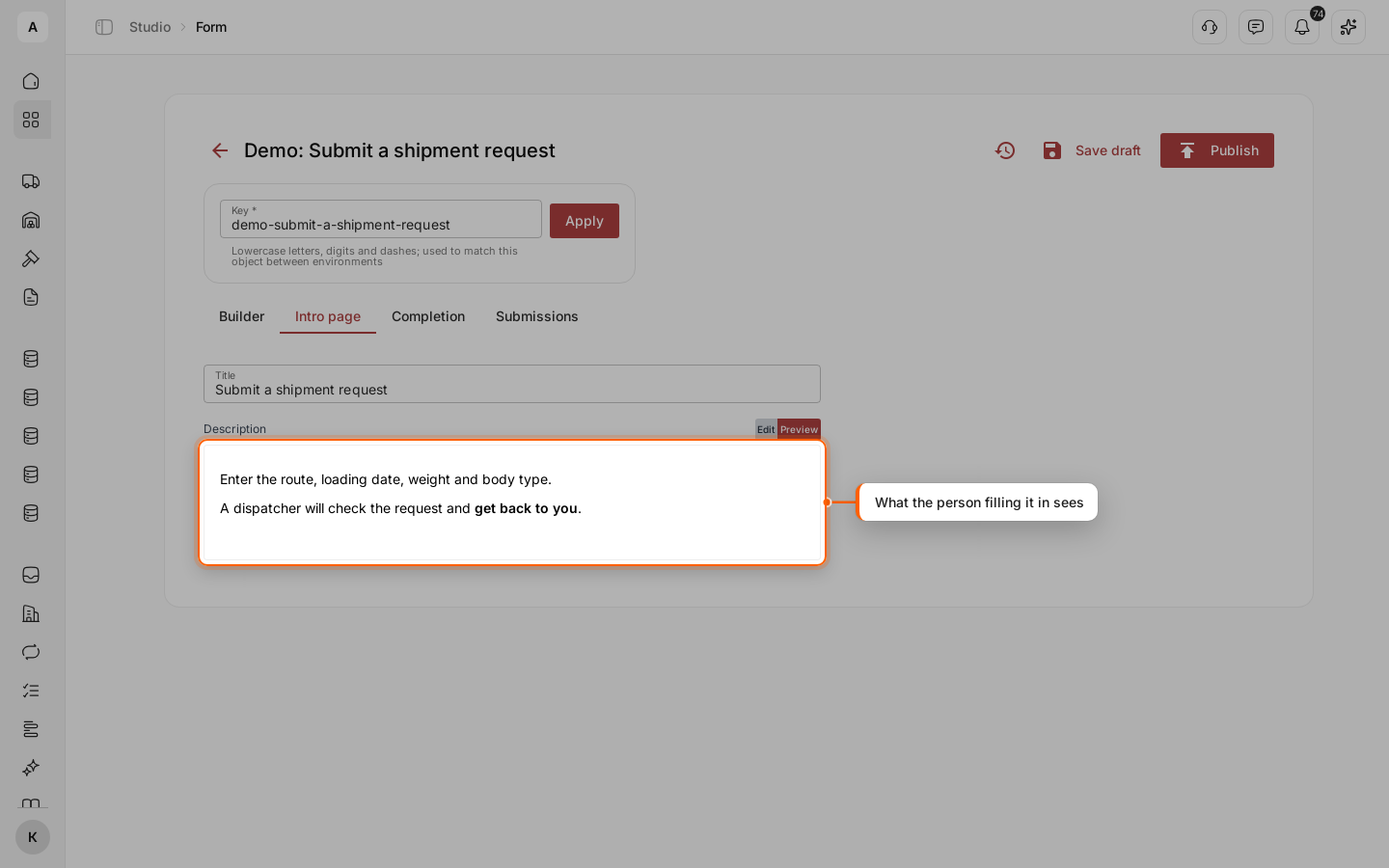
Go to the Intro page tab. Enter a “Title” and a “Description”: what the person fills in and what happens next. Click Preview to see the text the way the form shows it.
Write the completion page
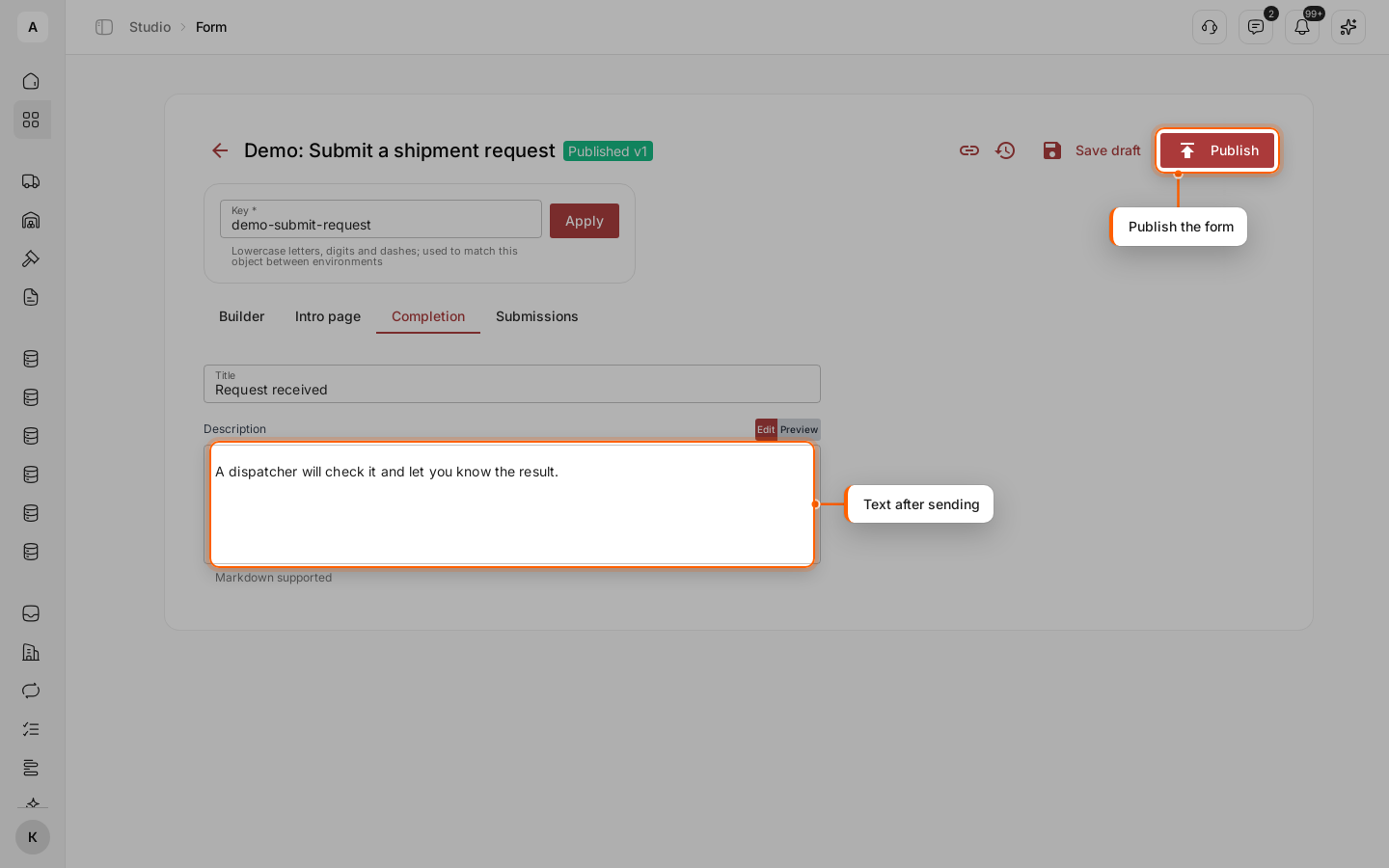
Go to the Completion tab and fill in the “Title” and the “Description”. The person sees this text after sending the form.
Publish the form
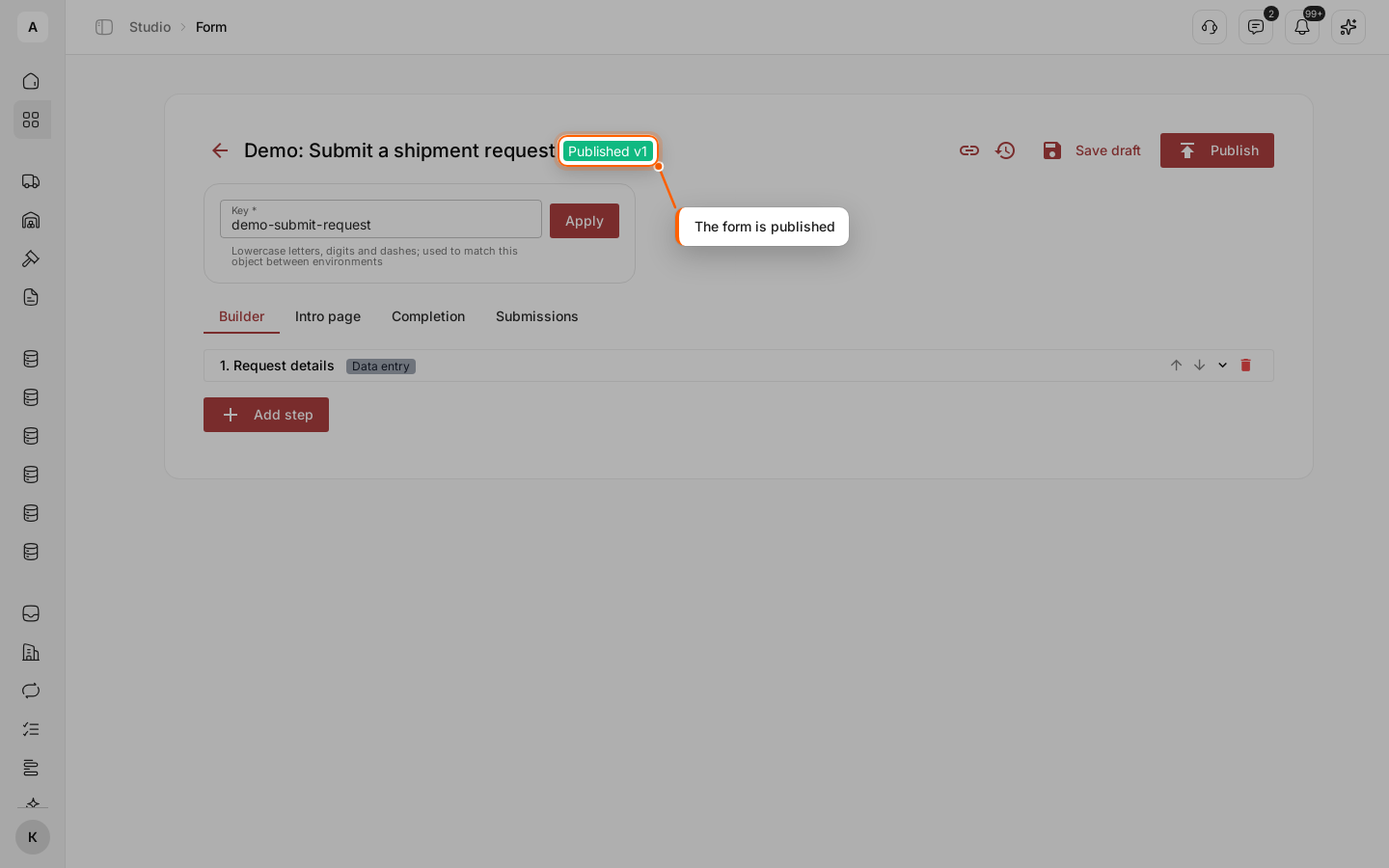
Click Publish. The “Published v1” status appears next to the name, and the Copy link icon appears in the header.
To save changes without publishing, click Save draft: the published version keeps working until you publish a new one.
Important
Before you publish, make sure every step has a “Title”, an “Entity type” with a data model and at least one checked field.