- Who can: any member of your company sees, changes and deletes all its tasks. Giving a task to a Digital Worker needs the “Assign Digital Workers” permission.
- Where: Tasks in the left menu
What it is
A task is a piece of work for a person or a Digital Worker — an AI worker your company sets up in Studio: check a request, call carriers, confirm a loading window. Your team creates tasks by hand, a workflow creates them on its own, and a Digital Worker can create them too.
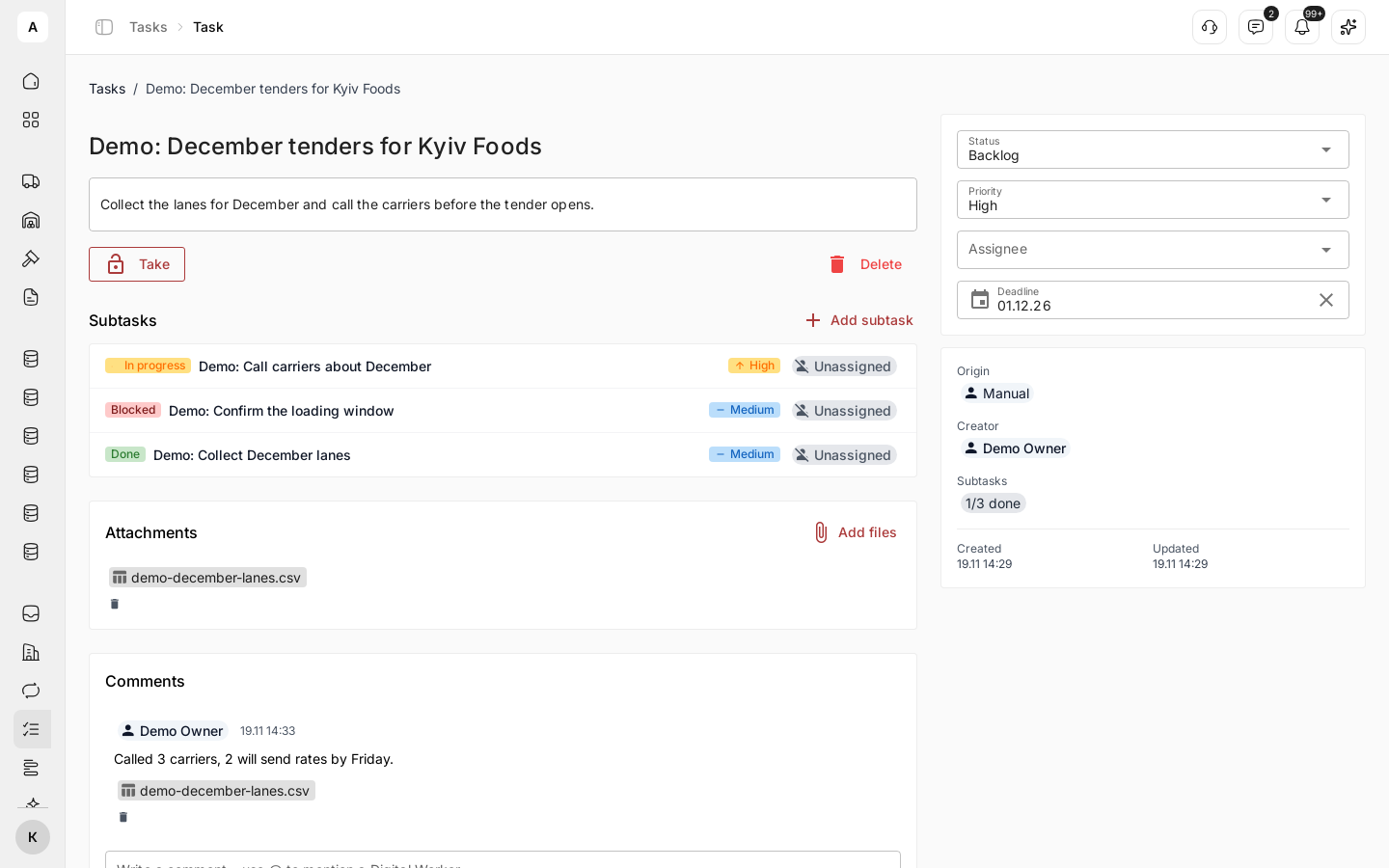
Example: the task “Demo: December tenders for Kyiv Foods” has three subtasks — collect the lanes, call the carriers, confirm the loading window — high priority and a deadline of December 1, 2026.
What it can do
- Subtasks. A task can hold subtasks, and a subtask its own. The task shows how many are done, for example “1/3 done”.
- Status and priority. Where the work is — from “Backlog” to “Done” — and how urgent it is: “Low”, “Medium”, “High”, “Urgent”. See Move a task through its statuses.
- Deadline. The date by which the task must be done.
- Assignee. Who the task is for: one person or one Digital Worker. The person gets the notification “You have been assigned a task”.
- Work for a Digital Worker. A Digital Worker does the task and answers with a comment. See Give a task to a Digital Worker.
- Comments and files. Your team discusses the task in comments and keeps its documents and photos on it. See Comment and attach files.
- Who is on it now. Take shows who is working on a task at the moment. See Take a task.
- Find tasks. Search and filter by status, priority, origin and assignee. See Find tasks.
- Tasks from workflows. A workflow gives a task to a person or a Digital Worker and waits until it is “Done” or “Cancelled”. See Tasks from workflows.
Where tasks come from
The “Origin” of a task shows who created it:
| “Origin” | Who created the task |
|---|---|
| “Manual” | A person, in Tasks or through a connected AI assistant |
| “Digital Worker” | A Digital Worker while it worked |
| “Workflow” | A “Task” step of a workflow |
| “Architect” | The AI assistant that builds your setup in Studio |
Limits
- A task has one assignee.
- Files: images, PDF, Word (.docx), Excel (.xlsx), CSV, text and Markdown, up to 25 MB each and 20 at a time.