- Who can: a user with the “Manage Studio” permission
- Where: Studio › Integrations › the “Email” group
- Time: ≈ 5 minutes
Before you start
The “Email” group on the Marketplace tab has three cards. Two of them connect a mailbox through sign-in to your mail account: you enter the password on the mail service’s page, and Cargofy never sees it. The Email card works for any other mail, including your company’s own server, and uses an app password.
For the Email card, have ready:
- the mailbox address;
- an app password: a separate password the mail service issues for outside apps. Most services do not accept your regular mail password;
- for your own mail server: the addresses and ports of the incoming and outgoing mail servers. Your system administrator has them.
Steps
Pick a mail card
Click Studio in the left menu, then Open on the “Integrations” card. On the Marketplace tab, find the “Email” group and click the card for your mail.
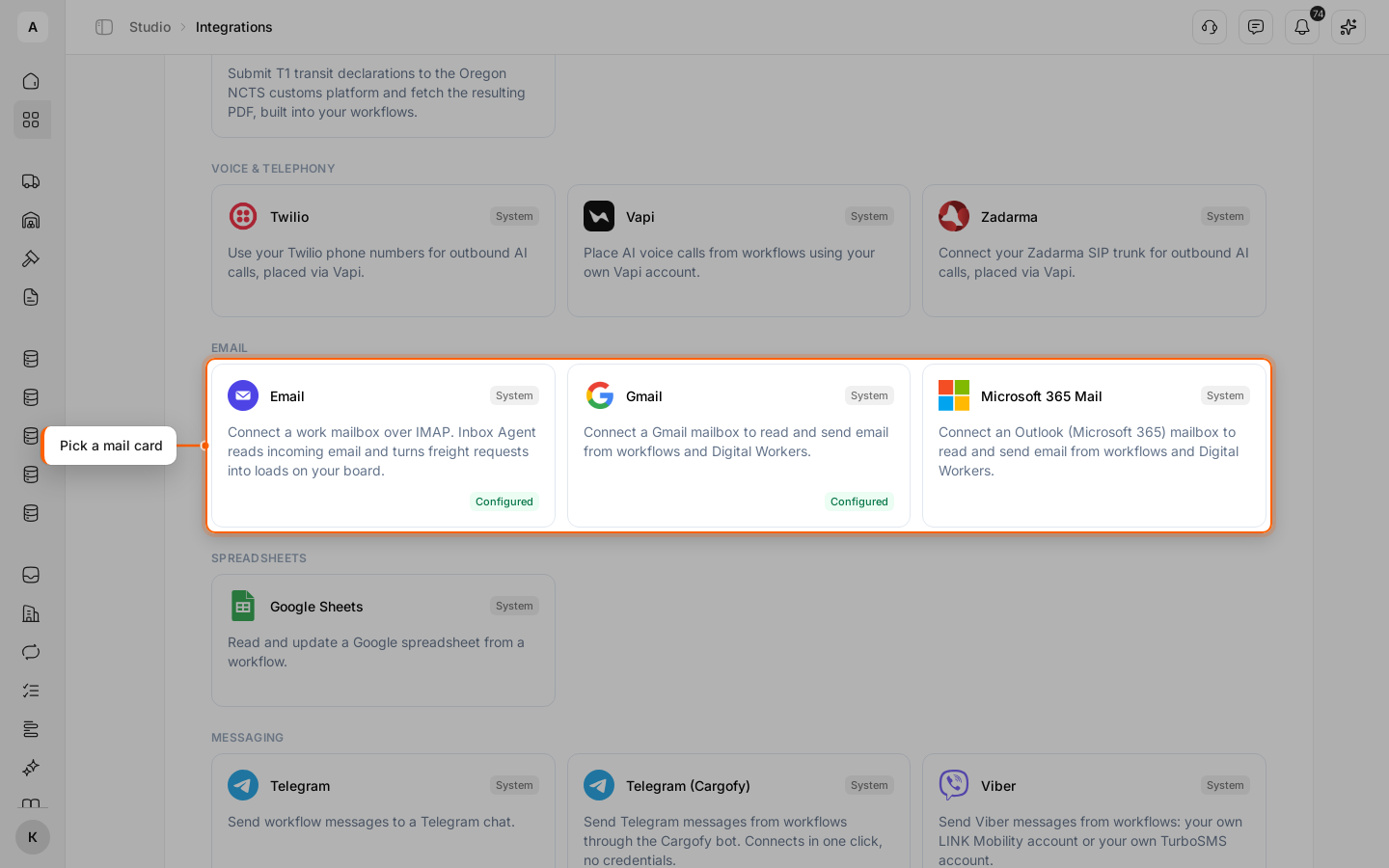
Mail with account sign-in
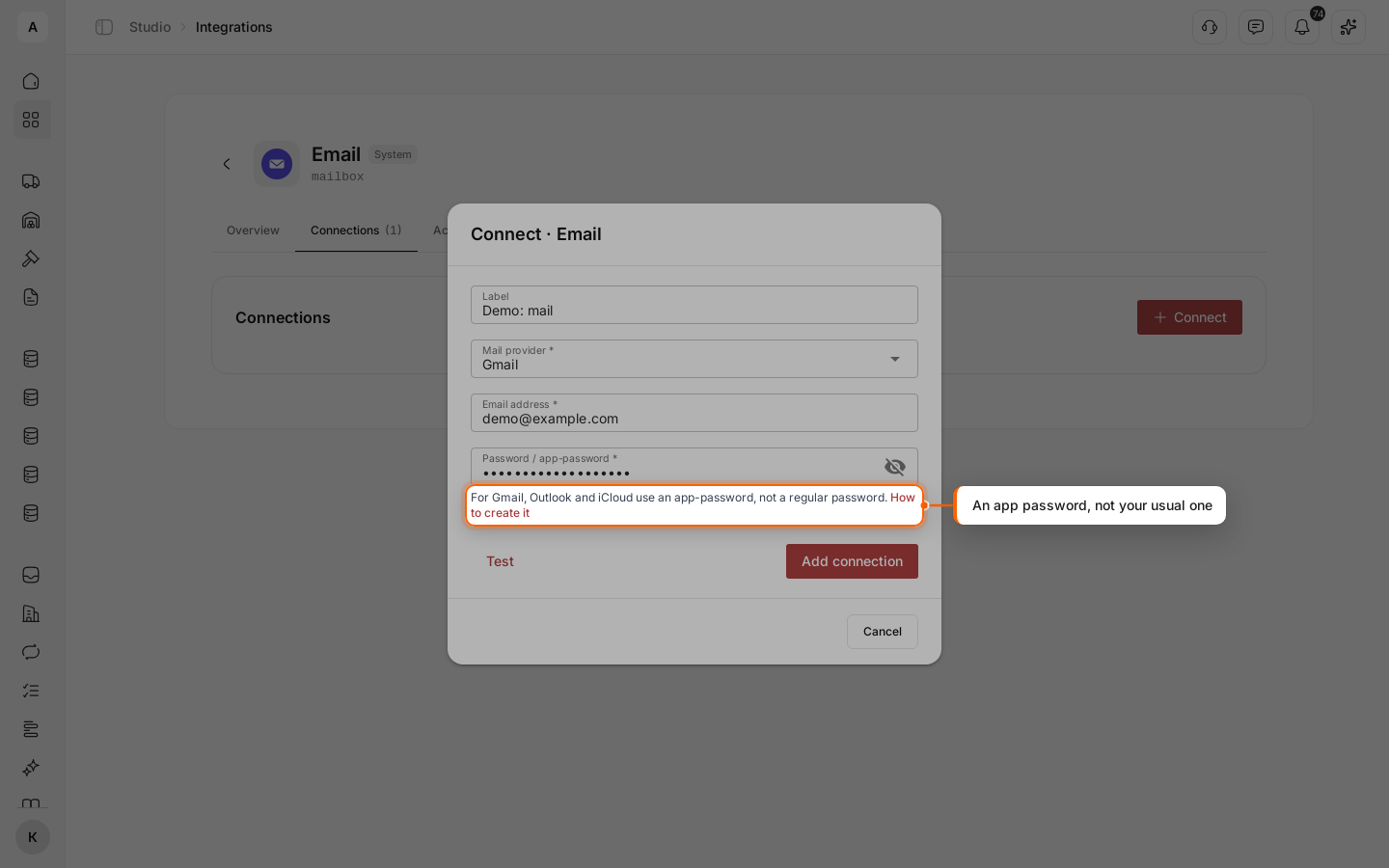
For the two sign-in cards, go to the Connections tab, click Connect, then Connect again in the dialog. The mail service’s sign-in page opens: sign in to the mailbox and allow access. You return to “Integrations”, and the mailbox appears on the Connected tab.
That completes the sign-in connection. The next steps are for the Email card.
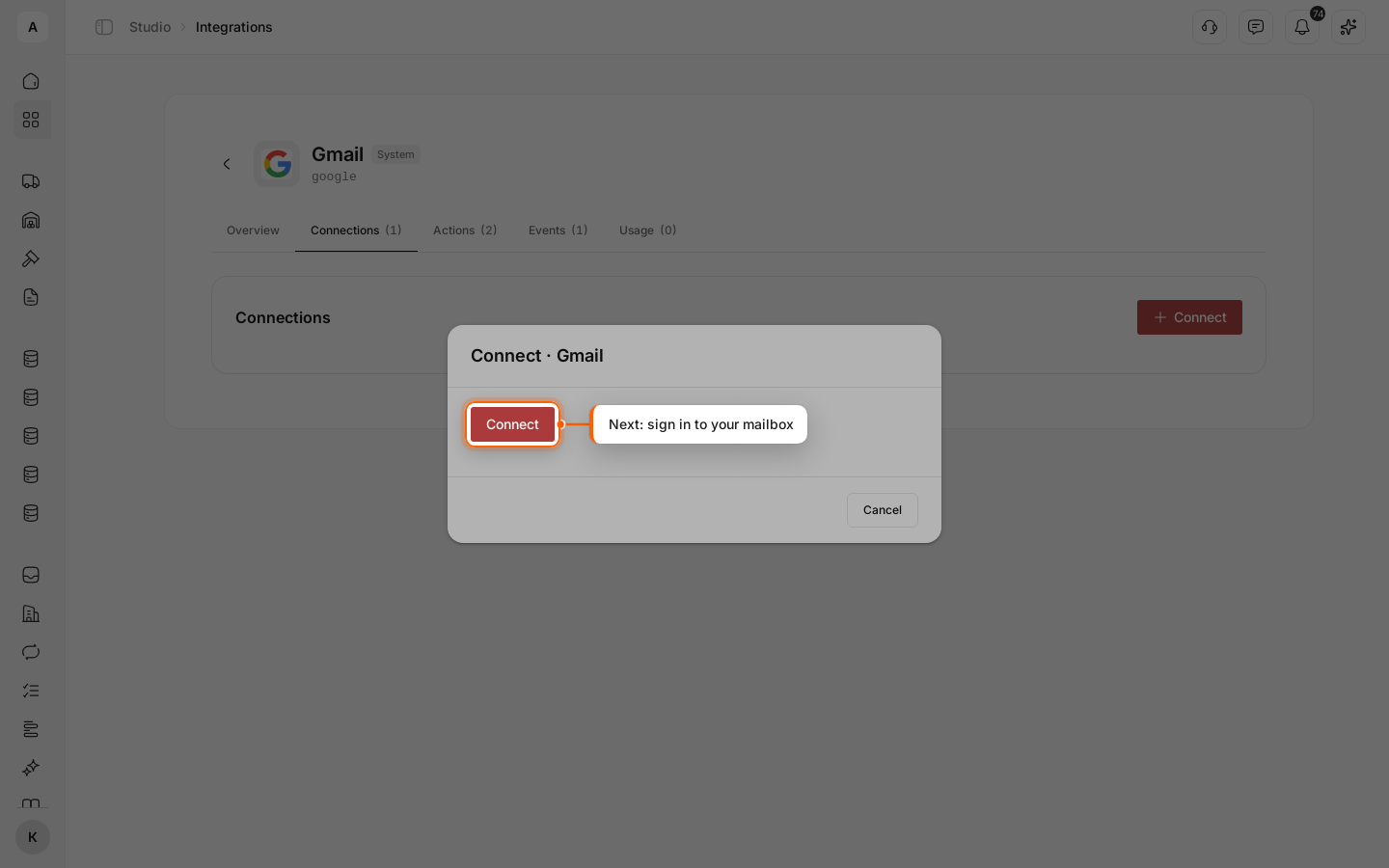
Mail with an app password: address and password
Open the Email card, go to the Connections tab and click Connect. Optionally fill in “Label”. Then pick your mail service in “Mail provider”, enter the mailbox address and the app password.
Under the password field, the How to create it link opens the chosen service’s instructions.
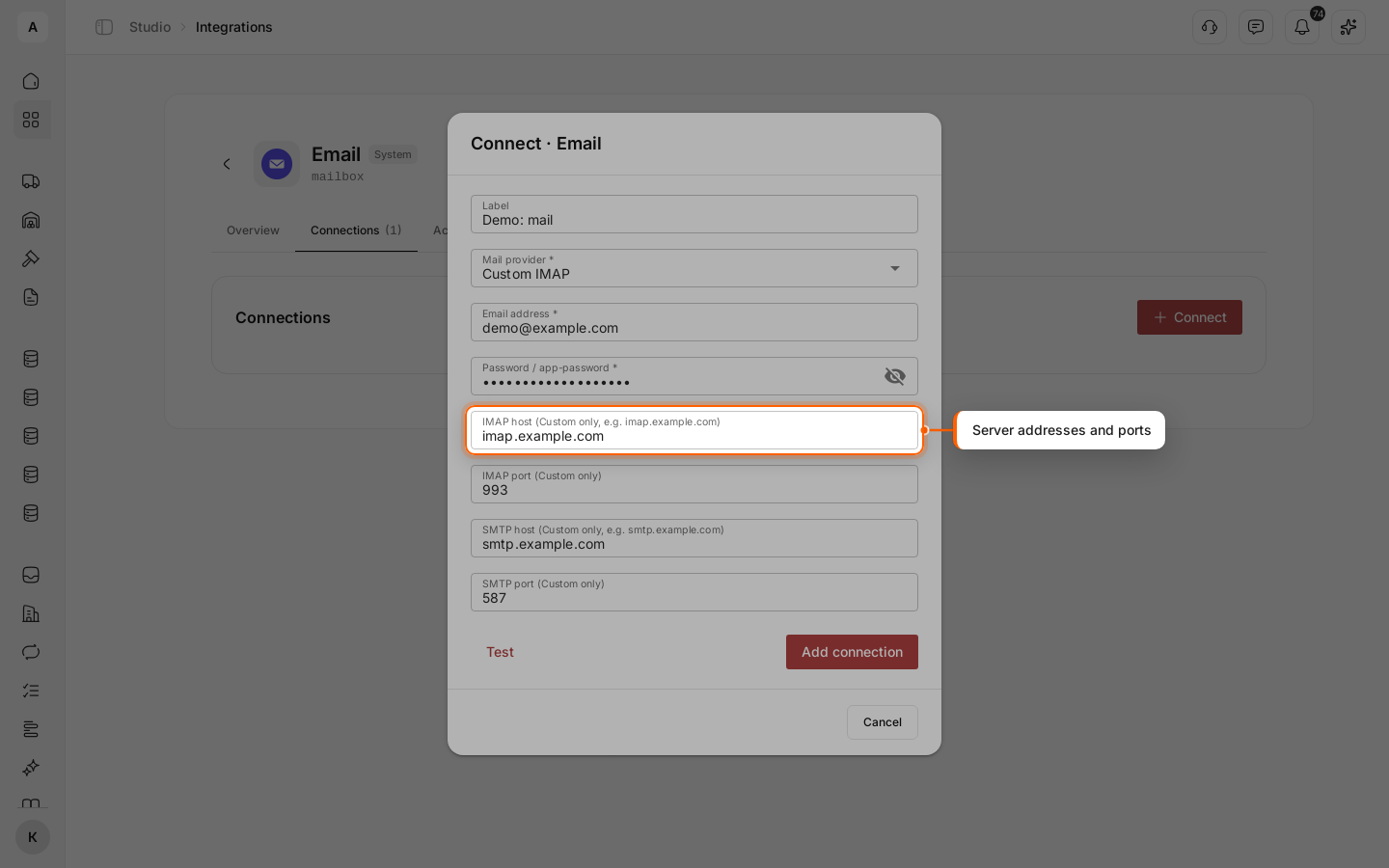
Your own mail server
If your service is not in the list, pick “Custom IMAP” in “Mail provider”. Four more fields appear: the address and port of the incoming mail server, and the address and port of the outgoing mail server. The ports already have standard values; change them only if your administrator tells you to.
Check the connection
Click Test. Cargofy saves the connection and tries to reach the mailbox. If all is well, “Connection OK” appears at the top, and the mailbox shows “Connected”.
If not, the status is “Error”, with the reason under the connection’s label. Check the address and the password.
Important
After you change your mail password or revoke the app password, connect the mailbox with the new password.