- Who can: a user with the “Manage Studio” permission
- Where: Studio › Digital Workers › worker card
- Time: ≈ 3 minutes
Before you start
Nothing to prepare. A pause stops all new runs of the worker: from workflows, tasks and the Test tab. A run already in progress finishes.
Steps
Pause the worker
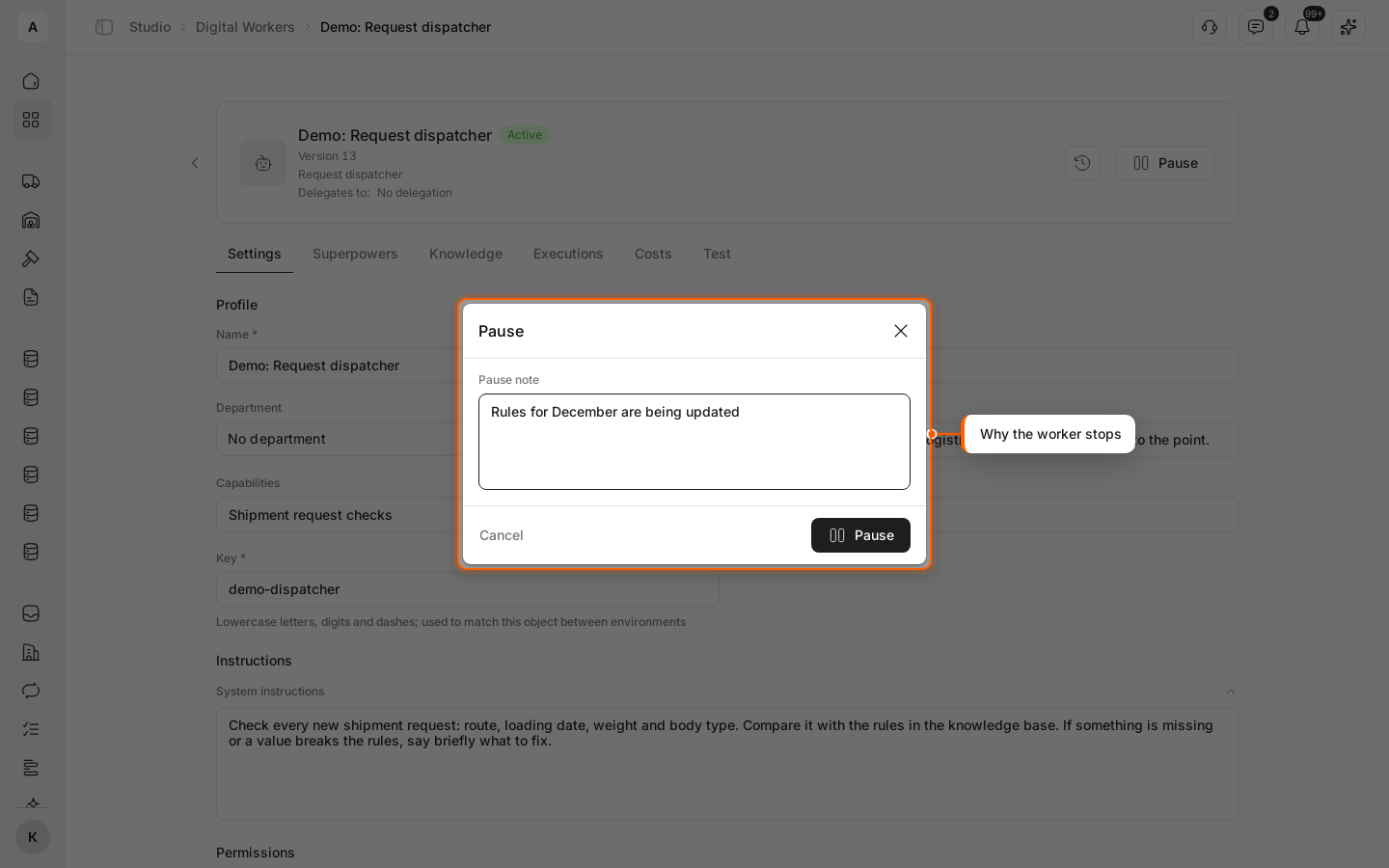
In the worker’s card, click Pause to the right of the name. In the window, write a “Pause note” on why the worker is stopped, so your team sees it. Click Pause.
Put the worker back to work
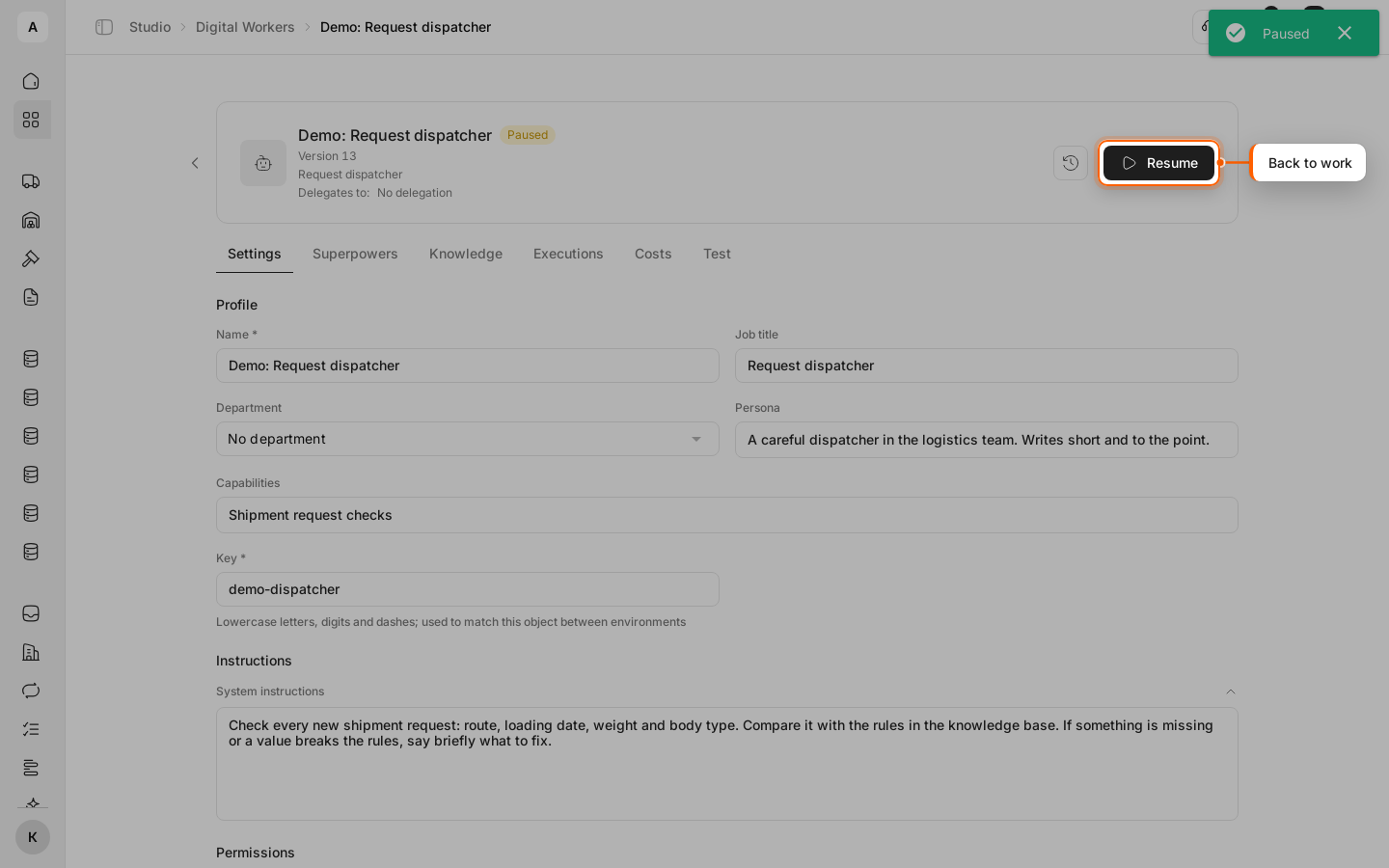
The status changes to “Paused”. Hover the status to see the note. When you need the worker again, click Resume: the status becomes “Active”.
Find the version you need
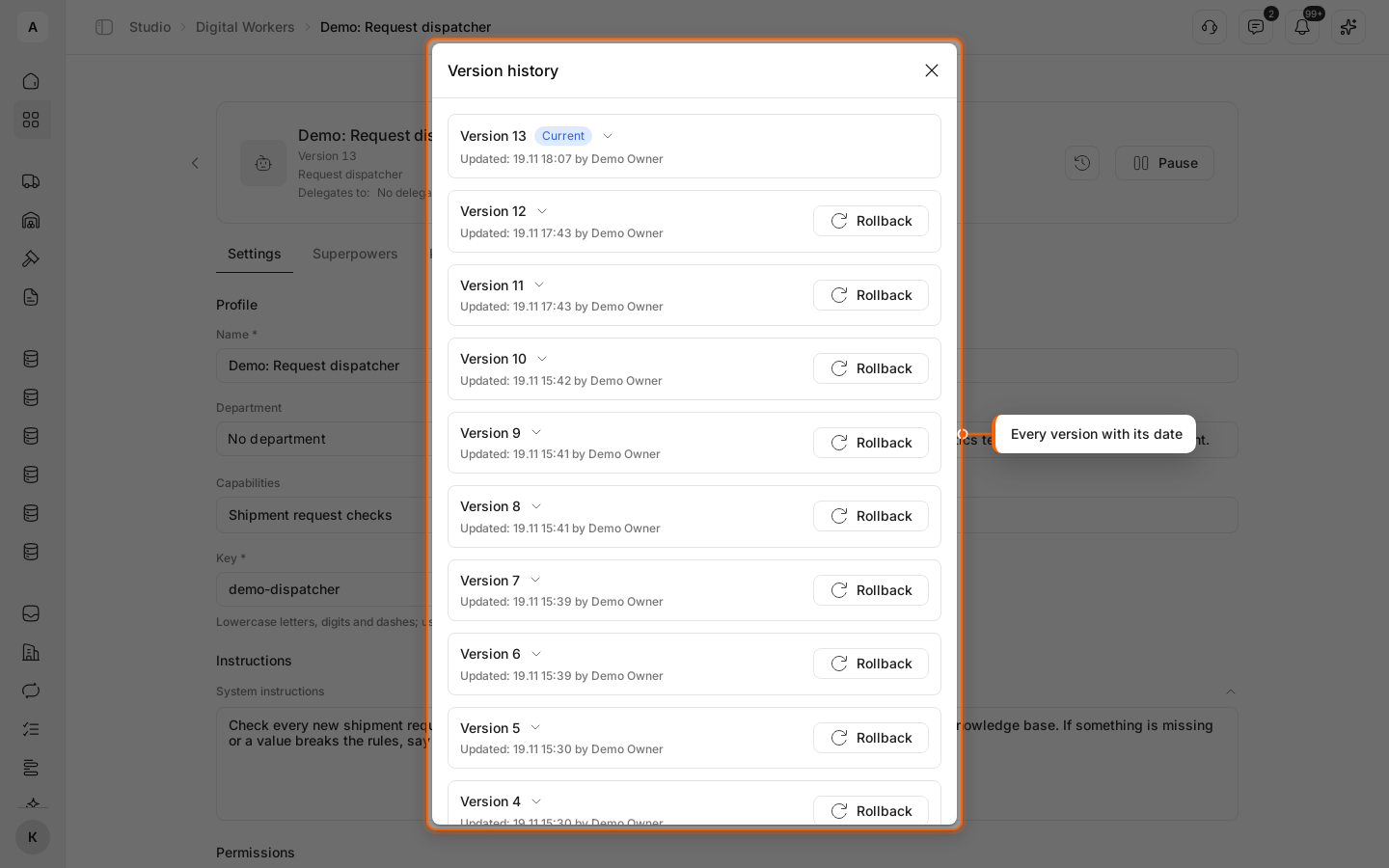
In the worker’s card, click the clock icon next to Pause. The “Version history” window lists every version with the date and who changed it; the version in use is marked “Current”.
Click Rollback in the row of the version you want back.
Confirm the rollback
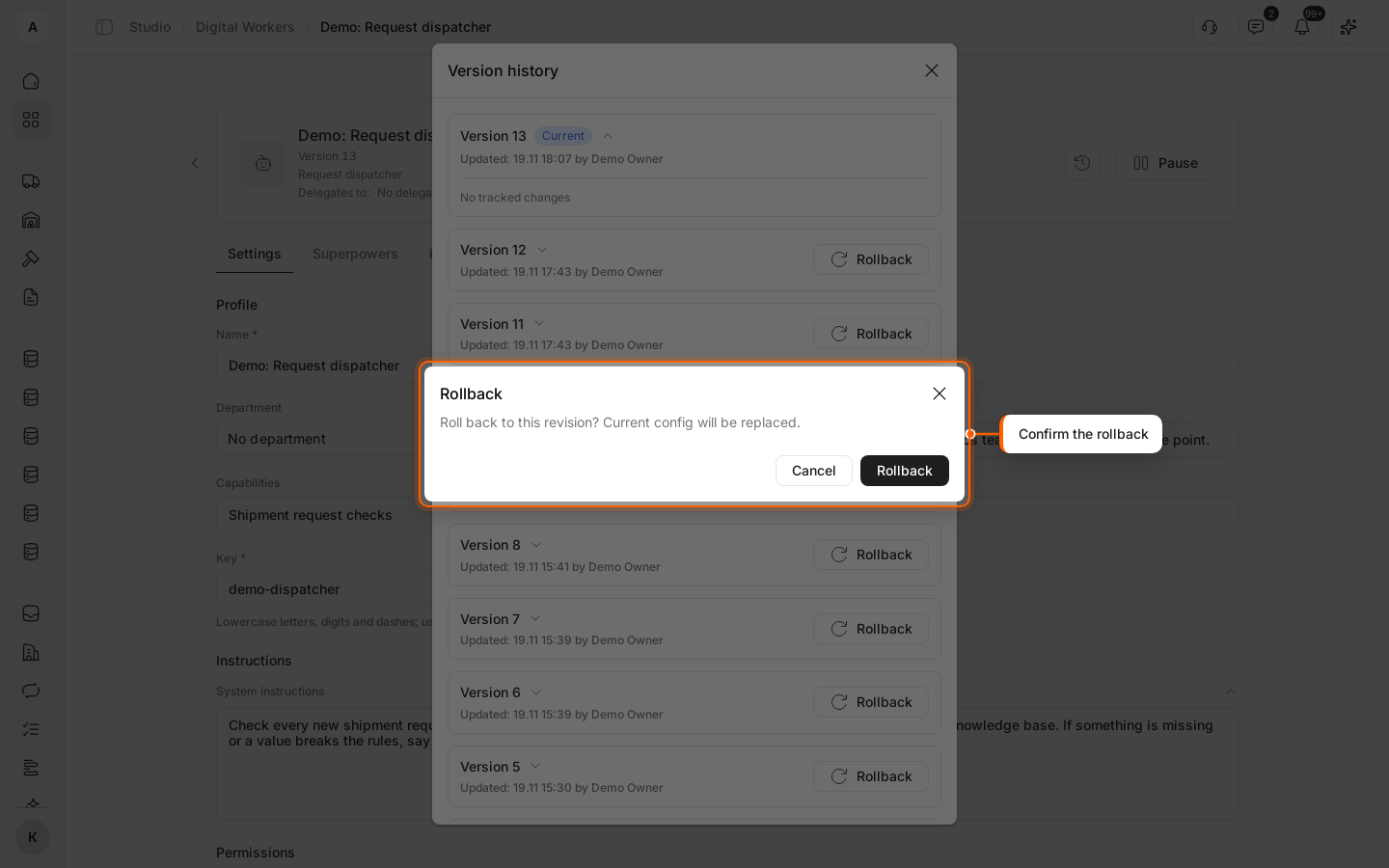
The window asks “Roll back to this revision? Current config will be replaced.” Click Rollback. The worker’s settings and its list of superpowers become those of the selected version, and a new version appears in the history: you can undo the rollback too. Changes made inside a superpower are not part of a worker’s version: a rollback does not undo them.
Automatic pause on budget
When the worker’s costs for the month reach the “Monthly budget”, it pauses itself until the start of the next month — see Budget.