- Who can: a user with the “Manage Studio” permission
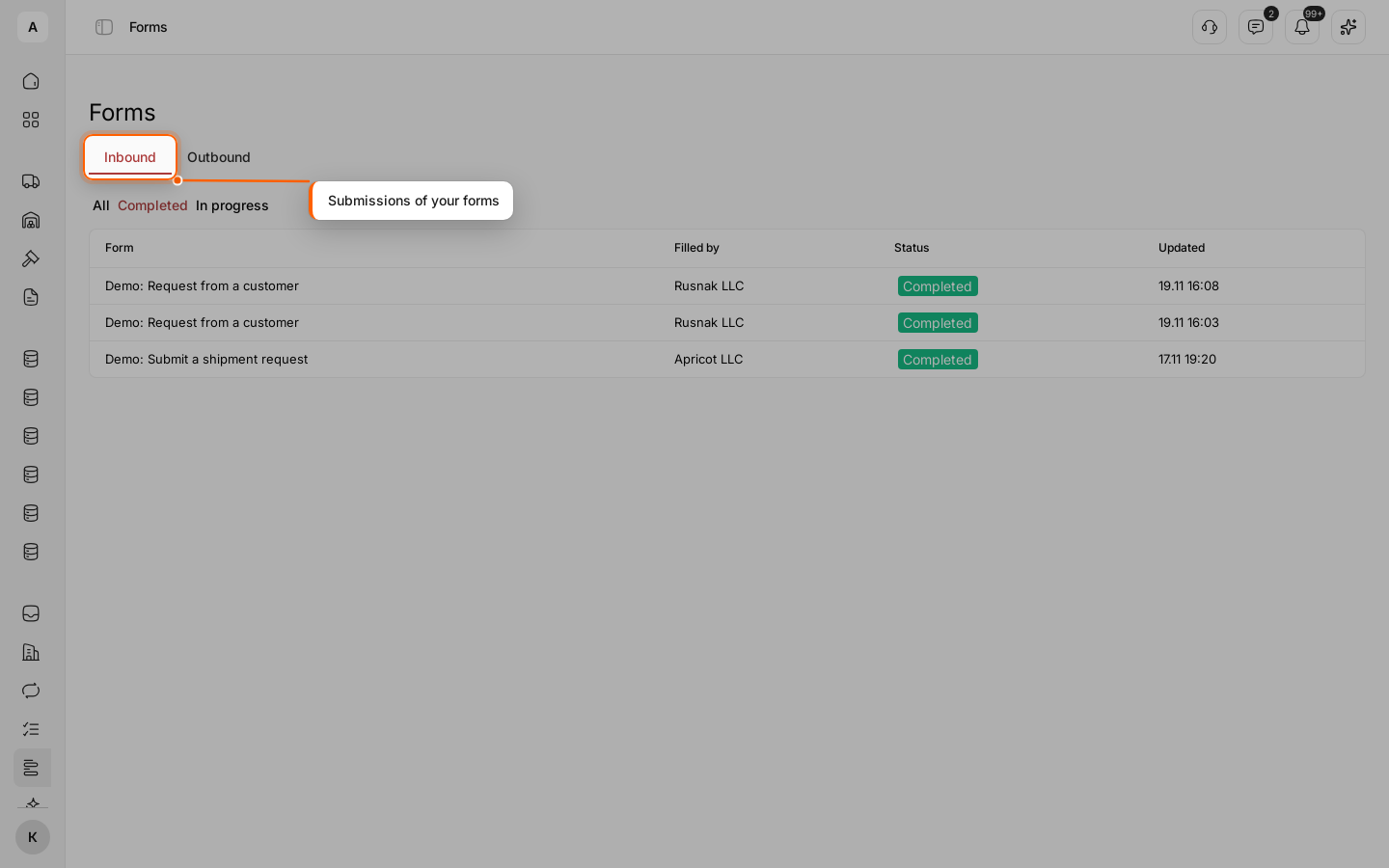
- Where: Studio › Forms; submissions also in Forms › Inbound in the left menu
- Time: ≈ 5 minutes
Before you start
The form must be published: before the first publish it has no link. See Create and publish a form. In the example, a dispatcher from your account fills in “Demo: Submit a shipment request”; a customer goes through the same screens in a form with “Counterparty” steps.
Steps
Copy the link
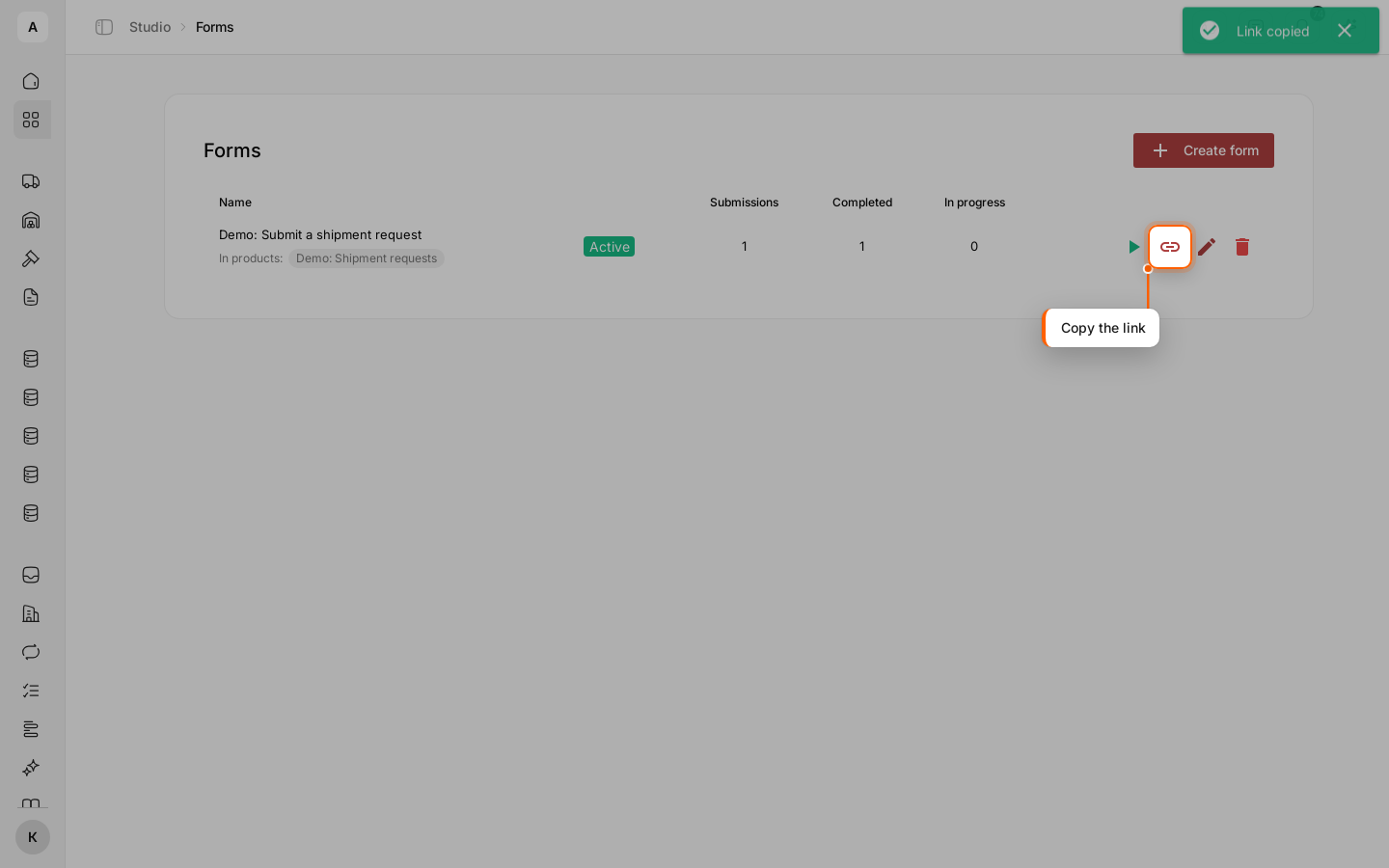
In the form list, click the Copy link icon in the form row. You see “Link copied”. The same button sits in the header of an open form.
Send the link by email, in a messenger or on your website. One link serves everyone: each click on Fill starts a new submission. When the form has steps for your team, they continue from Forms › Inbound — see Collect a request from a customer and finish it in your team.
Open the form
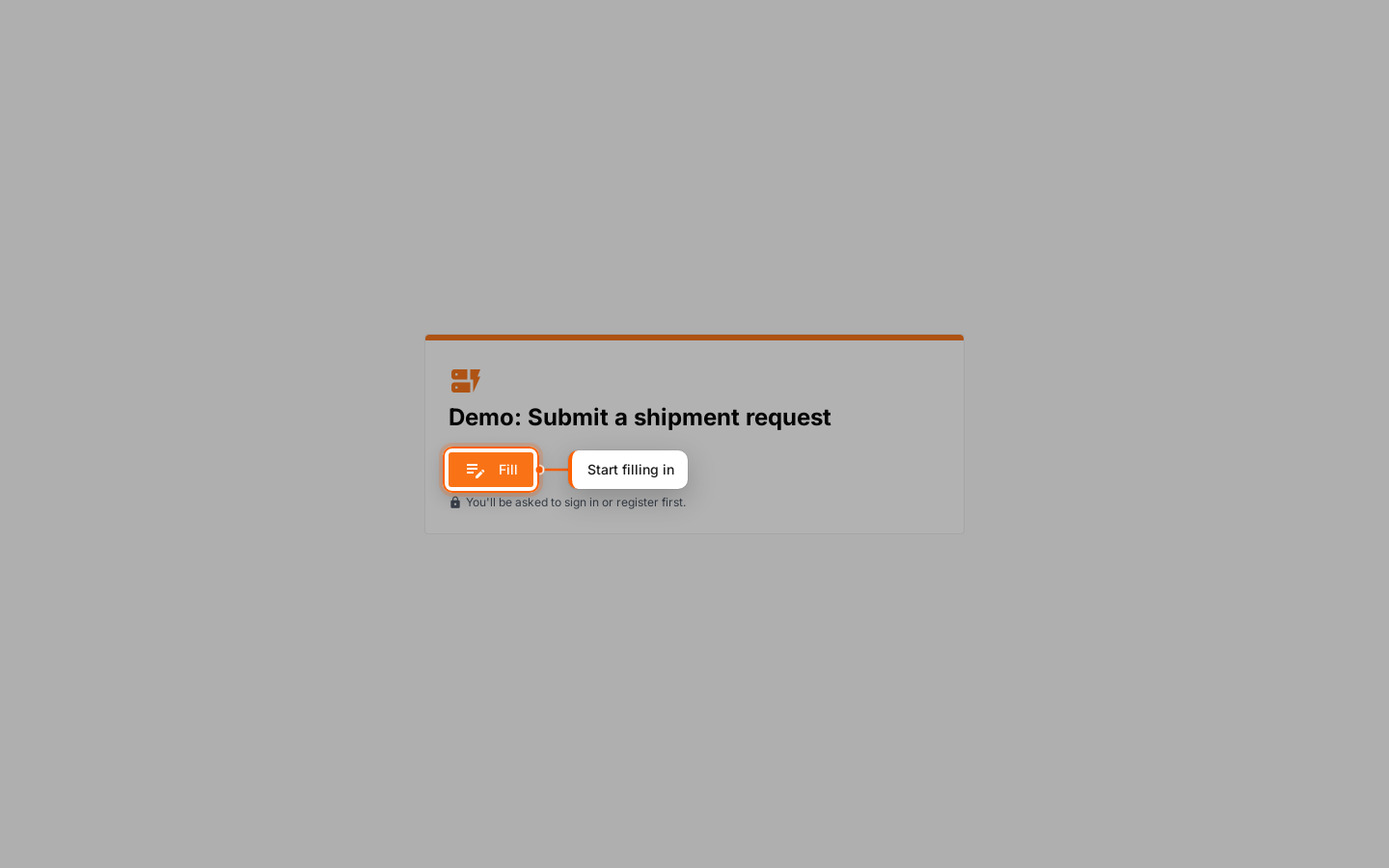
The link opens a page with the form name and a Fill button. The recipient clicks Fill.
Sign in to Cargofy
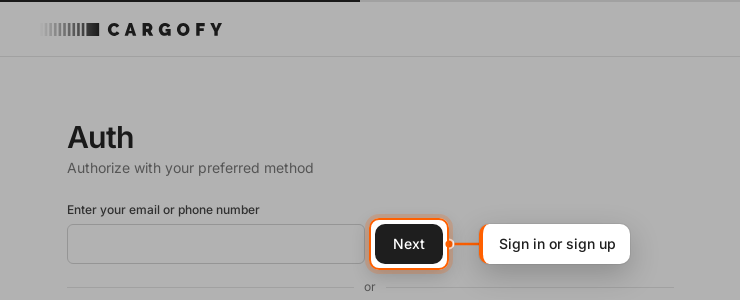
Someone who is not signed in sees the sign-in screen first: they enter an email or phone number and the code from the message. Without an account, Cargofy offers to register. After signing in, the person returns to the form and clicks Fill again.
Fill in the steps
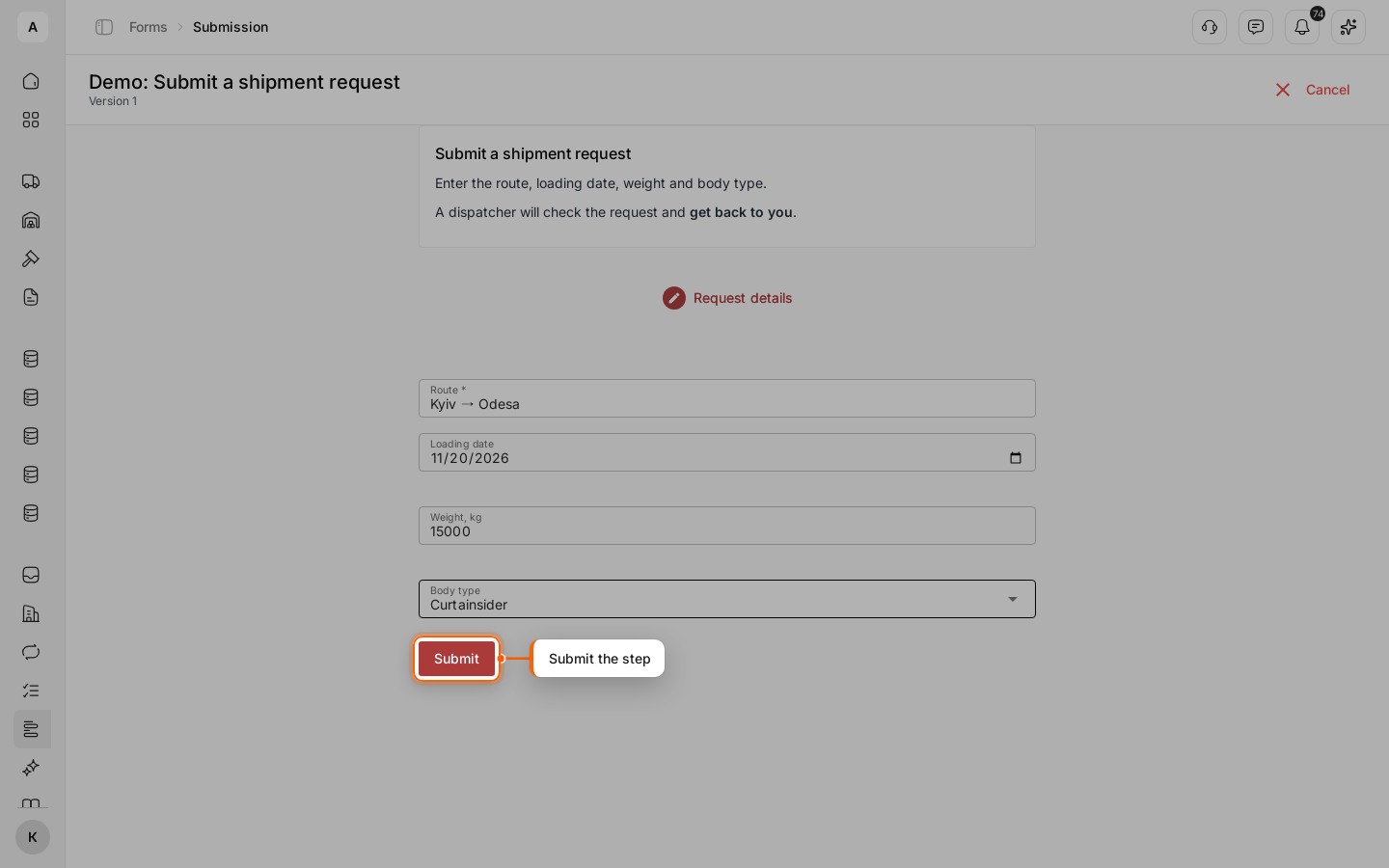
The intro page text is at the top, the form steps below it. At each step the recipient fills in the fields and clicks Submit; the form moves to the next step.
Someone from your company can stop with Cancel at the top right; the submission gets the “Rejected” status.
Check the completion page
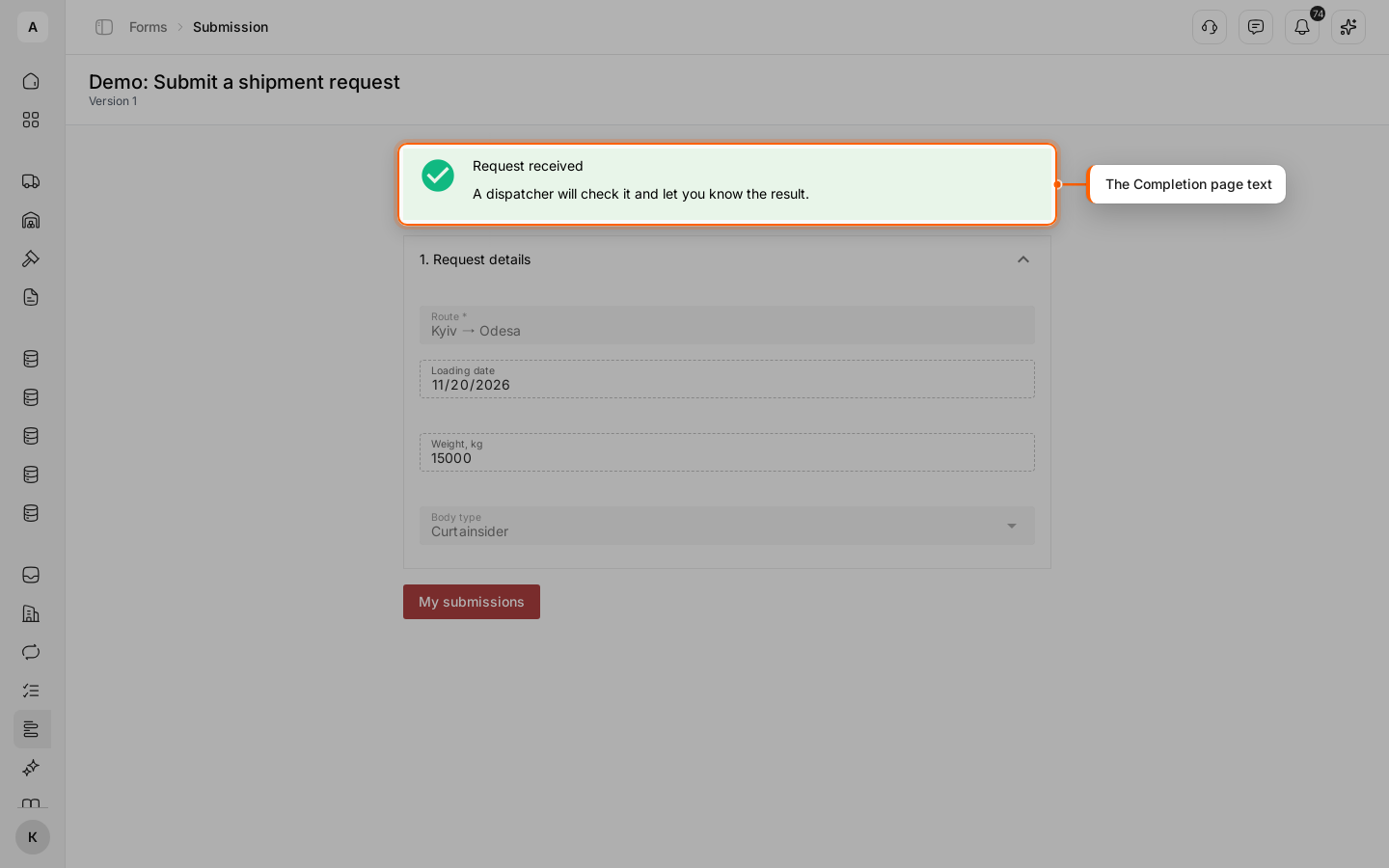
After the last step, the “Completion” page text appears along with everything the person entered. The My submissions button opens the list of forms they have already filled in.
Meanwhile, a new record appears in your data model, the “Kyiv → Odesa” request in the example.
Review the form's submissions
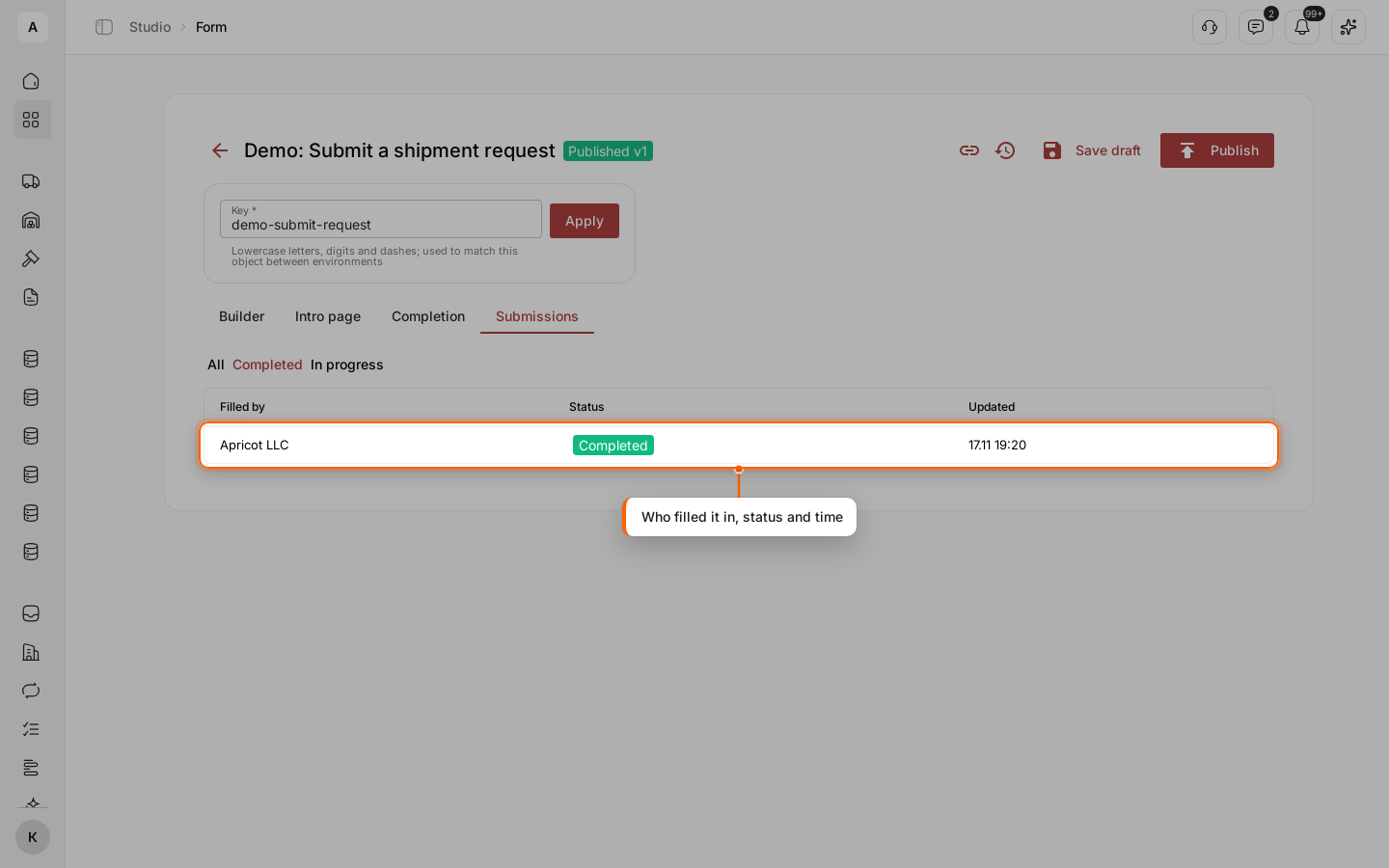
Open the form in Studio › Forms and go to the Submissions tab. It shows who fills it in (the company), the “Status” and when the submission was last updated. The “All”, “Completed” and “In progress” buttons filter the list. Click a row to open the submission with all its answers.
Review all submissions together
Click Forms in the left menu. The Inbound tab collects submissions of all your forms, with a “Form” column. The Outbound tab lists other companies' forms that you filled in.