- Who can: a user with the “Manage Studio” permission
- Where: Studio › Business flows › the flow page
- Time: ≈ 5 minutes
Before you start
You need a saved business flow with steps. To create one, see Create a business flow. In the example, it is the flow “Demo: Shipment by request”.
Steps
Set up the record list
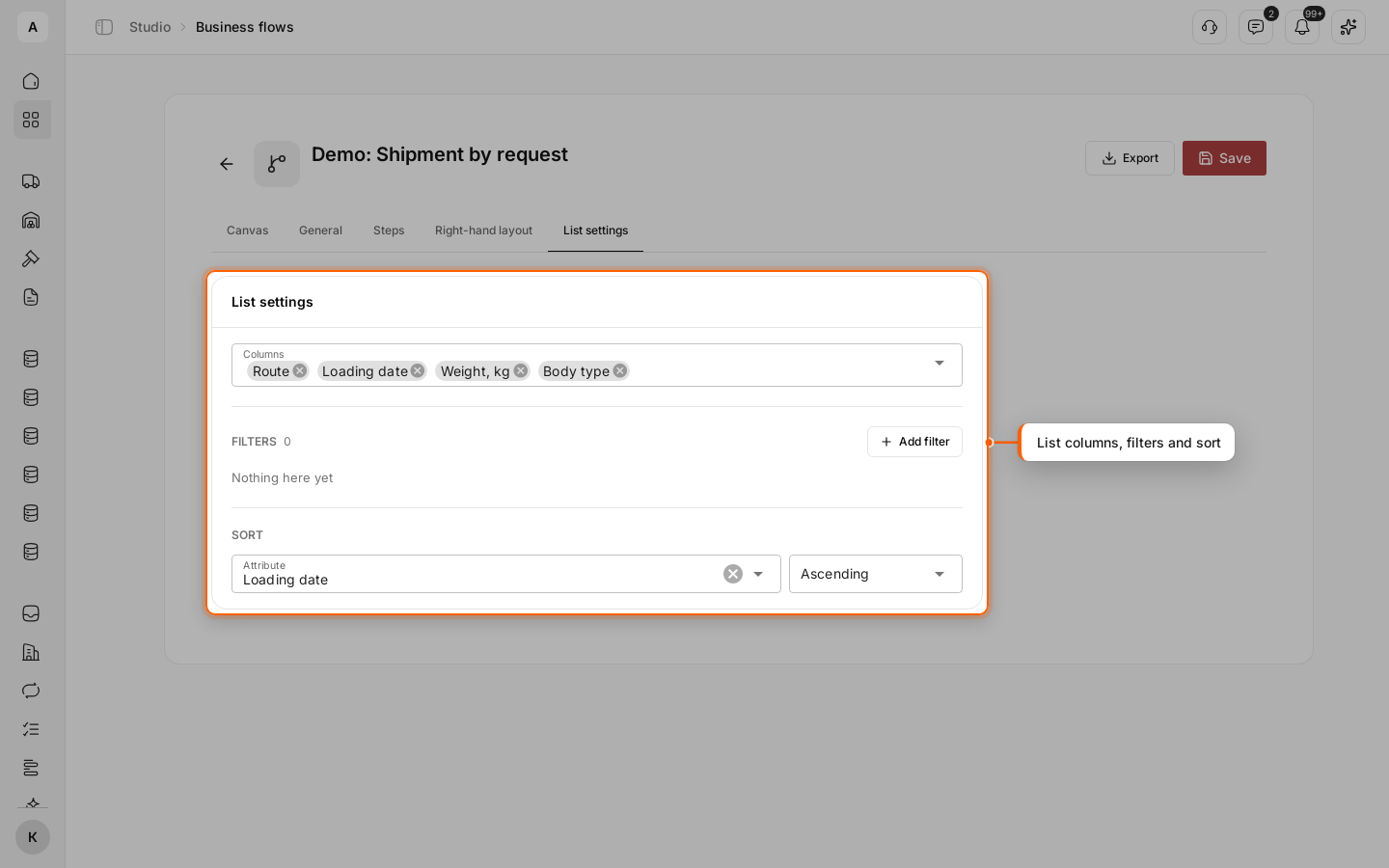
Open the flow and go to the List settings tab. Pick the columns the team will see in the list and, if needed, set a filter and sort, for example by loading date.
Build the right-hand layout
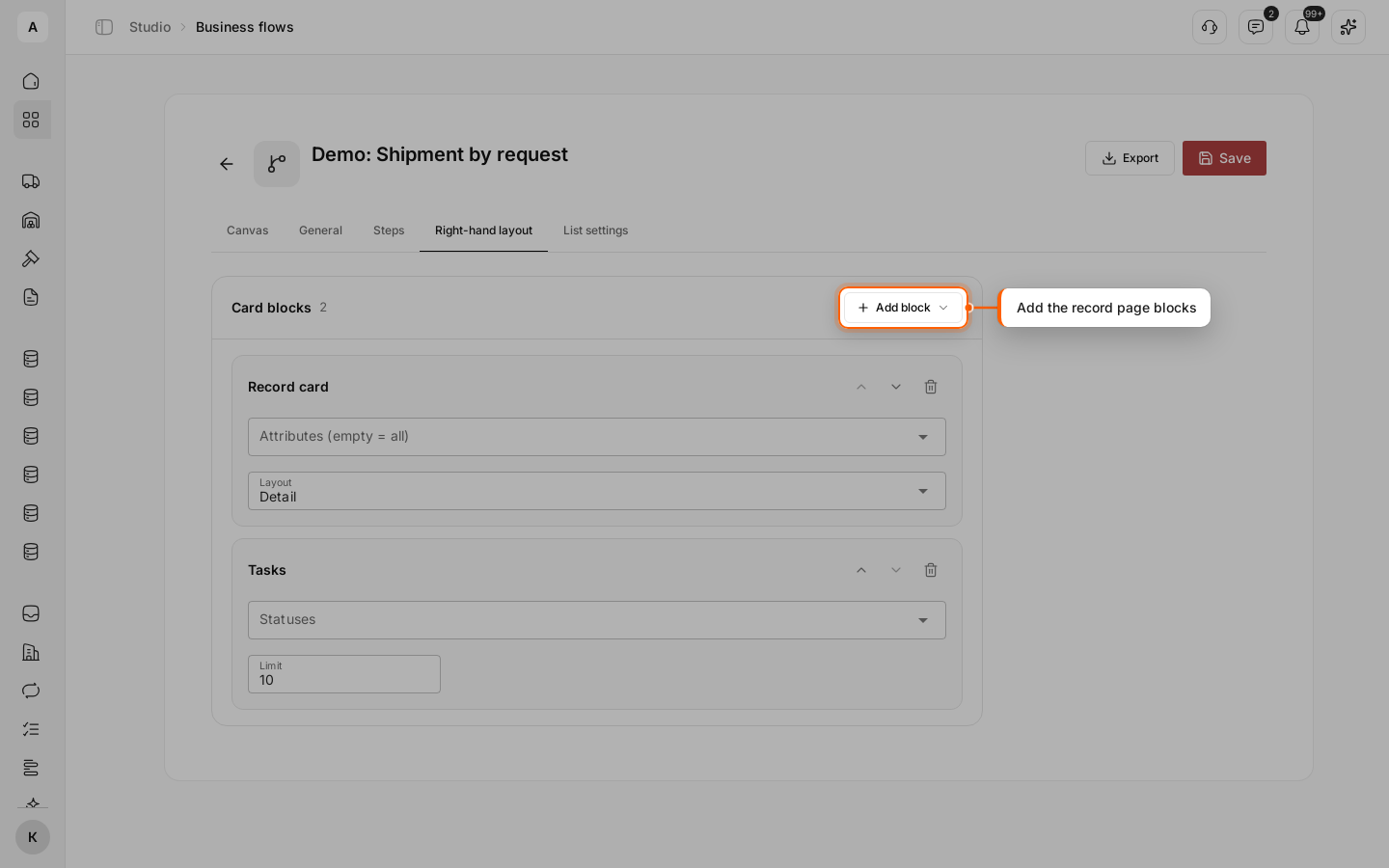
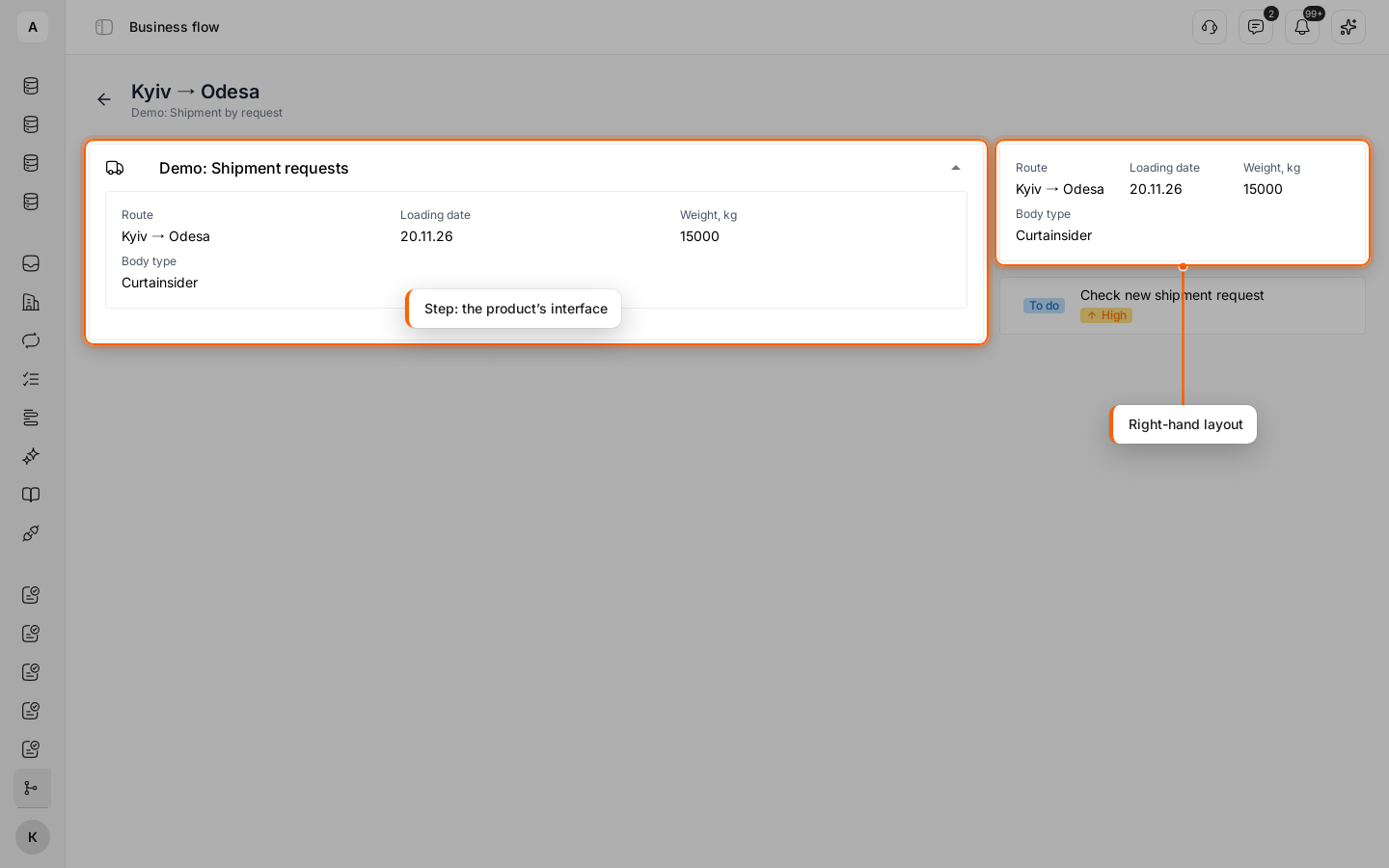
Go to the Right-hand layout tab and click Add block. The blocks appear to the right of the steps on the record page: “Record card”, “Tasks”, “Map” and others.
Turn the flow on for the team
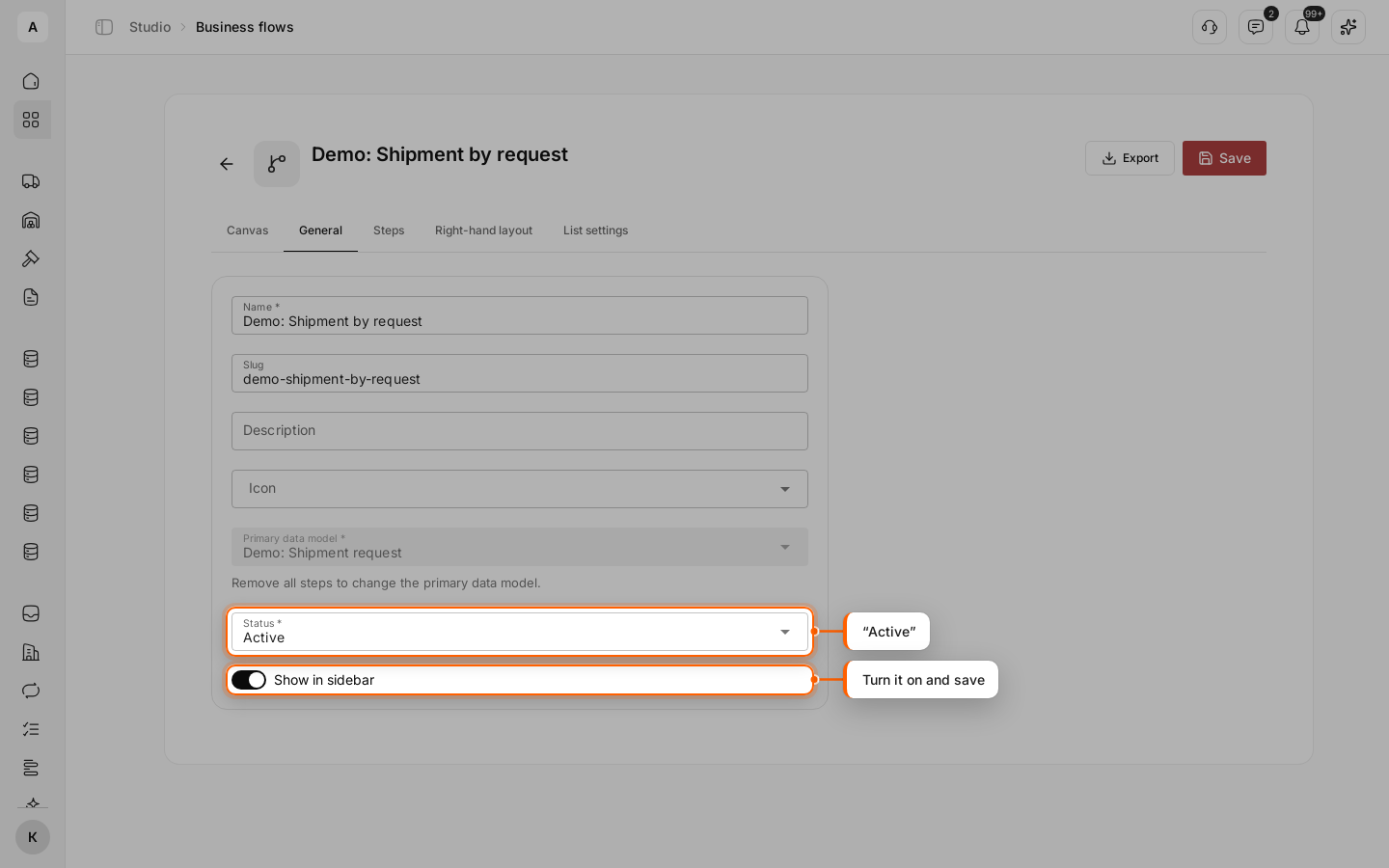
Go to the General tab. In “Status”, select “Active”, turn on Show in sidebar and click Save.
Open the flow from the menu
Hover over the left menu and click the flow’s name: it appears in the interfaces group.

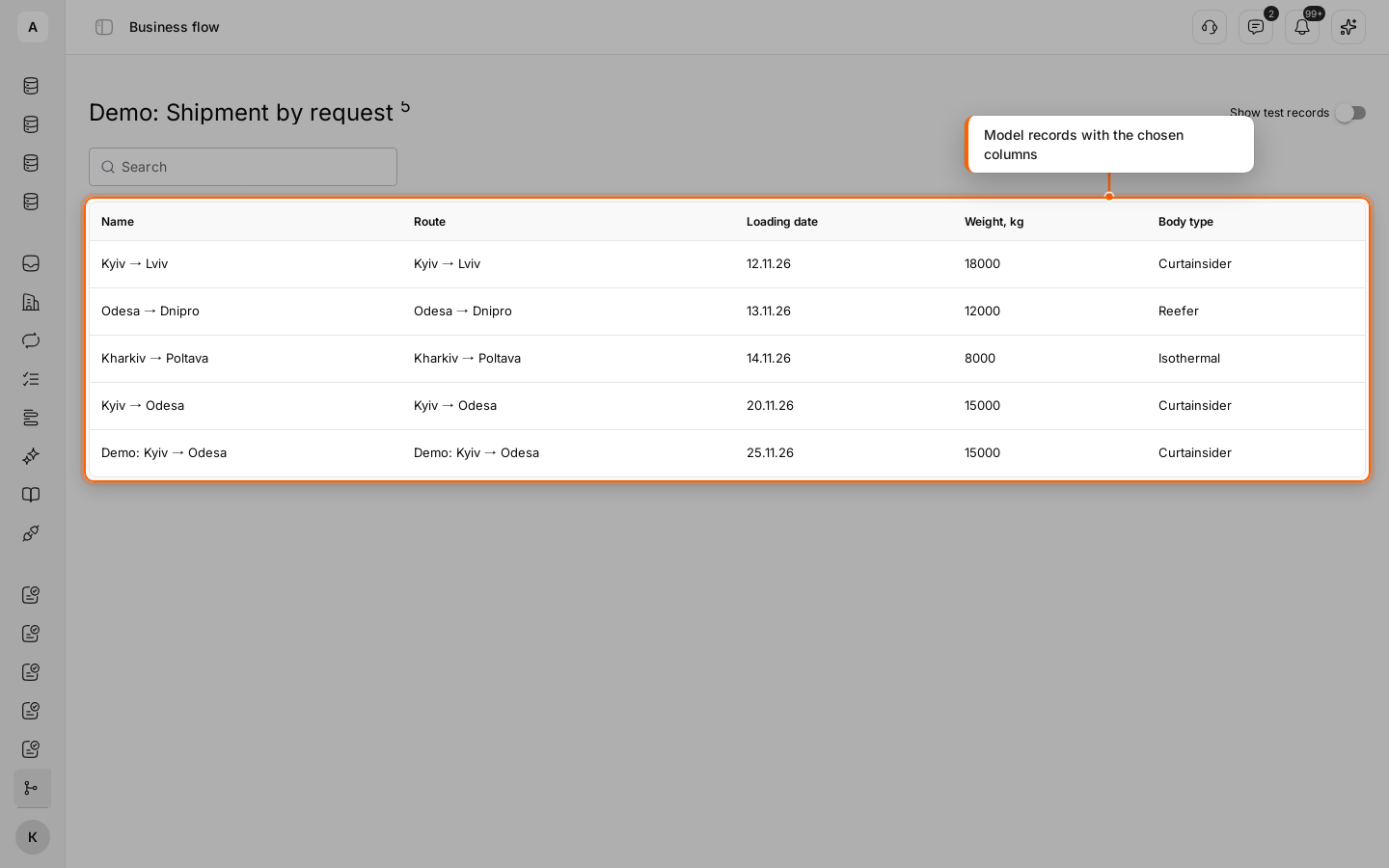
The model’s record list opens with the columns and sort you set. Above the list are a search box and the “Show test records” switch.
Check the record page
Click a record in the list. On the left are the flow’s steps: each shows the interface blocks of its product. On the right are the right-hand layout blocks.
Important
A team member sees the flow in the menu only with access to the records of the flow’s data model. If a colleague does not see the item, check their access to that model.