- Who can: a user with the “Manage Studio” permission
- Where: Studio › Integrations
- Time: ≈ 5 minutes
Before you start
Have the credentials for your account in the outside system ready. The integration’s Overview tab lists them in the “Connection fields” block: a key, a login and password, a company ID. The system itself issues them, in its account settings or through its support.
Email and telephony work differently and have their own guides: Connect email, Connect telephony.
Steps
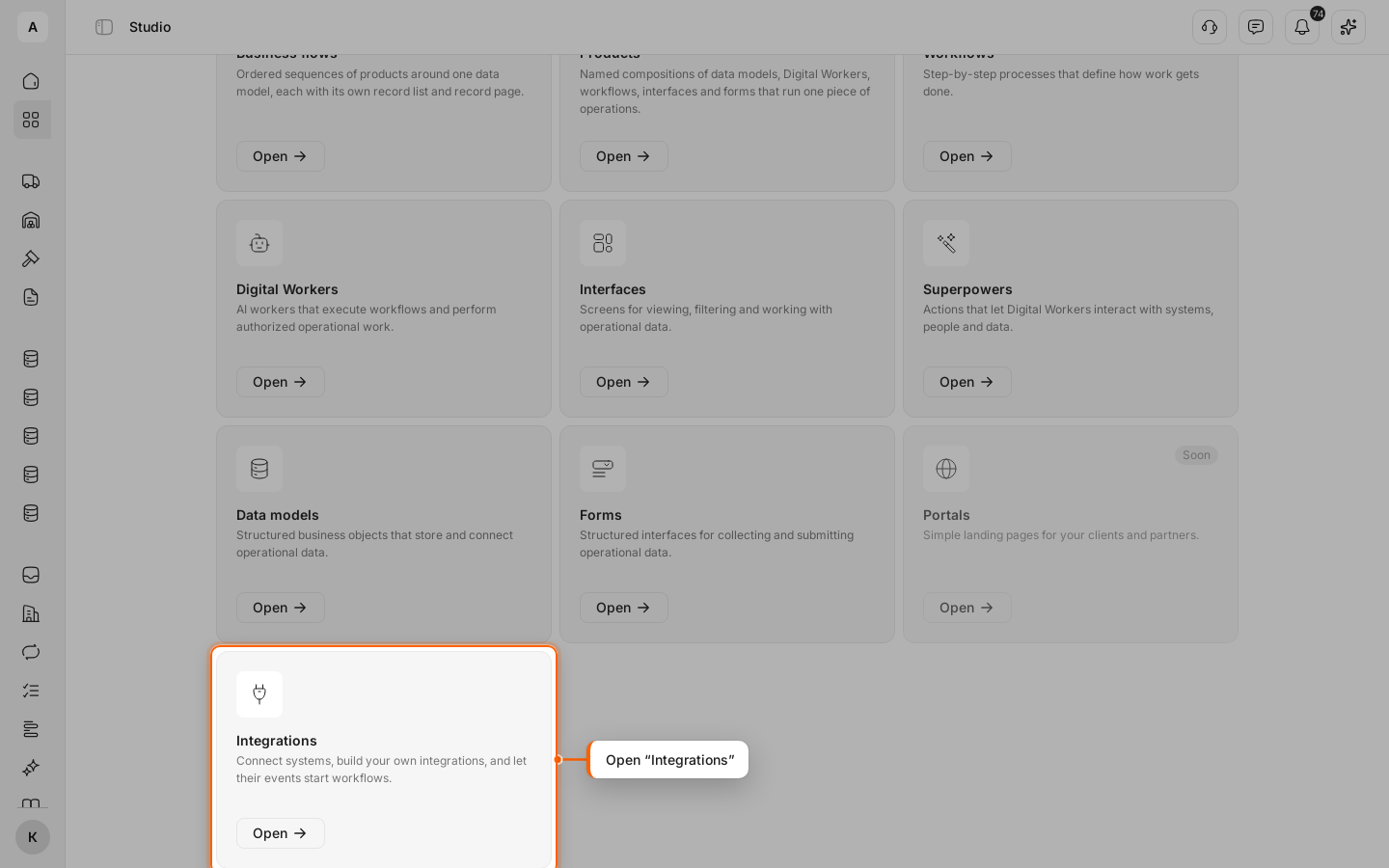
Open “Integrations”
Click Studio in the left menu, then Open on the “Integrations” card.
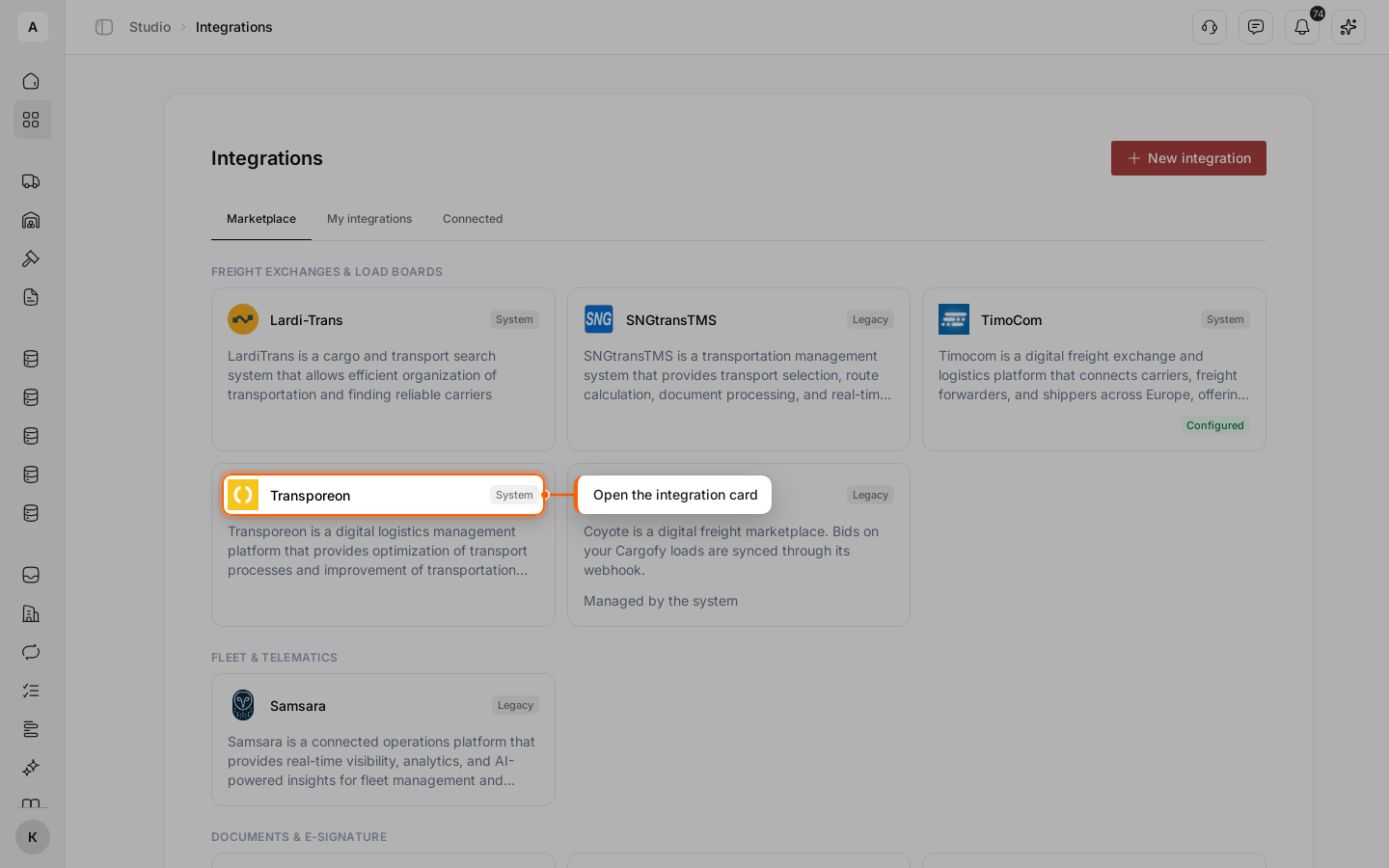
Pick the integration
On the Marketplace tab, click the card of the system you need. The example uses a load board from the “Freight exchanges & load boards” group.
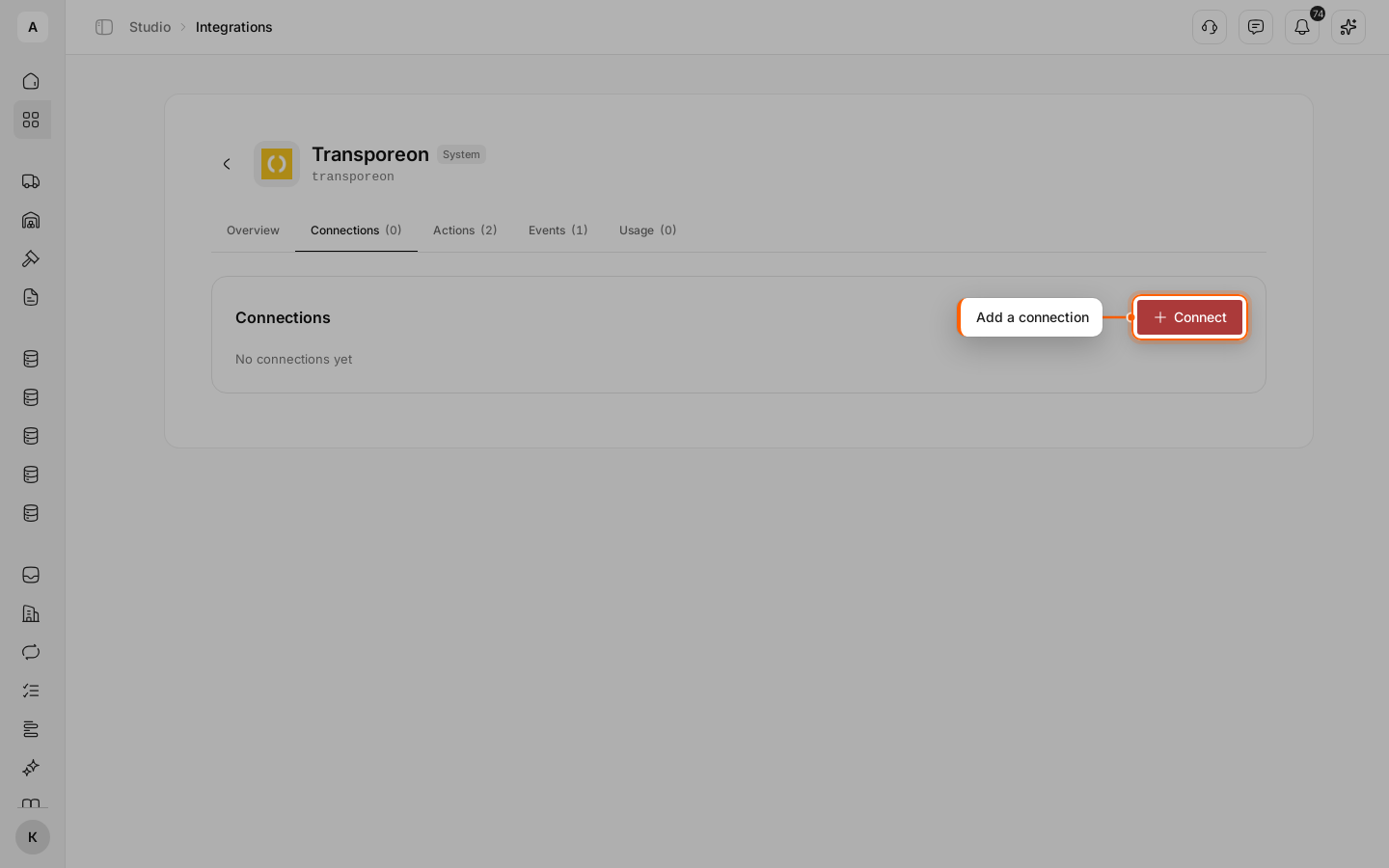
Start the connection
Go to the Connections tab and click Connect.
Enter the credentials
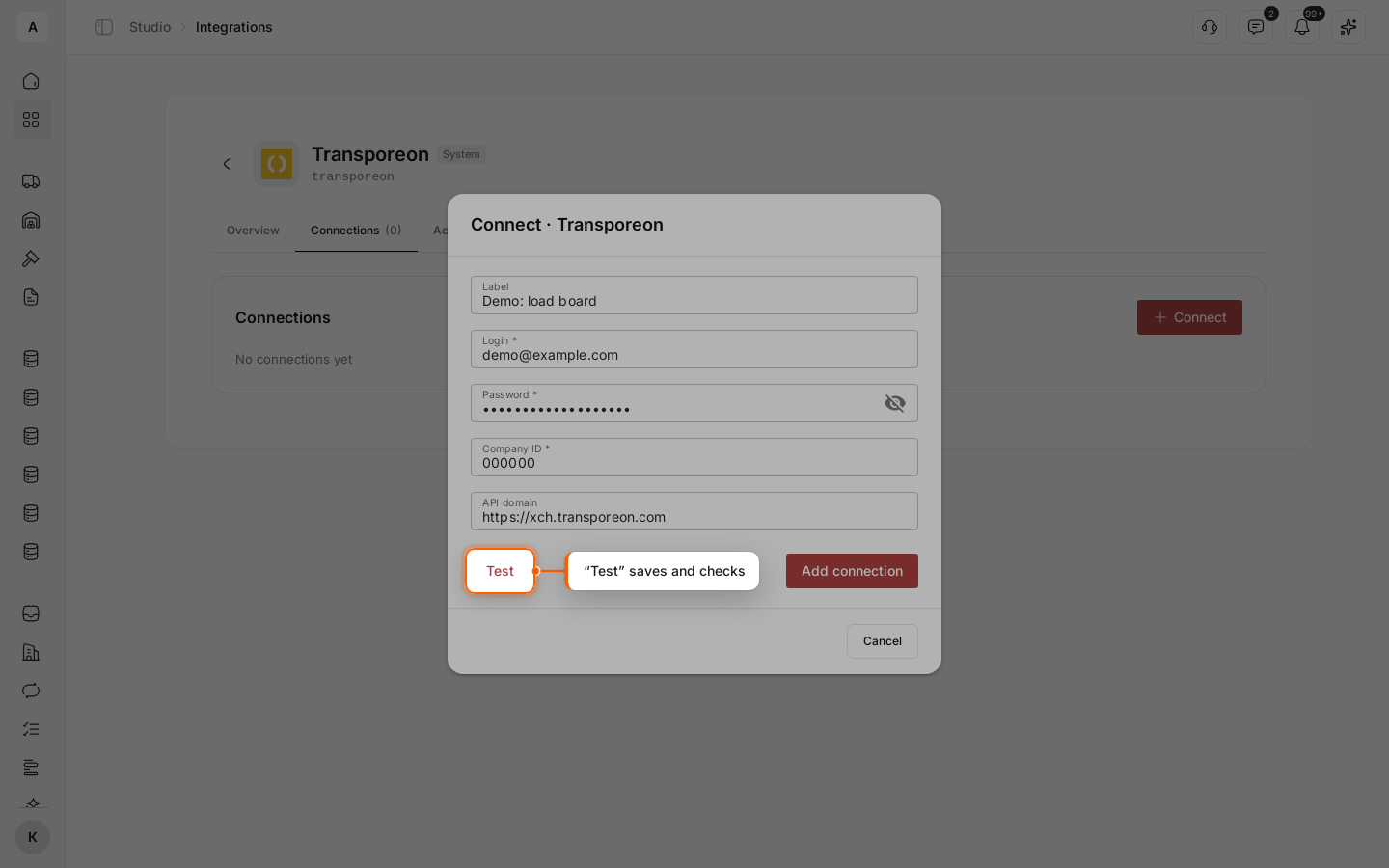
Optionally fill in “Label”: this is the connection’s name in workflows. Then fill in the integration’s fields. Their names come from the outside system. In the example these are “Login”, “Password” and “Company ID”; “API domain” is already filled in.
Click Test: the connection is saved, and Cargofy tries to reach the system right away.
Check the result
A “Connection OK” or “Connection failed” message appears at the top, and the connection shows a status. “Connected” means the system accepted the credentials. “Reconnect needed” or “Error” means it did not; the reason is under the connection’s label.
Test in the connection row runs the check again.
See where the integration is used
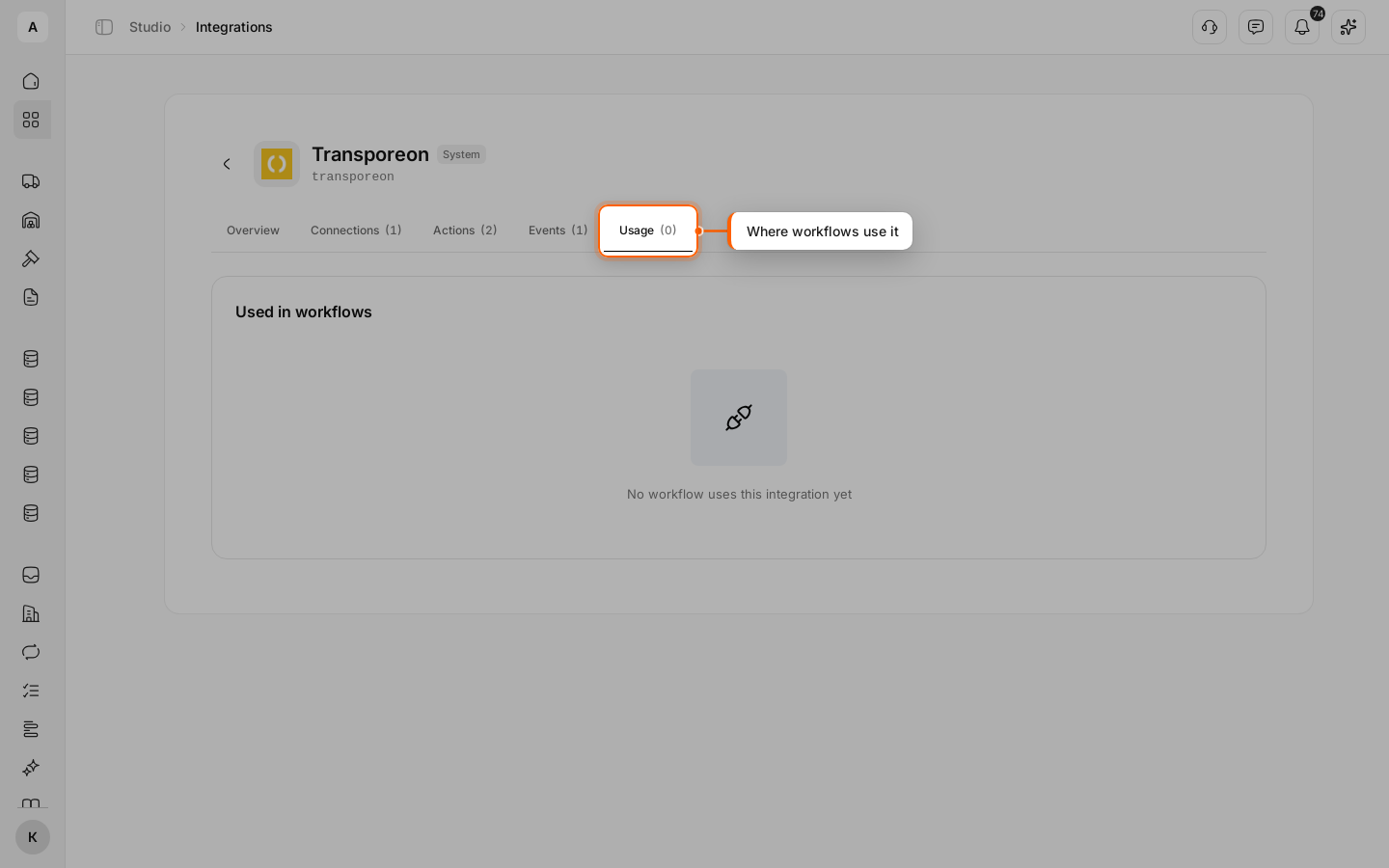
The Usage tab shows the workflows that use this integration. Until you add it to a workflow, it says “No workflow uses this integration yet”.