- Who can: a user with the “Manage Studio” permission in both accounts
- Where: Studio › Products (or Business flows) › Export and Import
- Time: ≈ 5 minutes
Before you start
A move copies the setup, not the data. The file holds the product (or business flow) with everything it relies on: data models with their fields and relations, workflows, Digital Workers, interfaces, forms, the workers’ superpowers and knowledge bases, and your own integrations. What does not move: data model records, the files inside knowledge bases, integration connections with their keys and passwords, and team members. Nor do a few settings that belong to one account: who a form step or a task is assigned to, the phone number a Digital Worker calls from, the headers of request steps and the secrets of your integration’s events — the plan lists them, set them again after the import. Connect the integrations and upload the files in the target account. Workflows that are new to the target account arrive unpublished: publish them after the import.
In the target account, objects are matched by their “Key” field. If an object with that key exists, the import updates it; if not, it creates one. Check the keys before you move: the same key on objects with different content overwrites the target one.
Steps
Save the product to a file
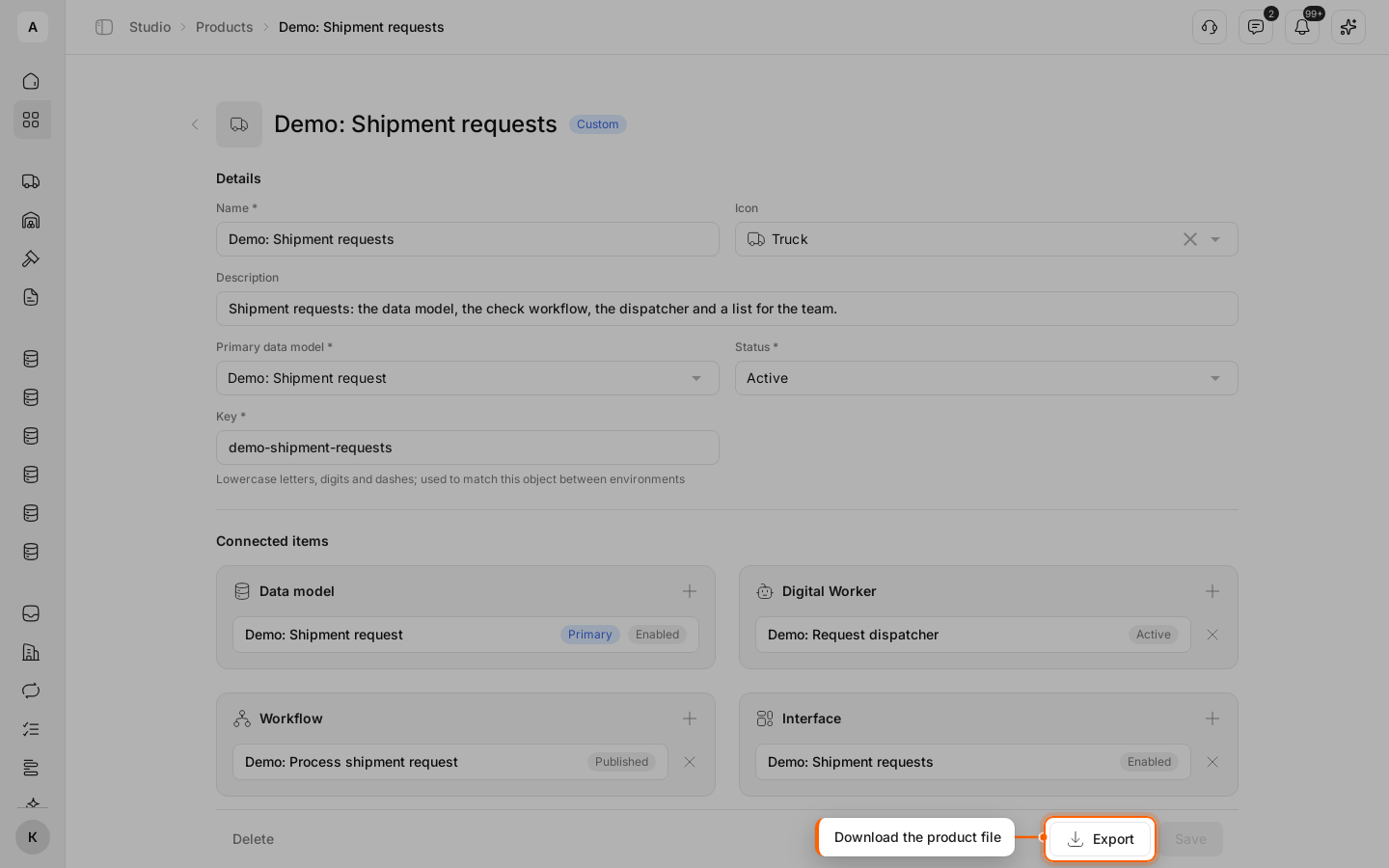
Open the product in Studio › Products and click Export at the bottom of the page. The browser downloads a .json file.
For a business flow, Export is on the flow page.
Open the import in the other account
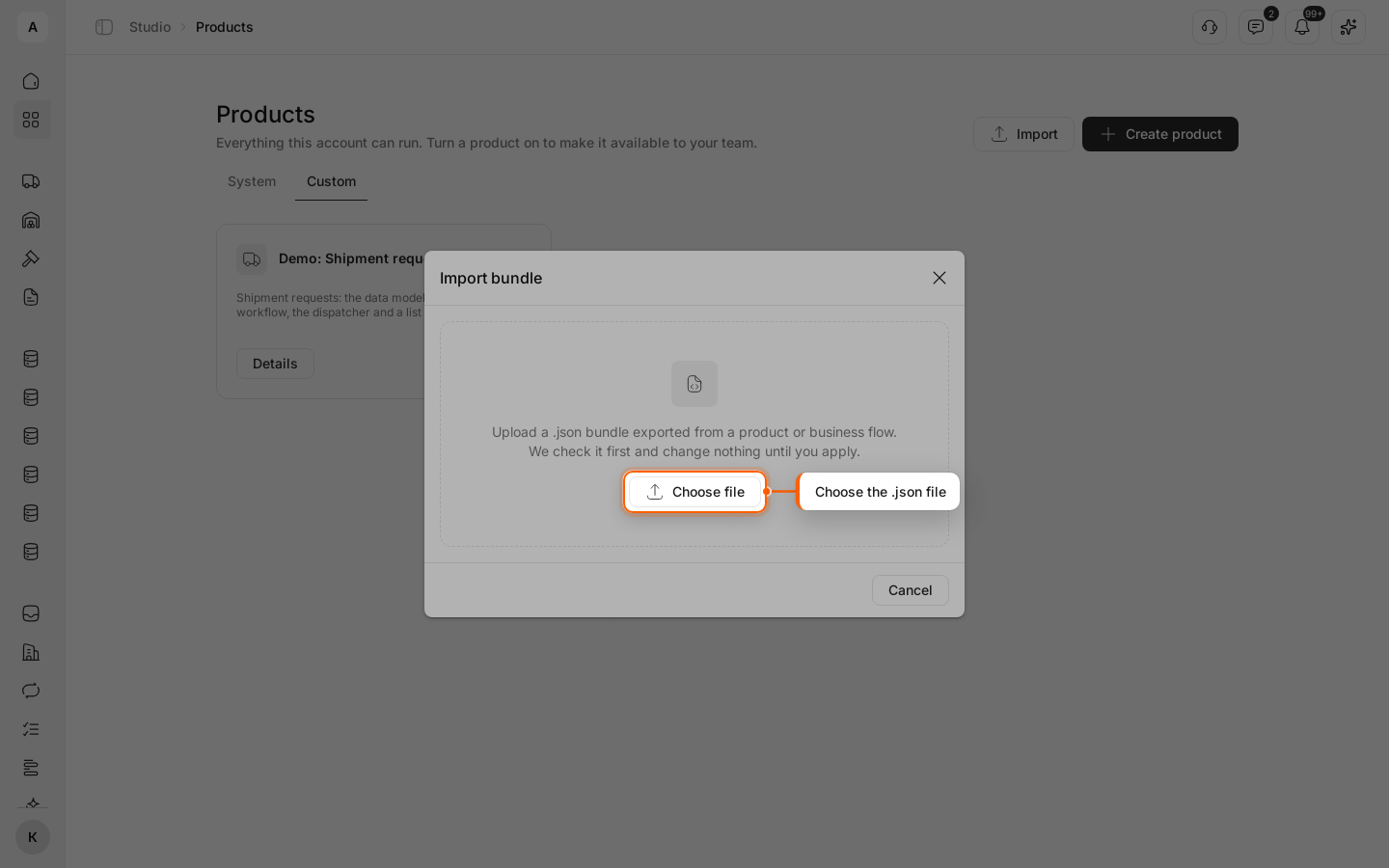
Sign in to the account you are moving to. In Studio › Products, click Import above the list (for a business flow, in the Business flows section). In the “Import bundle” window, click Choose file and pick the saved file.
Only a .json file up to 2 MB works.
Check the plan
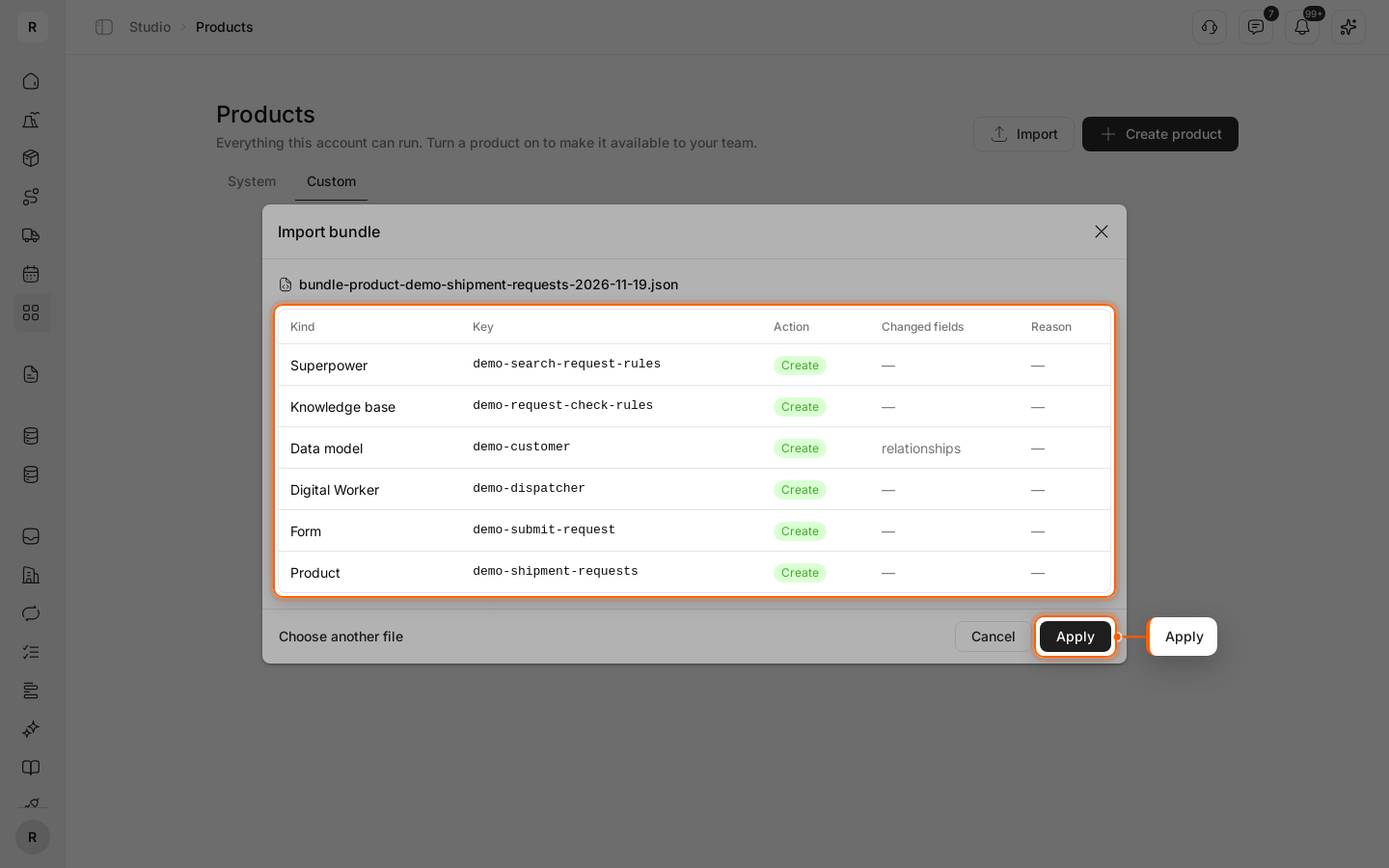
First the file is only checked: nothing in the account changes. For each object of the file, the table shows “Kind”, “Key”, “Action”, “Changed fields” and “Reason”.
- “Create”: the object does not exist yet.
- “Update”: the object exists, and “Changed fields” shows what will change.
- “Unchanged”: the object is already the same.
- “Blocked”: the object cannot be applied; the reason is in the “Reason” column.
Below, “Needs attention” and “Warnings” sections may appear. They show what you will have to set up by hand.
Apply
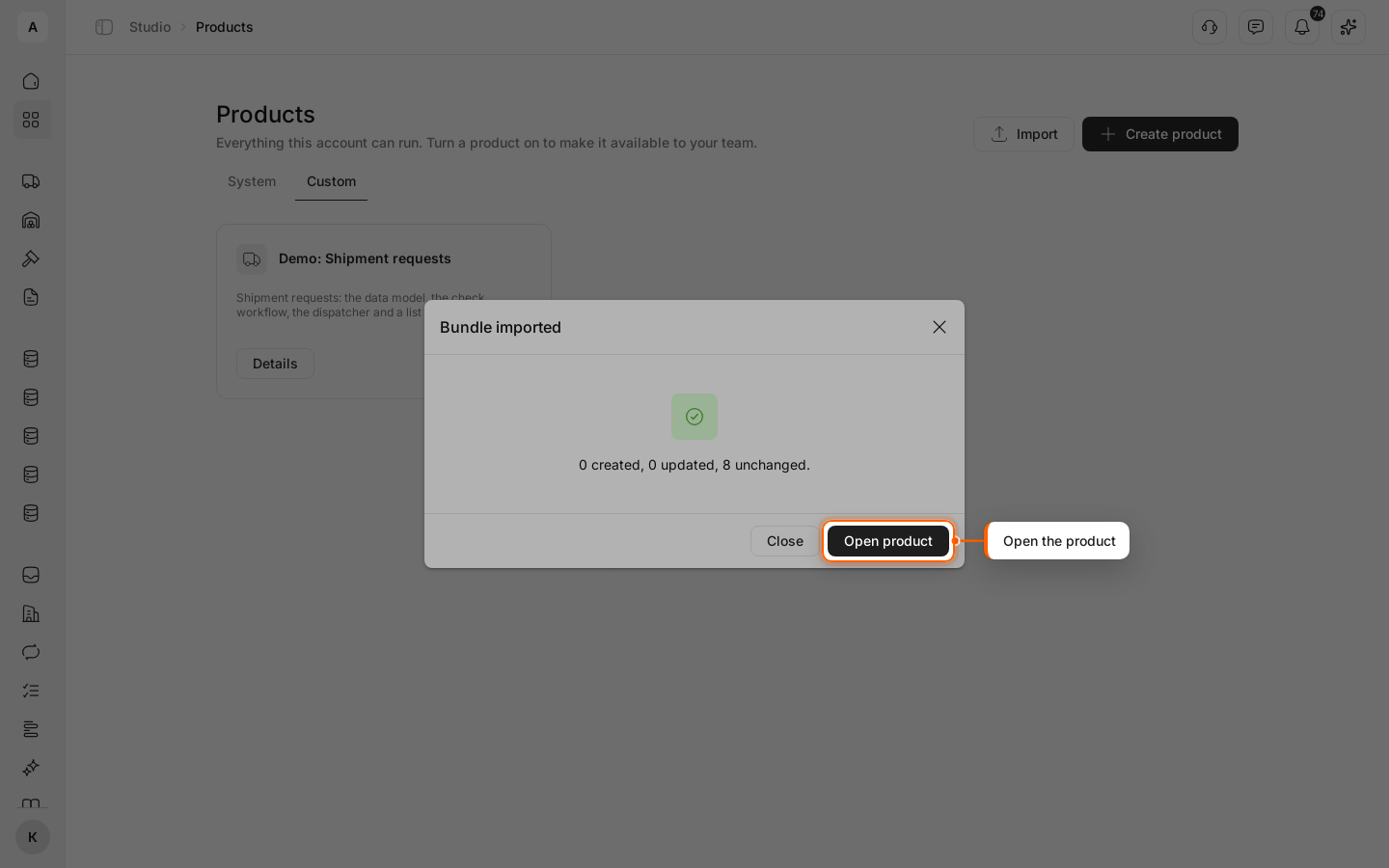
Click Apply. When “Bundle imported” appears, click Open product (or Open business flow) to check the result.
Important
While the plan has even one “Blocked” row, Apply is inactive. Read the “Reason” column, fix the cause and export the file again.