- Who can: add a relation — a user with the “Manage Studio” permission; link records — any member of your company
- Where: Studio › Data models › the model › Relations
- Time: ≈ 5 minutes
Before you start
You need two data models. In the example, a customer sends many shipment requests, and each request has one customer: the models are “Demo: Customer” and “Demo: Shipment request”.
A relation is set once for a pair of models and works in both directions: the customer shows its requests, the request shows its customer. Two models have one relation at most.
Steps
Start a relation
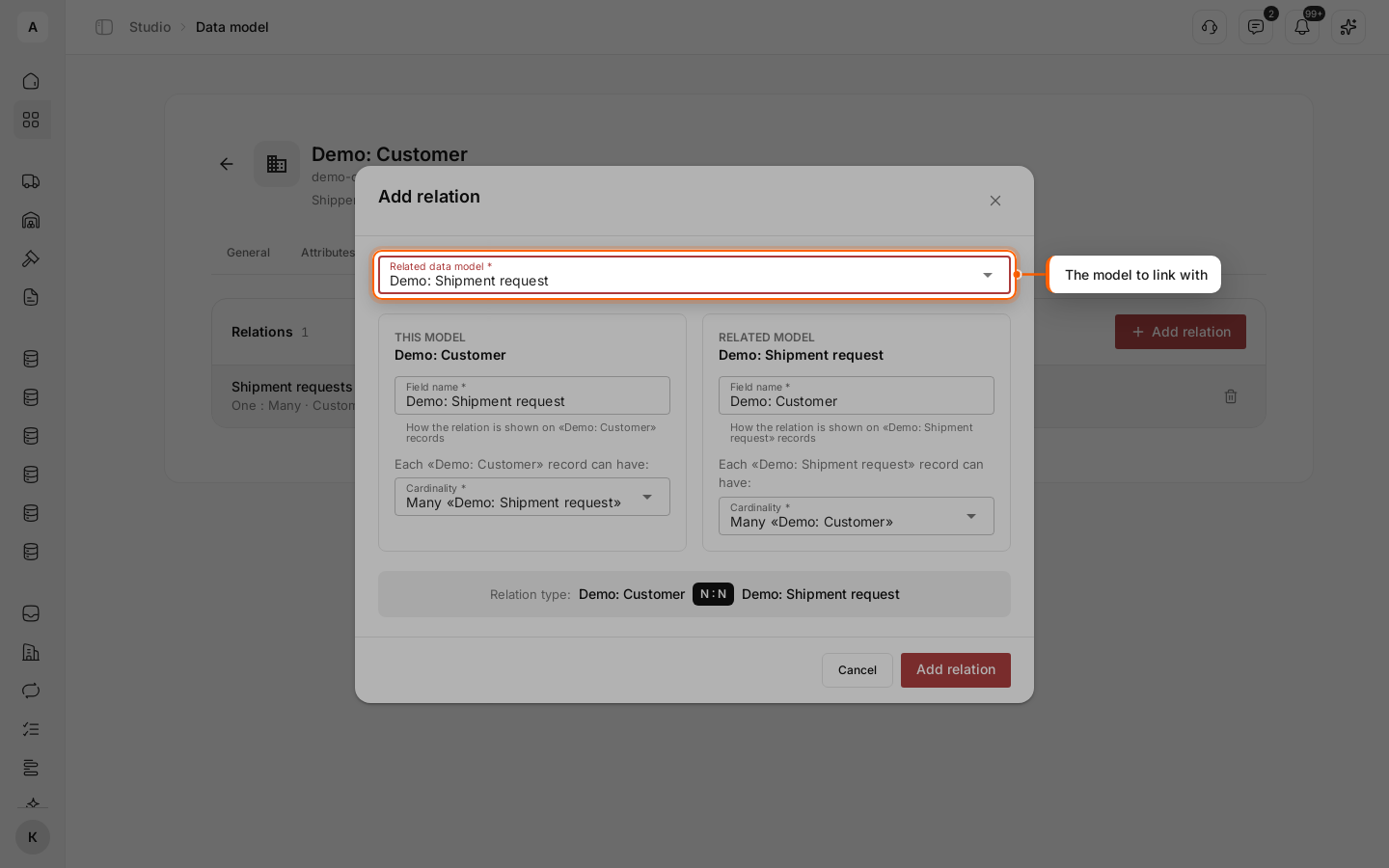
Open “Demo: Customer”, go to the Relations tab and click Add relation. In “Related data model”, pick “Demo: Shipment request”. The fields below unlock only after you pick the model.
Name both sides
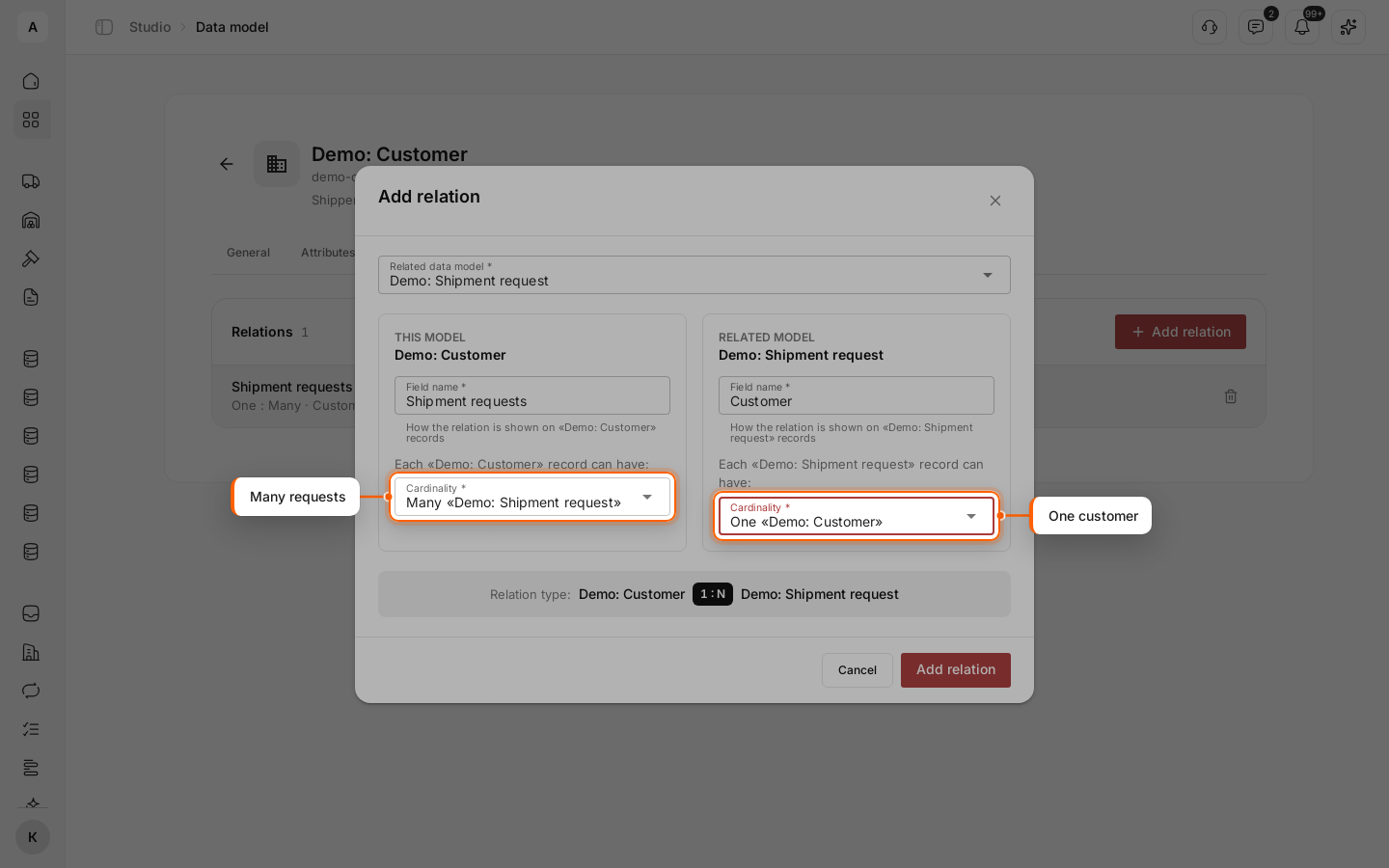
Each side gets a “Field name”: how the relation is shown on that model's records. On the customer side, enter “Shipment requests”; on the request side, “Customer”.
Choose how many records each side holds
Under “Each «Demo: Customer» record can have:”, pick “Many «Demo: Shipment request»”. Under “Each «Demo: Shipment request» record can have:”, pick “One «Demo: Customer»”. The strip at the bottom sums it up as one to many. Click Add relation.
Check the relation
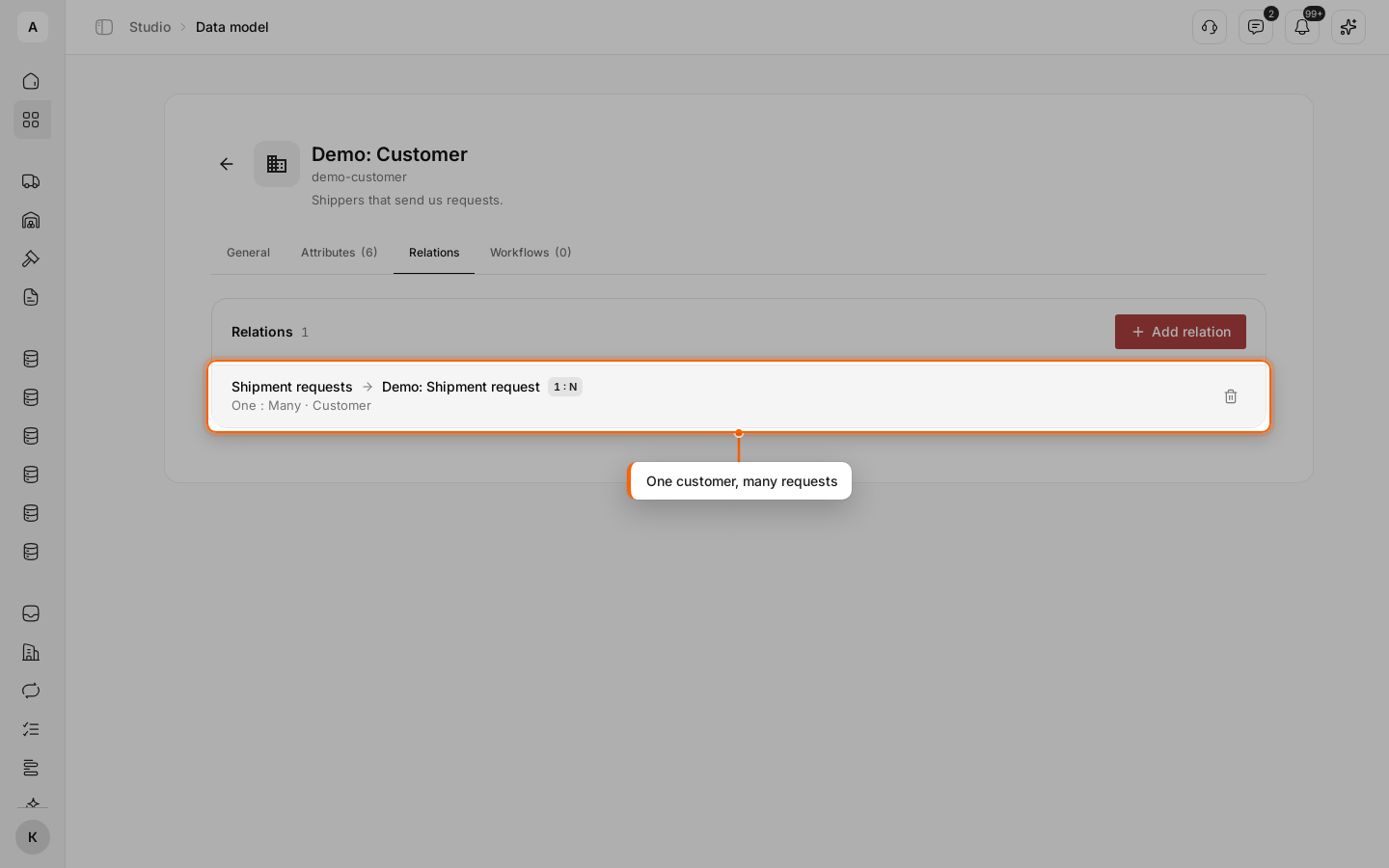
The relation shows in the list as “Shipment requests → Demo: Shipment request” with the mark “1 : N” and, below, “One : Many · Customer”. The same relation shows on the Relations tab of “Demo: Shipment request”.
Link a request to its customer
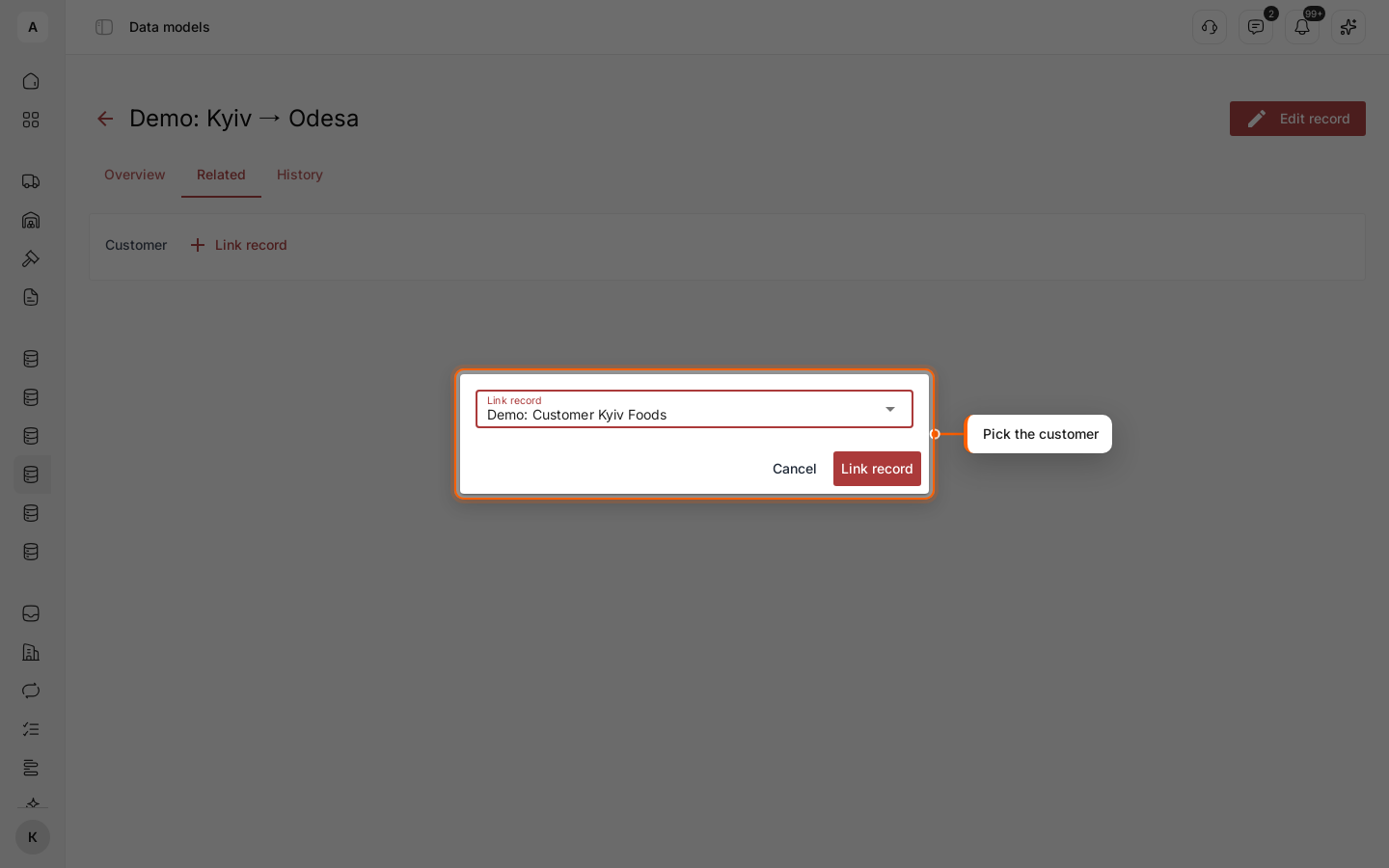
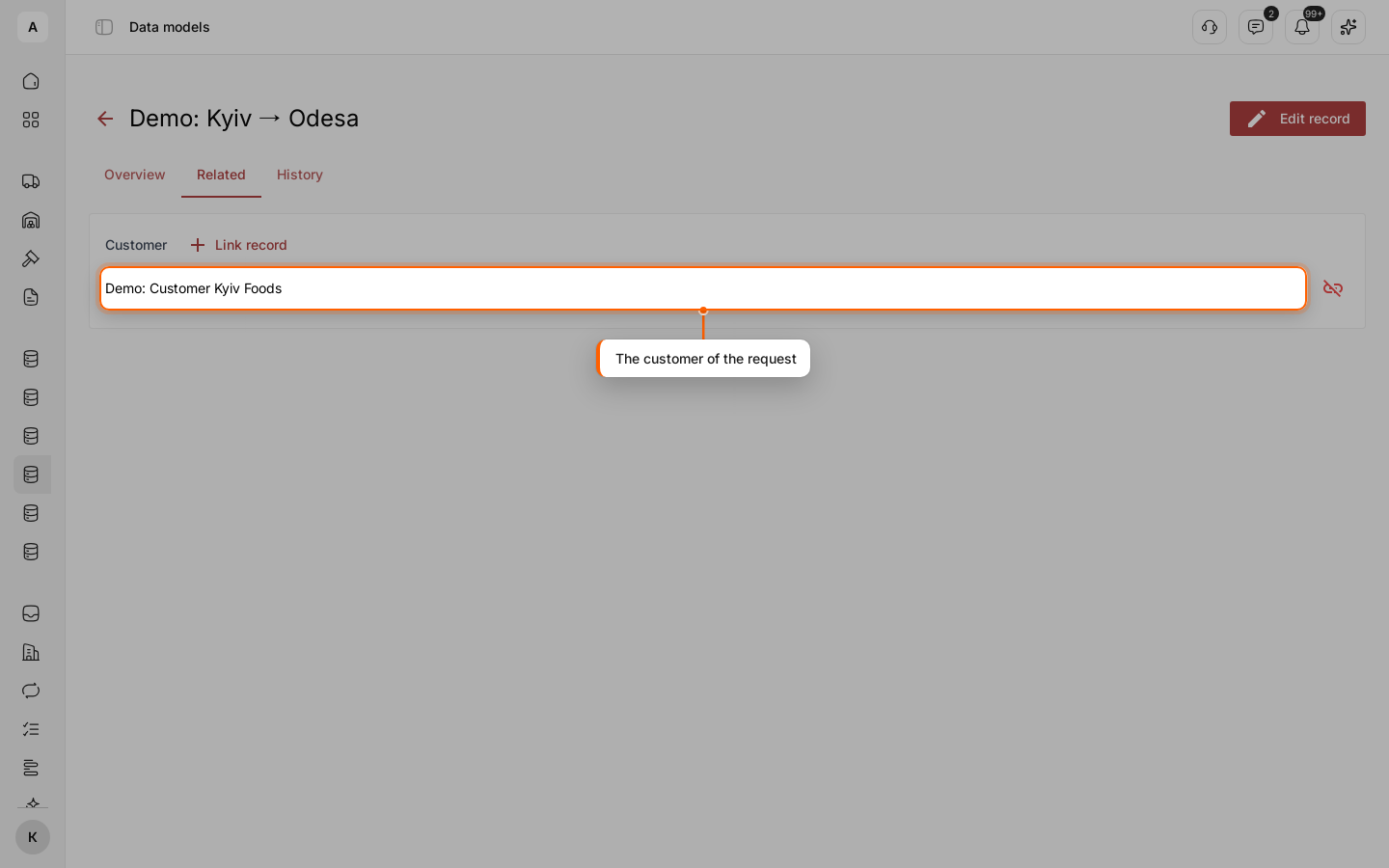
Open a record of “Demo: Shipment request” and go to the Related tab. Each relation has its own block. In “Customer”, click Link record, pick the customer from the list and click Link record in the dialog.
See the link from both sides
The customer appears in the block. Open the customer: its Related tab lists the request under “Shipment requests”. To unlink a record, click the red icon next to it; it is unlinked at once.
What Cargofy checks
- A record on a “One” side holds one link. To give a request another customer, unlink the first customer, then link the new one.
- The same two records are linked once.
- Every link and unlink shows on the History tab of both records.
- Deleting a relation on the Relations tab removes all the links it holds.