- Who can: a user with the “Manage Studio” permission
- Where: Studio › Workflows › the workflow › Runs
- Time: ≈ 10 minutes
Before you start
Nothing to prepare. The example is the published workflow “Demo: Run that fails”: for a request heavier than 20 t, the condition “Heavier than 20 t?” leads to the “Find a heavy truck” step, which creates a task “Find a truck for 20+ t: …” with the route of the request. Its expression is trigger.record.data.weight_kg > 20000. A request “Odesa → Dnipro” came in without a weight, and the live run failed.
Steps
Open the runs
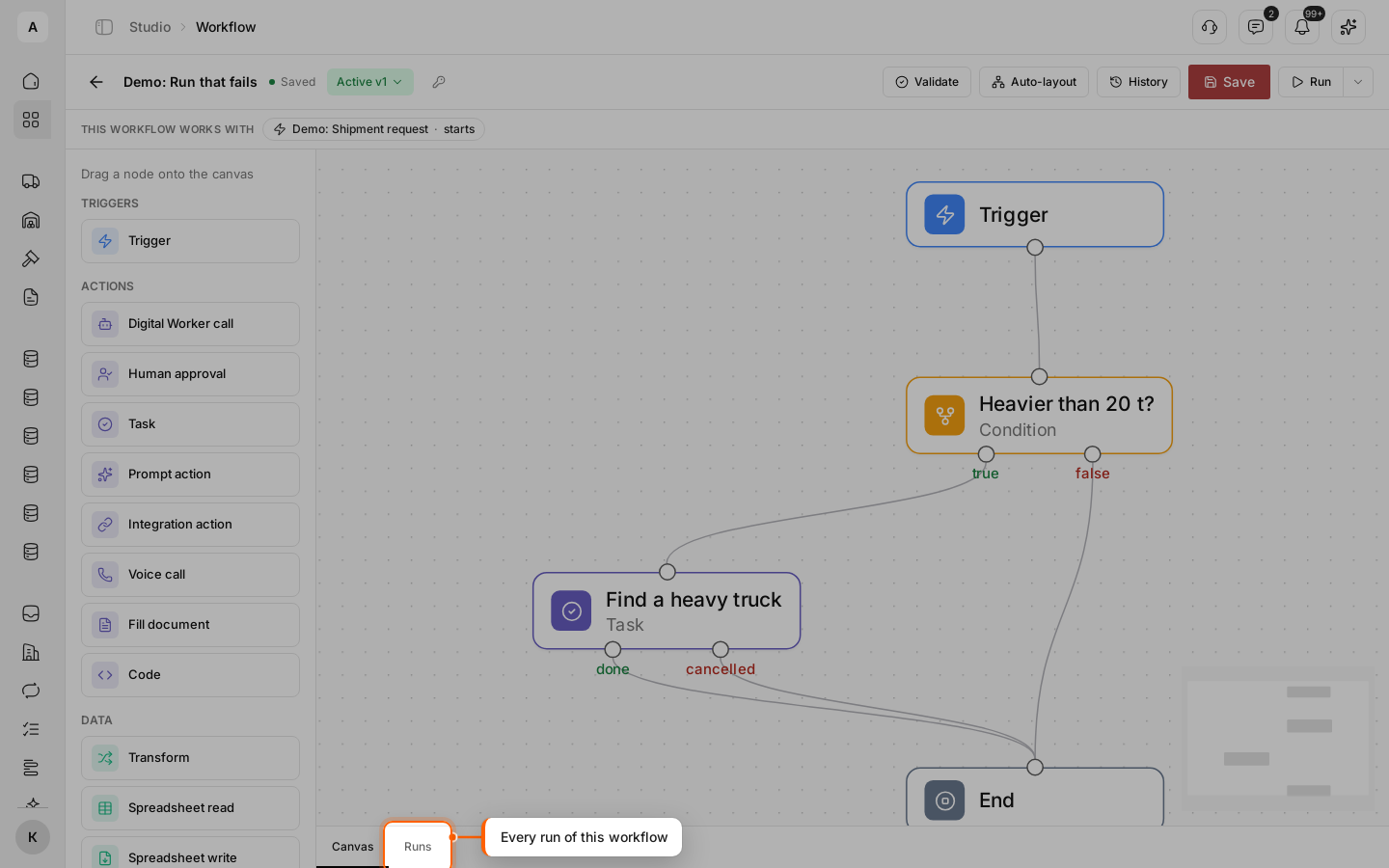
Open the workflow and click the Runs tab under the canvas. It lists every run of the workflow, newest first: live runs from triggers and Run live, and your test runs with the “Test” badge.
Find the failed run
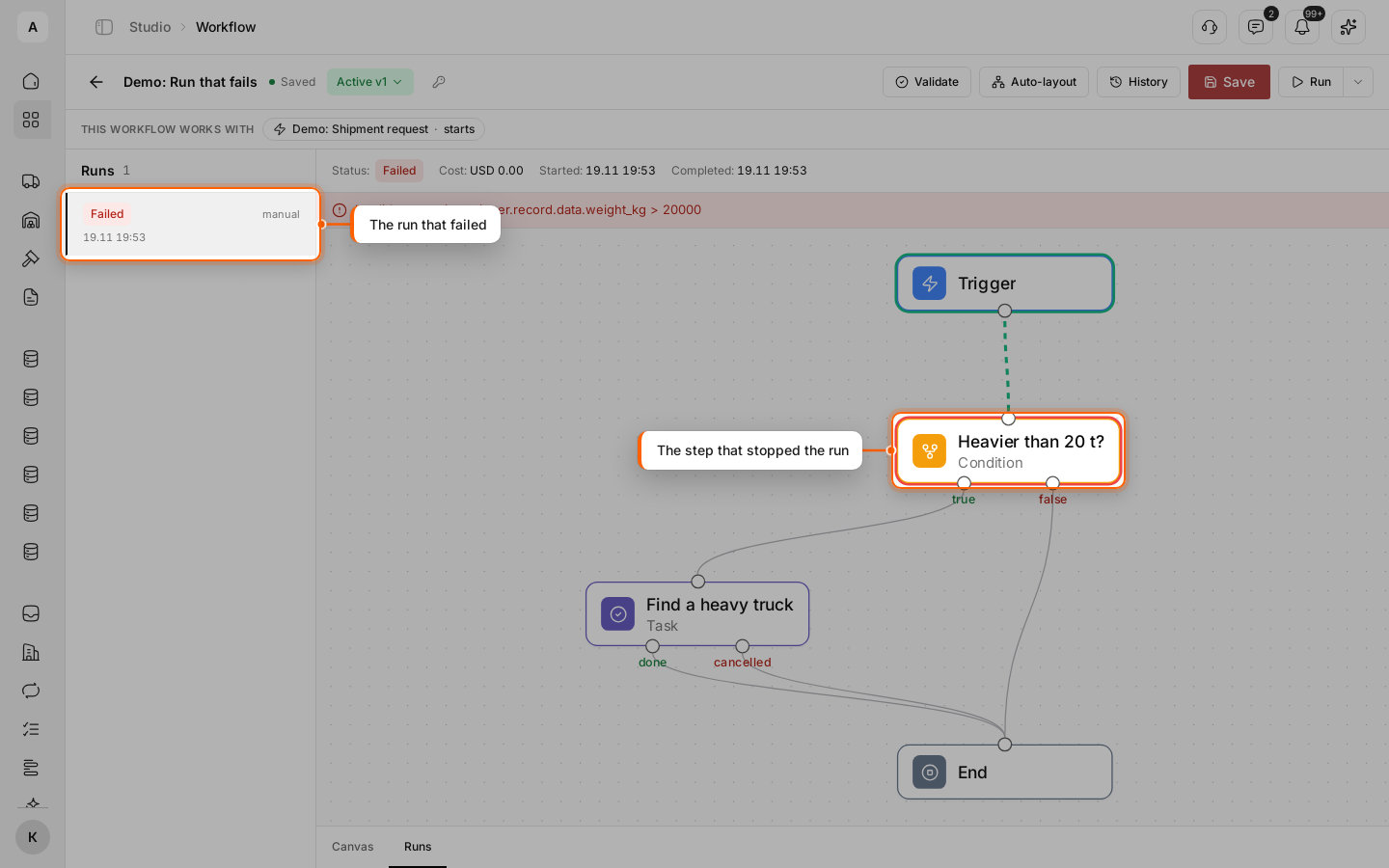
Look for the “Failed” status in the list and click the run. Above the canvas, a red line shows the error of the run. On the canvas, finished steps have a green ring, and the step that stopped the run has a red one. The green arrows show the path the run took.
Read the error of the step
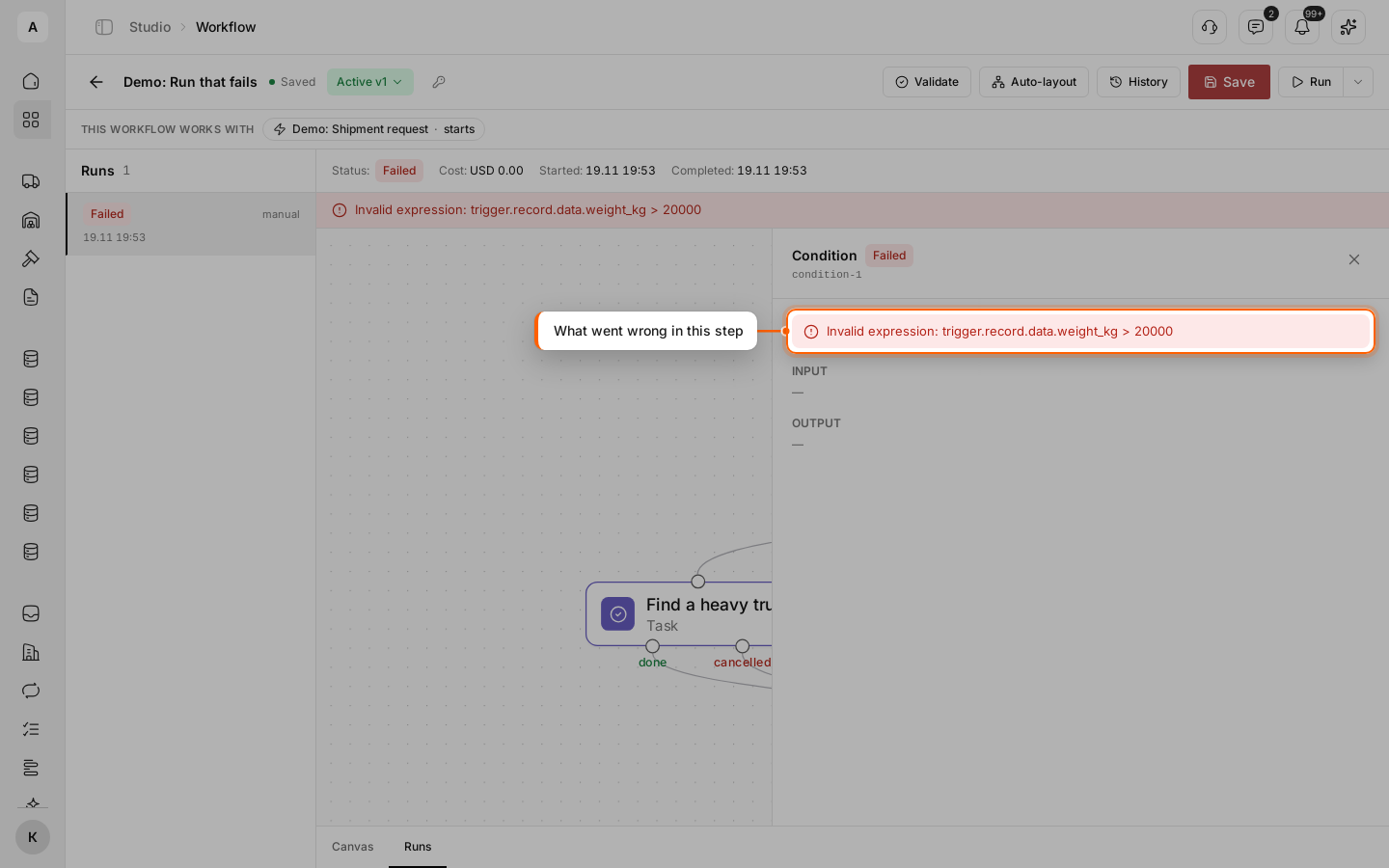
Click the red node. The panel on the right shows its error, “INPUT” and “OUTPUT”. In the example, the expression trigger.record.data.weight_kg > 20000 could not be evaluated.
Check the data the step got
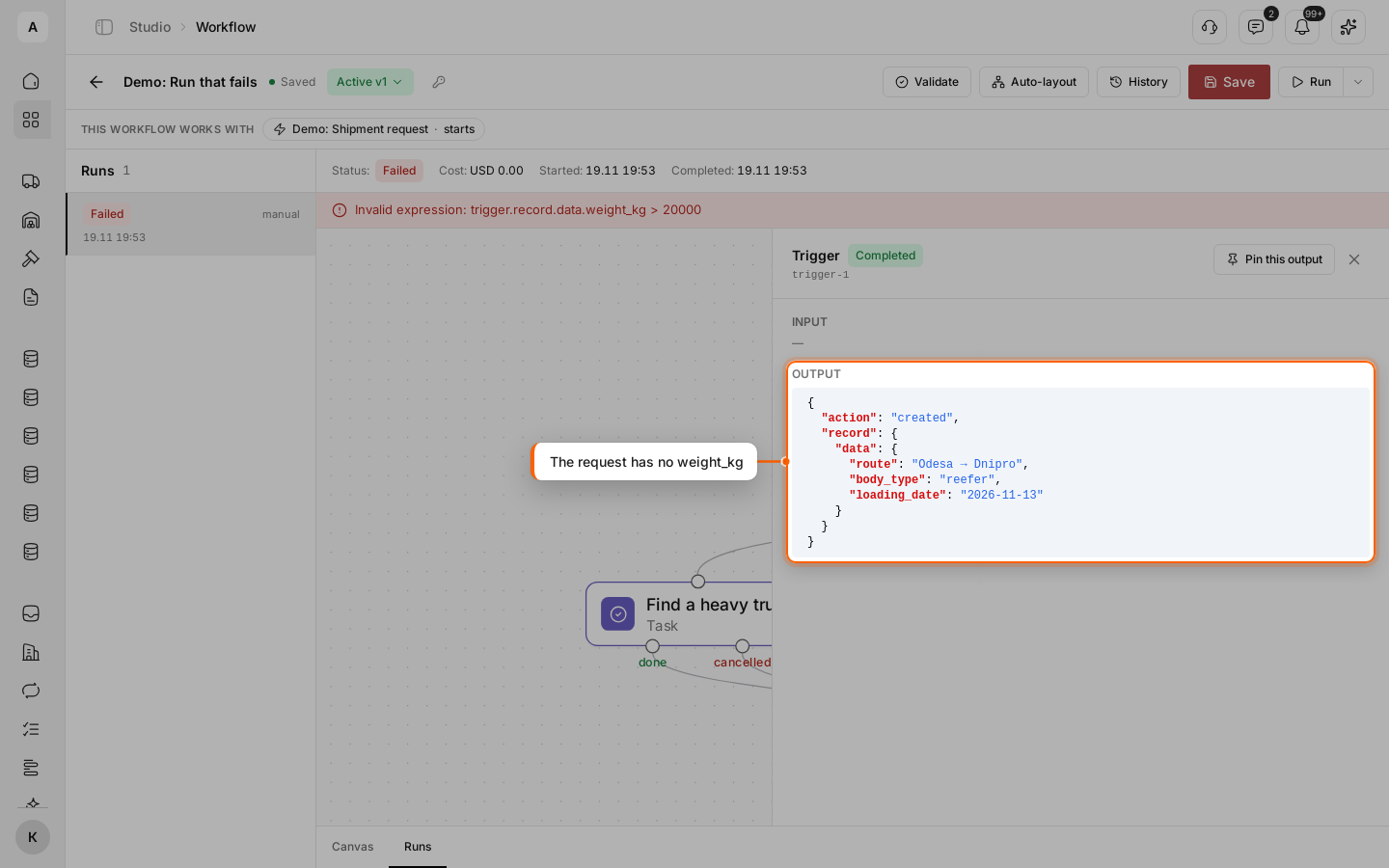
Click the nodes before the failed one and read their “OUTPUT”. The trigger’s output is the request that started the run. Here it has route, body_type and loading_date, but no weight_kg: the expression asked for a field the request does not have.
Fix the workflow
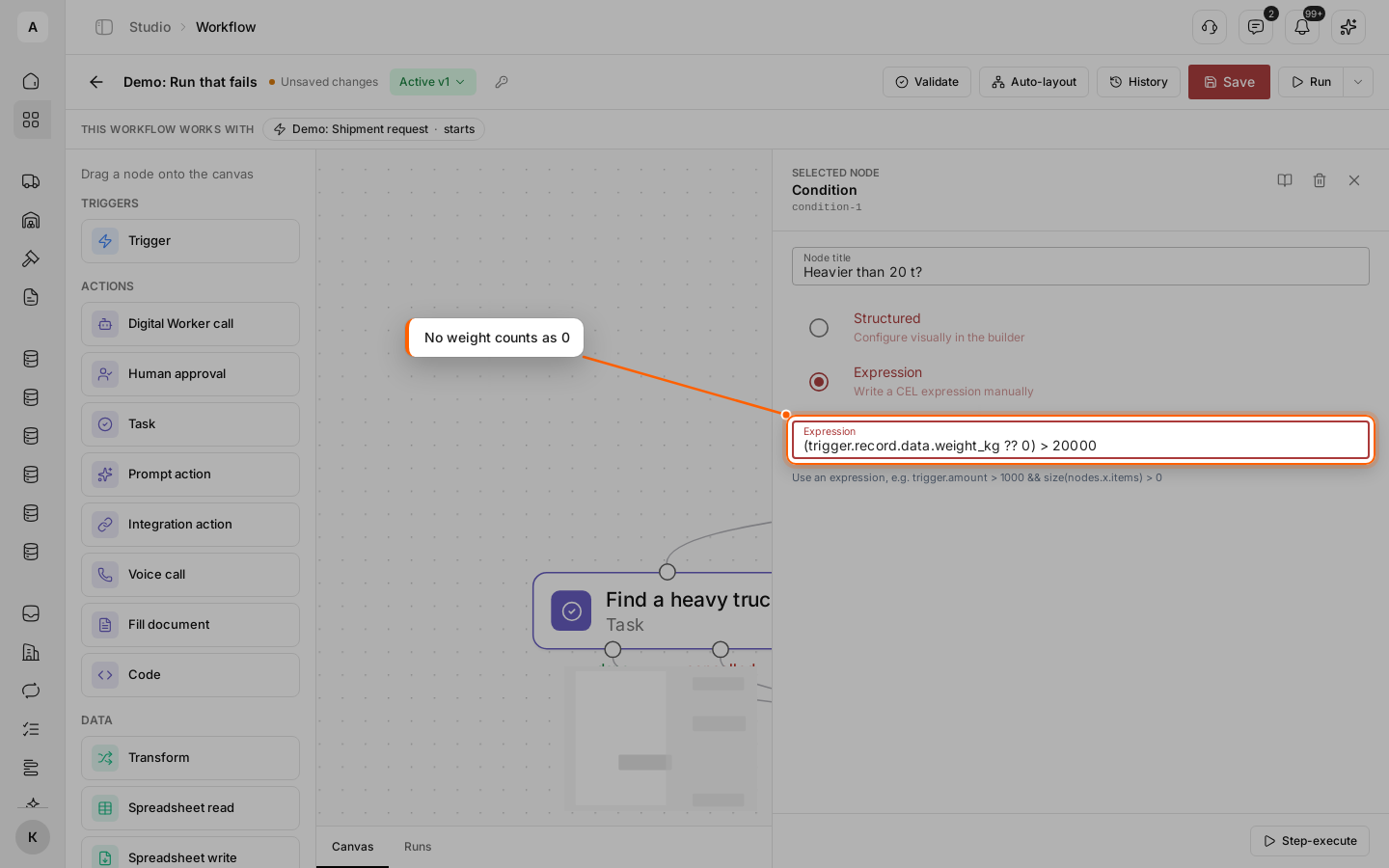
Click the Canvas tab and the node that failed. Change it so it handles the case. In the example, a missing weight counts as 0:
(trigger.record.data.weight_kg ?? 0) > 20000Click Save. The status changes to “Editing v1”: the published version keeps working until you publish the fix.
Test the fix on the same data
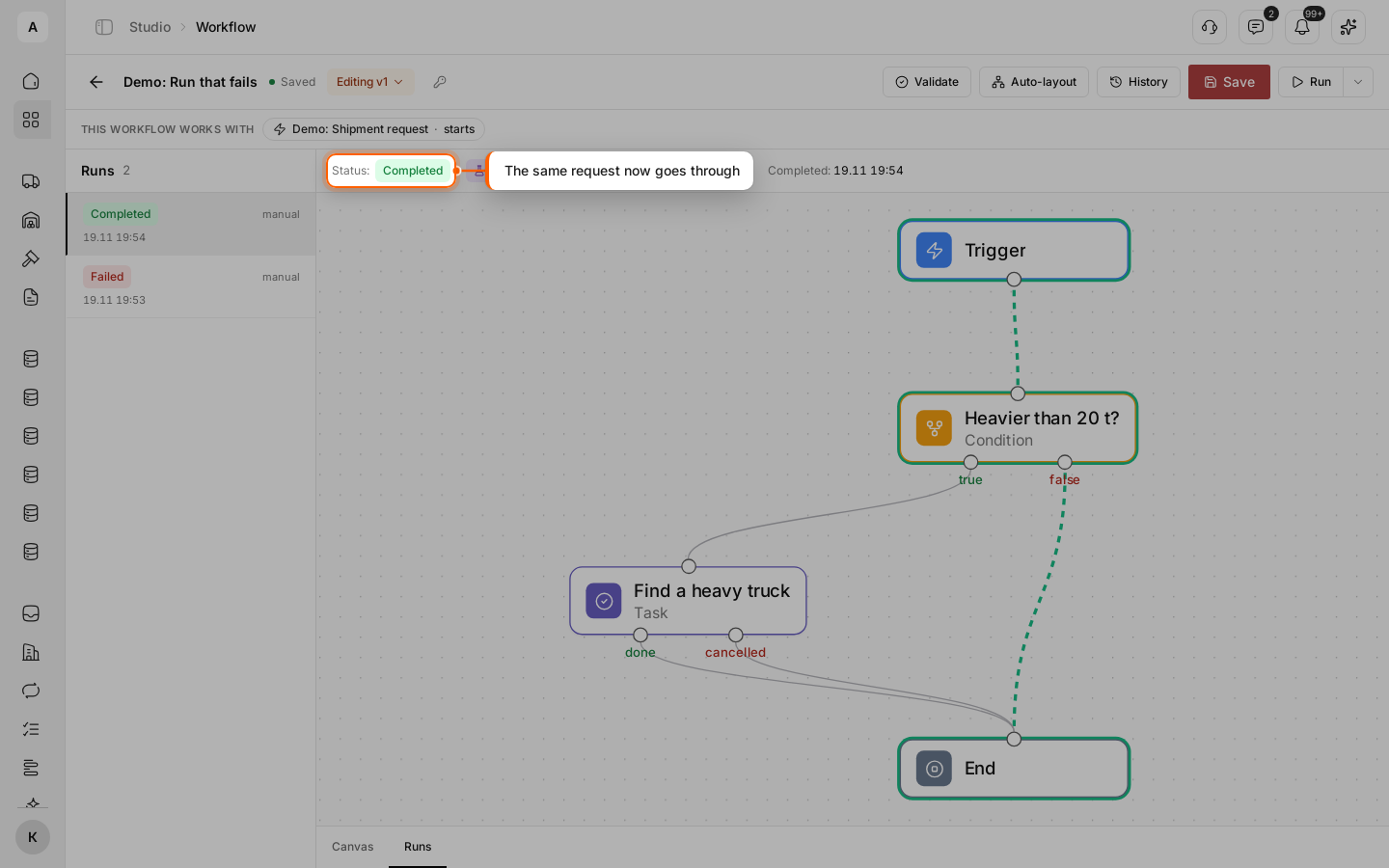
Click Run, paste the request from the trigger output into “Trigger payload (JSON)” and click Run test. The run now ends with “Completed”: the condition goes to “false”, straight to “End”.
Publish the fix
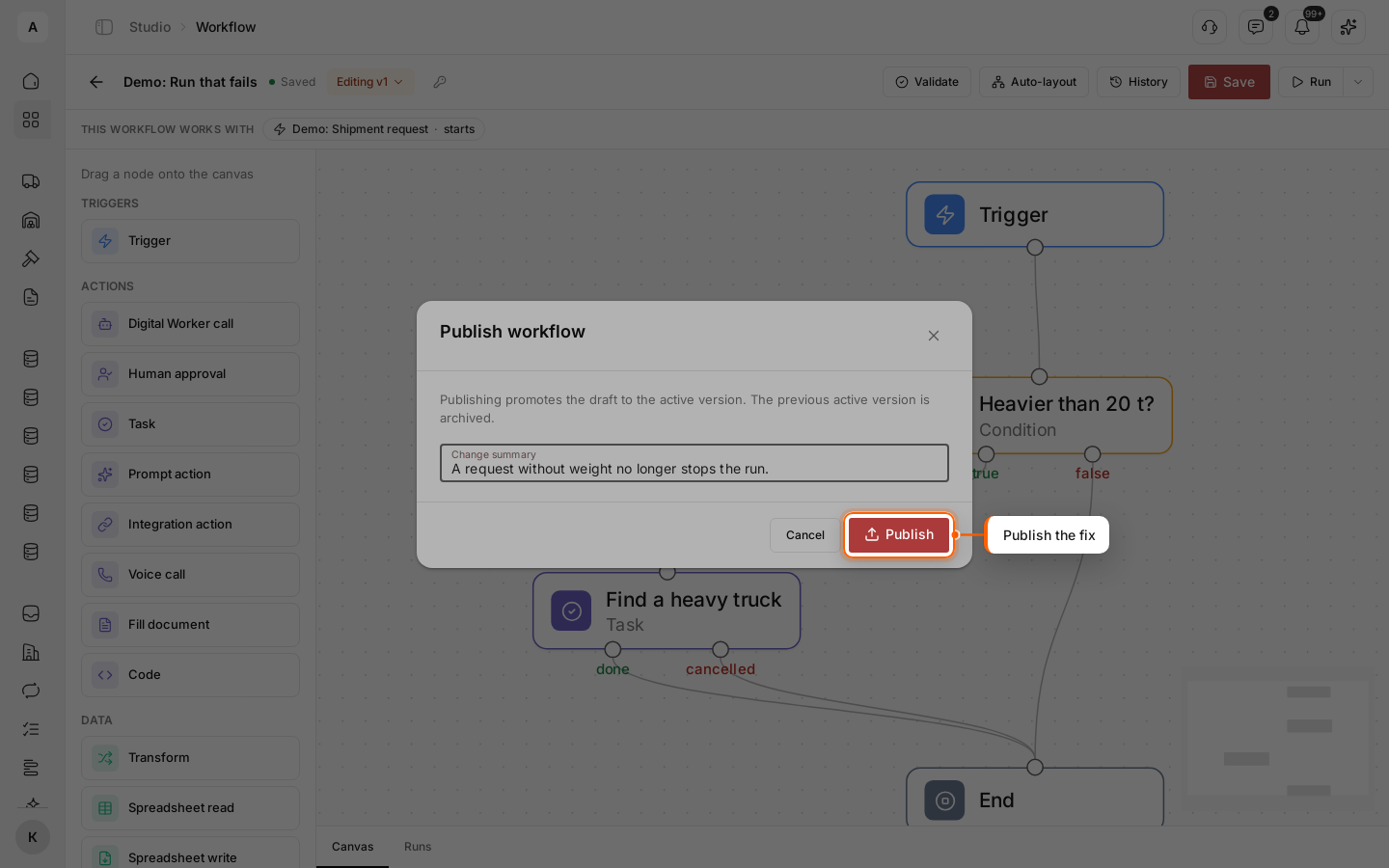
Click the “Editing v1” status and select Publish. Write in “Change summary” what you fixed and click Publish. New events now start the fixed version — see Publish a workflow and manage versions.
To process the request from the failed run with the fixed version, click the arrow next to Run, select Run live and paste the request from the trigger output.
Run statuses
- “Running” — the run is going through the steps.
- “Waiting” — a step waits for something outside the workflow: a person completes a “Task”, decides on a “Human approval”, a call ends, or a Digital Worker waits for an approval. Nothing after that step runs until then.
- “Completed” — the run reached “End”.
- “Failed” — a step returned an error, and the run stopped at it.
- “Cancelled” — someone stopped the run with Stop.
A node can also show “Failed — skipped”: the step failed, but “Continue on error” is on, so the run went on. The node output then holds error with the message.
Stop a run
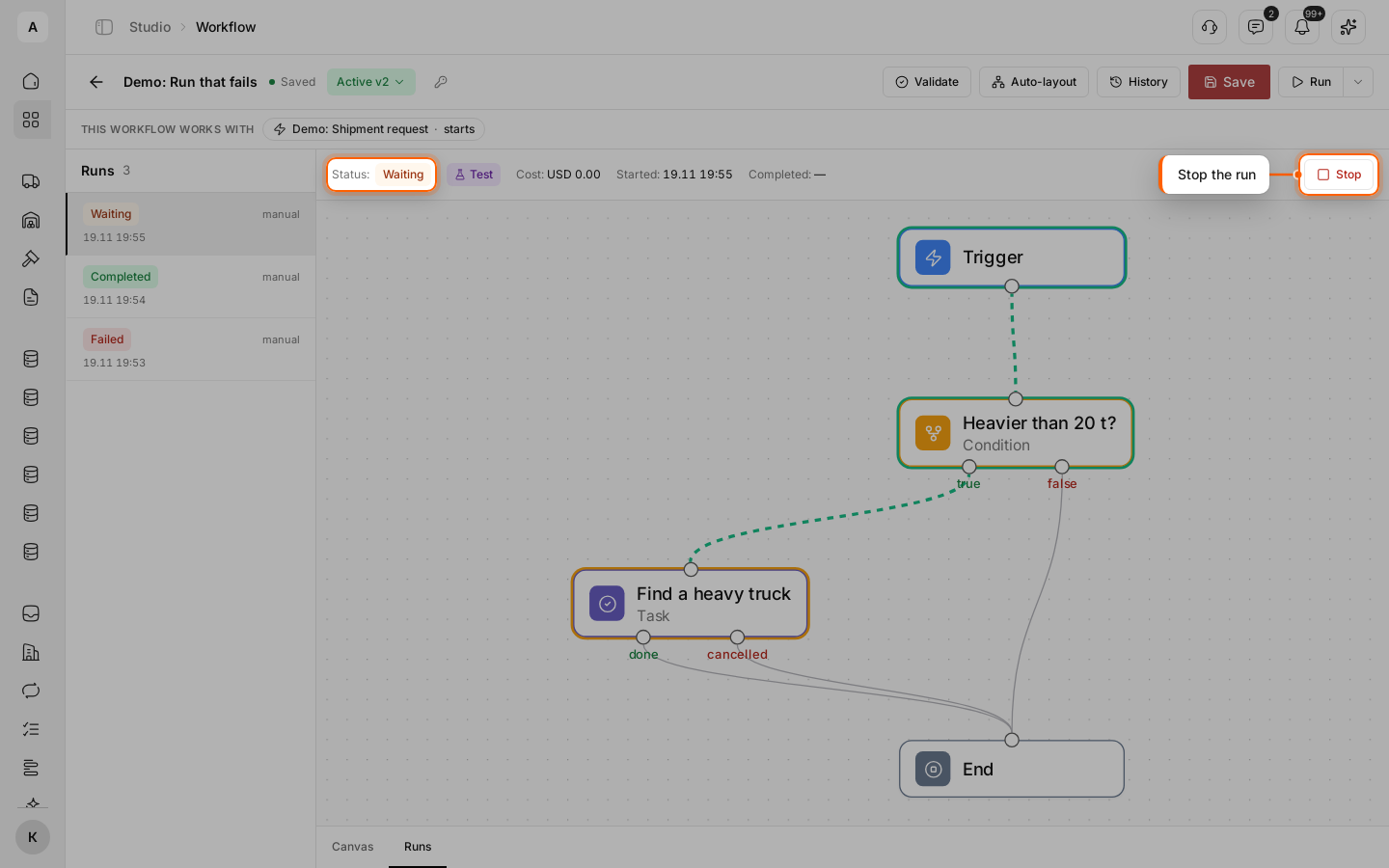
You can stop a run with the “Running” or “Waiting” status. In the example, a test request “Kyiv → Odesa” of 22 t waits on the “Find a heavy truck” step.
Open the run and click Stop
On the Runs tab, select the run and click Stop on the right of its status line.
Confirm
Click Yes, confirm. The run gets the “Cancelled” status and the note “This run was stopped. Later steps will not run.” with who stopped it and when.
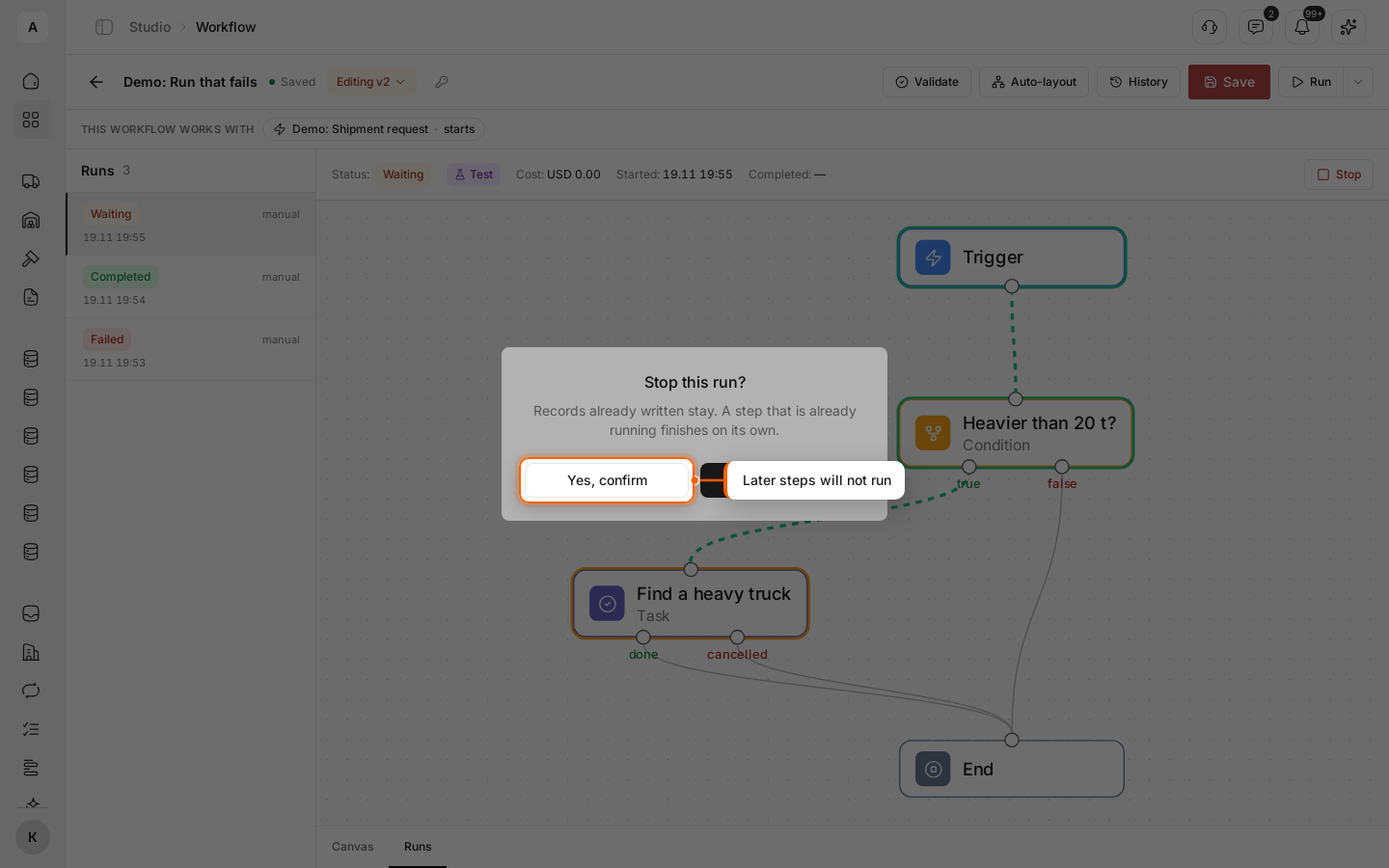
Stopping does not undo what is done. Records already written stay, and a step that is already running finishes. In the example, the task “Find a truck for 20+ t: Kyiv → Odesa” stays in Tasks: close it by hand.
Tip
To check one step without running the whole workflow, select the node on the canvas and click Step-execute at the bottom of its panel. To start a test from that node, use Run from selected node in the Run menu. Steps that wait, such as “Task”, cannot be step-executed: take their output from a test run with Pin this output instead.