- Who can: a user with the “Manage Studio” permission
- Where: Studio › Superpowers › superpower › Voice call
- Time: ≈ 15 minutes
Before you start
- Create a superpower. See Create a superpower. In the example it is “Demo: Carrier call”.
- For the worker to place calls, connect telephony with a number in Studio › Integrations. See Connect telephony.
- Plan the conversation: the goal of the call, the first line, what to do when the other side says no. In the example, a dispatcher confirms the loading date on a route with the carrier.
Steps
Allow calls in the superpower
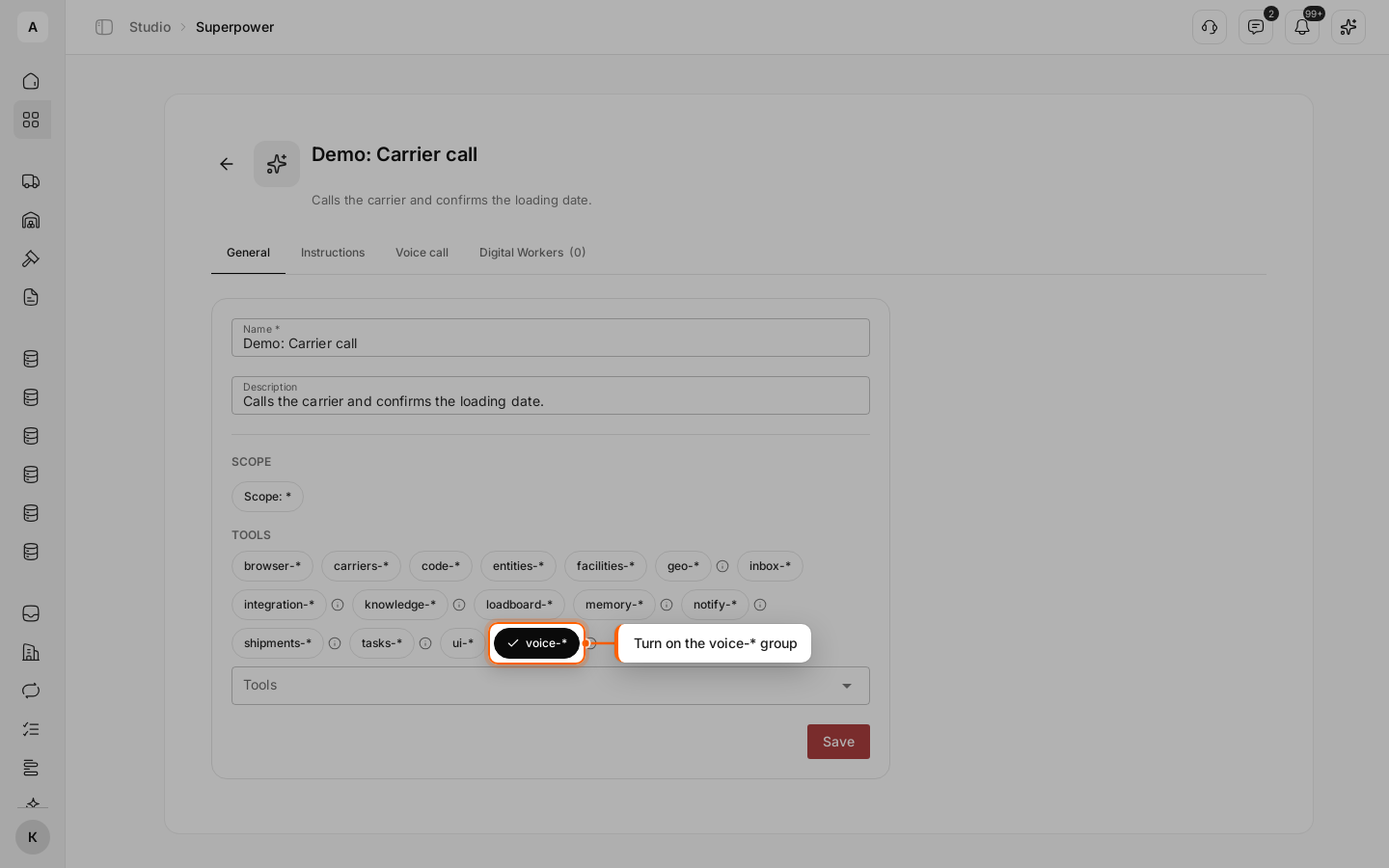
On the superpower’s General tab, turn on voice-* under the “Tools” heading and click Save. The Voice call tab appears next to Instructions.
Open the Voice call tab
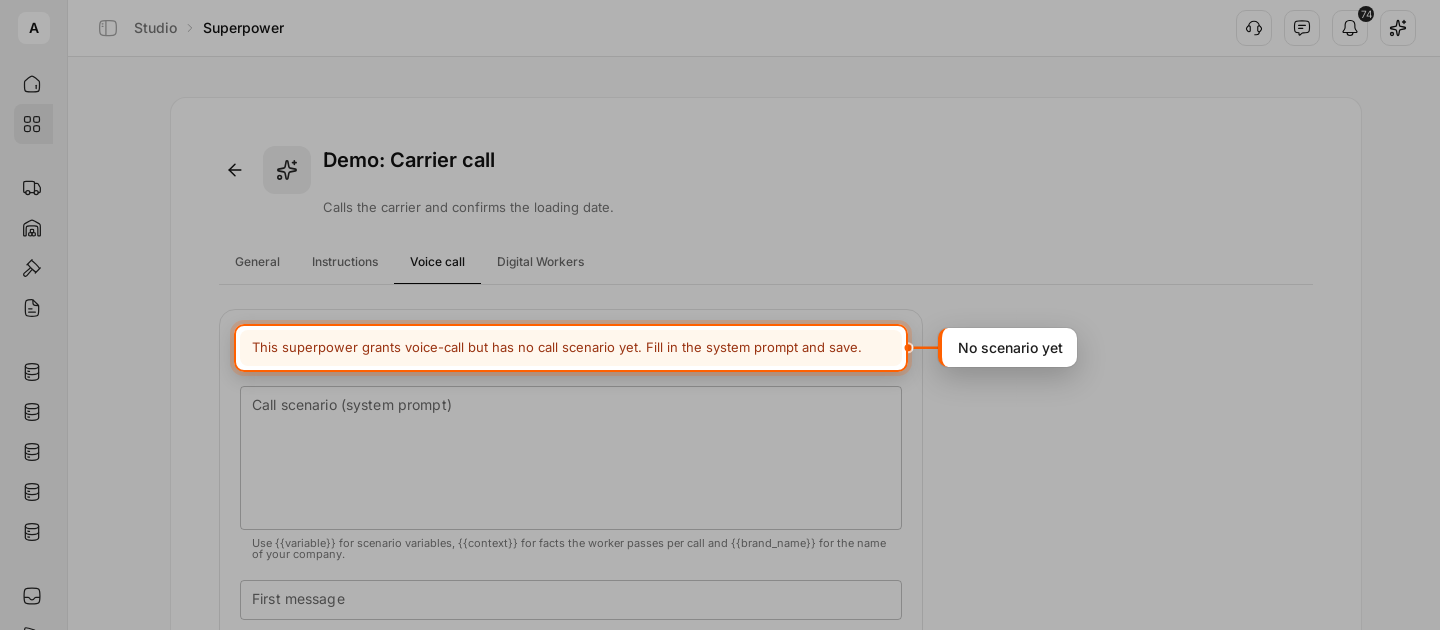
Click Voice call. While there is no scenario, a warning shows at the top. It goes away after you save.
Describe the conversation
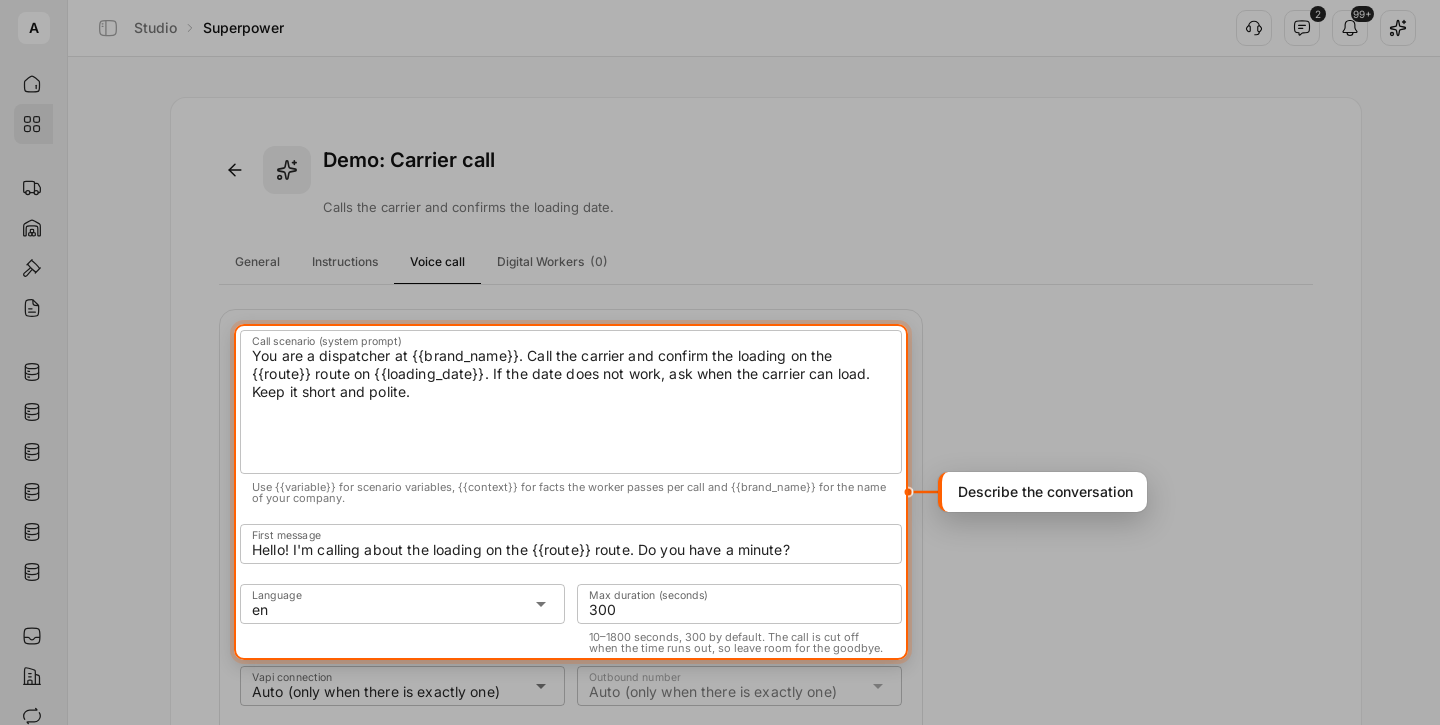
Fill in the fields:
- “Call scenario (system prompt)” — who is calling, the goal of the call and how to behave. Write variables in double curly braces:
.inserts your company name,the facts the worker passes before the call; - “First message” — the line the worker opens the call with;
- “Language” — the call language;
- “Max duration (seconds)” — from 10 to 1800, 300 by default. When time runs out, the call drops, so leave room for the goodbye.
Choose where to call from
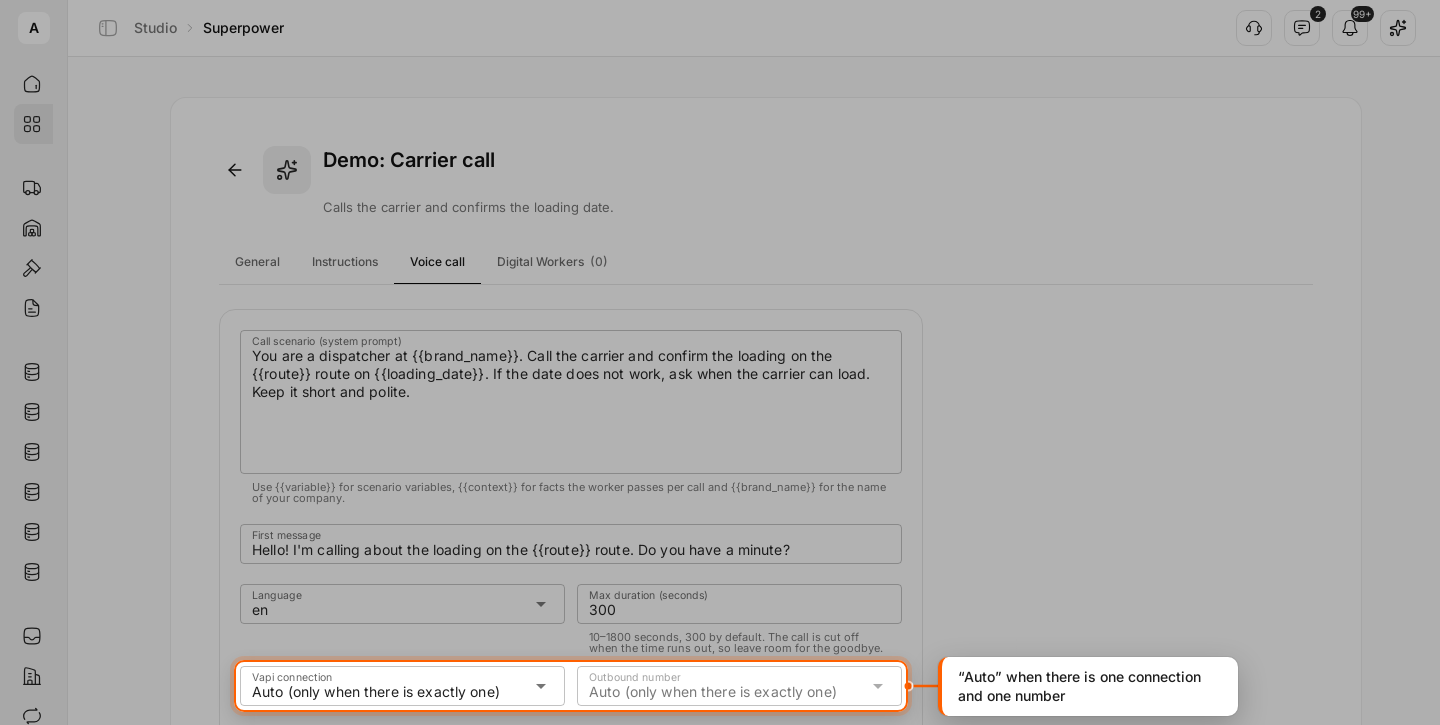
Below “Language”, select the telephony connection, and in “Outbound number” the number the call goes out from. “Auto (only when there is exactly one)” fits when the account has one connection and one number.
Set the voice and call ending if needed
You can leave “Voice”, “Conversation model”, “Ending the call” and “Speech recognition” empty: the defaults for the call language apply. In “Goodbye phrases”, add only phrases said at the very end: the call ends as soon as the worker says one of them.
Add variables
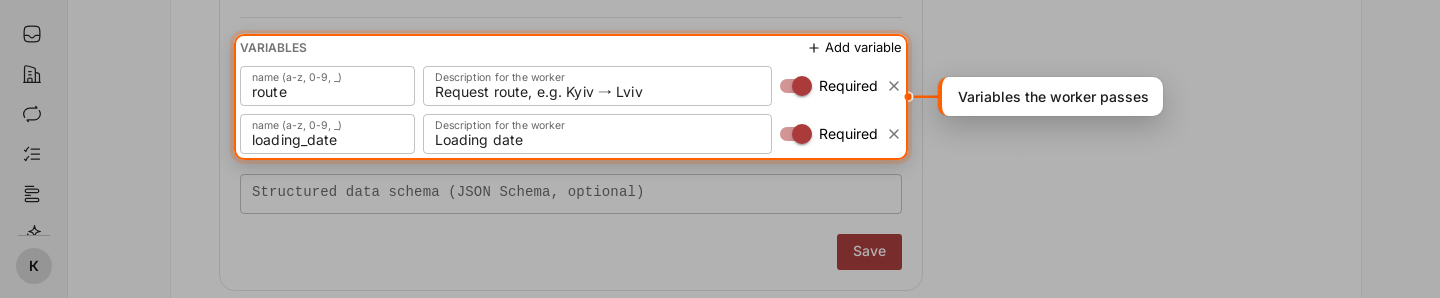
In “Variables”, click Add variable for each variable in the scenario. Enter the name in Latin letters (a-z, 0-9, _), a “Description for the worker” of what to pass, and leave Required on if the call cannot go ahead without the value. The worker fills in the variables before each call.
In the example these are route (the request route) and loading_date (the loading date).
Save the scenario
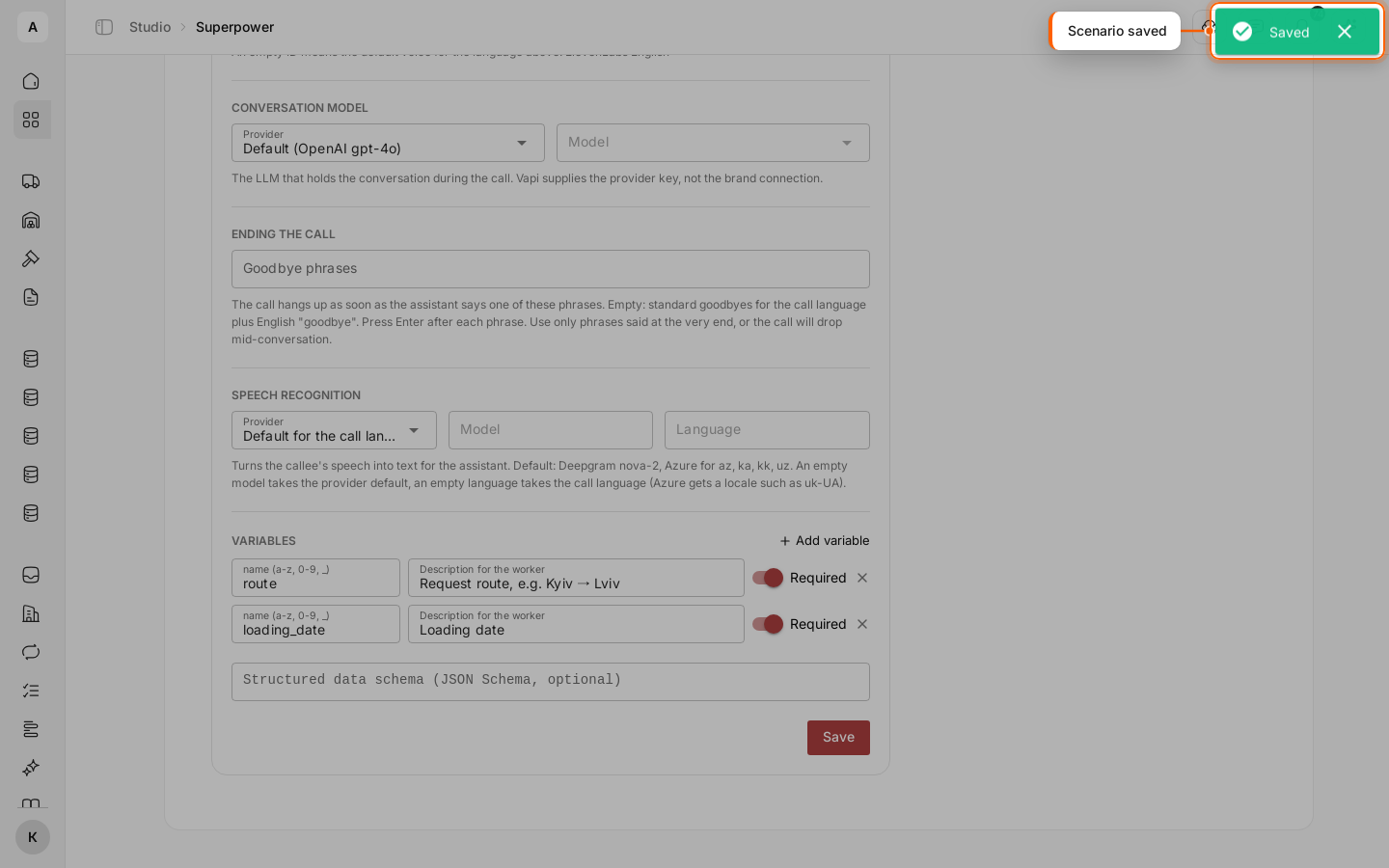
Click Save at the bottom of the tab. You see “Saved”, and the missing-scenario warning goes away.
Important
Fill in the “Call scenario (system prompt)” field: a scenario is saved with it.