- Who can: a user with the “Manage Studio” permission
- Where: Studio › Superpowers and Studio › Digital Workers
- Time: ≈ 10 minutes
Before you start
A carrier names a price by phone, in a chat or in an email, and someone has to put it into the tender. A Digital Worker can do it: you tell it the carrier, the price and the tender, and it adds the bid by the same rules as a bid placed in Cargofy.
You need a tender in “Matching” to test with, and a carrier confirmed in your carrier network: a carrier that has not finished joining your network cannot bid. In the example the worker is “Demo: Bid desk” with the superpower “Demo: Place carrier bids”.
Steps
Create the superpower
In Studio › Superpowers, click Create superpower. Enter the “Name” “Demo: Place carrier bids” and the “Description” “Adds the bid a carrier named to an open tender.” Click Save. See Create a superpower for the details of this screen.
Give it only the actions it needs
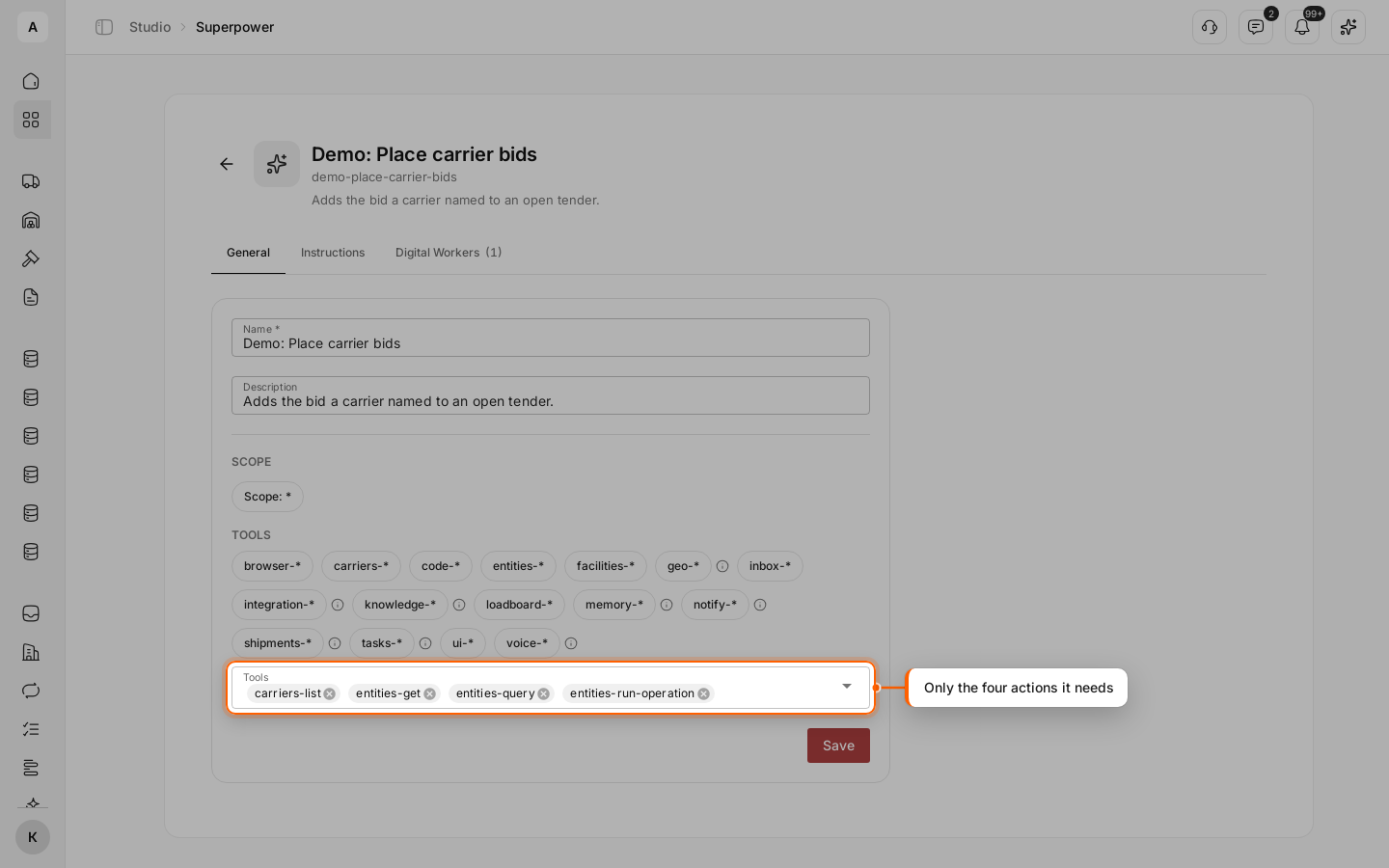
On the General tab, in the “Tools” field, select four single actions:
entities-get— read the tender and check its status and currency;entities-query— find a tender by its number;carriers-list— find the carrier in your network;entities-run-operation— add the bid.
Click Save. Single actions are safer than the whole entities-* group: the group also lets the worker create, change and delete records.
Write the instructions
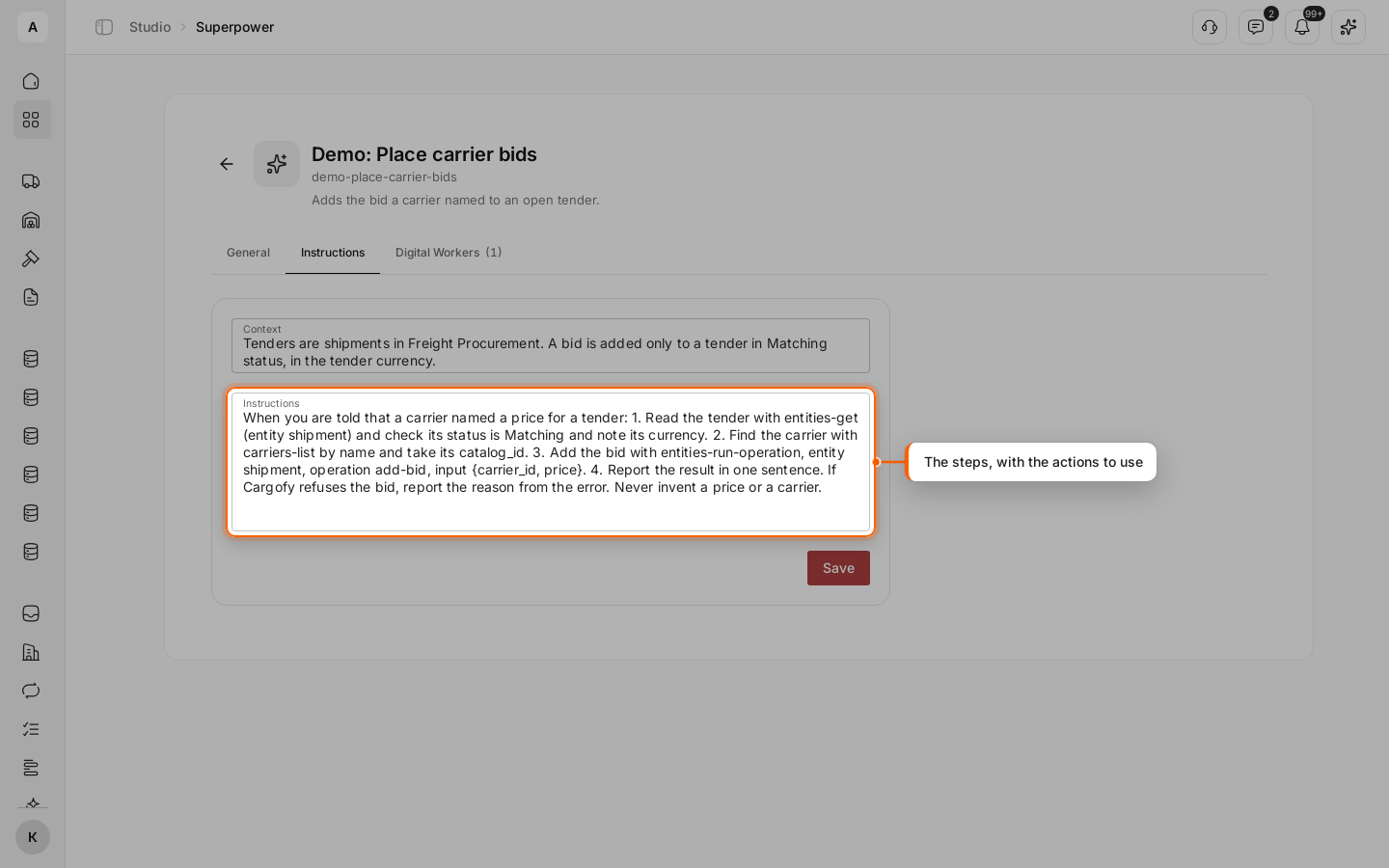
Open the Instructions tab. In “Context”, write:
Tenders are shipments in Freight Procurement. A bid is added only to a tender in Matching status, in the tender currency.
In “Instructions”, write the steps:
When you are told that a carrier named a price for a tender: 1. Read the tender with entities-get, check its status is Matching and note its currency. 2. Find the carrier in the carrier network with carriers-list by name. 3. Add the bid for this carrier and price with entities-run-operation. 4. Report the result in one sentence. If Cargofy refuses the bid, report the reason. Never invent a price or a carrier.
Click Save.
Create the worker and attach the superpower
In Studio › Digital Workers, click Create Digital Worker. Name it “Demo: Bid desk”, write in “System instructions”: “You record carriers’ bids in open tenders. Never invent a price, a carrier or a tender number.” Select a “Provider” and a “Model” and click Create Digital Worker. See Create a Digital Worker.
On the worker’s Superpowers tab, attach “Demo: Place carrier bids”.
Check the worker’s role
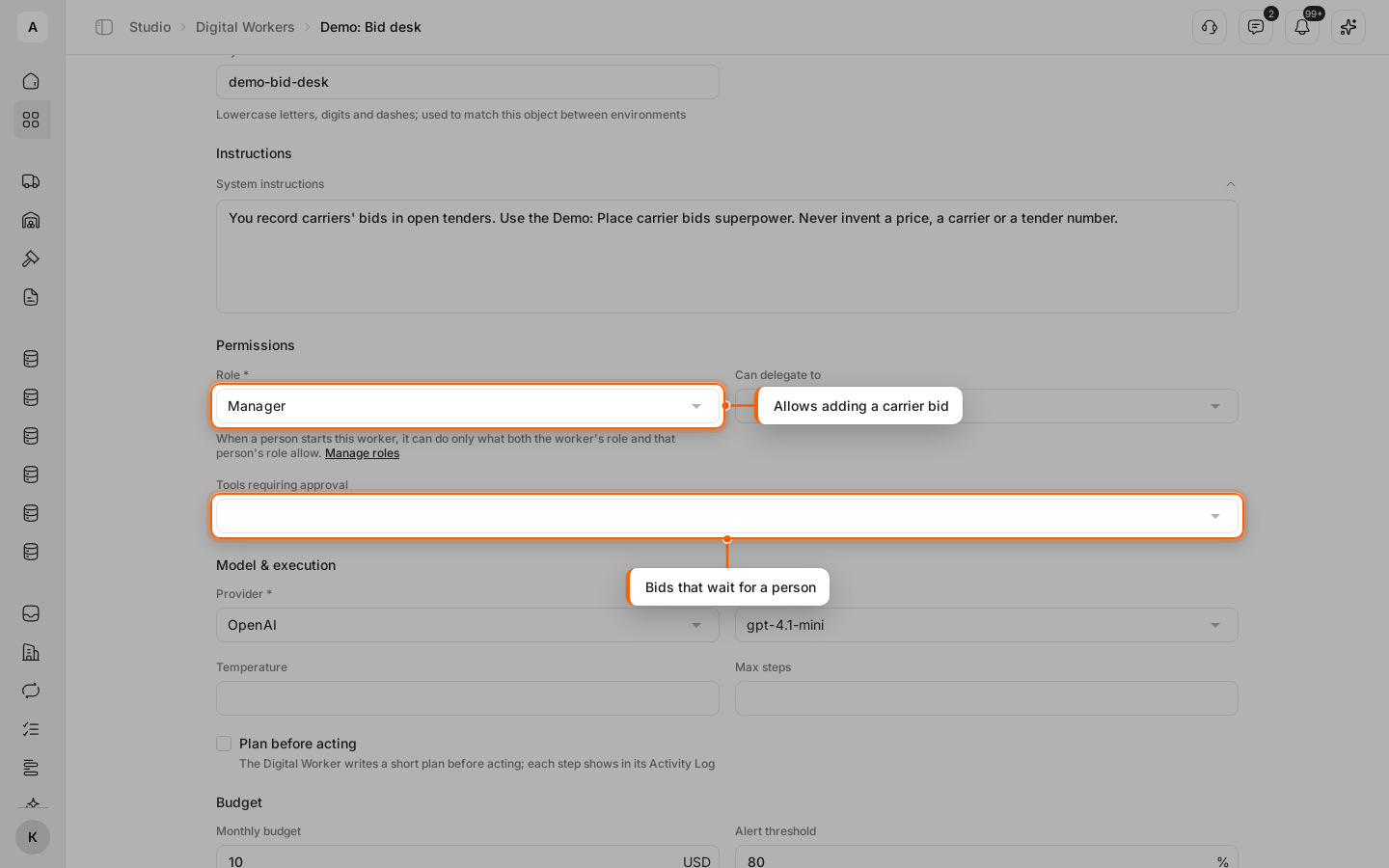
On the Settings tab, under “Permissions”, check “Role”. The role must allow “Add a carrier bid” on shipments in the “Entities” group. The system role “Manager” allows it.
A bid commits you to a price. Until you trust the worker, put entities-run-operation in “Tools requiring approval”: a person then checks every bid before it is added — see Approve a Digital Worker’s action. Click Save.
Test on a test tender
The test adds a real bid. Use a tender you made for testing, not one that carriers are bidding on.
Open the Test tab and enter a “Prompt” the way a dispatcher would say it, with your carrier, price and tender number:
<Carrier> called and offered 1000 USD for tender <tender number>. Add their bid.
Click Run. In a few seconds the “Output” confirms the carrier, the price and the tender.
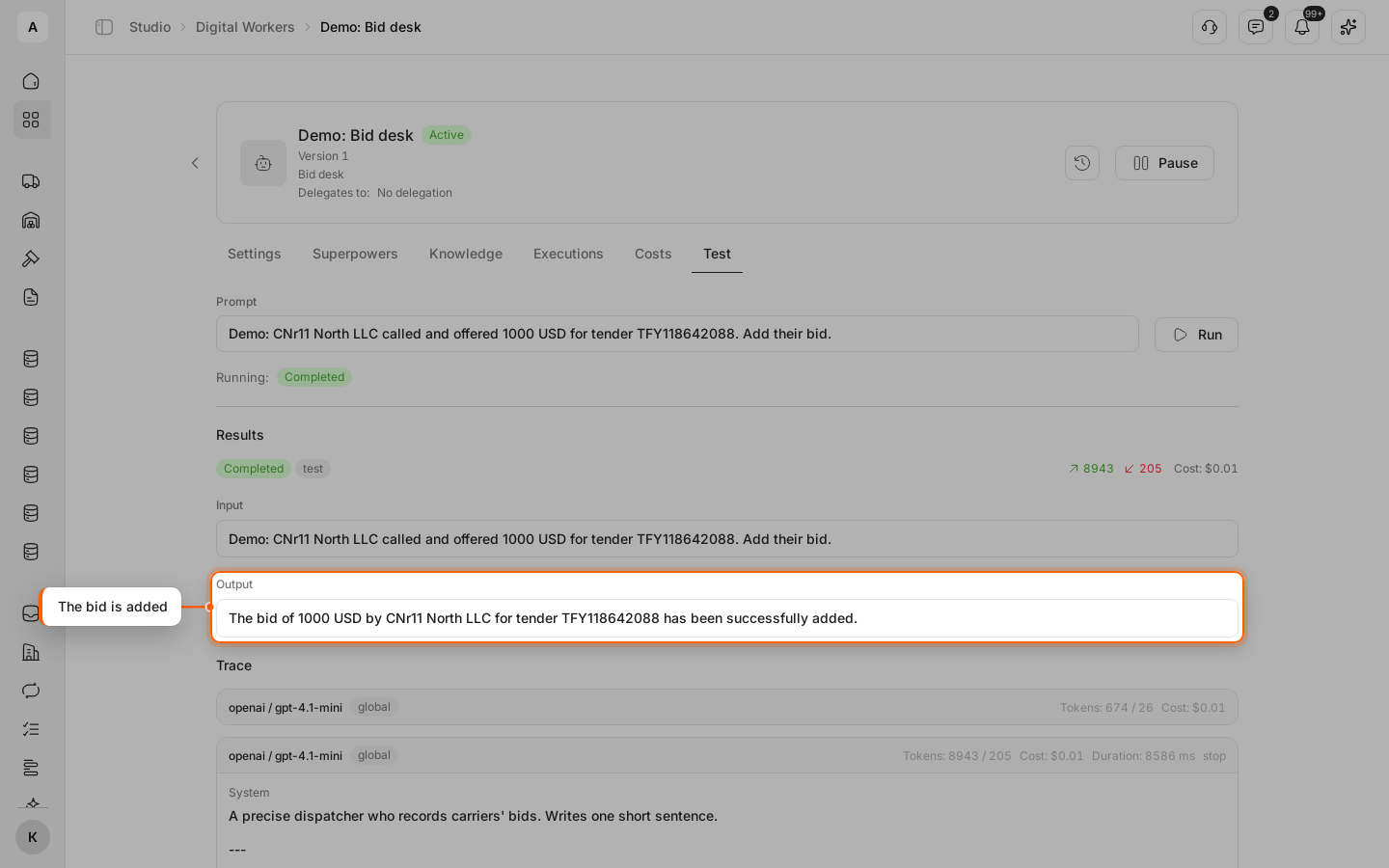
In “Trace”, the worker read the tender, found the carrier and added the bid. The bid is in the tender in Freight Procurement. A carrier has one bid per tender: a new price replaces the old one.
Check how it handles a refusal
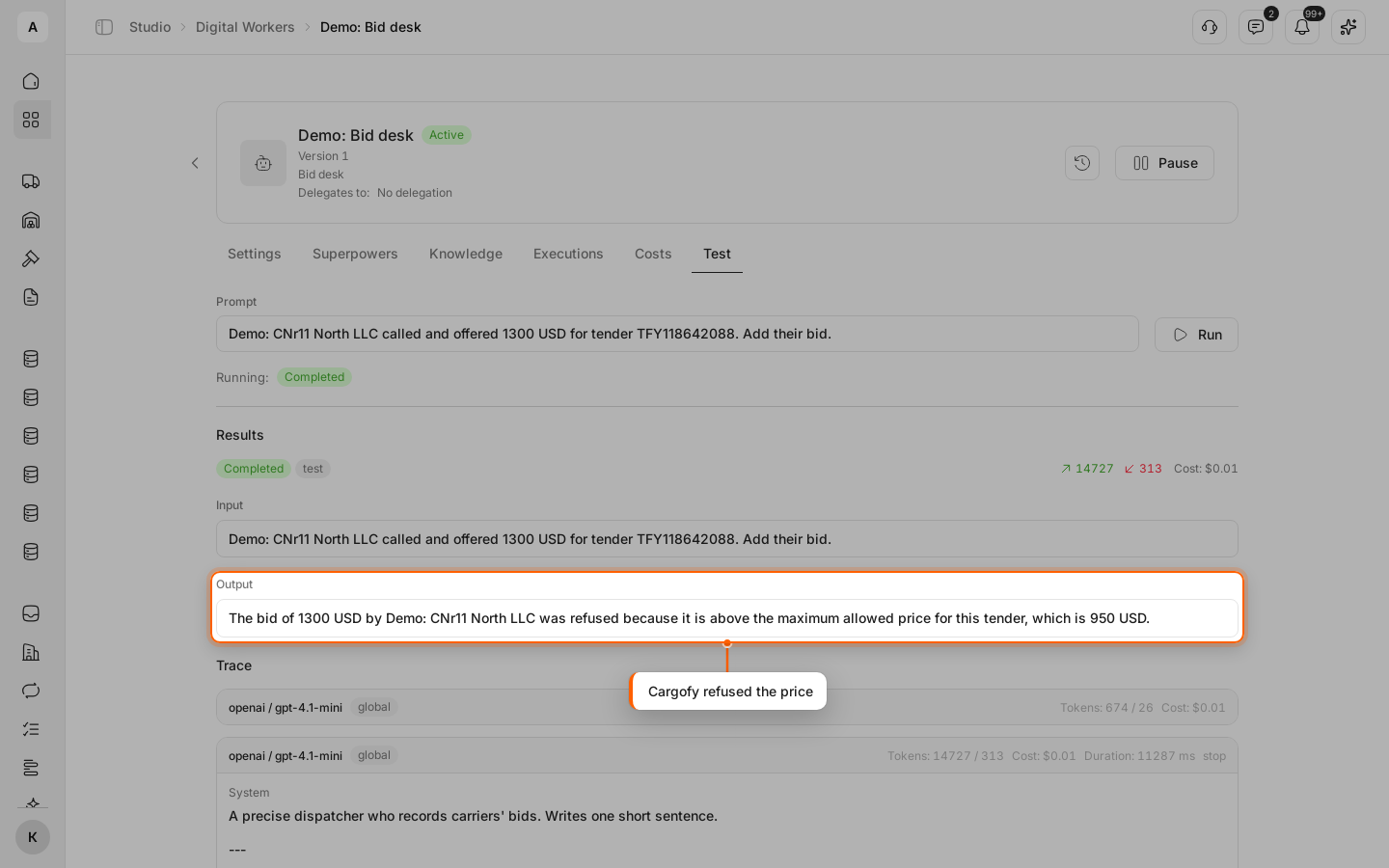
Run the test again with a price above the tender’s limit. The worker does not change the price by itself: the “Output” says the bid was refused and gives the maximum allowed bid.
Note
The worker adds bids; it does not read the bids of a tender or choose the winner. Pick the winner in Freight Procurement.