- Who can: any member of your company
- Where: the model item in the left menu, or Studio › Data models › a click on the model name
- Time: ≈ 5 minutes
Before you start
You need a data model with fields — see Create a data model. The example adds the customer “Demo: Customer Kyiv Grain” to the model “Demo: Customer”, with its country, city, office address and contract.
To open the records from the left menu in one click, turn on “Show in sidebar” for the model on the list of data models or on its General tab.
Steps
Open the records
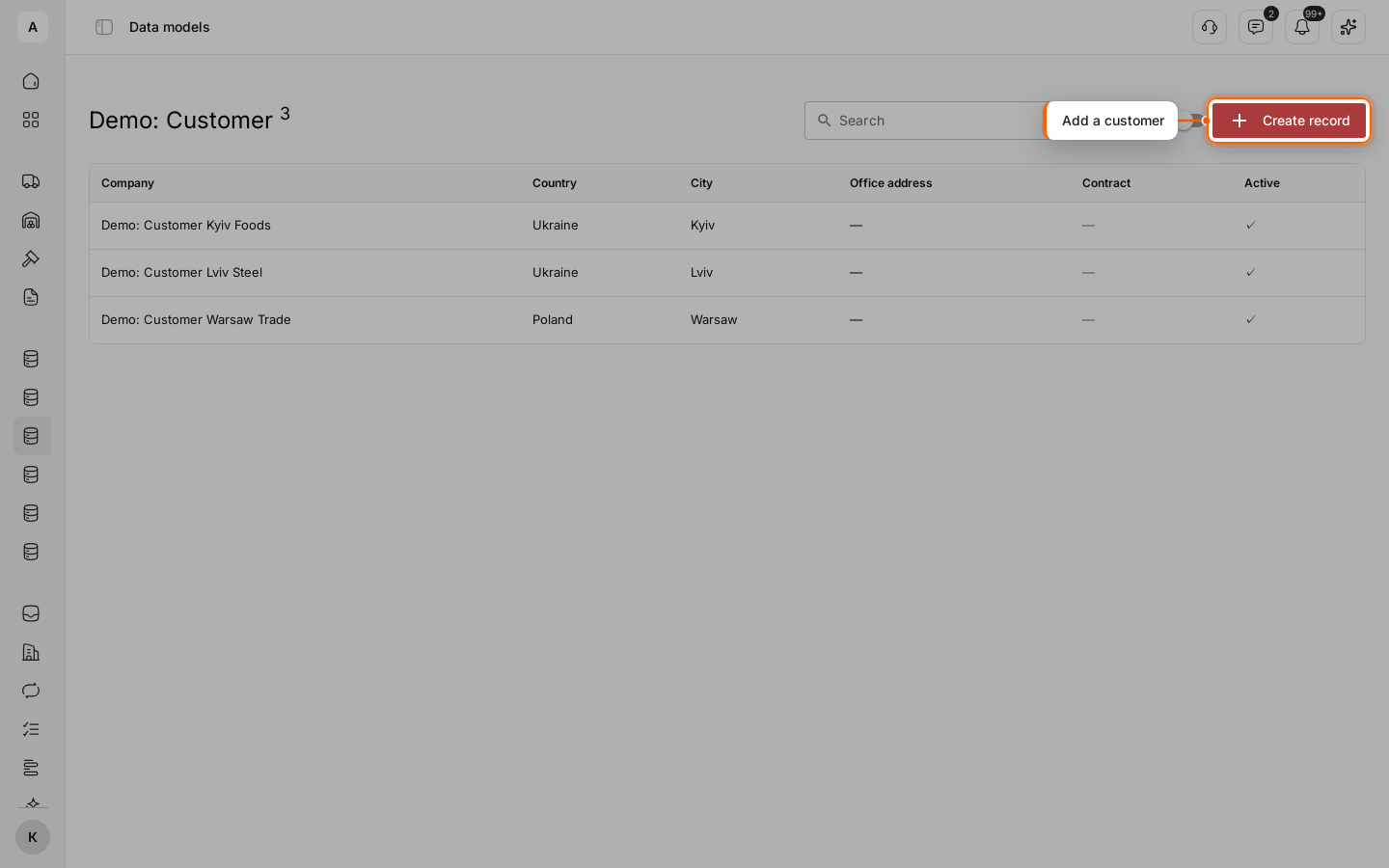
Click the model in the left menu. The list shows a column for every field, 25 records per page; the number next to the title is the total.
Fill in a new record
Click Create record. Fields marked with “*” are required. Fill in “Company”, pick the “Country” and then the “City”.
Pick the address
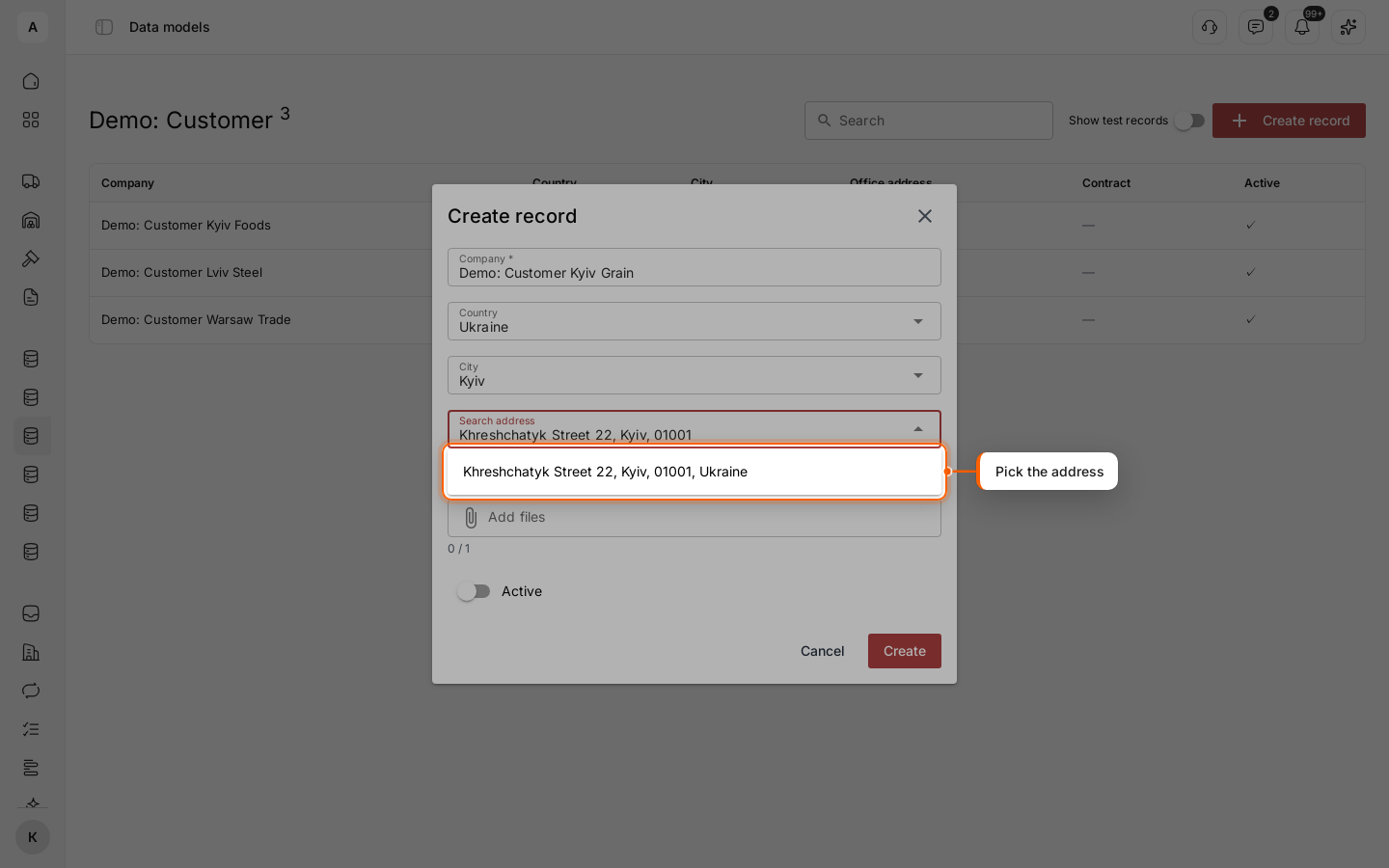
In “Search address”, type at least three letters of the street and city, for example Khreshchatyk Street, Kyiv, and pick the address from the list. Cargofy saves the address together with its map coordinates.
Attach a file
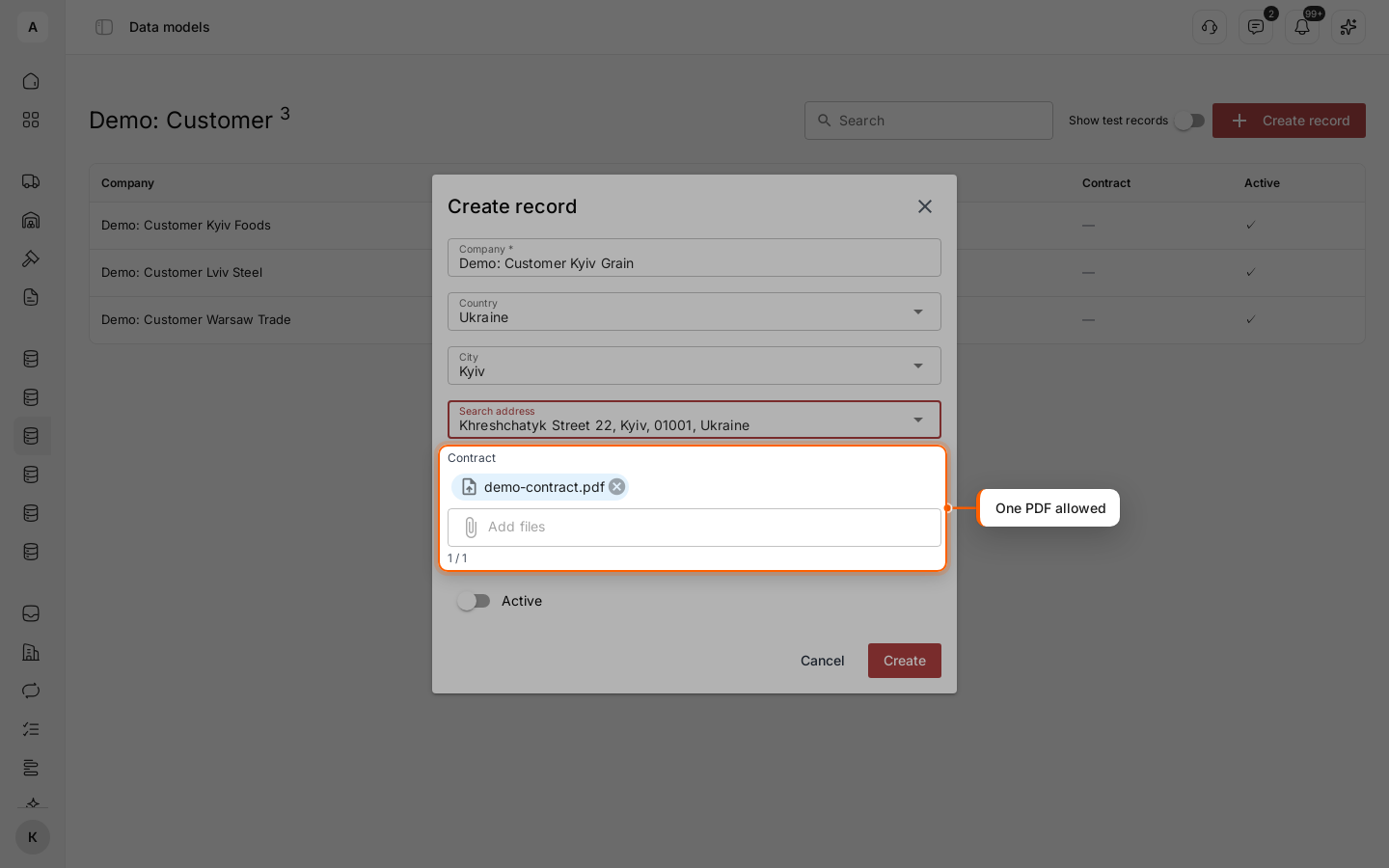
In the file field, click Add files and pick the file. The field accepts only the extensions set for it, and the counter shows how many files it holds out of the allowed number. A file over the size limit is not accepted.
Save the record
Click Create. The record appears in the list. If a field breaks a rule, the message names the field and the record is not saved.
Find and open a record
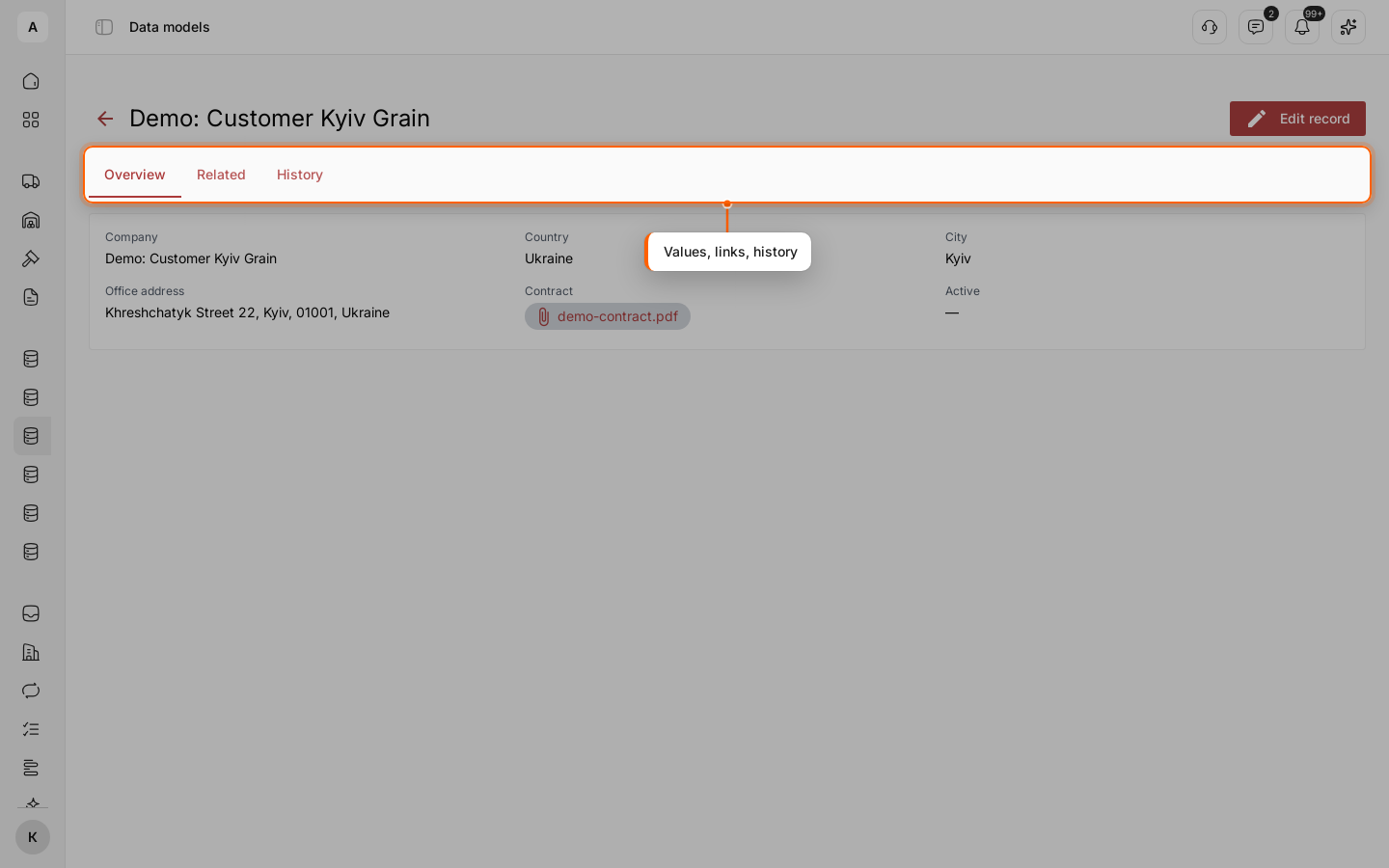
Type in “Search” — Cargofy looks for the text in all text and number fields. Click a row to open the record. The card has three tabs: Overview with the values, Related with linked records and History with every change.
Edit the record
Click Edit record, change the values and click Save. Only the fields you changed are written to the history.
Test records
A test run of a workflow writes test records. They do not show in the list until you turn on “Show test records”; then they carry the mark “Test”. Workflows that look for records do not see them.
Limits
- To narrow the list, use “Search”.