- Who can: a user with the “Manage Studio” permission builds the form; anyone in your account finishes your team’s steps
- Where: Studio › Forms, and Forms in the left menu
- Time: ≈ 15 minutes
Before you start
A customer knows the route and the loading date; your dispatcher adds the weight and the body type after a call. One form covers both: the customer fills a “Counterparty” step, your team fills an “Owner” step, and both steps write into the same request.
You need a data model with the fields of both steps. The example uses “Demo: Shipment request” and the form “Demo: Request from a customer”. To build a form from scratch, see Create and publish a form.
Steps
Add the customer’s step
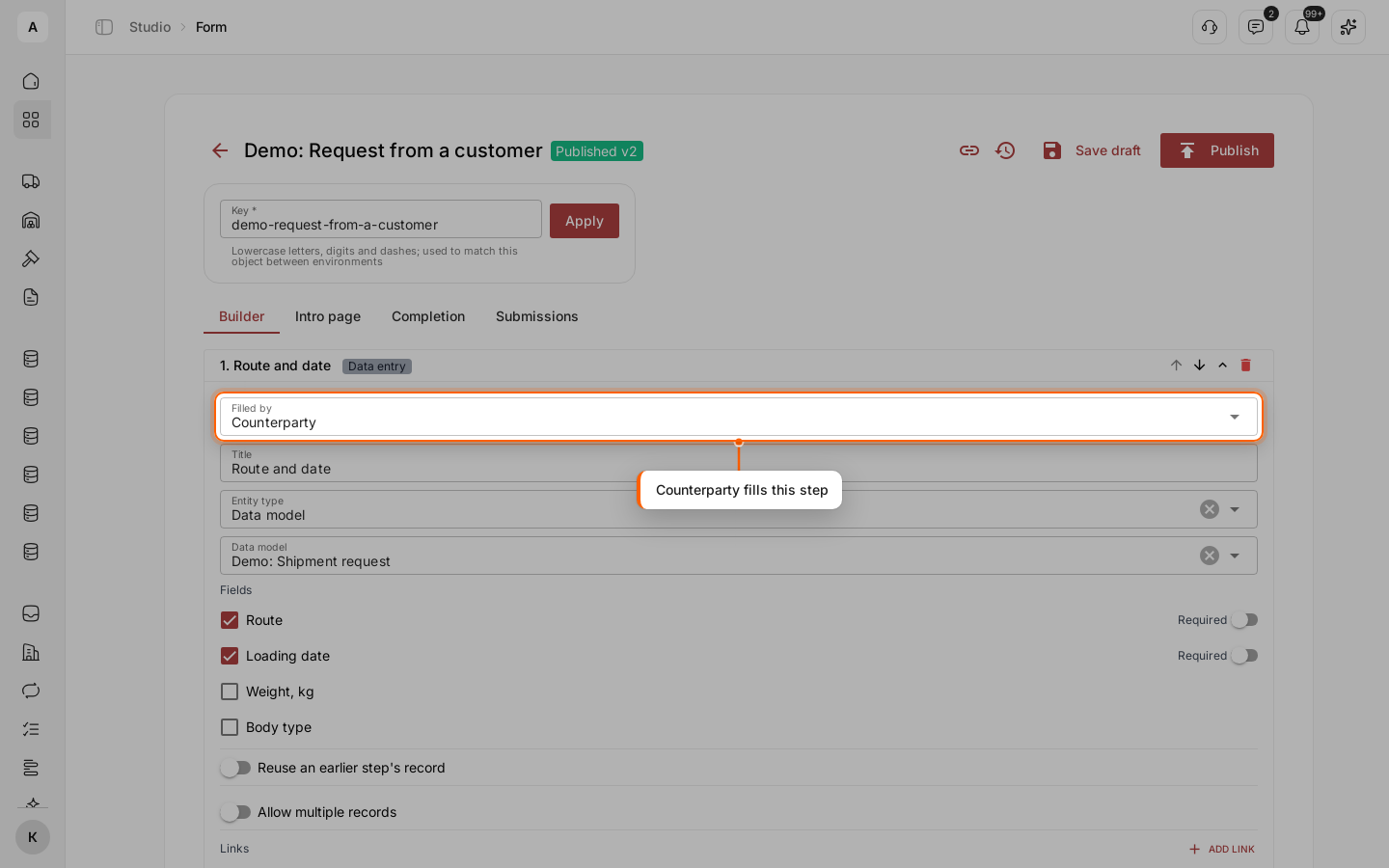
In the form builder, click Add step. In “Filled by”, select “Counterparty”: a person from another company who opens your link. Enter the “Title” “Route and date”, select “Data model” and “Demo: Shipment request”, and check “Route” and “Loading date”.
Add your team’s step on the same record
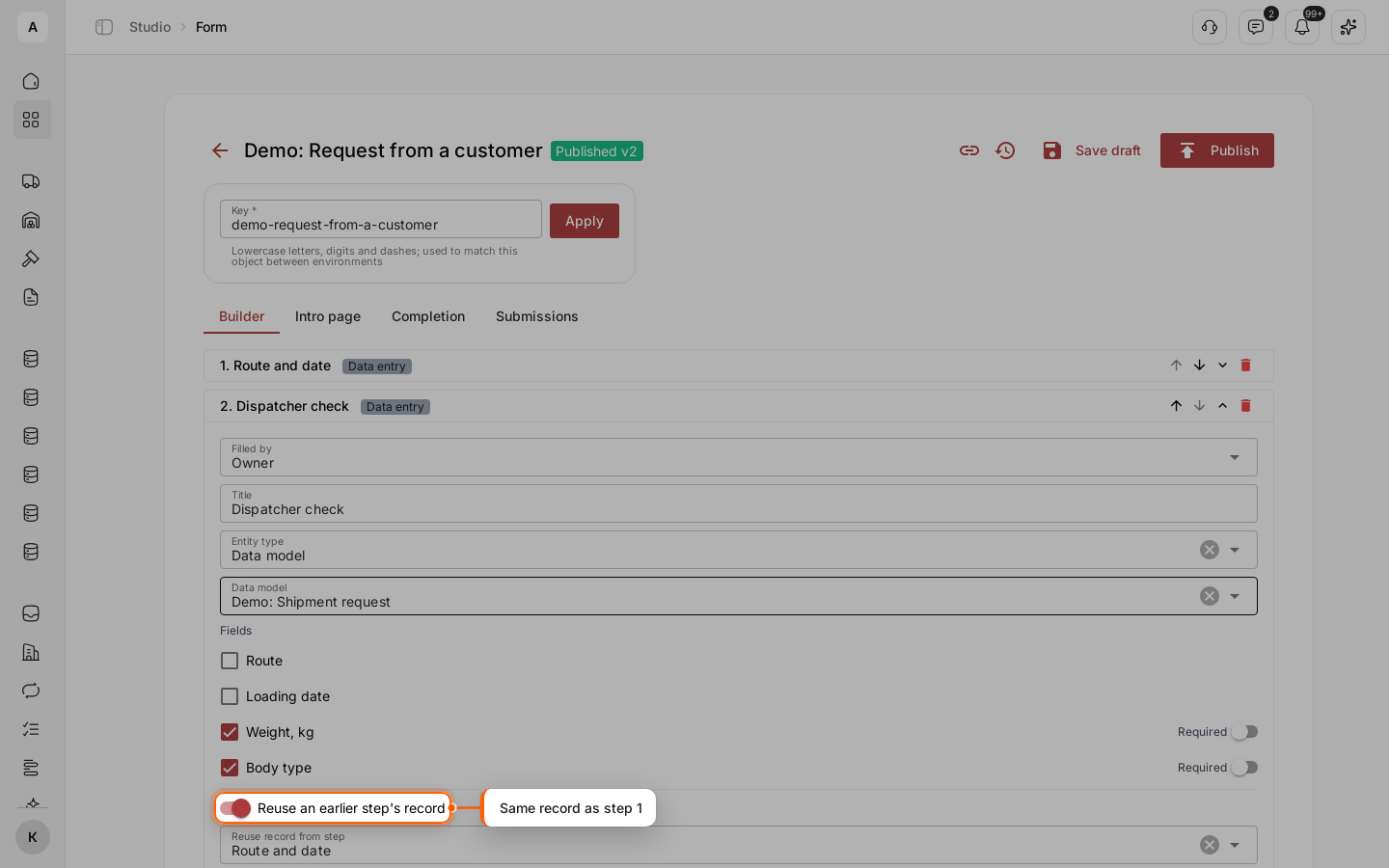
Click Add step again. Leave “Filled by” on “Owner”, enter the “Title” “Dispatcher check”, select the same data model and check “Weight, kg” and “Body type”. A field is required when it is marked Required in the data model.
Turn on Reuse an earlier step's record and select “Route and date” in “Reuse record from step”. The step then completes the customer’s request instead of creating a second one.
Publish the form
On the Intro page and Completion tabs, tell the customer what to enter and that a dispatcher finishes the request. Click Publish.
Send the link to the customer
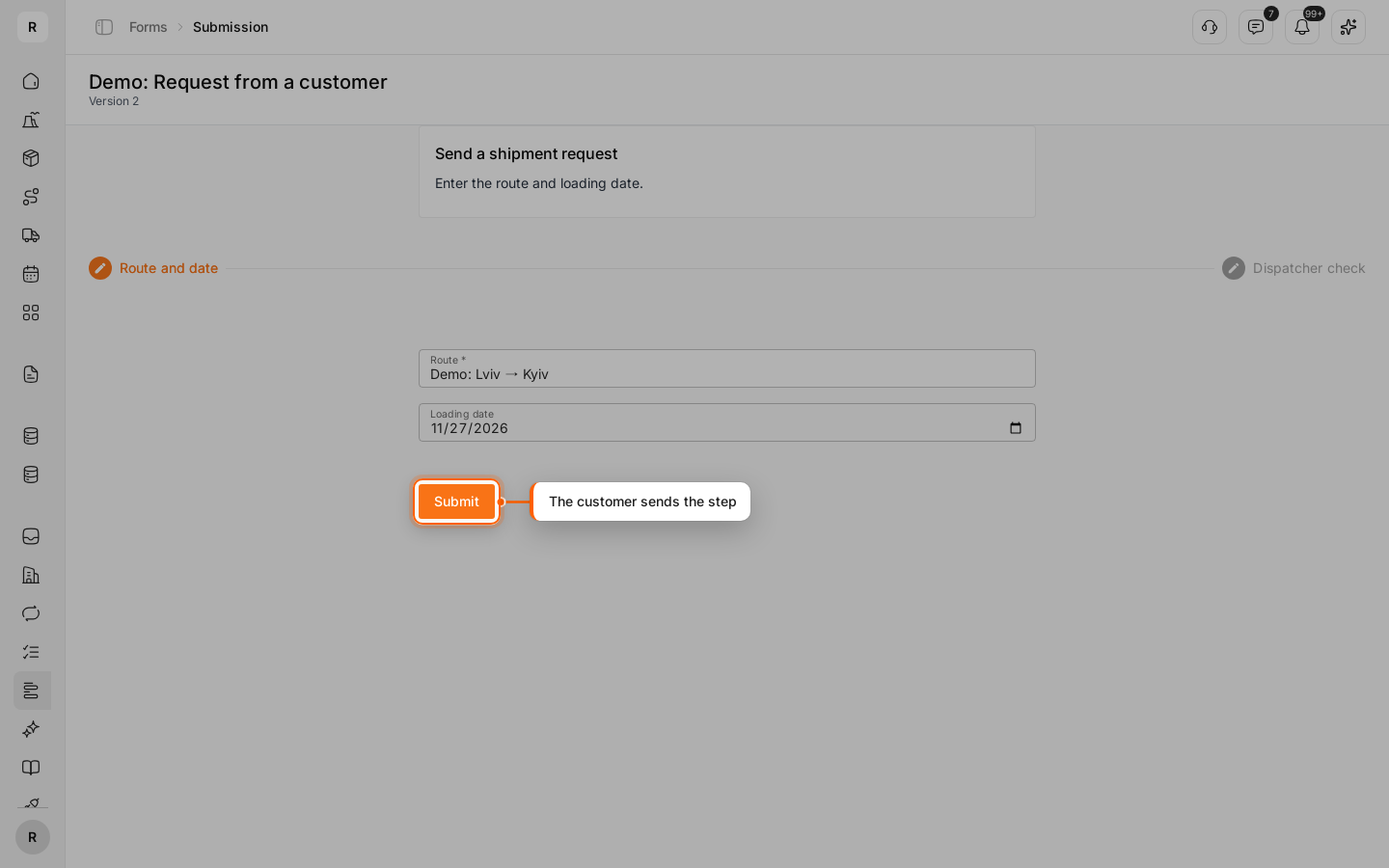
Click the Copy link icon in the form header and send the link to your customer. The customer signs in to Cargofy, clicks Fill, enters the route and date, and clicks Submit. Their part ends here; they find the submission under My submissions. One link serves all your customers: each Fill starts a new submission.
Find the request waiting for your team
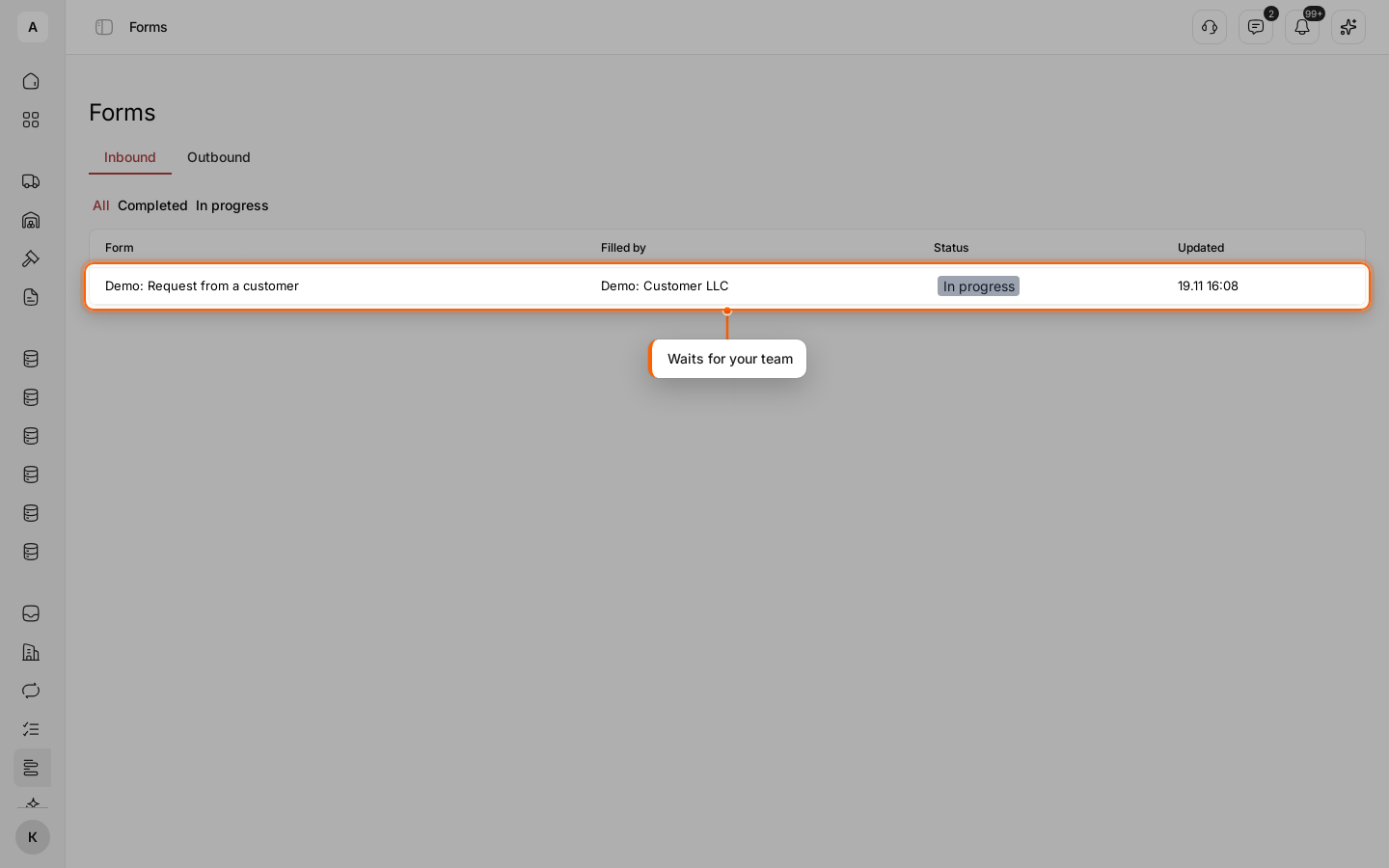
Click Forms in the left menu. On the Inbound tab, the submission shows the customer’s company in “Filled by” and the “In progress” status: the next step is yours. Click the row.
Finish the request
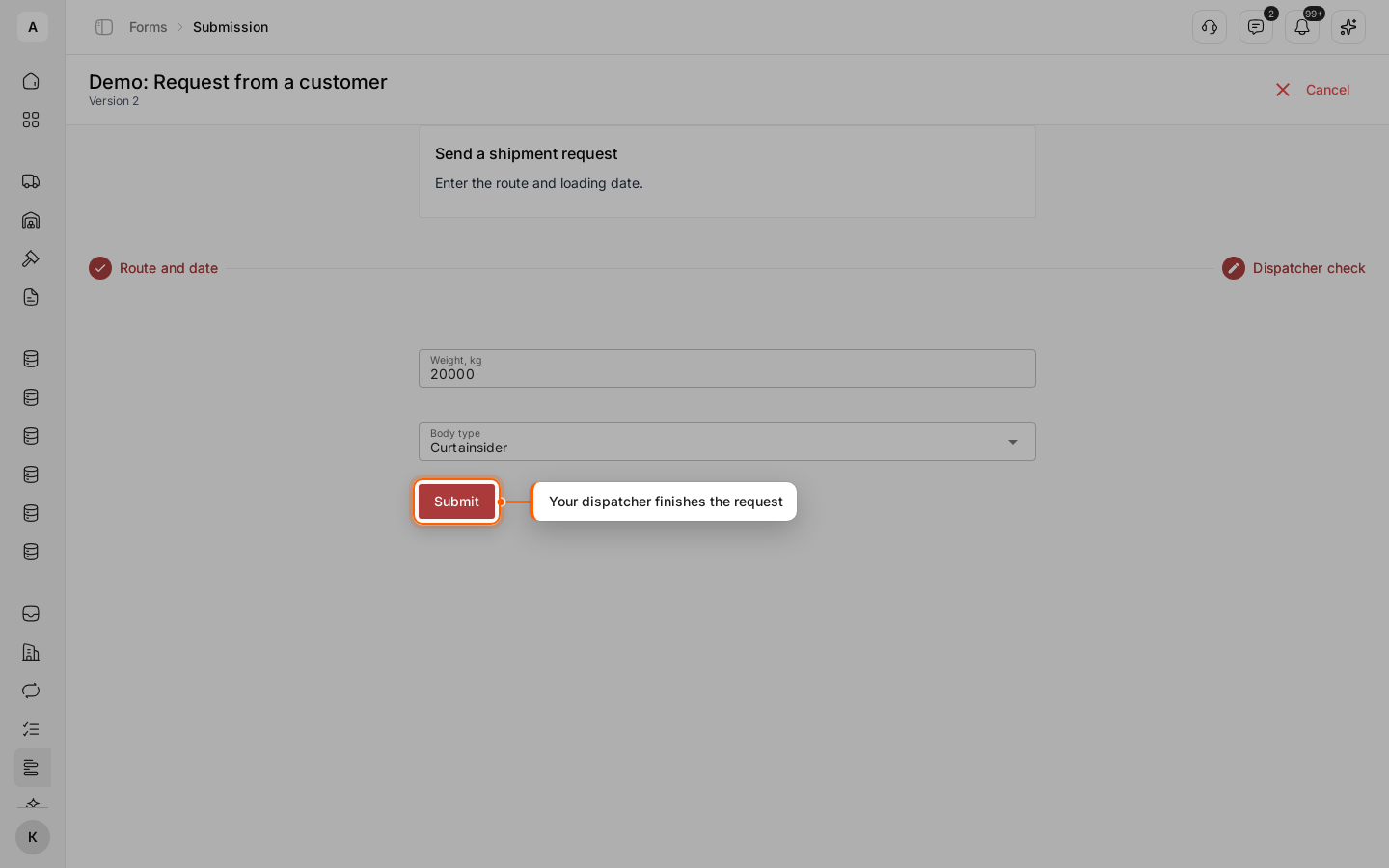
The customer’s step is checked off, and “Dispatcher check” is open. Enter the weight and the body type and click Submit.
Check the result
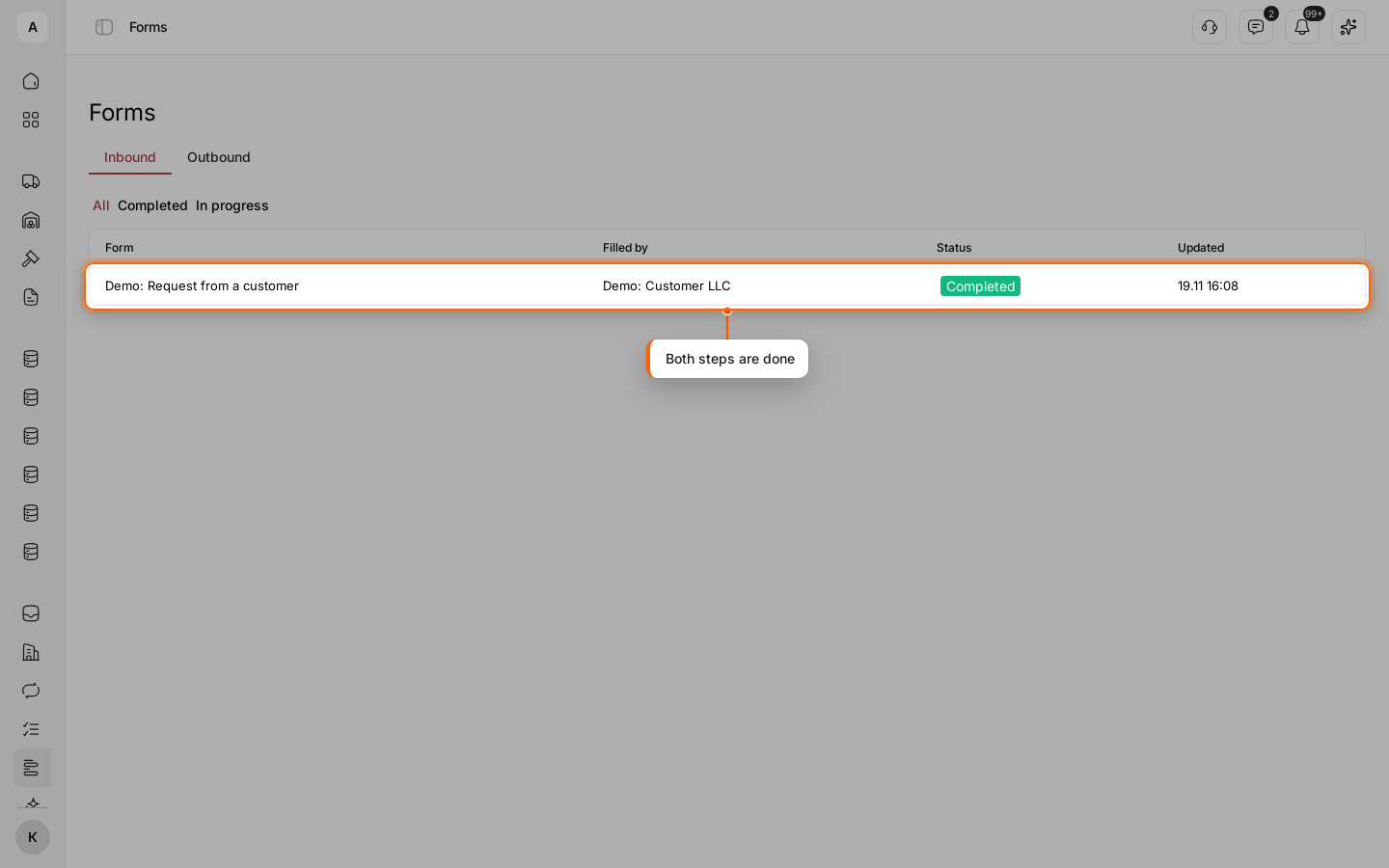
The submission becomes “Completed”. The request in “Demo: Shipment request” holds the route and date from the customer and the weight and body type from your dispatcher.
Tip
To get every new request to a dispatcher at once, start a workflow from the form with the “Forms” source.