- Who can: a user with the “Manage Studio” permission
- Where: Studio › Business flows
- Time: ≈ 5 minutes
Before you start
You need at least one of your own products built on the data model the flow will center on. See Assemble your own product. In the example, it is the product “Demo: Shipment requests” on the model “Demo: Shipment request”.
Steps
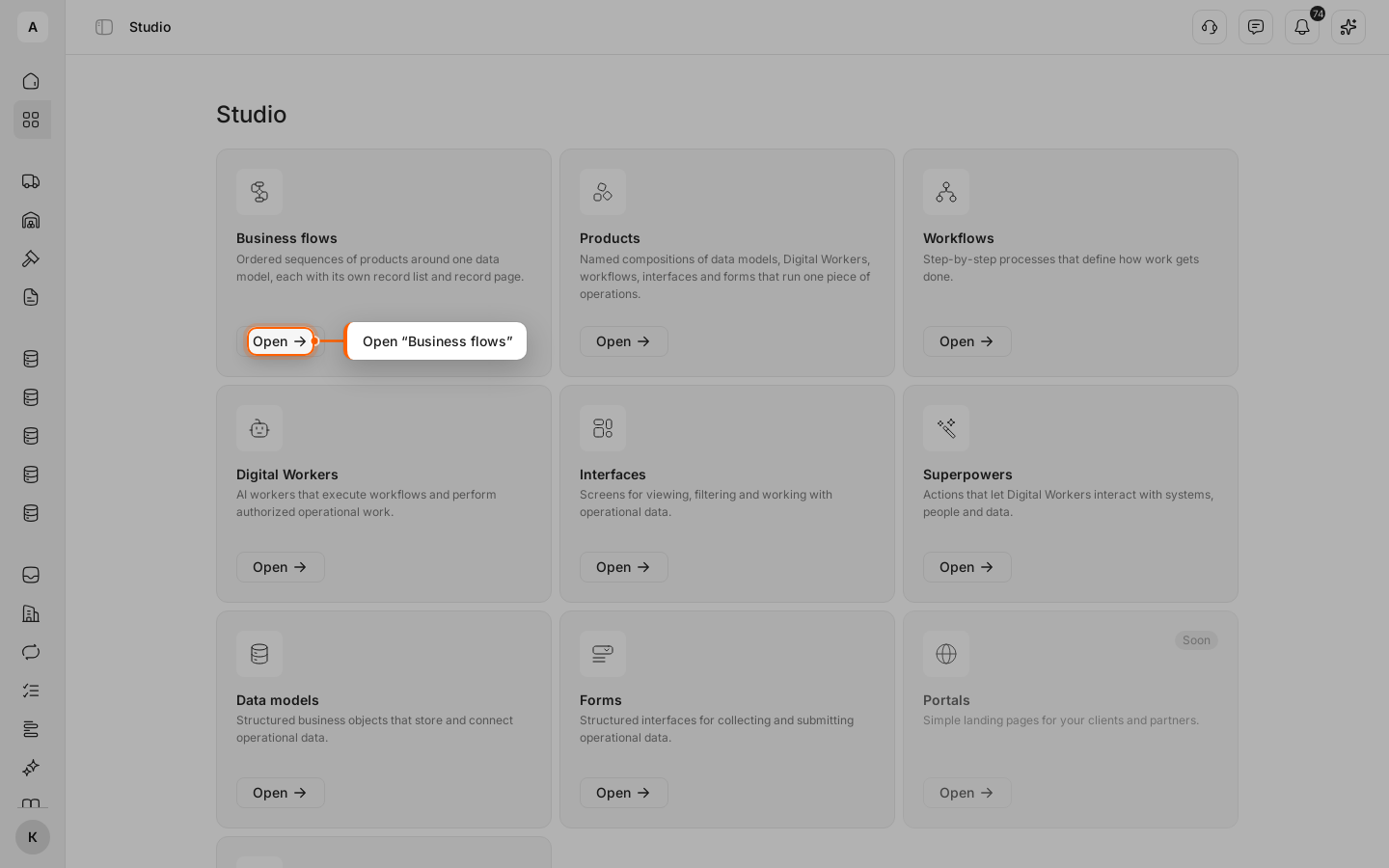
Open “Business flows”
Click Studio in the left menu, then Open on the “Business flows” card.
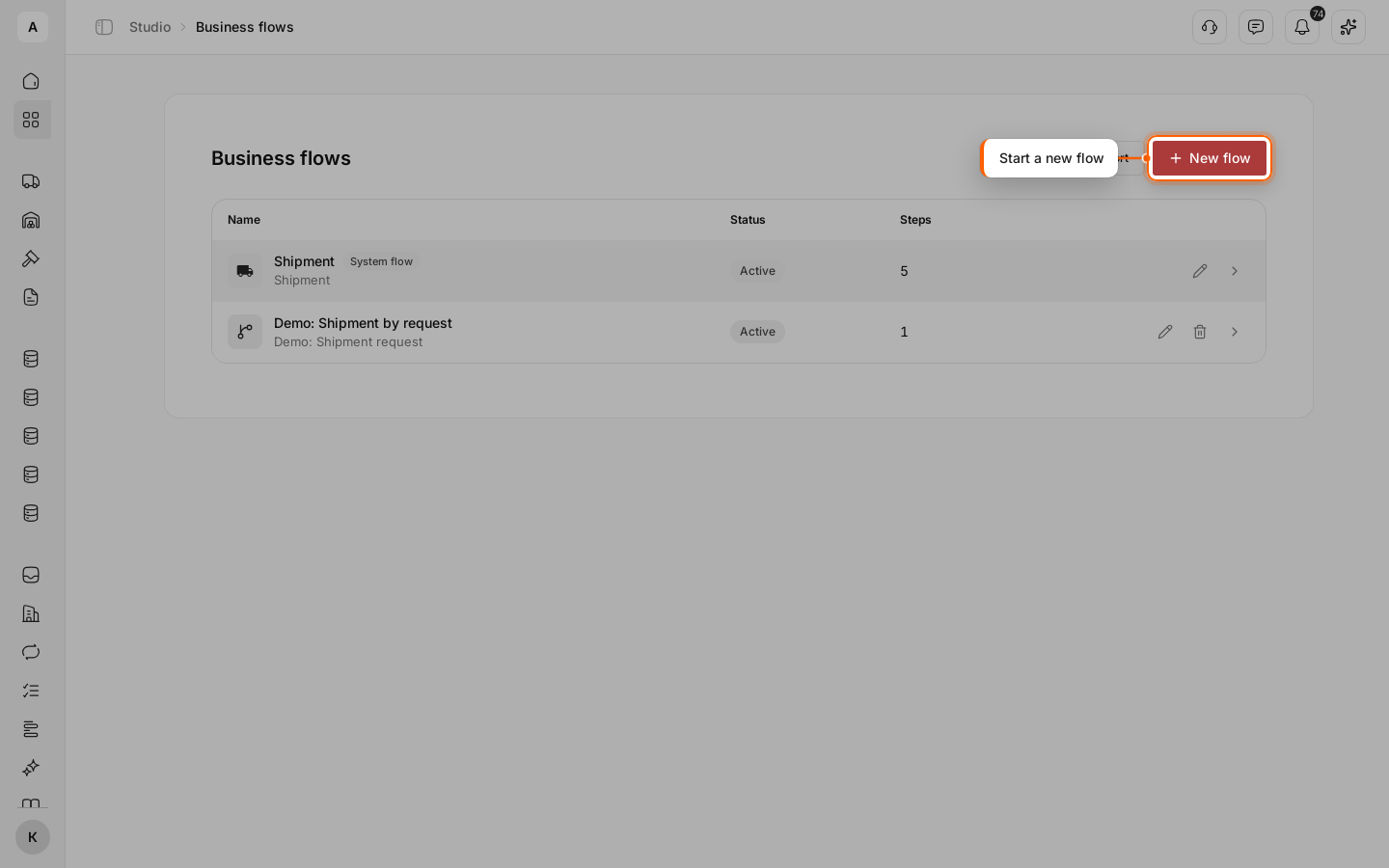
Start a new flow
Click New flow above the list. The list already holds the “Shipment” system flow: you can view it but not change it.
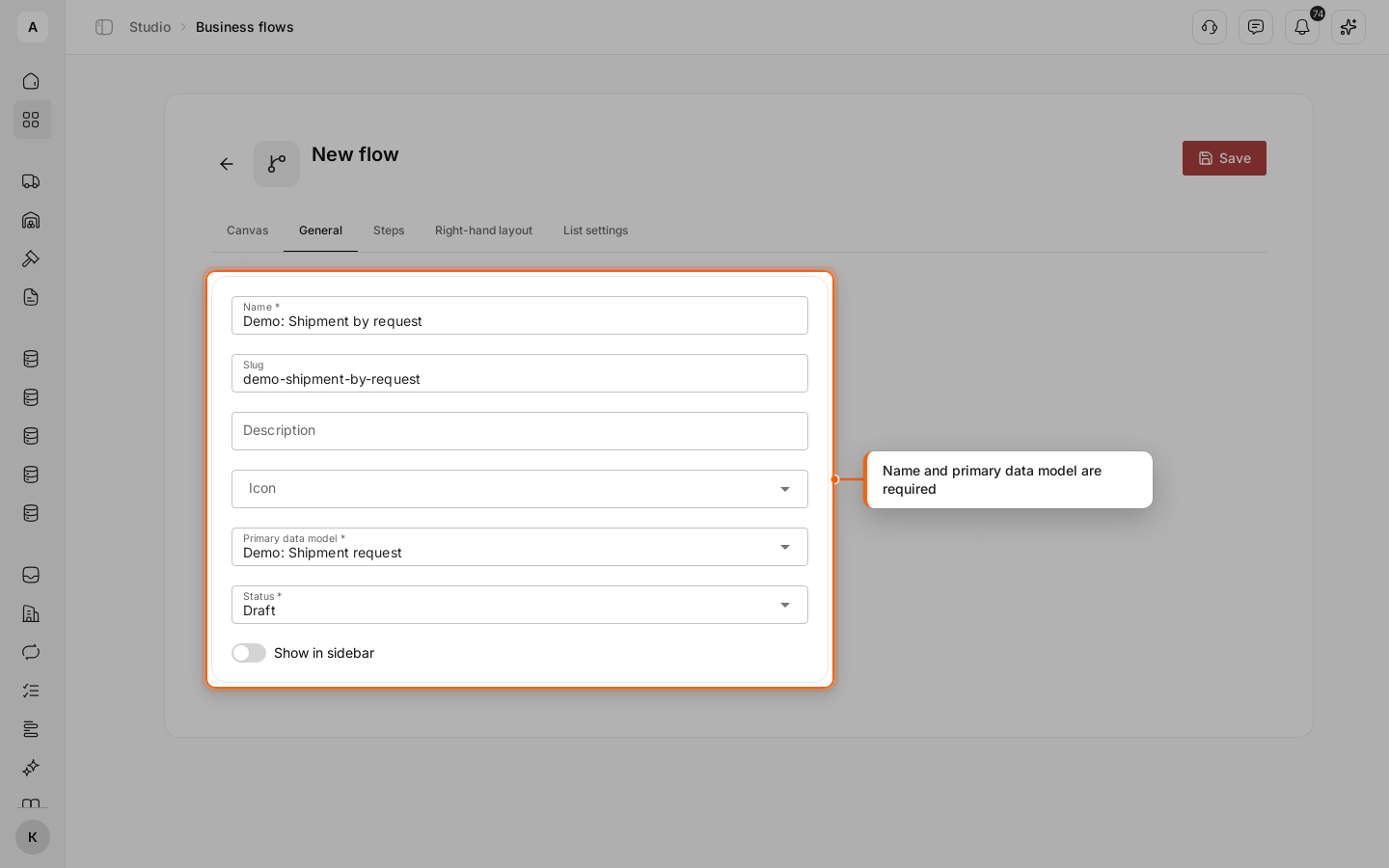
Fill in “General”
Go to the General tab. Enter “Name” and pick the “Primary data model”: the model whose records the team will see in the flow. Leave “Status” at “Draft” until the flow is ready.
“Slug”, “Description” and “Icon” are optional. “Slug” is part of the flow page address: lowercase Latin letters, digits and dashes. Leave it empty and it is built from the name.
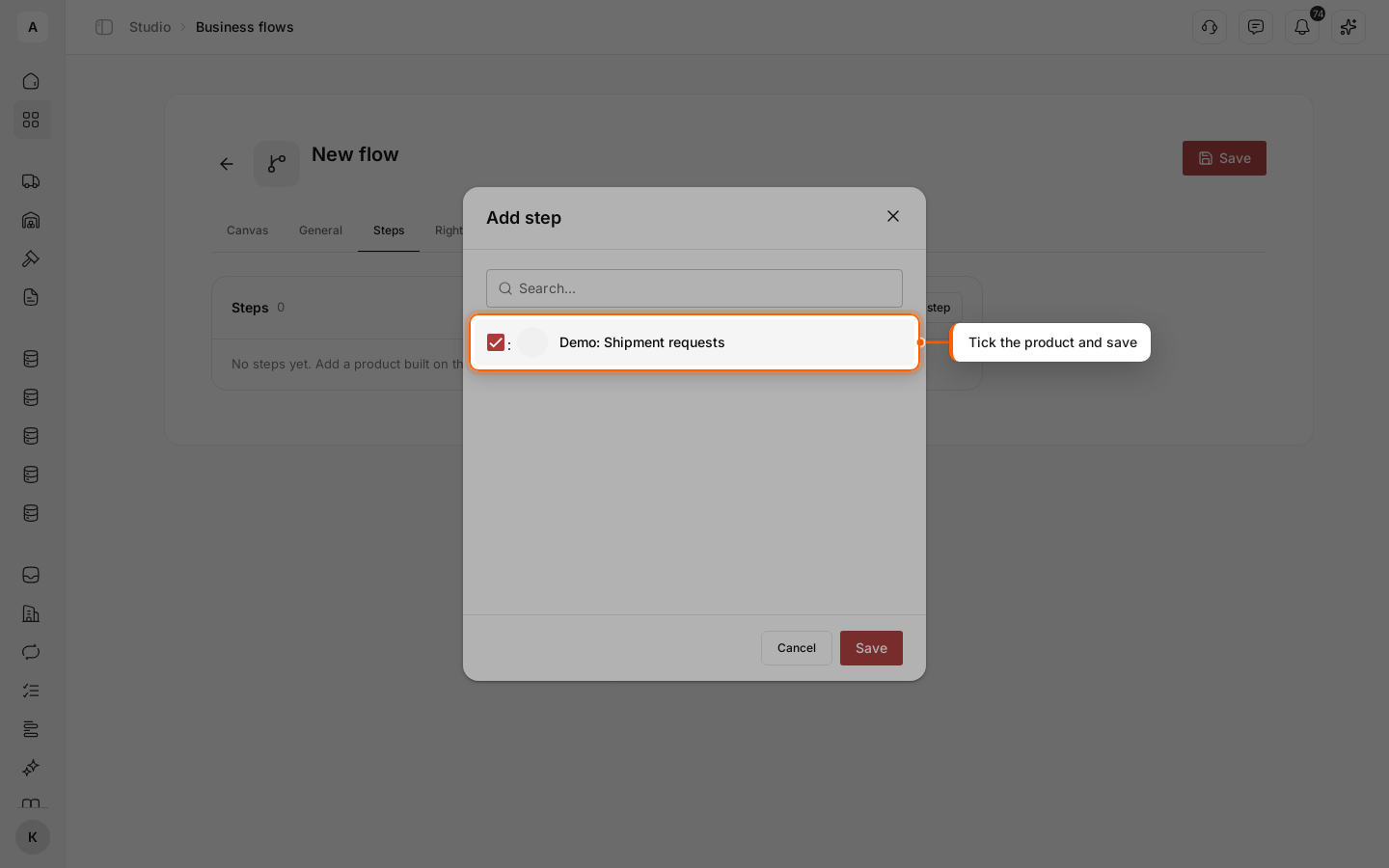
Add steps
Go to the Steps tab and click Add step. The window lists only your products on the chosen data model. Tick the ones you need and click Save.
Set up the step
In the step row, pick the “Interface”: the team sees it on the record page. The interface’s card blocks set what the step shows; see Set up the record page. If needed, enter a “Title override” so the step has a different name than the product, and turn on Collapsed by default.
Change the order of steps by dragging them or with the up and down arrows in the step row.
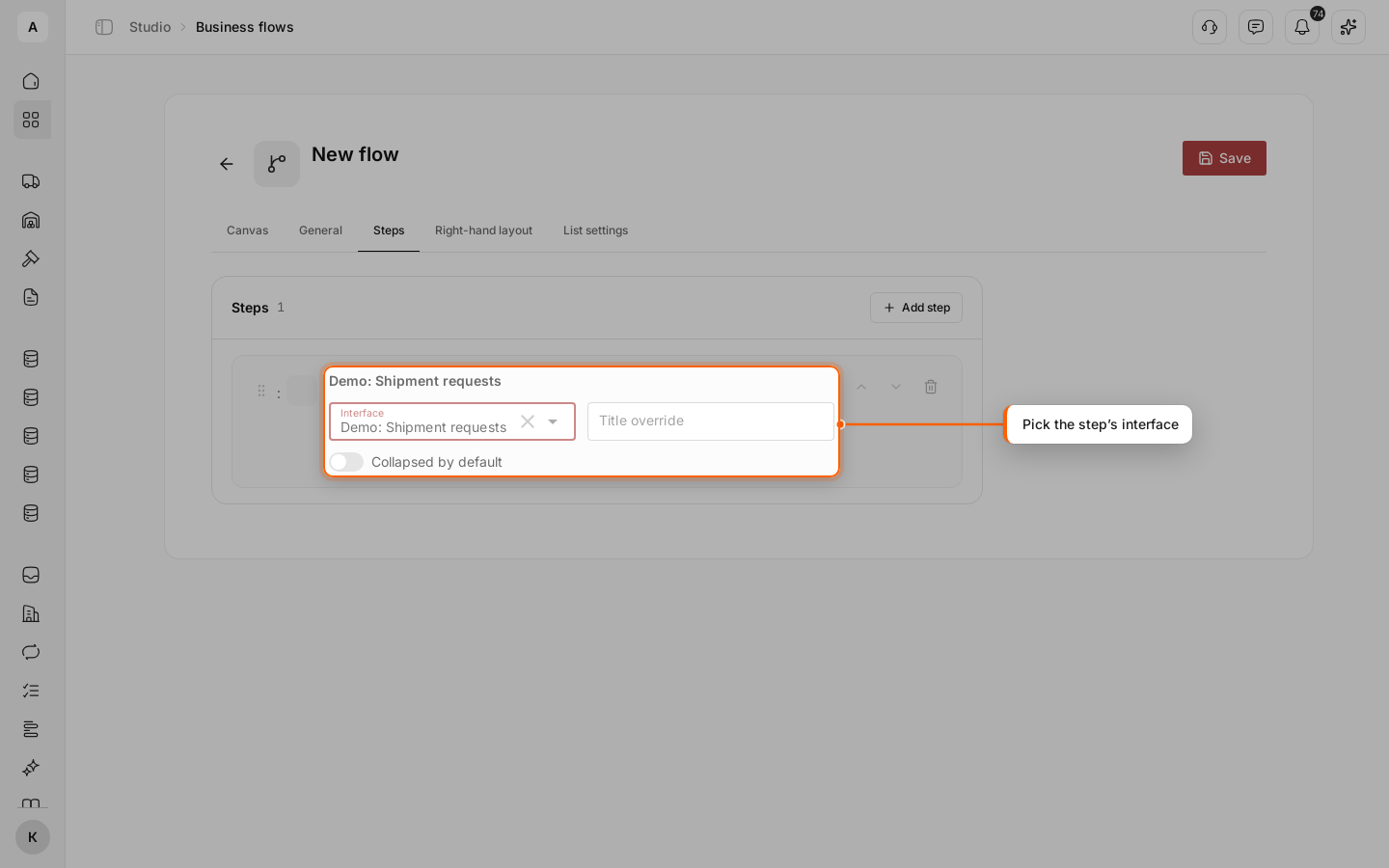
Save
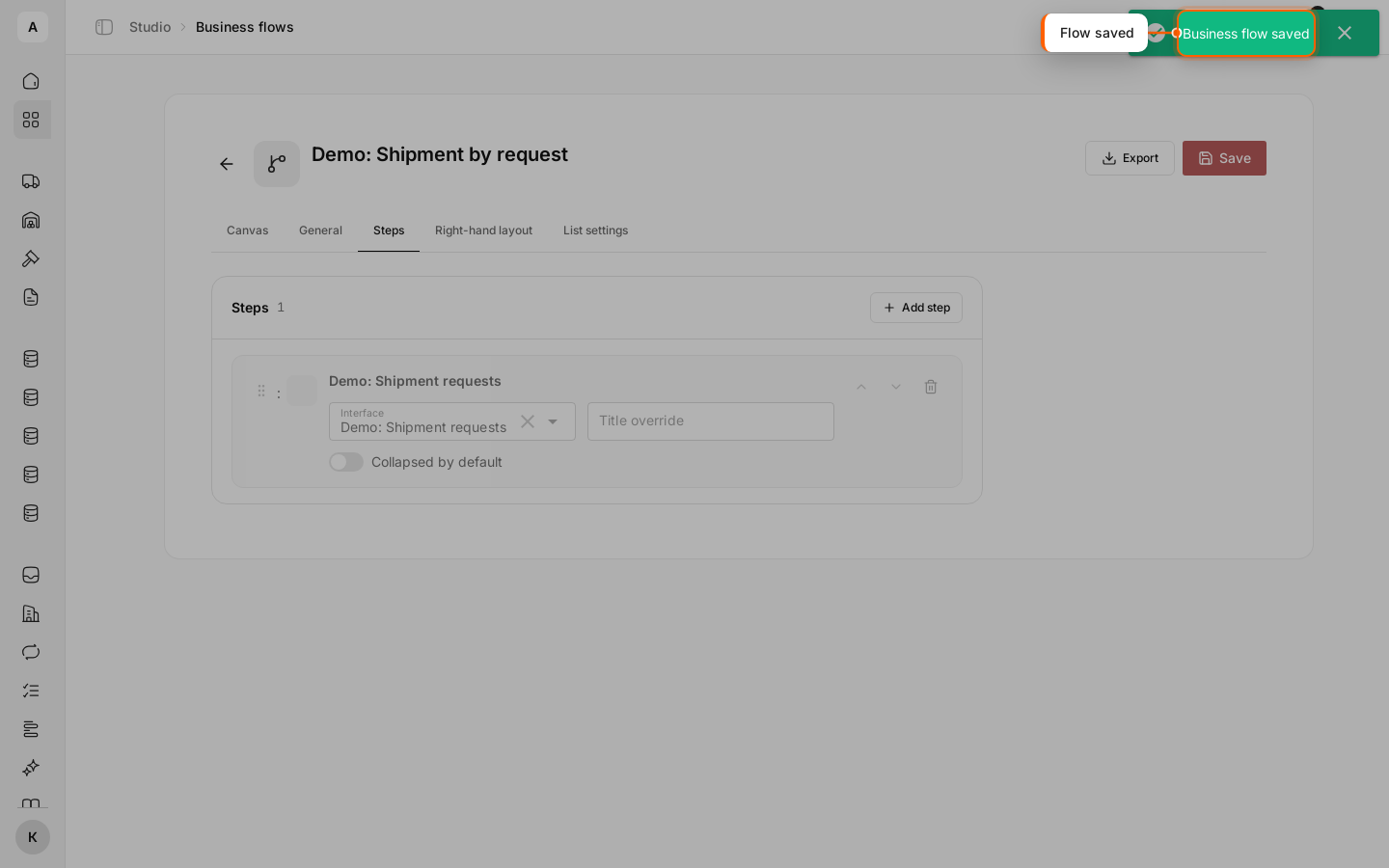
Click Save. The “Business flow saved” message appears, and the flow shows in the list with the “Draft” status. Export appears next to Save; see Move a product or business flow.
Check the “Canvas”
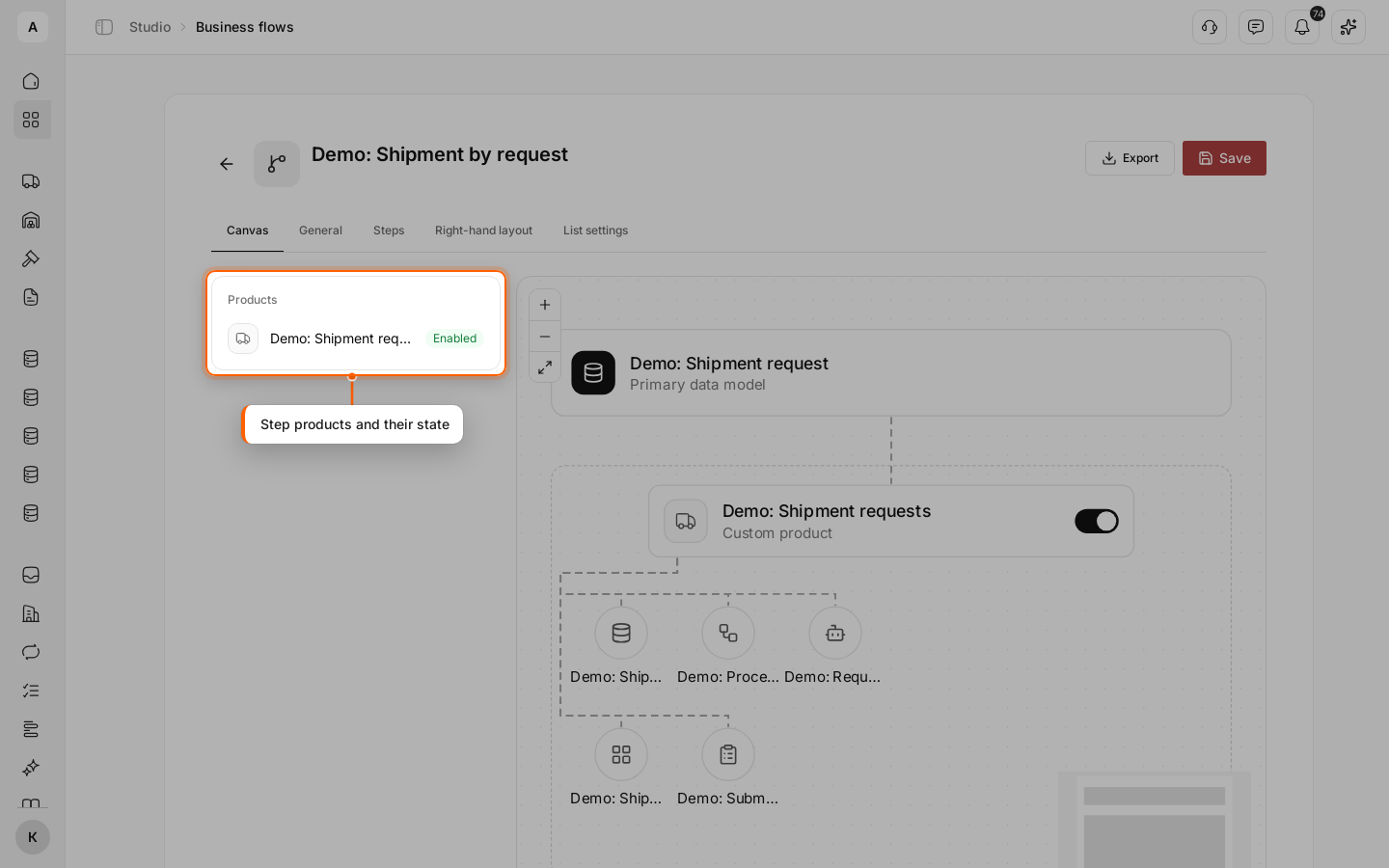
Go to the Canvas tab. The data model, the steps and everything each product holds show as one diagram. On the left, the “Products” list shows each product’s state: “Enabled” or “Disabled”.
Important
A product switch on the Canvas works right away, without Save, and turns the product on or off for the whole account, not just in this flow. You do not need the switches to check the flow.