- Who can: set it up — a user with the “Manage Studio” permission; decide — a user with the “Decide approvals” permission (the roles Owner, Admin and Manager have it)
- Where: the worker card › Settings, and Approvals in the left menu
- Time: ≈ 5 minutes
Before you start
Some actions should not happen without a person: sending an email to a customer, placing a bid, creating a task for the team. In the example, “Demo: Request dispatcher” may create a task only after a dispatcher agrees.
The action has to be one the worker is allowed by its superpowers; here it is tasks-create.
Steps
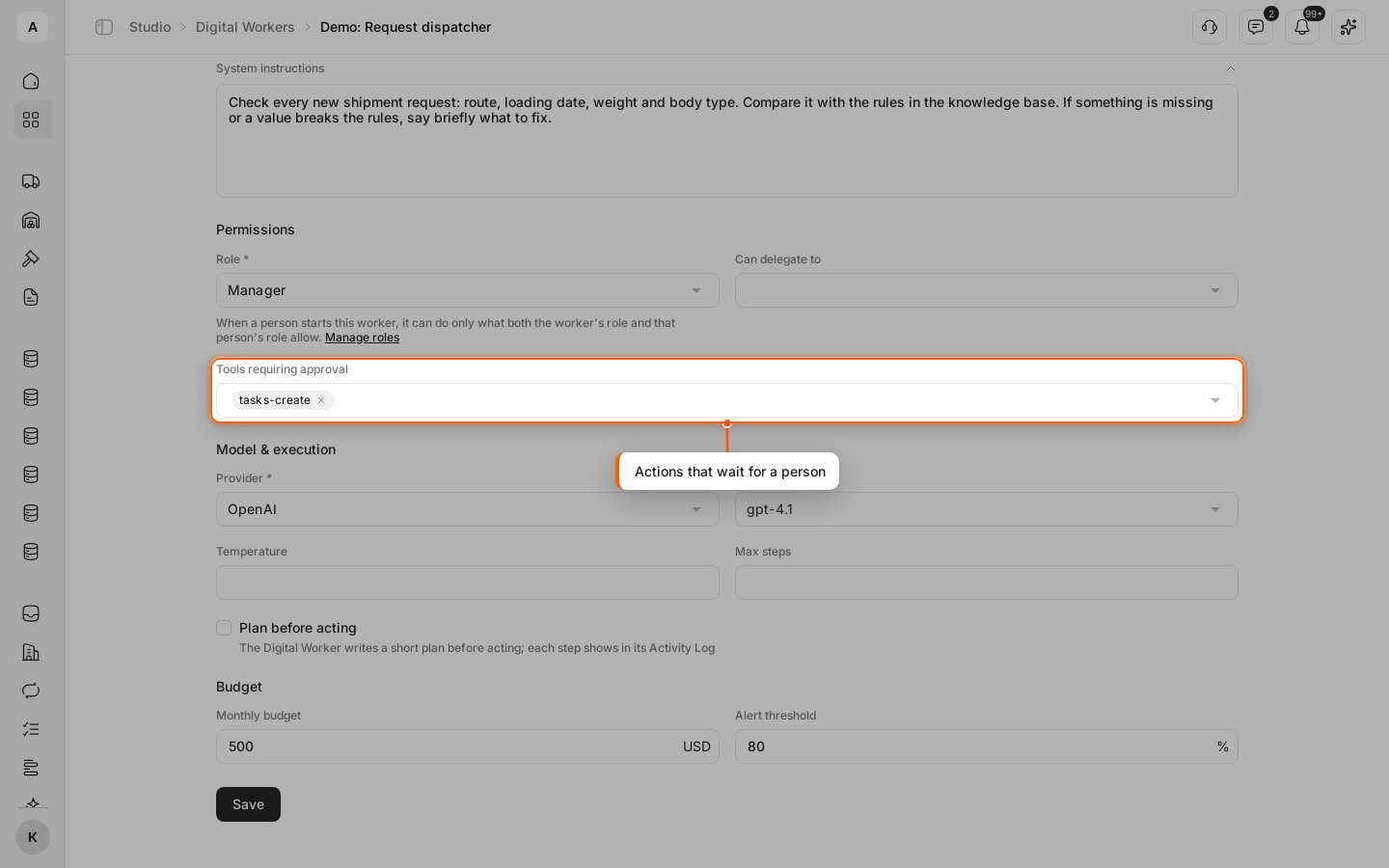
Choose the actions that wait for a person
Open the worker card, the Settings tab. Under “Permissions”, in “Tools requiring approval”, pick tasks-create. Click Save at the bottom of the tab.
Let the worker reach the action
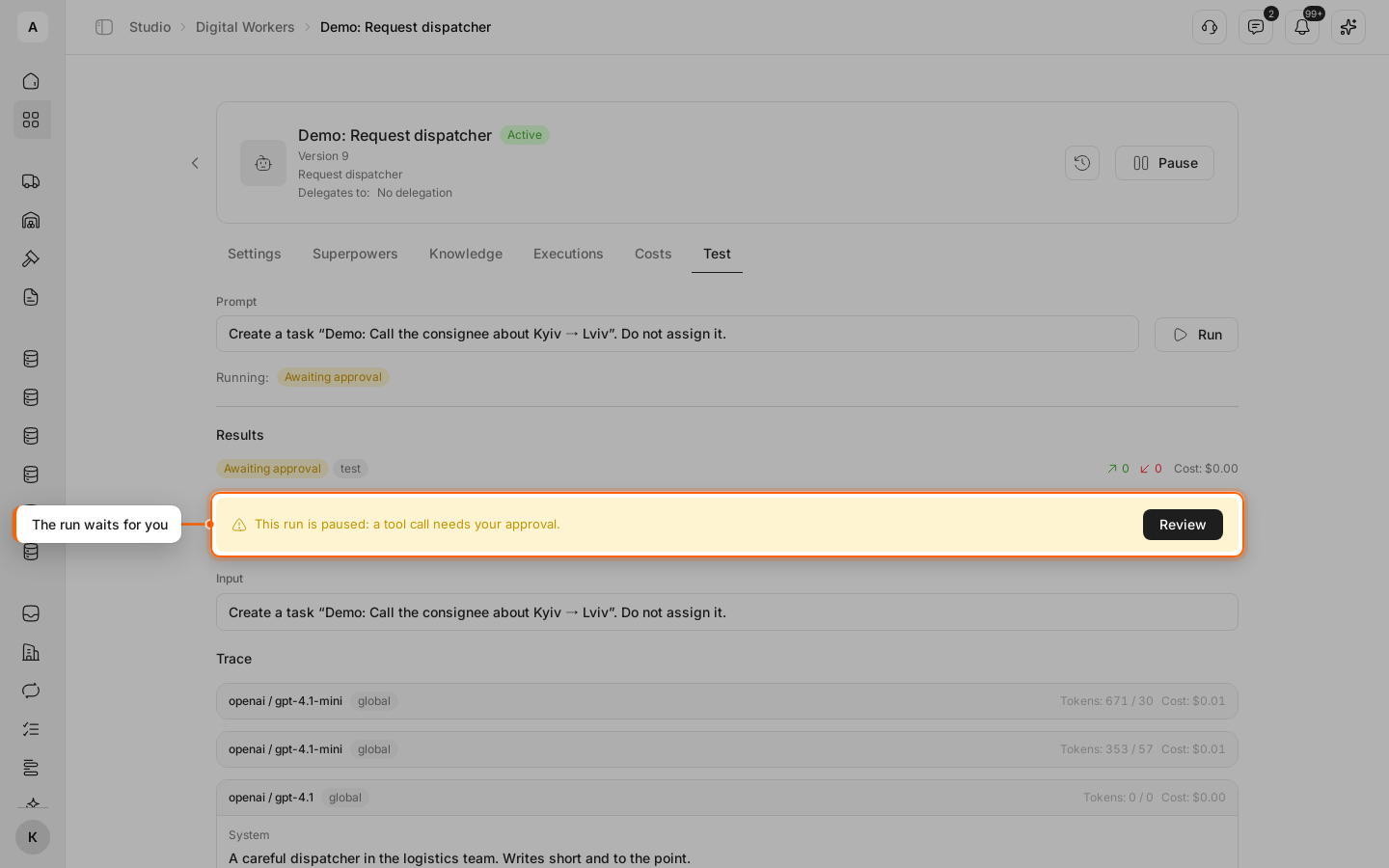
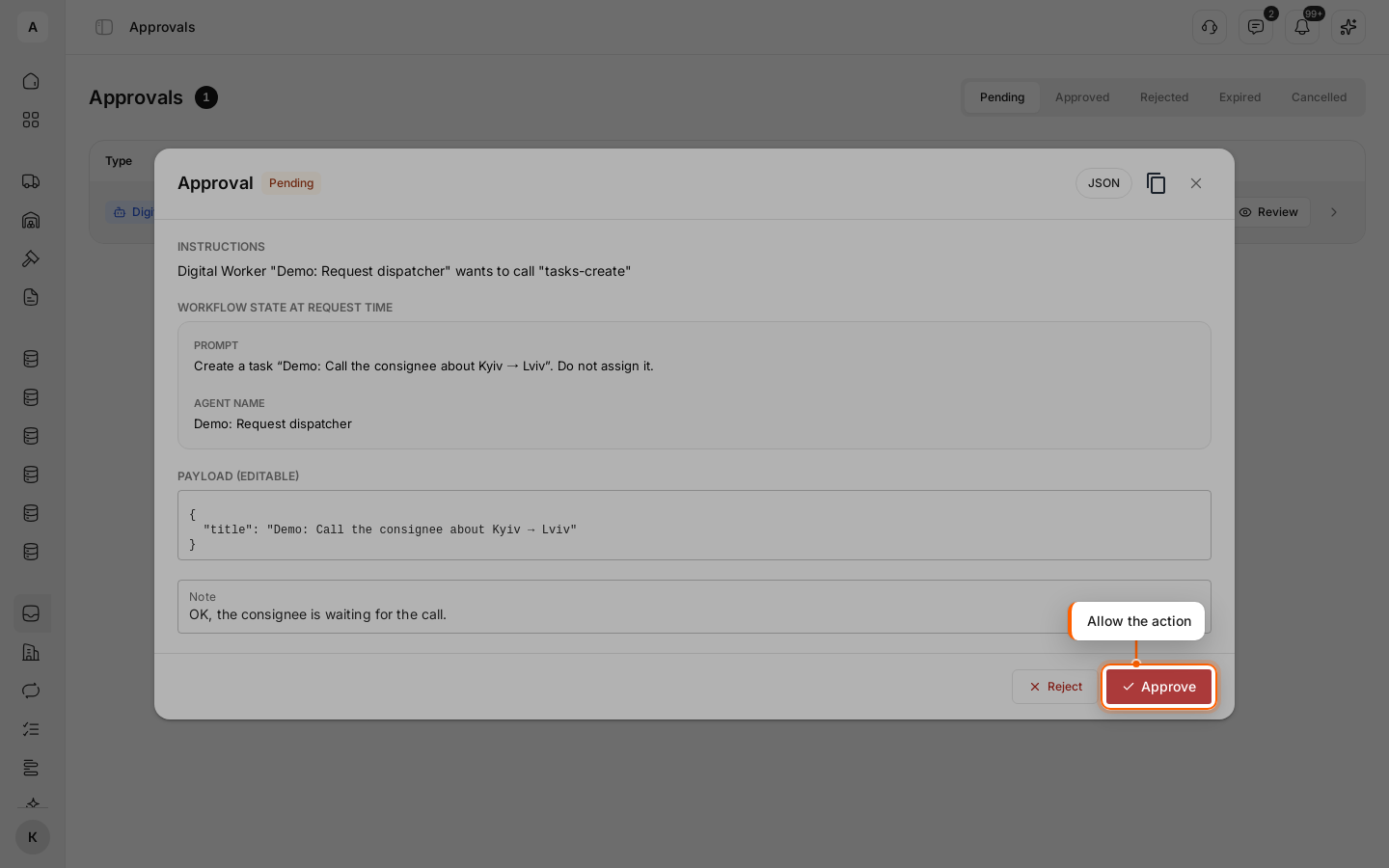
Run the worker — on the Test tab, from a task or from a workflow. In the example, the prompt is “Create a task ‘Demo: Call the consignee about Kyiv → Lviv’. Do not assign it.” When the worker gets to the action, the run stops with the status “Awaiting approval” and the note “This run is paused: a tool call needs your approval.”
Find the request
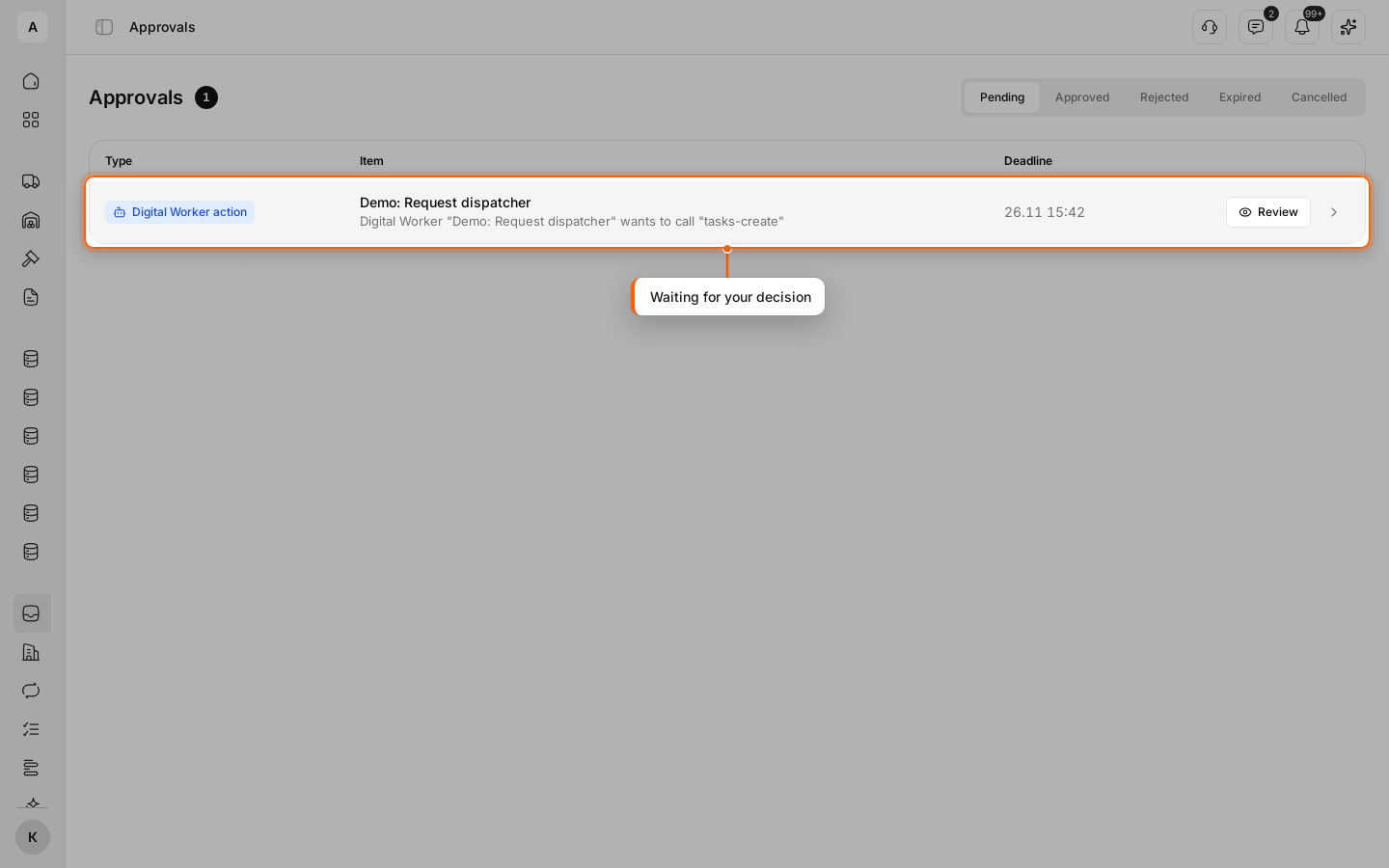
Click Approvals in the left menu; the number on it counts the requests waiting. The “Pending” tab lists each request with the worker, the action it wants to run and the “Deadline” to decide by; the deadline is 7 days. A request not decided by then moves to “Expired”: the worker goes on without the action, and the run shows “Not approved in time”. Decided requests stay on the “Approved”, “Rejected” and “Cancelled” tabs. The same request opens with Review on the worker’s run.
Review and decide
Click Review. The “Approval” window shows what the worker wants to do and with which data, in “Payload (editable)”: correct the data there if needed. Add a “Note” for the record, then click Approve or Reject.
Check the result
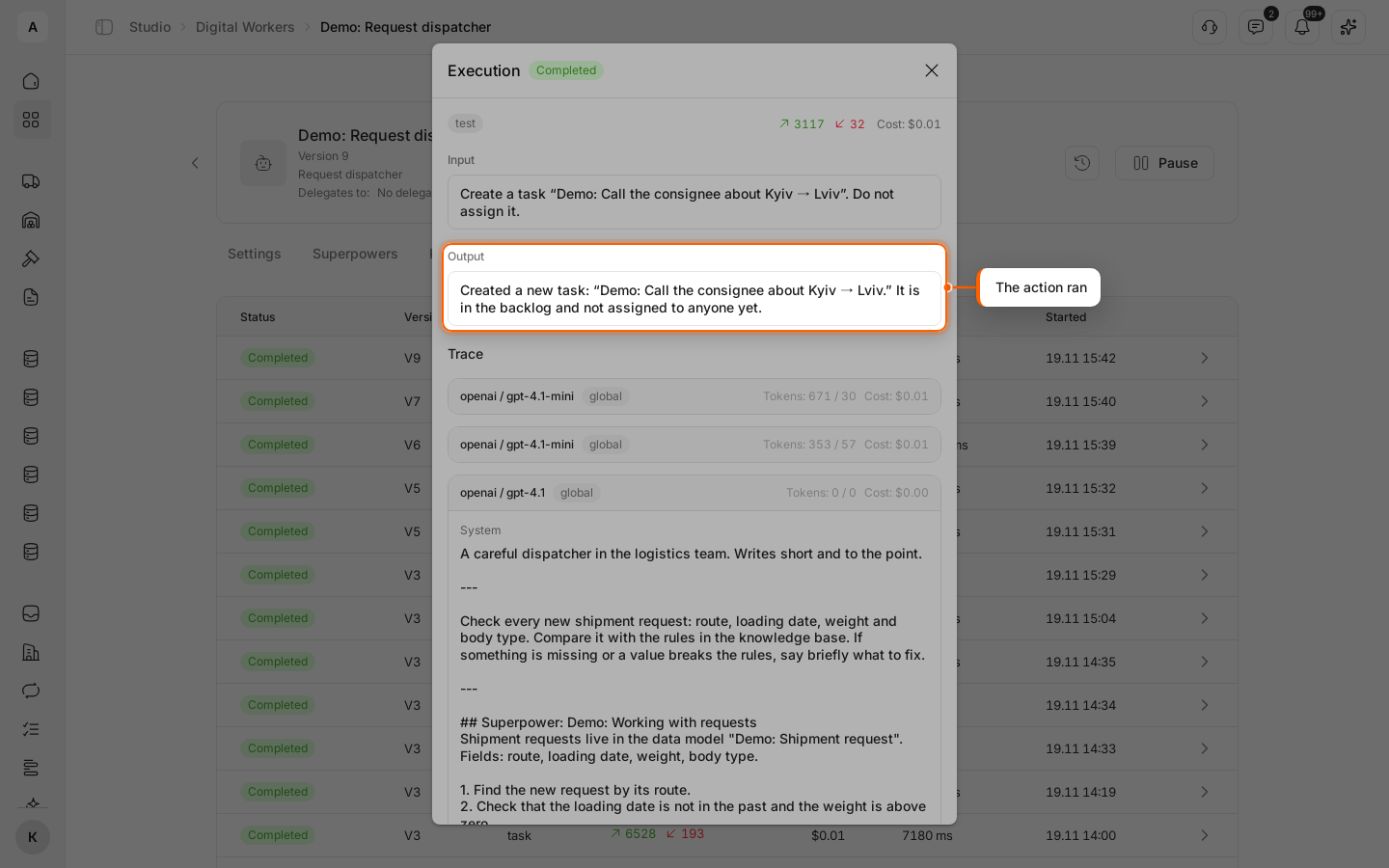
While the request waits, a workflow that called the worker waits too. After Approve, the worker runs the action and goes on. Open the run on the Executions tab: in the example, “Output” says the task was created. After Reject, the worker goes on without the action, and the workflow gets its answer — see Runs and their statuses.