- Who can: a user with the “Manage Studio” permission
- Where: Studio › Workflows › the workflow
- Time: ≈ 15 minutes
Before you start
You need a workflow with a trigger — see Create a workflow. The example is a new workflow “Demo: Route heavy requests” with the trigger “Demo: Shipment request created”.
What the example builds:
- a request heavier than 20 t goes to the task “Heavy load: check the truck”;
- any other request goes to the task “Check new shipment request”;
- in the second part, a reefer request gets its own task “Reefer load: check the temperature”.
“Condition” splits the workflow in two: yes or no. “Switch” splits it into as many branches as you need, one per value.
Steps
Add a Condition
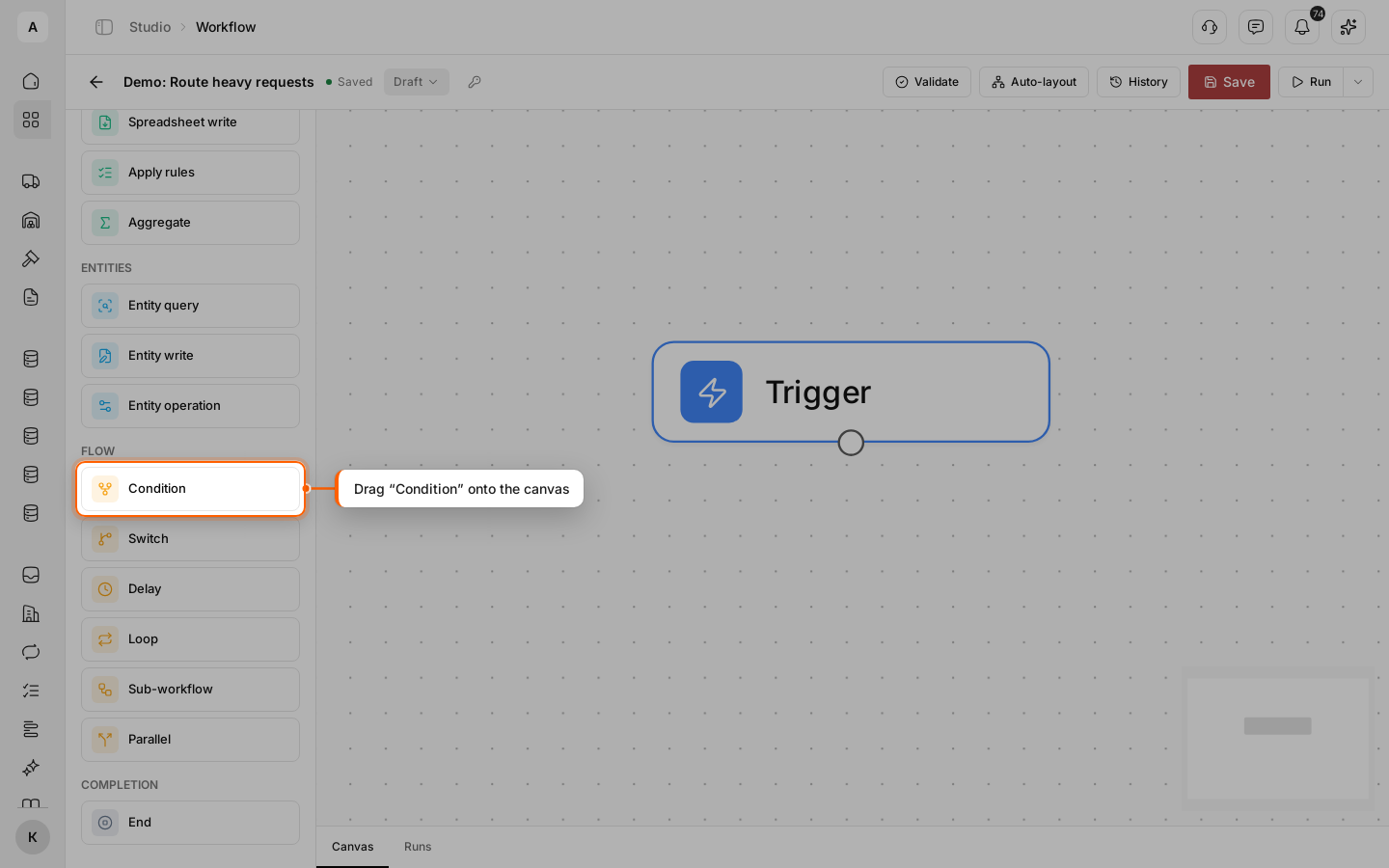
Drag Condition from the “Flow” group onto the canvas, under the trigger. Connect the bottom point of the trigger to the top point of the node.
Write the rule
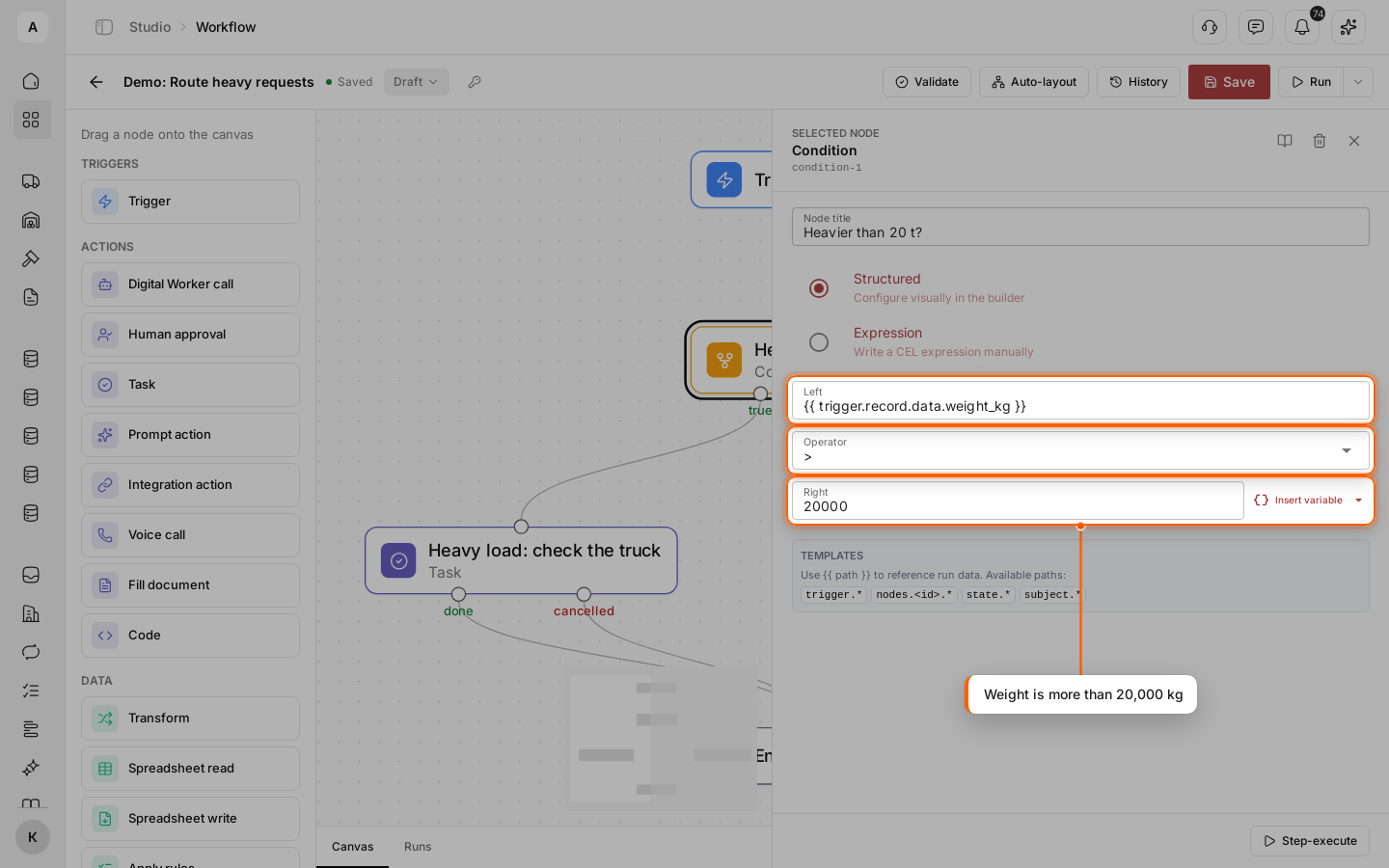
Click the node. In “Node title”, enter a question the node answers, for example “Heavier than 20 t?”: the canvas shows it on the node, above the node type.
Keep “Structured” and fill in three fields:
- “Left” — the value to check:
{{ trigger.record.data.weight_kg }}, the “Weight, kg” of the new request; - “Operator” —
>; - “Right” —
20000.
The “Operator” list has =, ≠, >, ≥, <, ≤, “contains”, “in”, “is empty” and “is not empty”. To put a value from the run into “Right”, click Insert variable.
To write the rule as one line, select “Expression” and enter trigger.record.data.weight_kg > 20000 — without the curly braces. The available functions are in Functions in expressions.
Connect both outputs
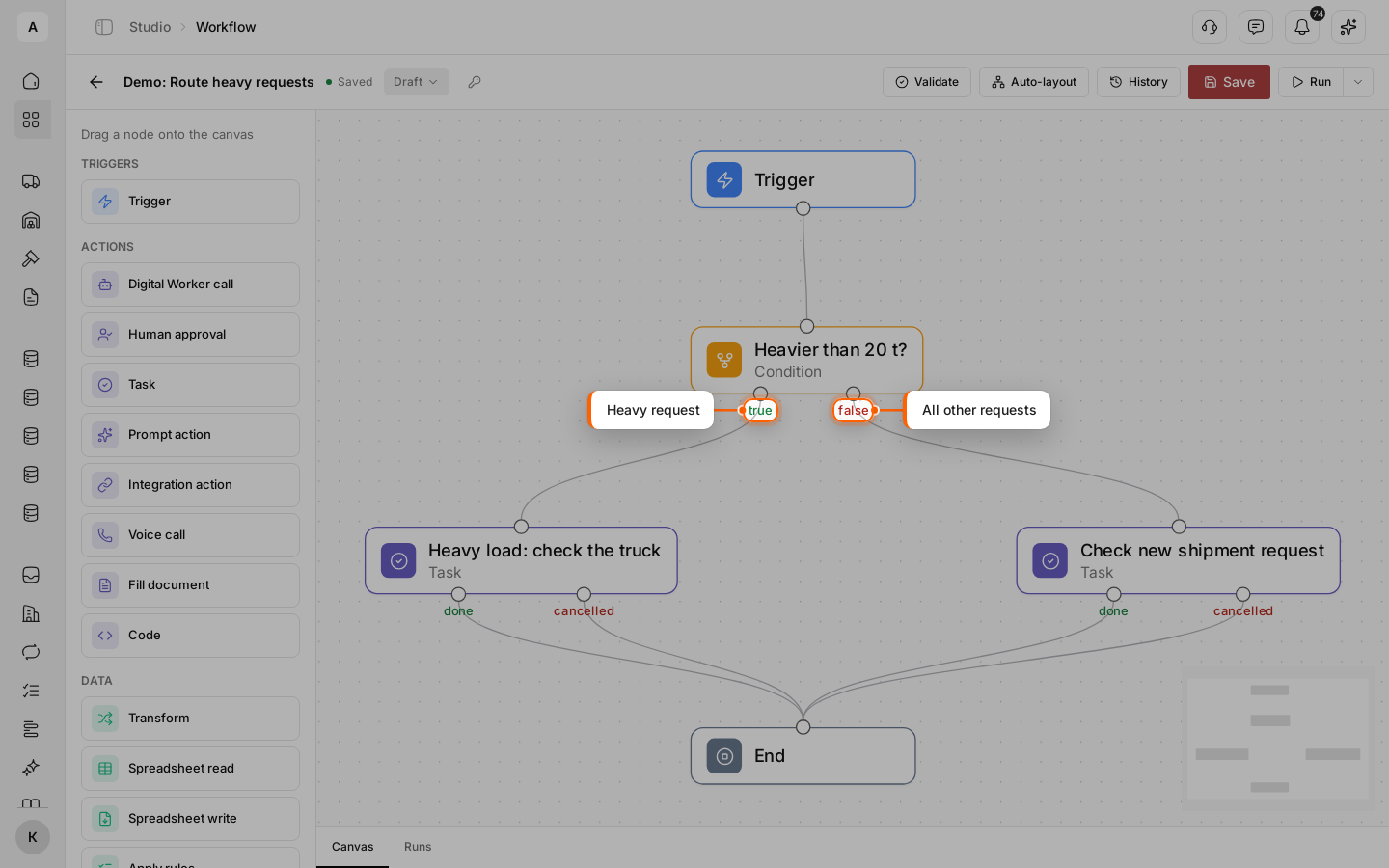
The node has two outputs: “true” on the left and “false” on the right. Drag Task from the “Actions” group twice and set them up:
- “true” — the task “Heavy load: check the truck”;
- “false” — the task “Check new shipment request”.
Connect both outputs of each task, “done” and “cancelled”, to one “End” node.
Save and validate
Click Save, then Validate. Both outputs of a “Condition” must lead somewhere, or validation shows an error.
Test with a heavy request
Click Run and enter a request of 24,000 kg in the “Trigger payload (JSON)” field:
{
  "action": "created",
  "record": {
    "data": {
      "route": "Kharkiv → Kyiv",
      "loading_date": "2026-11-25",
      "weight_kg": 24000,
      "body_type": "tent"
    }
  }
}
Click Run test. How a test works — in Test a workflow with a test run.
See which branch ran
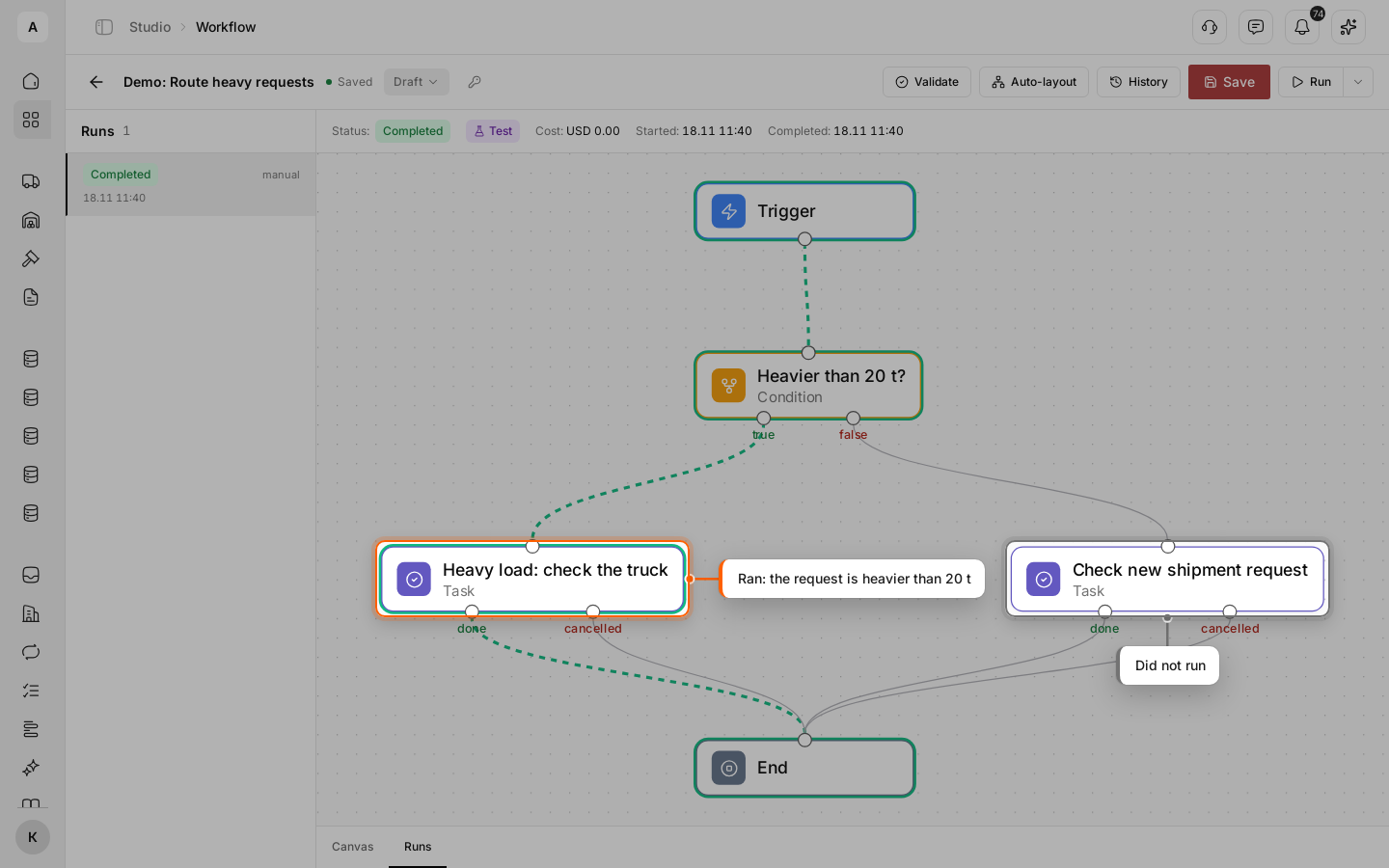
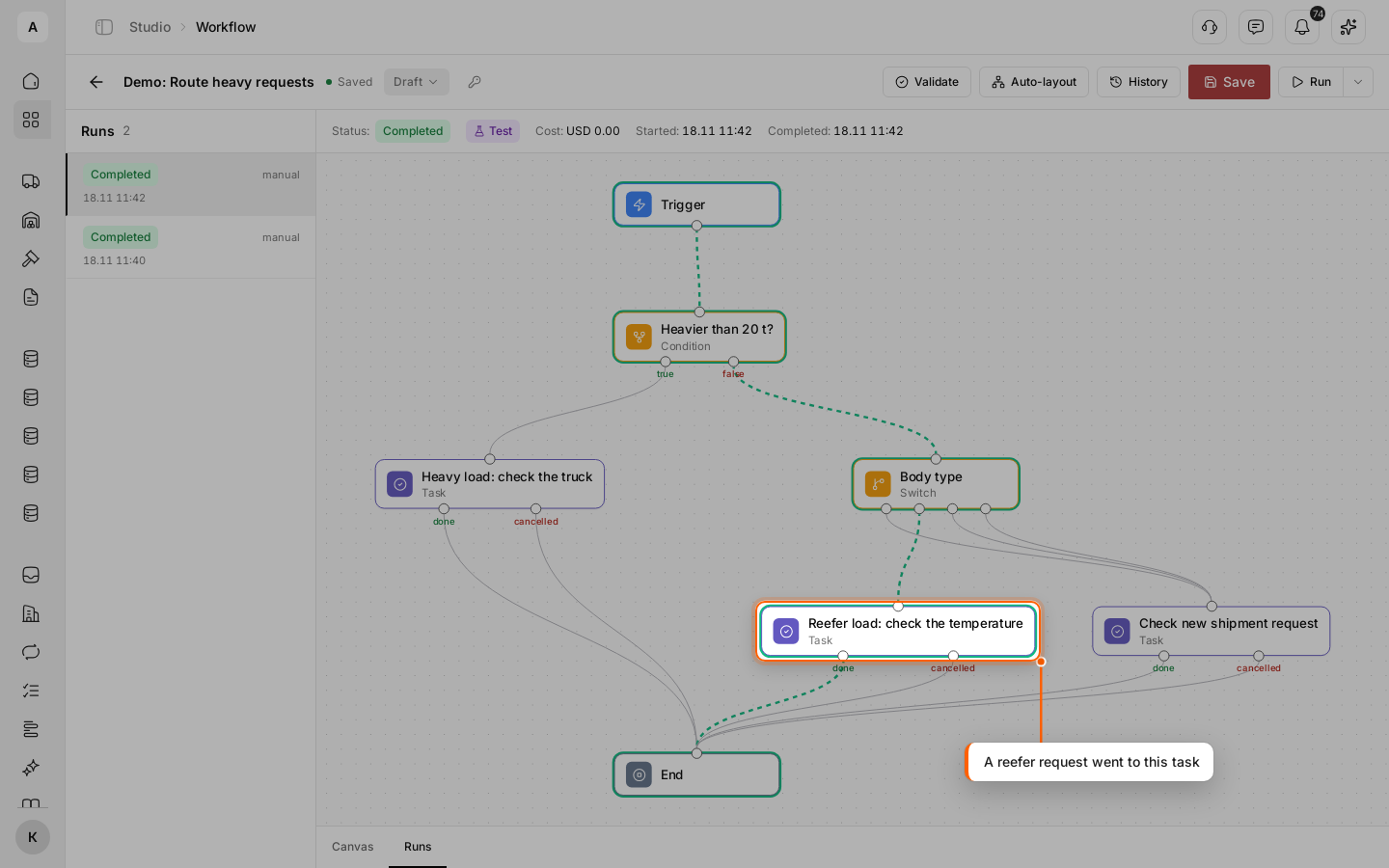
The Runs tab opens. The path the run took is green: nodes that ran have a green outline, the links between them are a green dashed line. The task “Check new shipment request” has no outline — the run did not go there.
The run stops at “Heavy load: check the truck” with the “Waiting” status until the task is closed. Once the task is “Done”, the run reaches “End” and becomes “Completed”.
Click the “Condition” node to see its result: “OUTPUT” shows "result": true.
Add a Switch for body types
Now split the other requests by body type. Click the link from “false” to the task, press Delete and confirm. Then drag Switch from the “Flow” group, and connect “false” to it. Enter “Body type” in “Node title” and keep “Structured”.
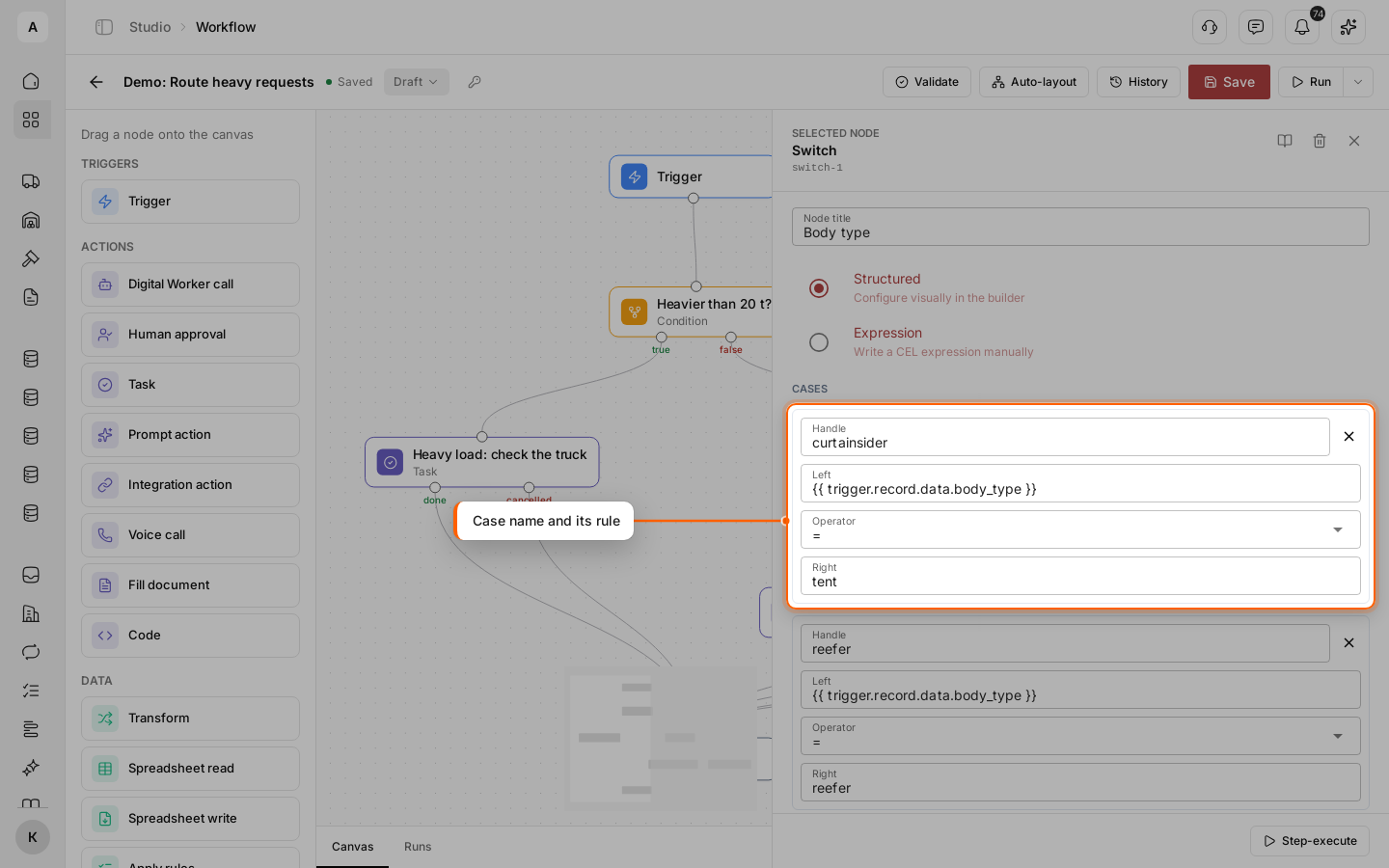
Under “Cases”, each case is a branch. Fill in:
- “Handle” — the branch name:
curtainsider; - “Left” —
{{ trigger.record.data.body_type }}; - “Operator” —
=; - “Right” —
tent.
“Right” takes the value of the option, not its label: Curtainsider is tent, Reefer is reefer, Isothermal is isotherm.
Add the other cases and the default
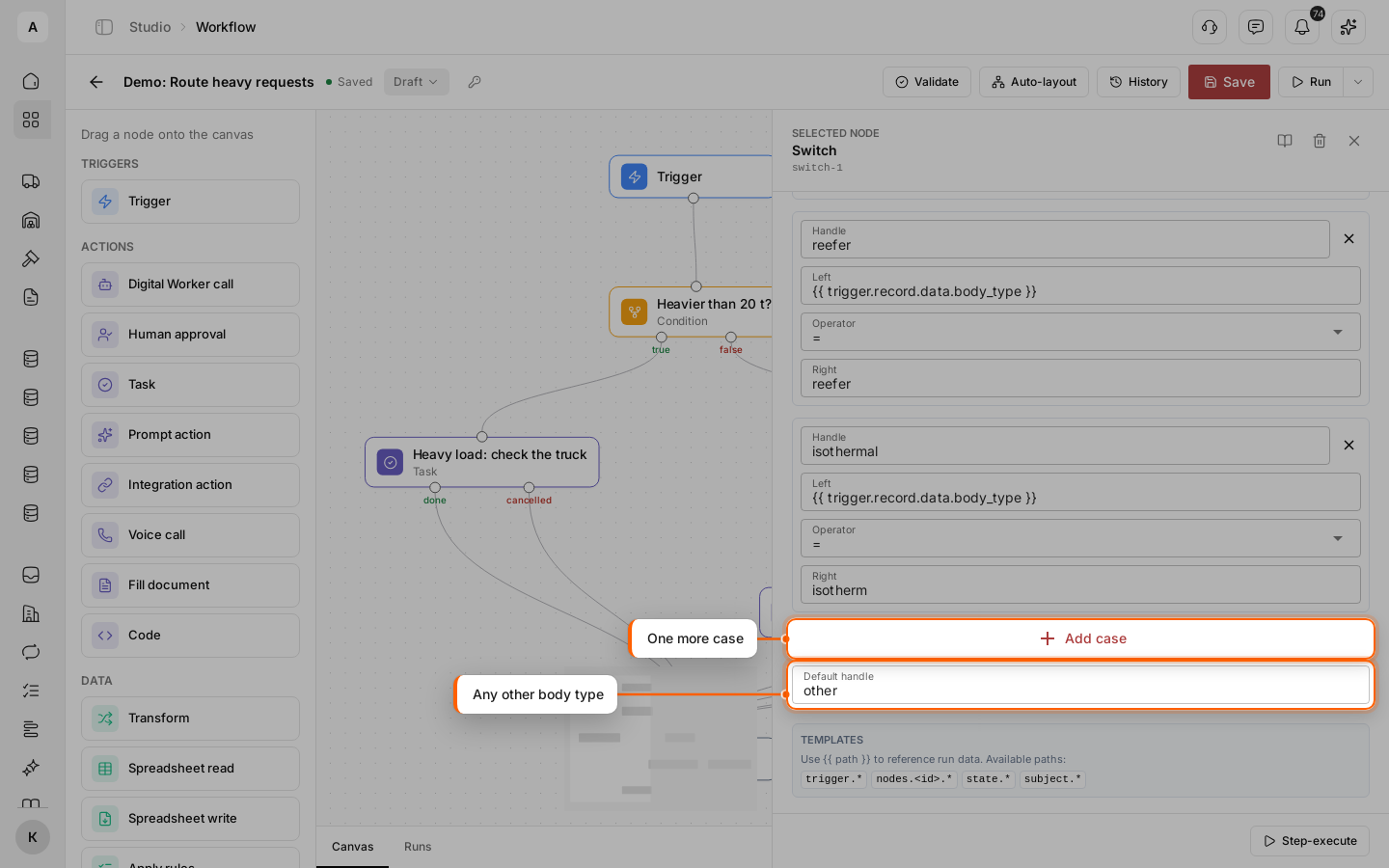
Click Add case and fill in reefer (right reefer) and isothermal (right isotherm) the same way.
In “Default handle”, enter other. A request whose body type matches no case goes there. The cases are checked from top to bottom, and the first match wins.
Connect the Switch outputs
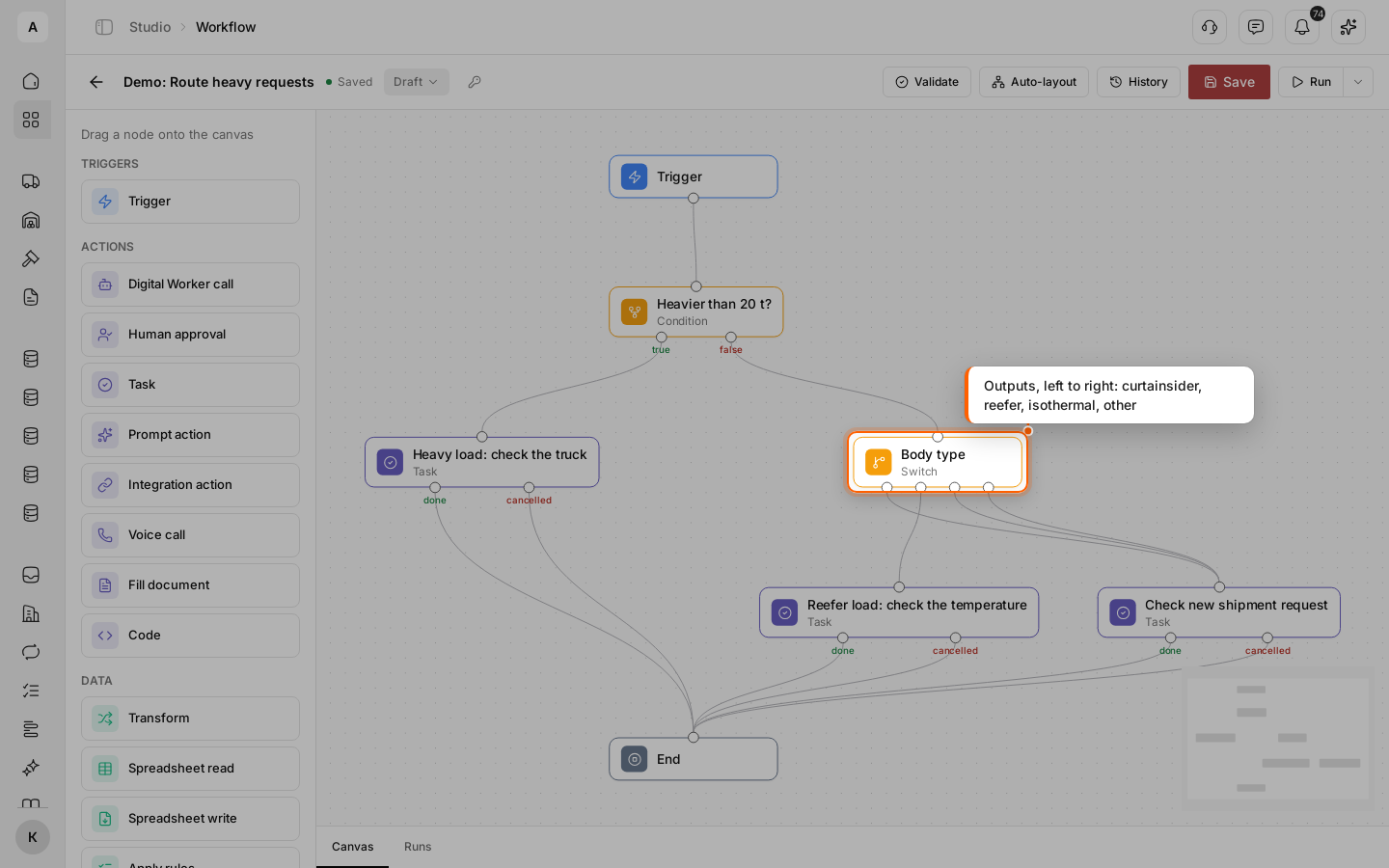
The node gets one output per case plus one for the default branch. The outputs go left to right in the order of the cases, and the default branch is the last one.
In the example, “reefer” leads to a new task “Reefer load: check the temperature”, and “curtainsider”, “isothermal” and “other” lead to “Check new shipment request”. Several outputs may lead to the same node. Connect every case and the default branch, then click Save and Validate.
Test with a reefer request
Run a test with the request “Odesa → Dnipro”: "weight_kg": 12000, "body_type": "reefer". The run goes through “false”, then “reefer”, to the task “Reefer load: check the temperature”. In “OUTPUT” of the “Switch” node, you see "handle": "reefer".
To repeat steps for every item in a list or to run several branches at once, use “Loop” and “Parallel” — see the Node reference.